We're now Screen and Projector! For updated content, visit ScreenAndProjector.com and follow @screenandproj on social media!

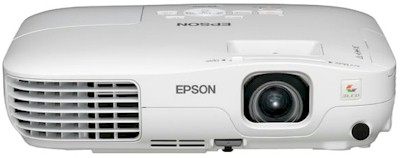
pson_Powerlite_X10+_projector_Epson_ELPLP58_projector_lampReplace your PowerLite X10+ projector lamp using this guide.

Buy authentic

Maintain your Epson PowerLite X10+ projector’s brightness and image quality by installing an OEM replacement projector lamp.  Avoid the cheaper Epson PowerLite X10+ projector lamp; while these knock-off lamps appear to be a bargain, they will actually end up costing you more in the end.

6 reasons to avoid generics

Find this lamp on Amazon sold by these authorized dealers:


End of life signsEpson_PowerLite X10+_projector_Epson_ELPLP58_projector_lamp_lamp_warning

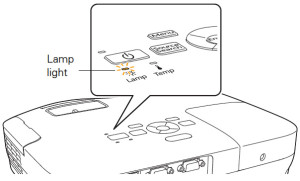
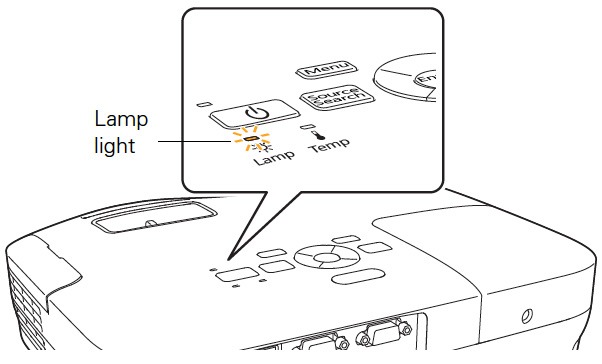
When the Epson PowerLite X10+ is reaching end of life, the projector lamp indicator starts to flash orange. You may also see the Replace the lamp message on screens.

The Epson PowerLite X10+ projector lamp can last for close to 4,000 hours when the power consumption is set to NORMAL and up to 5,000 hours if the ECO option is used. You can check the hours left on the ELPLP58 projector lamp from the INFO Menu access off the Main Menu. Epson_PowerLite X10+_projector_Epson_ELPLP58_check_projector_lamp_hours

Step 3: Installing the new ELPLP58 projector lamp

The Epson PowerLite X10+ uses the Epson ELPLP58 projector lamp. Before replacing the Epson PowerLite X10+ projector lamp follow these important safety rules:

  1. Always unplug the power cord on the Epson PowerLite X10+projector before replacing the projector lamp.
  2. This projector operates using high temperature. Wait at least 60 minutes before replacing the lamp so you don’t run the risk of getting burned.
  3. Never touch the bare projector lamp bulb as the oil from your fingers will burn black marks onto the projector lamp when it heats up.
  4. Never operate the Epson PowerLite X10+ projector with the projector lamp removed.

Epson_PowerLite_X10+_Epson_ELPLP58_remove_projector_lamp_cover

Remove the projector lamp cover screws and place to one side.

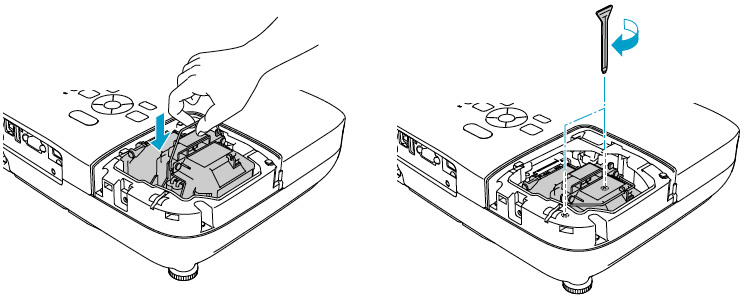
Loosen the two screws holding the Epson ELPLP58 projector lamp in place (you can’t remove them).

Epson_PowerLite_X10+_projector_Epson_ELPLP58_install_new_projector_lampGently lift out the Epson LPLP58 projector lamp taking care not to bang it against the projector.

NOTE: The Epson EPLP58 projector lamp contains mercury and should not be thrown into regular garbage. Recycle this lamp!

Gently insert the new Epson LPLP58 projector lamp. Make sure it fits into the Epson PowerLite X10+ projector properly. (Check that it’s facing the right way.) Tighten the Epson LPLP58 projector lamp.

You can now reset the lamp timer.

Reset the lamp timer

Epson_PowerLite_X10+_projector_Epson_ELPLP58_reset_projector_lamp_timer

After you replace the lamp, you need to reset the Epson PowerLite X10+ projector lamp timer using the projector’s menu system.
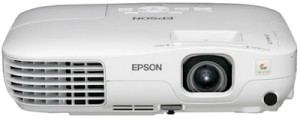
  • Press the MENU button on the remote control or on the projector’s control panel. You see the main menu.
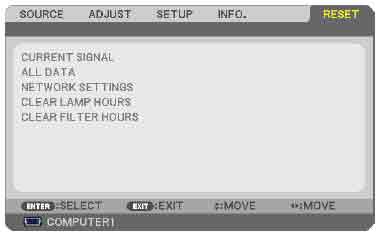
  • Select the RESET menu. Press ENTER.
  • Scroll down to select RESET LAMP HOURS. Press ENTER.
  • A prompt filed appears asking if you want to reset the lamp timer. Select YES. Press ENTER.
  • Press MENU to exit.

Longer life for the ELPLP58 projector lamp

Extend the life of the Epson LPLP58 projector lamp with the following tips:

  • Set the Power Consumption to ECO option.
  • Clean the air filters regularly so the PowerLite X10+ projector doesn’t overheat.
  • Make sure there is enough airflow around the projector.
  • Turn it off when it’s not in use.
  • Learn more: Top tips for extending DLP projector lamp life.


Tagged with: , , ,

Canon_LV-5220E_projector_Canon LV-LP19 9269A001_projector_lamp This step-by-step guide shows you how to replace the Canon LV-5220E projector lamp.

Step 1: Be ready with the right lamp

Keep your Canon projector working at its optimum levels by installing an authentic OEM projector lamp. These projector lamps have been manufactured with high quality materials and calibrated to work with the sophisticated components in your projector. Look for the seal of approval before purchasing your Canon LV-5220E projector lamp.

6 reasons to avoid generic

Don’t be fooled into buying generic lamps. Learn the 7 ways to avoid them.

Buy this lamp on Amazon sold by these authorized dealers:

End of lamp life warnings

Your Canon LV-5220E projector uses the Canon LV-LP19 projector lamp.  When the Canon LV-LP19 projector lamp has reached its end of life the LAMP REPLACE on the projector will light yellow. Replace the lamp immediately when you see this. Other warning signs may be a dim picture, color that appears washed and a image that is fading.

Replace the Canon LV-5220E projector lamp

Before changing the projector lamp:

  • The Canon LV-5220E operates at an extremely high temperature so it needs to cool down for at least 45 minute before you replace the projector lamp. Trying to change the lamp when the projector is still hot can result in a serious burn.
  • Be sure to unplug the electrical cord on the Canon LV-5220E there is no chance the projector could get turned on during the installation. This could damage your projector beyond repair.

Canon_LV-7220E_projector_Canon LV-LP18 -9268A001_projector lamp

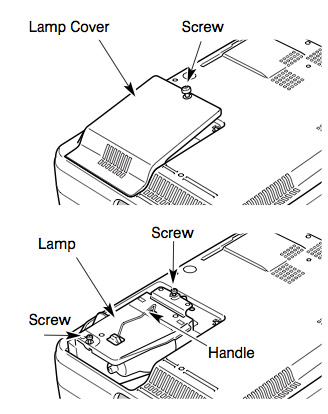
  • Loosen the two screws holding the projector lamp cover in place. Place the cover aside.
  • Loosen the two screws on the with a screwdriver and pull out the Canon LV-LP19 projector lamp assembly by using the built in handle.
  • NOTE: The Canon LV-LP19 projector lamp contains mercury and should be properly recycled. Don’t throw it into regular garbage.
  • Pulling too quickly can cause the bulb to shatter. Learn how to clean up a broken lamp.
  • Replace the lamp assembly with a new Canon LV-LP19. Be careful not to touch the actual bulb as oil from your fingers can leave black marks on the lamp.
  • Tighten the two screws on the lamp.
  • Put back the lamp cover and tighten its two screws.
  • Connect the AC power cord to the Canon LV-LP19 and turn on the projector to reset the lamp timer.

Resetting the lamp timer counter

After replacing the Canon LV-LP19 projector lamp, you’ll need to turn off the LAMP REPLACE indicator by resetting the LAMP REPLACE COUNTER in the Canon LV-5220E. This counter tracks the number of hours the lamp has been used by the Canon LV-5220E and triggers the warning light when the lamp is reaching its end of life. Not resetting it after may stop your projector from turning back on.

Canon_LV-5220E_projector_Canon LV-LP19 9269A001_projector_reset_lamp_timer

  • Turn the projector on and press the MENU.
  • The On-Screen menu will be displayed on the left.
  • Using the arrow buttons, mover the red frame pointer to the SETTING menu icon.
  • Press the up/docwn buttons, move to the LAMP COUNTER option.
  • Press OK to open up as the RESET LAMP COUNTER box.
  • Click on the SET option to open a confirmation window.
  • The message “Lamp replace counter reset?” is displayed.
  • Click on YES.
  • Press OK.
  • The lamp hours will be reset to zero.

Greener Alternatives

Canon_LV-7220E_projector_Canon-LV-LP18--9268A001_projector-lampFor an eco-friendly alternative try re-using the lamp cage and just replacing the bulb? Our training video shows you how with step-by-step instructions on how to green your projector .

Tagged with: , , ,

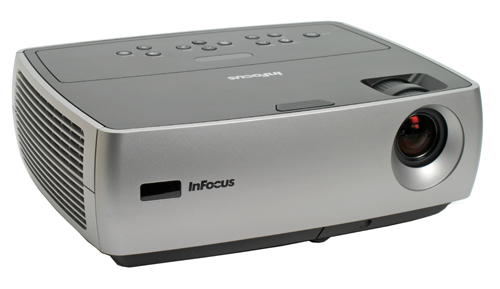
Optoma_DS219_projector-Optoma_BL-FP180D_change_projector_lampOur guide shows you how easily it is to change the Optoma DS219 projector lamp.

Step 1: Watch for replacement signs

As the Optoma DS219 projector lamp is approaching end of life, you’ll notice some warning signs:

  • a screen light that is gradually dimming or deteriorating.
  • image colors appears dark or disoriented.
  • lamp light on the projector is flashing a steady orange.
  • a warning sign on screen saying the lamp is approaching end of life

Invest in authentic lamps

Your Optoma DS219 needs an authentic Optoma BL-FP180D projector lamp. Look for the seal of approval to be sure you’re getting an authentic lamp. Avoid generics and their inferior workmanship that can damage your projector beyond repair. Your Optoma BL-FP180D lasts up to 3000 hours. You’ll get only a few weeks of use from generics and this means you actually spend more money in the long run. Generics also present a health hazard due to their toxic materials and since they are improperly calibrated they can seriously damage the optics in your Optoma DS219 projector. Installing a generic lamps voids your warranty so you won’t be eligible for any repairs. Save yourself the hassles and buy authentic.

Buy this lamp on Amazon sold by these authorized dealers:

How to replace the Optoma BL-FP180D

Follow these important safety steps before installing a new Optoma BL-FU180A replacement projector lamp in your Optoma ES522 projector:

  • Disconnect the power cord.
  • Switch off the power to the Optoma DS219 projector by pressing the Power/Standby button.
  • Allow the projector to cool down for at least 30 minutes. If should be cool to the touch. These projectors run using high temperatures and you can burn yourself badly if you don’t allow the projector to cool down.

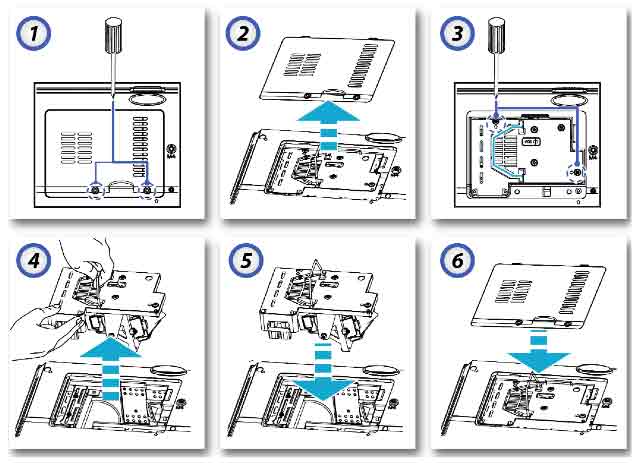
OPTOMA_DS219_PROJECTOR_Optoma_BL-FP180D_change_projector_lamp

1. The lamp cover is located underneath the Optoma DS219 so place it on soft before turning it over. Remove the two captive screws from the cover.

2. Lift the cover up off the Optoma DS219 and place it to one side. You’ll need to re-install the cover after the new projector lamp has been installed or the projector will not turn on.

3. Use a screwdriver to remove the two screws holding the Optoma BL-FU180A  projector lamp module in place.

4. Lift up the wire handle and slowly put out the old Optoma BL-FU180A projector lamp. Be careful not to bang the projector lamp against the projector as this may case the bulb to break. Be sure to recycle this lamp as it contains mercury. Don’t place it into regular garbage.

5. Take the new Optoma BL-FU180A projector lamp out of its package. Gently place it into the Optoma DS219 projector. Tighten the two screws on the projector lamp.

6. Replace the lamp cover and tighten its two screws. You must now reset the Lamp Replacement Timer.

Reset the projector lamp timer

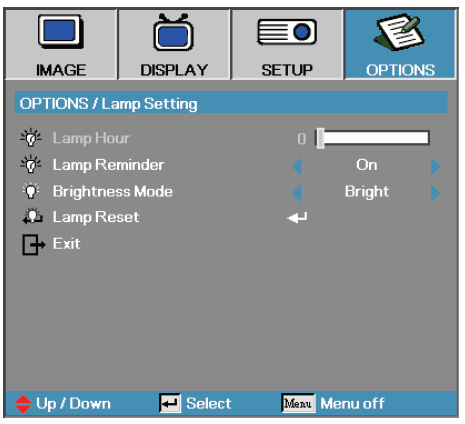
Optoma_DS219_Optoma_BL-FP180D_reset_projector_lamp-timer-menu

The Optoma DS219 projector has an automatic projector lamp reset timer that tracks the life of the lamp and triggers the lamp replacement warning. You need to reset the timer each time the lamp is replaced.

To reset:

  • Press MENU on either the remote or on the projector to launch the on-screen display (OSD) menu.
  • Scroll over the OPTIONS field.
  • Scroll down to Select Lamp Reset.

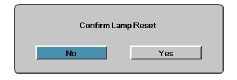
Optoma_DS219_Optoma_BL-FP180D_reset_projector_lamp-timerA confirmation screen displays.

  • Select Yes to reset the lamp counter to zero.
  • Press MENU to exit the menu.

Longer life for the Optoma DS219 projector lamp:

Adjusting the Brightness Mode on the Optoma DS219 projector will make the projector lamp last longer.

  • Press MENU on either the remote or on the projector to launch the on-screen display (OSD) menu.
  • Scroll over the OPTIONS field.
  • Scroll down to Lamp Brightness Mode.
  • Bright is the default setting
  • STD lower brightness setting to conserve lamp life.

Other tips:

  • Keep your air filters clean to avoid overheating the projector.
  • Turn off the Optoma DS219 projector and let it stand for at least one hour ever 24 hours.
  • Make sure there is enough airflow around the projector particularly if it’s been permanently mounted.
  • Top tips for extending DLP projector lamp life
Tagged with: , , ,

Infocus IN26_projector_SP-LAMP-024_replacement_projector_lampReplace the Infocus IN26 projector lamp in 3 easy steps with this guide.

Step 1: Be prepared with an authentic lamp

The Internet has been flooded with cheaper generic lamps that appear to be a great bargain but you get what you pay for. Installing a generic lamp in your InFocus IN26 projector may cause it to not work properly. When you purchase an authentic Infocus IN26 projector lamp, you’re guaranteed a lamp that has been manufactured with high quality parts and calibrated to your projector. Generics don’t offer the same performance. Scroll down to learn the 6 reasons to avoid generics.

Buy this lamp on Amazon sold by these authorized dealers:


Step 2: Know the end of life warning signs

When it’s time to replace the InFocus IN26 projector lamp you may seen the following signs:

  • The projector image gets darker and starts to deteriorate.
  • The projector lamp flashes red.
  • The warning message REPLACE THE LAMP appears on screen.

Replace the InFocus SP-LAMP-024 immediately.

Installing the replacement projector lamp

Follow these important safety steps BEFORE installing the replacement

  • Turn off the InFocus IN26 projector and unplug the power cord.
  • To avoid getting burned, let the InFocus IN26 projector fully cool before changing the lamp.
  • Do not operate the projectors while any of the lamps are removed as this may result in malfunctions, fire hazard and other accidents.
  • Caution: Don’t touch the screen or the actual bulb with your finger since the oil from your skin can cause a black spot on the bulb.

Infocus-IN26_projector_Sanyo_SP-LAMP-024_projector_lamp_cover

  • Turn the projector upside down onto a soft surface.
  • Gently slide projector lamp cover out of its slot.Infocus-IN26_projector_Sanyo_SP-LAMP-024_replacement_projector_lamp
  • Using the screw driver to loosen the screw holding the InFocus SP-LAMP-024 in place.
  • Detach the lamp connector attaching the InFocus SP-LAMP-024 to the InFocus IN26 projector by pressing the locking tab on the connector and gently pulling.
  • Loosen the screw on the projector lamp to loosen the lamp.
  • Grab the InFocus SP-LAMP-024 lamp handle and carefully lift the lamp cage up.Pulling too quickly can cause the bulb to shatter. Learn what to do should the bulb break.
  • Install the new InFocus SP-LAMP-024 lamp housing and tighten the screw.
  • Connect the connection wire from the lamp to the projector
  • Slide the lamp door back in place, making sure it is aligned so it clicks into place.
  • You are ready to reset the lamp hours.

NOTE: The InFocus SP-LAMP-024 projector lamp contains mercury and should not be thrown into regular garbage. Recycle your used lamps!

Reset the projector lamp timer

Infocus-IN26_projector_Sanyo_SP-LAMP-024_reset_projector_lamp_timerAfter replacing the InFocus SP-LAMP-024 projector lamp be sure to reset the lamp hours. Failure to do so will mean your InFocus IN26 projector will NOT TURN ON.

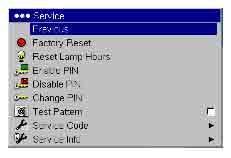
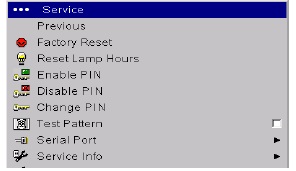
  • Open the MAIN menu. Press SELECT
  • Scroll down to the SERVICE menu.
  • Scroll down to RESET LAMP HOURS.
  • Lamp hours will be reset to zero.

Tips for longer lamp life

  • Keep your air filters clean to avoid overheating the projector.
  • Turn off the InFocus IN26 projector and let it stand for at least one hour ever 24 hours.
  • Make sure there is enough airflow around the projector particularly if it’s been permanently mounted.
  • Top tips for extending DLP projector lamp life

6 reasons to avoid generics:

Learn the 7 Ways to spot a counterfeit lamp.

Tagged with: , ,

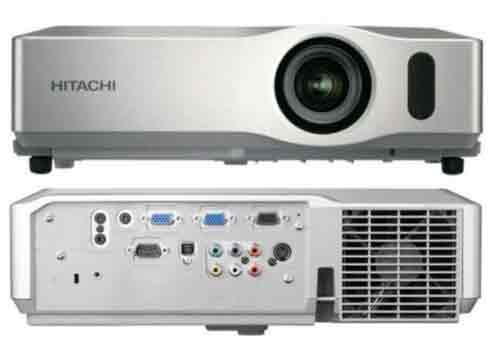
Hitachi-CP-x206_projector_Hitachi-DT00841_replacement_projector_lampNeed to change the Hitachi CP-X206 projector lamp? Follow this guide to learn how.

Tracking the projector lamp life

Watch for these signs that the Hitachi CP-X206 projector lamp is reaching its end of life:

  • Both the Hitachi CP-X206 Power and Lamp Indicators are flashing red while the Temp Indicator is turned off.
  • Color tone on the screen may also appear weak or washed out.
  • Picture has poor color quality.
  • Always be ready for replacing the lamp. Keep track of projector lamp life so you’ll know when to replace the Hitachi CP-X206 projector projector.

Authentic lamps

Keep your Hitachi CP-X206 projector working at its optimum levels by only installing an OEM authentic replacement projector lamp. Avoid generics by looking for the seal of approval before purchasing.

Despite their bargain prices, knockoff generics have a shorter life than original lamps and are also prone to explosions. They are usually missing any safeguards to protect your eyesight from damage and also offer no protection from the toxic substitute parts used. Copycat manufacturers also don’t have the equipment to properly calibrate the lamps fully so they can easily damage the sensitive optics in your Hitachi CP-X206 projector

Learn to spot copycat lamps posing as authentic lamps.

Find this lamp sold on Amazon by these authorized distributors:

Install the Hitachi DT00841 projector lamp

The Hitachi CP-X206 projector uses the Hitachi DT00841. Before installing the new projector lamp, follow these safety measures

  • Turn off the Hitachi CP-X206 projector.
  • Unplug the power cord.
  • Allow the projector to cool for at least 45 minutes. It should be cool to the touch. This projector works using high heat and there is danger you can be burned.
  • NOTE: If the projector is mounted on the ceiling, don’t stand underneath the projector while opening the cover.

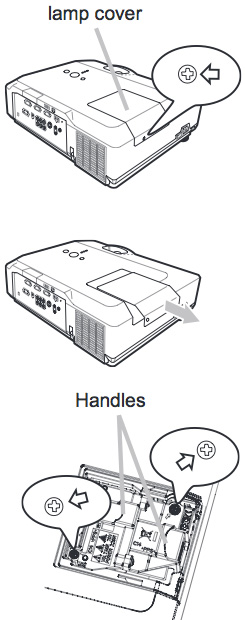
Hitachi_CP-X206_projector_Hitachi DT00841_projector_lamp

  • Prepare the new Hitachi CP-X206 projector lamp. If the projector is mounted on a ceiling, or if the lamp has broken, contact your dealer for assistance.
  • Loosen the screw (marked by arrow) of the lamp cover and then slide the lamp cover to the side to remove it.
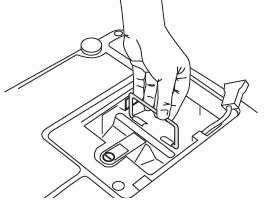
  • Loosen the 2 screws (marked by arrow) of the projector lamp, and slowly pick up the lamp by the handles. Be careful not the bang the lamp. The Hitachi DT00841 projector lamp contains mercury and must be recycled properly. Do not throw it in regular garbage.
  • Insert the new lamp, taking care not to touch the actual bulb. Oil in your fingers will cause a dark spot on the lamp when it heats up.
  • Tighten the two screws of the Hitachi DT00841 projector lamp that were loosened to remove the old projector lamp.
  • Slide the lamp cover back in place and firmly fasten the screw of the lamp cover.
  • Turn on the projector and set the lamp timer:

To reset the projector lamp timer:

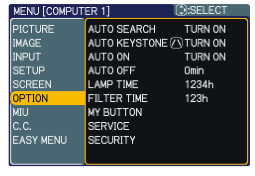
Hitachi_CP-X206_projector_Hitachi-DT00841_projector_lamp_reset_timerNote: Reset the projector lamp time only when you have replaced the lamp so the Hitachi CP-X206 projector can properly track the lamp life. Otherwise you run the risk of using the lamp beyond its lamp life.

  • Press the MENU button
  • Scroll down to the GO TO ADVANCED MENU option. Press ENTER
  • Scroll down to the OPTION menu in the left column and press ENTER.
  • Scroll down to LAMP TIME. Press ENTER To make a dialogue field appear
  • Scroll up to the RESET option on the dialogue box.
  • The lamp setting will be set to zero.

Replacing the air filters

Get more hours from your Hitachi DT00841 by keeping your air filters clean to avoid overheating the projector.

  • Pull the filter frame’s knob up while holding the filter cover. The filter frame will come off and the air filter will appear.
  • Take out the old air filter and insert the new air filter.
  • Put the filter frame back.
  • Put the filter unit back into the projector
  • Turn the projector on and reset the filter time using the FILTER TIME item in the EASY MENU.
  • Learn more with Top tips for extending DLP projector lamp life.


Green your projector

Hitachi_DT00841_replacement_projector_lamp_training_video


Recycle your lamp housing by only replacing the Hitachi CP-X206 lamp. Our training video shows you how to do it.  It’s easy!


Tagged with: , ,

Epson_Powerlite_S10+_projector_Epson_ELPLP58_projector_lampThis guide shows you how to replace the PowerLite S10+ projector lamp in three easy steps.

Step 1: End of life signs

When you see the projector lamp indicator flashing orange, it’s time to change the Epson PowerLite S10+ projector lamp as it is is reaching end of life. You may also see the Replace the Epson_PowerLite S10+_projector_Epson_ELPLP58_projector_lamp_lamp_warninglamp message on screens. Other indications are screen gets darker or starts deteriorate altogether.

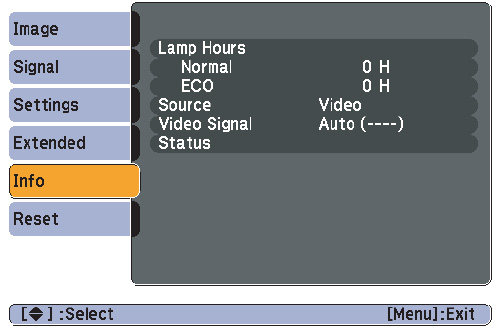
The Epson PowerLite S10+ projector lamp can last for close to 4,000 hours when the power consumption is set to NORMAL and up to 5,000 hours if the ECO option is used. You can check the hours left on the ELPLP58 projector lamp from the INFO Menu access off the Main Menu. Epson_PowerLite 1260_projector_Epson_ELPLP58_check_projector_lamp_hours
Step 2: Buy authentic

In order to maintain your Epson PowerLite S10+ projector’s brightness and image quality, be sure to install an OEM replacement Epson LPLP58 projector lamp. The Epson PowerLite S10+ uses the Epson ELPLP58 projector lamp. Avoid the cheaper generic lamp; while these knock-off lamps appear to be a bargain, they will actually end up costing you more in the end. See the six reasons to avoid generics at the end of this post.

Find this lamp on Amazon sold by these authorized dealers:

Step 3: Installing the new ELPLP58 projector lamp

Before replacing the Epson PowerLite S10+ projector lamp follow these important safety rules:

  1. Always unplug the power cord on the Epson PowerLite S10+projector before replacing the projector lamp.
  2. This projector operates using high temperature. Wait at least 60 minutes before replacing the lamp so you don’t run the risk of getting burned.
  3. Never touch the bare projector lamp bulb as the oil from your fingers will burn black marks onto the projector lamp when it heats up.
  4. Never operate the Epson PowerLite S10+ projector with the projector lamp removed.
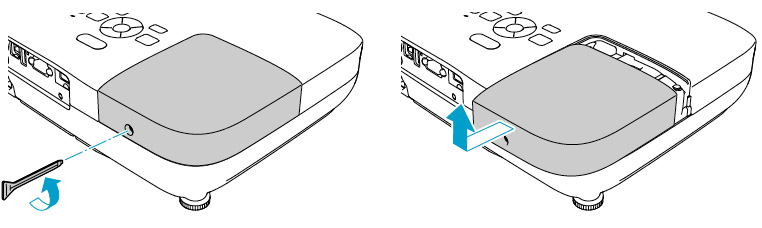
Epson_PowerLite_S10+_Epson_ELPLP58_remove_projector_lamp_cover

Remove the projector lamp cover screws and place to one side.

Loosen the two screws holding the Epson ELPLP58 projector lamp in place (you can’t remove them).Epson_PowerLite_S10+_projector_Epson_ELPLP58_install_new_projector_lampGently lift out the Epson LPLP58 projector lamp taking care not to bang it against the projector. NOTE: The Epson EPLP58 projector lamp contains mercury and should not be thrown into regular garbage. Recycle this lamp!

Gently insert the new Epson LPLP58 projector lamp. Make sure it fits into the Epson PowerLite S10+ projector properly. (Check that it’s facing the right way.) Tighten the Epson LPLP58 projector lamp.

You can now reset the lamp timer.

Reset the lamp timer
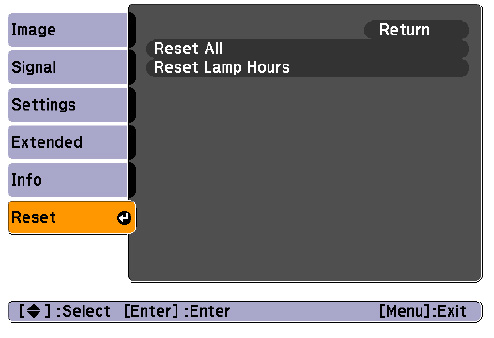
Epson_PowerLite_S10+_projector_Epson_ELPLP58_reset_projector_lamp_timer

After you replace the lamp, you need to reset the Epson PowerLite S10+ projector lamp timer using the projector’s menu system.

  • Press the MENU button on the remote control or on the projector’s control panel. You see the main menu.
  • Select the RESET menu. Press ENTER.
  • Scroll down to select RESET LAMP HOURS. Press ENTER.
  • A prompt filed appears asking if you want to reset the lamp timer. Select YES. Press ENTER.
  • Press MENU to exit.

Longer life for the ELPLP58 projector lamp

Extend the life of the Epson ELPLP58 projector lamp with the following tips:

  • Set the Power Consumption to ECO option.
  • Clean the air filters regularly so the PowerLite S10+ projector doesn’t overheat.
  • Make sure there is enough airflow around the projector.
  • Turn it off when it’s not in use.
  • Learn more: Top tips for extending DLP projector lamp life.
Six reasons to avoid generics

Tagged with: , , ,

NEC_NP300_projector_NP07LP_replacement_projector_lampUse this guide shows to replace the NEC NP300 projector lamp.

End of life warnings

When the NEC NP300 is reaching end of life you’ll see the following warning on screen message: LAMP HAS REACHED THE END OF ITS USABLE LIFE. PLEASE REPLACE THE LAMP AND FILTER. The LAMP indicator will also blink red. If on screen colours looks off or of the picture is faint or has deteriorated replace the NEC NP300 projector lamp immediately.

Finding lamp hours

The NEC NP300 projector uses the NEC NP07LP projector lamp. You can track the hours left for the project lamp with the Usage Time menu.

NEC_NP300_projector_NP07LP_replacement_projector_lamp_hours

  • Go to INFO menu
  • Scroll down to LAMP LIFE REMAINING and LAMP HOURS USED.
  • The progress indicator shows the percentage of remaining bulb life:
  • When the lamp usage reaches 0, the Lamp Life REMAINING starts a count down from 100 hours
  • When the count down reaches 0, the projector will turn off and not turn on.

Authentic lamps are crucial

Keep your NEC NP300 projector working at its best by installing an OEM authentic projectorlamp. Avoid any generic counterfeits created with substandard toxic materials (including the Krypton-85. These lamps shorter life, are prone to explosions and often damage the sensitive electronics in your NEC NP300 projector. Save yourself the hassle and buy authentic!

Find this lamp on Amazon sold by these authorized dealers:

Changing the NEC NP07LP projector lamp

Follow these important safety instructions before installing the new NEC NP07LP projector lamp

  • turn off the NEC NP300 projector.
  • unplug the projector from its power source.
  • unplug the power cable.
  • wait until the projector is cool to the touch to avoid getting burned.

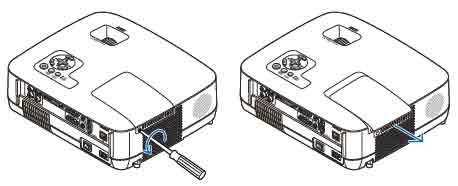
NEC_NP300_projector_NP07LP_remove_projector_lamp_coverLoosen the NEC NP300 projector lamp cover screw.

Push and slide the NEC NP300 projector cover off.

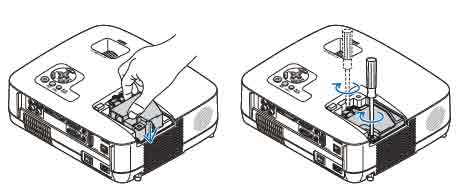
Loosen the two screws holding the NEC NP07LP projector lamp in place. (The screws will not come out only loosen.) Remove the projector lamp by holding the indent and pulling up.


NOTE: Your NEC NP07LP projector lamp should be properly recycled. These lamps contain mercury and can’t be placed into common garbage.

NEC_NP300_projector_NP07LP_installing_replacement_projector_lampInstall a new lamp housing into the NEC NP300 projector, gently pressing the projector lamp housing into the socket. Take care not to touch the actual bulb as your finger prints can leave oil marks that burn black marks onto the bulb.

Push the top center on the projector lamp to secure it. Tighten the screw on the projector lamp.


NEC_NP300_projector_NP07LP_replace_projector_lamp_cover

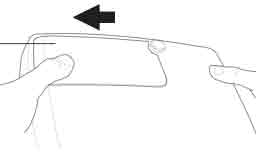
Re-attach the NEC NP300 lamp cover by sliding the cover until it snaps into place. Tighten the screw on the lamp cover.


Reset the lamp timer

Once the NEC NP07LP projector lamp and NEC NP300 projector filter have both been replaced you will need to reset the timer for both. You want the projector to be able to accurately track the projector lamp life.
NEC_NP300_projector_NP07LP_replacement_projector_lamp_hoursClear usage hours and reset hours

  • Plug in the power cored into the wall outlet.
  • Turn on the projector.
  • From the MENU select RESET.
  • Choose CLEAR LAMP HOURS.
  • A confirmation message appears.
  • Select YES.


Extending the life of the NEC NP300 projector lamp

Get your newly installed NEC NP07LP projector lamp will last longer by choosing the ECO option. The ECO MODE increases projector lamp life by lowering the power consumption. There are three modes to choose from:

  • Auto Mode: 4000 hours
  • Normal: 5000 hours
  • Eco ModeL 8000 hours

Learn more tips to extend the life of the NEC NP07LP lamp.

Tagged with: , ,

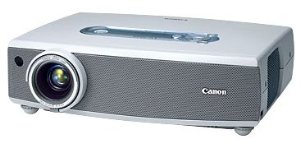
Canon_LV-7225_projector_Canon LV-LP18 -9268A001_projector lampReplace the Canon LV-7225 projector lamp in three simple steps.

Step 1: Be ready with the right lamp

In order to keep your Canon LV-7225 projector operating at its best, install an authentic projector lamp. Look for the seal of approval before buying your replacement Canon LV-7225 projector lamp.

6 reasons to avoid generic

Don’t be fooled into buying generic lamps. Learn the 7 ways to avoid them.

Buy this lamp on Amazon sold by these authorized dealers:

Step 2: Watch for end of  life warnings

Canon_LV-X4_projector_Canon_LV-LP21_projector_lamp_indicator

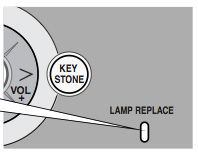
When the Canon LV-7225 projector lamp has reached its end of life the LAMP REPLACE on the projector will light yellow. Replace the lamp immediately when you see this.

Other warning signs may be a dim picture, color that appears washed and a image that is fading.

Step 3: Replace the Canon LV-7225 projector lamp

Before changing the projector lamp:

  • Be sure to unplug the electrical cord so there is no chance the projector could get turned on during the installation. This could damage your projector.
  • Let the Canon LV-7225 cool down for at least 45 minutes. This projector operates at an extremely high temperature and you could get badly burned if it’s still hot. Don’t rush it.

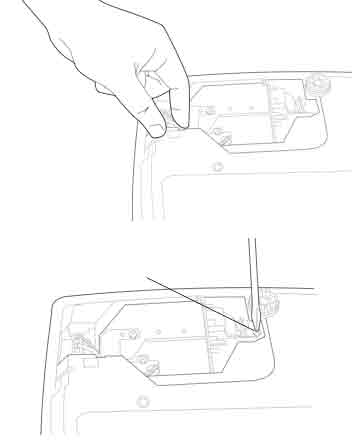
Canon_LV-7225_projector_Canon LV-LP18 -9268A001_projector lampLoosen the two screws holding the projector lamp cover in place. Place the cover aside.

  • Loosen the two screws on the with a screwdriver and pull out the Canon LV-LP18 lamp assembly by using the built in handle.
  • NOTE: The used LV-LP18 projector lamp contains mercury and should be properly recycled. Don’t throw it into regular garbage.
  • Pulling too quickly can cause the bulb to shatter. Learn how to clean up a broken lamp.
  • Replace the lamp assembly with a new Canon LV-LP18. Be careful not to touch the actual bulb as oil from your fingers can leave black marks on the lamp.
  • Tighten the two screws on the lamp.
  • Put back the lamp cover and tighten its two screws.
  • Connect the AC power cord to the Canon LV-LP18 and turn on the projector to reset the lamp timer.

Resetting the lamp timer counter

After replacing the Canon LV-LP18 projector lamp, you’ll need to turn off the LAMP REPLACE indicator by resetting the LAMP REPLACE COUNTER. The counter tracks the number of hours the lamp has been used by the Canon LV-7225 and triggers the warning light when the lamp is reaching its end of life. Not resetting it after may stop your projector from turning back on.

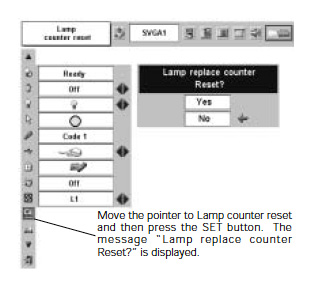
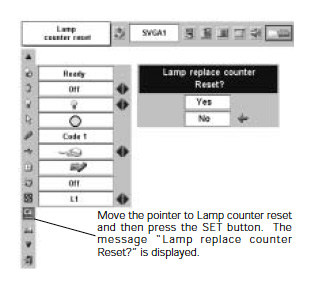
Canon_LV-7225_projector_Canon LV-LP18 -9268A001_projector lamp_reset_timer

  • Turn the projector on and press the MENU.
  • The On-Screen menu will be displayed on the left.
  • Using the arrow buttons, mover the red frame pointer to the SETTING menu icon.
  • Press the up/down buttons, move to the LAMP COUNTER option.
  • Press OK to open up as the RESET LAMP COUNTER box.
  • Click on the SET option to open a confirmation window.
  • The message “Lamp replace counter reset?” is displayed.
  • Click on YES.
  • Press OK.
  • The lamp hours will be reset to zero.
  • Learn how to prolong lamp life.
  • Top tips for extending projector lamp life.
Greener Alternatives

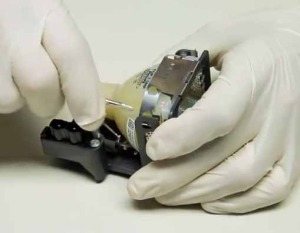
Canon_LV-7230_projector_Canon-LV-LP18--9268A001_projector-lampIf you are looking to do your bit for Mother Nature, why not try re-using the lamp cage and just replacing the bulb? Our training video shows you how to green your projector with step-by-step instructions.

Tagged with: , ,

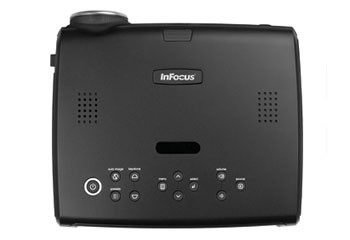
Infocus_IN37_projector_Infocus_SP-LAMP-019 Install a new InFocus IN37 projector lamp by following the steps in this guide.

Invest in authentic

Your InFocus IN37 projector is equipped with sophisticated optics that need the right projector lamp. That means resisting the lure of  cheaper counterfeit models. When you purchase an authentic Infocus IN37 projector lamp, you’re guaranteed a lamp that has been manufactured with high quality parts. Lower priced counterfeit lamps are made with inferior parts that can give you a lower quality light and poor image. They may end up costing you more and can also release carcinogenic materials such as Krypton 95 that are used as substitutes by copy-cat manufacturers. Buy from a legitimate source to keep your projector under warranty and protect your health.

Find this lamp sold on Amazon by these authorized dealers:

  • InFocus SP-LAMP-019 Certified replacement projector lamp for the IN32, IN34, IN34EP, LP600, C170, C175, and C185

End of life warning signs

When it’s time to replace the InFocus IN37 projector lamp you may seen the following signs:

  • The projector image gets darker and starts to deteriorate.
  • The projector lamp flashes red.
  • The warning message REPLACE THE LAMP appears on screen.

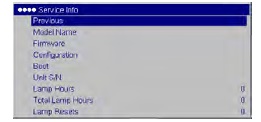
Replace the InFocus SP-LAMP-019 immediately. Infocus_IN37_projector_Infocus_SP-LAMP-019_projector_lamp_hoursCheck the remaining time left using the Service Menus, Total Lamp Hours option.

Step 2: Install the replacement projector lamp

Follow these important safety steps BEFORE installing the replacement

  • Turn off the InFocus IN37 projector and unplug the power cord.
  • To avoid getting burned, let the projector fully cool before changing the lamp.
  • Place the projector on a soft surface.
  • Do not operate the projectors while any of the lamps are removed as this may result in malfunctions, fire hazard and other accidents.
  • Caution: Don’t touch the screen or the actual bulb with your finger since the oil from your skin can cause a black spot on the bulb.

Infocus_IN37_projector_Infocus_SP-LAMP-019_replacement_projector_lamp

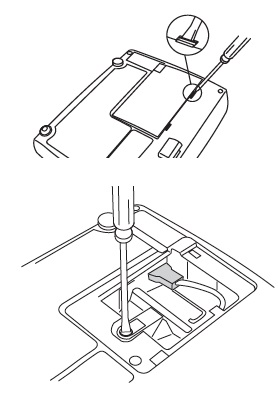
  • Remove the lamp door by using a screw driver to gently pop off the cover.
  • Slide the door forward and lift the door off.
  • Using the screw driver to loosen the screw holding the InFocus SP-LAMP-019 in place.
  • Disconnect the connector attaching the InFocus SP-LAMP-019 to the InFocus IN37 projector.

Infocus_IN37_projector_Infocus_SP-LAMP-019_disconnect_projector_lamp Infocus_IN37_projector_Infocus_SP-LAMP-019_remove_projector_lamp

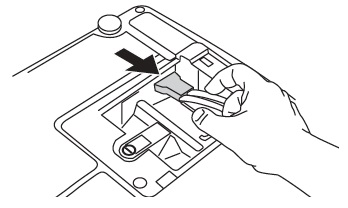
  • Grab the InFocus SP-LAMP-019 lamp handle and carefully lift the lamp cage up.Pulling too quickly can cause the bulb to shatter. Learn what to do should the bulb break.
  • Install the new InFocus SP-LAMP-019 lamp housing and tighten the screw.
  • Connect the connection wire from the lamp to the projector
  • Slide the lamp door back in place, making sure it is aligned so it clicks into place.
  • You are ready to reset the lamp hours.
NOTE: The InFocus SP-LAMP-019 contains mercury and should not be thrown into regular garbage. Recycle your used lamps!

Step 3: Reset the projector lamp timer

Infocus_IN37_projector_Infocus_SP-LAMP-019_resset_projector_lamp_timerAfter replacing the InFocus SP-LAMP-019 projector lamp be sure to reset the lamp hours. Failure to do so will mean your InFocus IN37 will NOT TURN ON.

  • Open the MAIN menu. Press SELECT
  • Scroll down to the SERVICE menu.
  • Scroll down to RESET LAMP HOURS.
  • Lamp hours will be reset to zero.

Tips for longer lamp life

  • Keep your air filters clean to avoid overheating the projector.
  • Turn off the InFocus IN37 and let it stand for at least one hour ever 24 hours.
  • Make sure there is enough airflow around the projector particularly if it’s been permanently mounted.
  • Top tips for extending DLP projector lamp life


Tagged with: , , ,

Optoma EX542_projector_BL-FP180E SP.8EF01GC01_projector_lampKeep your projector working! Learn how to replace the Optoma EX542 projector lamp projector lamp using this guide.

The Optoma EX542 is the ultimate for gamers, sports lovers and film buffs. It’s wide screen format is perfect for 3D gaming or HD viewing. Like any other projector, it uses a specialized projector lamp that will need to be changed after 3000 hours of use. Follow our 4-step guide to changing the Optoma EX542 projector lamp.

Find this lamp sold on Amazon by these authorized distributors:

Step One: Buying the right projector lamp

Your Optoma EX542 uses the BL-FP180E projector lamp.

Be sure to buy an authentic projector lamp in order to keep your projector working properly and avoid safety and health issues from counterfeit lamps. While the price of generic lamps can be tempting, installing them into your Optoma EX542 projector can result in the sophisticated optics being damaged beyond repair. Generic lamps also don’t have the proper safeguards and can damaged your eyesight. Scroll down to learn more. Why buy authentic?

Step Two: Know when to replace

When the Optoma BL-FP180E projector lamp life is reaching end of life, you’ll see a warning sign appear on screen.

Optoma_EX542_BL-FPI80E_projector_lamp_warning

Replace the lamp immediately when you see this warning signs. Using the lamp beyond its recommended 3000 hours can result in the lamp exploding inside the projector. This results in a messy and time consuming clean up job. Watch for these other signs that the BL-FP180E lamp may be reaching it’s end of life:

  • the Lamp LED flashing amber
  • picture has poor colour quality
  • image vibrancy and definition has deteriorated

Step Three: Installing a new Optoma EX542 lamp

Pre-installation safety preparation:

Follow these important safety tips before installing a new BL-FP180E into your Optoma EX542 projector.

  • Switch off the power to the projector by pressing the Power/Standby button.
  • Allow the projector to cool down for at least 30 minutes. If should be cool to the touch. The Optoma EX542 runs at a high temperature and you can burn yourself badly if you don’t allow the projector to cool down.
  • Disconnect the power cord.

Step-by-step instructions

Remove the old lamp

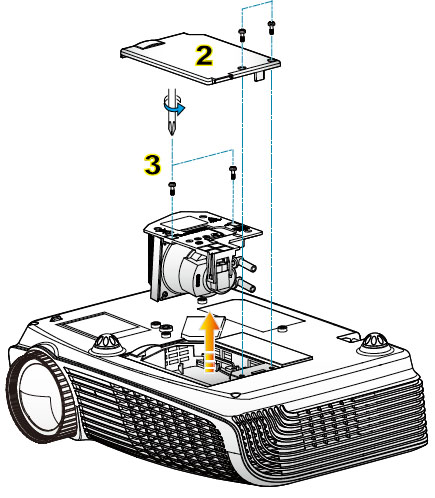
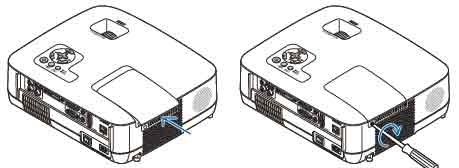
Optoma_EX542__projector_BL-FPI80E_replace_projector_lamp1: Use a screwdriver to loosen the two screws holding the projector lamp cover in place. The Optoma EX542 projector should be cool to the touch.

2: Remove the lamp cover and place to one side. Don’t lose the screws to the cover as the projector will not turn back on until the projector lamp cover has been properly installed.

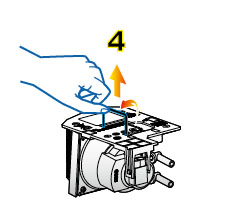
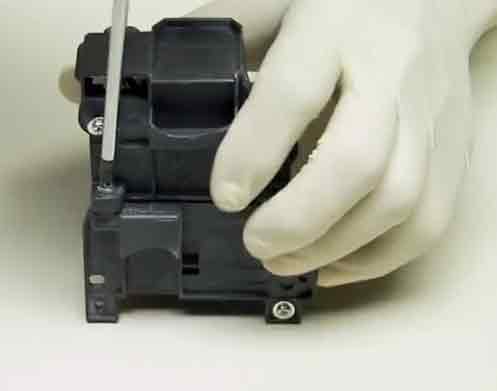
3: Remove both screws holding the BL-FP180E  projector lamp in place.Lift the wire handle on the lamp and gently remove it from the projector. Be careful not to hit the lamp or you can cause it to break.

  • NOTE: The BL-FP180E  contains mercury and should not be thrown into regular garbage. Recycle this lamp.

Install the new lamp:

Optoma_Ex542_BL-FPI80E_install_new_projector_lamp

  • Take the new Optoma BL-FP180E projector lamp out of its packaging and lift the handle on the lamp.
  • Gently place it into the projector making sure not to touch the actual bulb. Oil from fingerprint marks can burn black spots onto the lamp when it heats up.
  • Tighten the screws on the projector lamp.
  • Close the lid. Tighten the cover screws.
  • You are now ready to reset the lamp timer.

Step 4: Reset the Optoma EX542 projector lamp timer

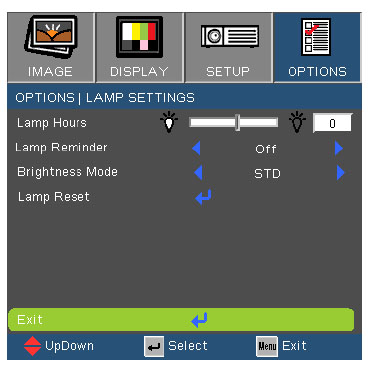
Your Optoma EX542 comes equipped with an automatic projector lamp timer that tracks the number of hours left for the BL-FP180E (SP.8EF01GC01) lamp. Each time you change the lamp you need to reset the lamp timer. Failure to do so may cause the projector to use the lamp over the recommended period of time resulting in the lamp exploding.

Optoma_EX542_BL-FPI80E_reset_lamp_timer

To reset the lamp timer:

  • Press MENU
  • Select OPTIONS
  • Select Lamp Settings
  • Select Lamp Reset
  • Select Yes

TIP FOR LONGER LAMP LIFE:

Under Brightness Mode:

  • Choose STD to dim the projector lamp and lower power consumption making the lamp last longer.
  • Choose BRIGHT to make the lamp brighter but decrease lamp life.
Why buy authentic?

Watch for telltale signs you are about to purchase a counterfeit lamp:

Learn the TOP Tips for extending the lamp life in your Optoma EX542 projector.
 

Tagged with: , ,
Join the discussion on Facebook! All your questions, answered! The Screen & Projector Group