We're now Screen and Projector! For updated content, visit ScreenAndProjector.com and follow @screenandproj on social media!

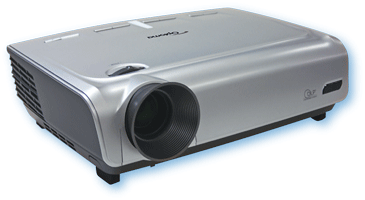
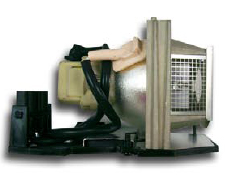
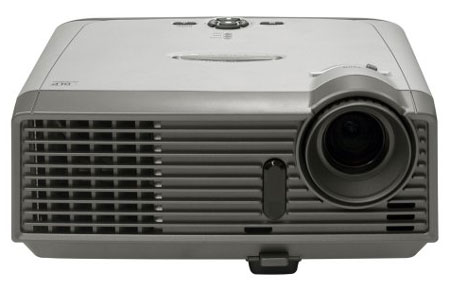
Optoma_EP747H_projectors_Optoma_BL-FP230A_projector_lampReplace the Optoma EP747H projector lamp in three easy steps.

Be sure to buy an authentic an Optoma EP747H projector lamp. Scroll down to learn why authentic lamps are so important for your projector.

At 30 hours, when  the Optoma EP747H projector lamp is reaching end of life, you will see the Lamp Replacement message. Replace immediately!

Find this lamp from the following OEM manufacturers on Amazon:

Replace the projector lamp

Step 1:

  • Lamp_Replacement_Remove_screws_Optoma_BL-FP230H_projector_lamp_projector_EP747aSwitch off the power to the Optoma EP747H projector by pressing the Power/Standby button.
  • Allow the projector to cool down for at least 30 minutes. If should be cool to the touch. These projectors run using high temperatures and you can burn yourself badly if you don’t allow the projector to cool down.
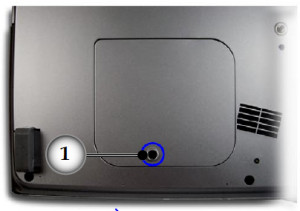
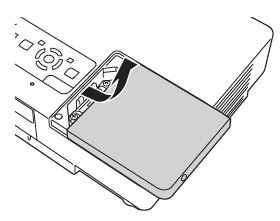
  • Disconnect the power cord. Using a screwdriver, remove the screws holding the cover in place.
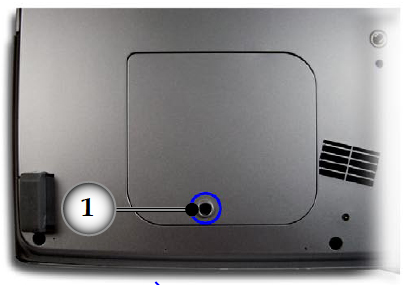
Replacement_remove_cover_Optoma_BL-FP230A_projector_lamp_Optoma_EP747H_projector

Push the cover up to remove.


EP747H_Lamp_Replacement_remove_lamp_screws_Optoma_BL-FP230A_projector_lamp

 Step 2

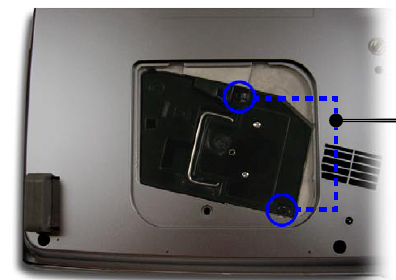
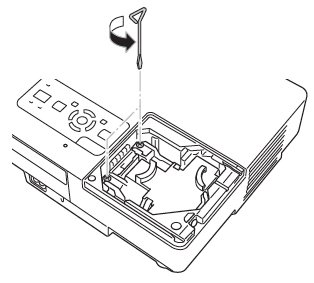
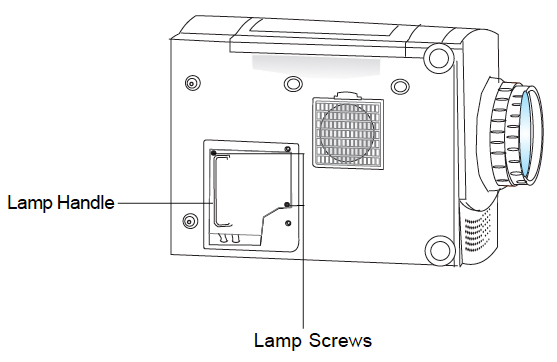
  • Use a screwdriver to remove the two screws holding the lamp module in place.
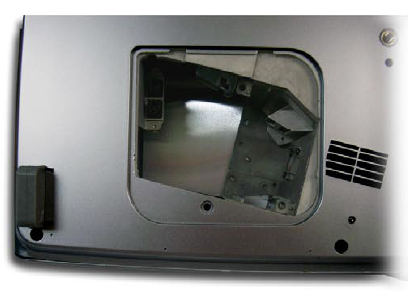
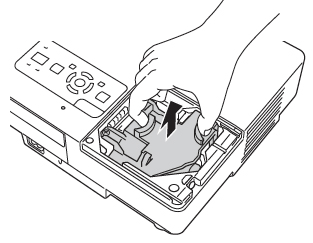
  • Slowly put out the old lamp by grabbing the edge of the lamp. Be careful not to bang the lamp against the projector as this may case the bulb to break. Learn what to do if the lamp has exploded inside the projector.
  • Note: The used Optoma BL-FP230A contains mercury and should not be thrown out with regular garbage and should be recycled.

Optoma_EP747H_projector_remove_ BL-FP230A_lamp

 Step 3

  • Place the new Optoma BL-FP230A (SP.83R01G001) into the Optoma EP747H projector. Tighten the two screws on the lamp. Replace the lamp cover and tighten its two screws.
  • You must now reset the Lamp Replacement Timer.


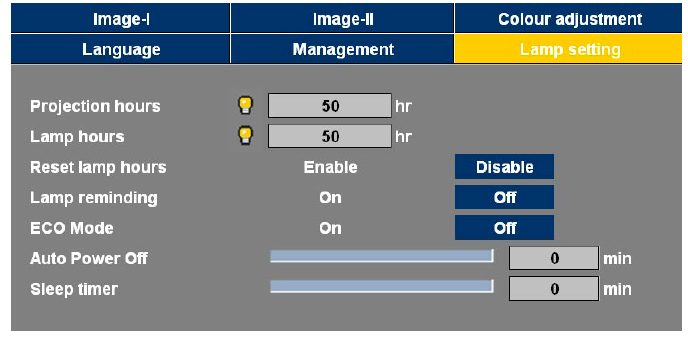
Reset the lamp timing on the Optoma EP747H

Optoma_EP747a_projector_Lamp_Control_Menu_Optoma_BL-FP230A_projector_lamp

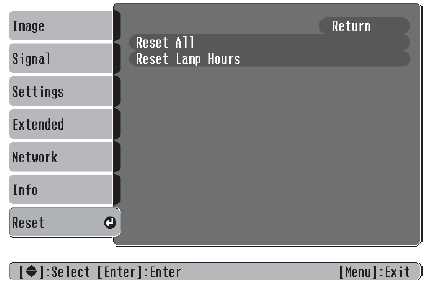
  • Press the Menu option on either the remote or on the projector.
  • Scroll over the Lamp Setting. Press enter.
  • Select Reset Lamp Hours. Press Enter
  • The Execute/Cancel command line will appear.
  • Scroll over to choose Execute. Press Enter.
  • The lamp hours will be reset to zero.

Turn on the Eco Mode to lower power consumption and extend the lamp life by 130%.

Why buy authentic lamps?

Optoma_BL-FP230A_projector_lamp_EP747_Lamp_Replace_LampThere are lots of choices out there on the Internet. Since selling online has few regulations, it’s easy to get duped into buying an inferior knock-off lamp posing as an authentic Optoma BL-FP230A.

The tell tale sign is a price that seems too good to be true. These counterfeit manufacturers will advertise their lamp as “compatible.” However, it’s anything but compatible.

Why avoid generics:

Learn how to spot the copycat fake lamps with 7 Ways to Spot a Counterfeit Lamp.

Tagged with: , ,

Learn how to clean your DLP projector

Cleaning_DLP_1080p_projector

After several months of use, your DLP projector is going to need some cleaning. Basic cleaning includes keeping the air filter free of dust and lint, keeping the projector lens clean and removing any marks or dirt from the body of the projector. Follow these guidelines to to clean your DLP projector.

Cleaning the air filter

It’s important to clean the air filter regularly to prevent your DLP 1080p projector from overheating and possibly causing it to shut down. Most manufacturers recommend cleaning the filters at least every six weeks or whenever they are dusty. This will depend on how often you use the projector and your environment.

DO:

  • Use a can of compressed air to blow the dust away.
  • Vacuum the filter with a vacuum cleaner designed for computers and other office equipment.
  • Gently shake out the filter to release any dust.
  • Check with your manufacturer. Some recommend replacing the filter altogether rather than trying to clean it.

DON’T

  • Wash the filter with soap or water as this can damage the filter membranes.
  • Use a regular vacuum cleaner on the filter or inside the projector.
  • Unplug the projector while the fan is running.
  • Block the projector’s ventilation openings.

Need more information? Check out: Have you cleaned your 1080p projector filter today?


Cleaning the projector lens

A build-up of dust, lint, dirt and fingerprints on the projector lens can impact the image projected onto the screen. Keep your lens clear for optimal viewing.

DO

  • Clean immediately whenever you notice dust, fingerprints or dirt on the surface of the lens.
  • Use a soft, lint-free cloth to wipe the lens.
  • Use a canister of compressed air to remove dust from the outside of the lens.
  • Use lens-cleaning paper to remove fingerprints or other marks.
  • Wipe the lens in a single direction.

DON’T

  • Use abrasive cloths on the lens
  • Use wet cloths or abrasive cleaners.
  • Rub the lens with abrasive materials.
  • Wipe back and forth across the lens – this can scratch the lens.
  • Use a cloth that is very old.
  • Use a cloth washed with fabric softener or dryer sheets as these chemicals can cloud the lens.
  • Spray any type cleaner directly onto the lens surface.


Cleaning the projector body

Your projector is bound to pick up grime from everyday use, particularly if you are using it for presentations while on the road. Regularly cleaning will help keep your DLP 1080p projector looking like new.

DO

  • Wipe the entire surface of the projector using a clean, dry, soft cloth.
  • Turn off the projector before cleaning the body.
  • Unplug the power cord and the cables to any video sources.
  • Use a neutral, mild detergent watered down with a soft, moist cloth to remove stubborn stains.


DON’T

  • Use any cleaning product with wax, alcohol, solvents, benzene or other chemicals.
  • Use any abrasive cleaners since they can scratch the body.
  • Use cloths containing chemicals or made with scratchy fabric.

Read more about maintaining your DLP 1080p projector:


Tagged with: , , , ,

Optoma_EP749_projector_Optoma_BL-FP230C_projector_lampHas your Optoma EP749 projector lamp started to fade? Are you seeing warning messages?

Consult our guide to install a new Optoma EP749 projector lamp.

Start off right

Before you replace the Optoma EP749 projector lamp make sure you have the correct lamp. In order to keep your Optoma EP749 projector working at it’s best, look for a OEM authentic lamp to install. Look for the seal of approval to be  sure you’re getting an authentic Optoma EP749 projector lamp.

Why avoid generic lamps?

Counterfeit lamps are easy to come by and appear to be a great deal. But they come with a hidden price tag that works out to be more money in the long run. Since they are created with toxic materials used as substiutions, these projector lamps don’t have the proper safeguards to protect your eyesight.

They are also prone to explosions, don’t last as long as authentic and can damage the sensitive optics in your Optoma EP749 projector. Learn the 7 Ways to Spot a Counterfeit Lamp.

Buy this lamp on Amazon sold by these authorized dealers:

Replacing the Optoma BL-FP230C

Follow these important safety steps before installing a new Optoma BL-FS200B projector lamp:

  • The used Optoma BL-FS200B projector lamp contains mercury and should be properly recycled. Don’t throw it into regular garbage.
  • Switch off the power to the Optoma EP749 projector by pressing the Power/Standby button.
  • Disconnect the power cord.
  • Allow the projector to cool down for at least 30 minutes. If should be cool to the touch. These projectors run using high temperatures and you can burn yourself badly if you don’t allow the projector to cool down.

Optoma_EP749_remove_cover_Optoma_BLFP230C_projector_lamp

Place something soft underneath the Optoma EP749 and then turn the projector onto it’s back. Remove the two screws holding the cover in place.

Optoma_EP749_cover_Optoma_BLFP230C_projector_lamp

Push the projector lamp cover up to remove.

Optoma_EP7475_projector_remove_ BL-FP230A_projector_lampUse a screwdriver to remove the two screws holding the projector lamp module in place.

Slowly put out the old lamp by grabbing the edge of the lamp. Be careful not to bang the lamp against the projector as this may case the bulb to break. Learn what to do if the lamp has exploded inside the projector.

Place the new Optoma BL-FS200B projector lamp into the Optoma EP749 projector. Tighten the two screws on the projector lamp. Replace the projector lamp cover and tighten its two screws.

You must now reset the Lamp Replacement Timer.

Reset the lamp timing on the Optoma EP749

The Optoma EP749 projector has an automatic lamp reset timer that tracks the life of the lamp and triggers the lamp replacement warning. You need to reset the timer each time the projector lamp is replaced.

  • Press the Menu option on either the remote or on the projector.
  • Scroll over the Lamp Setting. Press enter.
  • Select Reset Lamp Hours. Press Enter
  • The Execute/Cancel command line will appear.
  • Scroll over to choose Execute. Press Enter.
  • The lamp hours will be reset to zero.

How to extend the life of the Optoma BL-FS200B

  • Turning on the Eco Mode to lower power consumption and extend the lamp life by 130%.
  • Keep your air filters clean to avoid overheating the projector.
  • Turn off the Optoma EP749 projector and let it stand for at least one hour ever 24 hours.
  • Make sure there is enough airflow around the projector particularly if it’s been permanently mounted.
  • Top tips for extending DLP projector lamp life
Tagged with: , ,

Aspect_Ratio_1080p_projectorsAspect ratio is one of the most important considerations when choosing a projector screen

Aspect ratio is just as important as the projector’s gain and material. It’s the proportion of width and height of an image projected onto the screen. It’s typically expressed as numbers, such as 4:3, but these numbers ARE NEVER the size of the screen.

The first number (4) is the width of the image while the second number is the height. So for example, 4:3 would mean that for every four inches of image width, you would have 3 inches of height.

The aspect ratio on your projector screen is going to depend on what you plan to watch. It will help you determine what screen to buy

Typical North America measurements are:

  • Standard 4:3
  • Widescreen: 16:9
  • Cinemascope: 2.35:1

4:3

This is the standard aspect ratio even though it’s considered somewhat dated. Despite our move to HD content, broadcasters still put out films and TV shows in 4:30 aspect ratio. All VHS tapes of older films and TV shows will be in this aspect ratio. Displaying them on a larger screen will make the image appear stretched or create black borders running along the edge called pillar boxing. The 4:3 aspect ratio is almost the standard for business presentations. However, with the introduction of laptops with widescreen displays, some businesses are moving away from this standard.  Any device or projector screen with the 4:3 aspect ratio will not be able to show High Definition visual since they requite widescreen resolutions. HD films, TV shows or videogame graphics and text when forced into the 4:3 resolutions are going to appear squashed due to the image compression.

16:9

Almost all HD film and TV programming is presented in the 16:9 ratio, particularly with sporting event. This is also the standard aspect ratio for all films including those on Blu-ray discs and DVDs so is the most often used in any home theater projectors.  HDTV programs’ images fit perfectly on a screen with 16:9 aspect ratios with no image distortion. You can watch 4:3 aspect ratio without any issues except for the black borders along the edges. These black bars are going to be seen more easily on white screens with a lower gain.

2.35:1

The 2.35:1 settings is most suited for film buff seeking the cinemascope experience with their home theater. Best suited for film buffs that want to use their projection screens primarily to watch modern movies. With a 2.35:1 screen, the height is always filled, no matter what the aspect ratio of the film to TV show.

Read more about choosing your projector:

Tagged with: , , ,

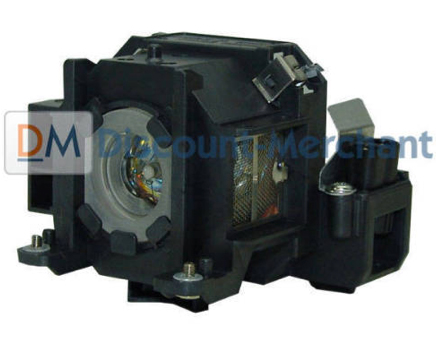
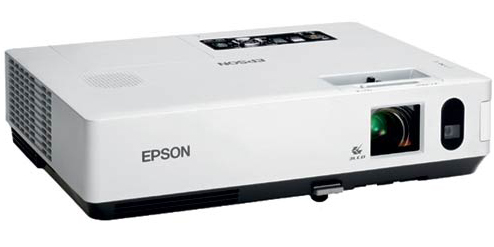
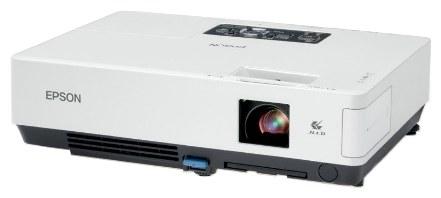
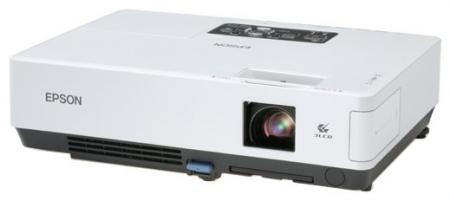
Epson_ELPLP38_projector_lampFollow this guide for instructions on replacing the Epson ELPLP38 lamp.

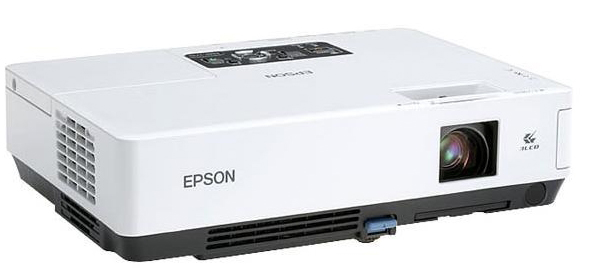
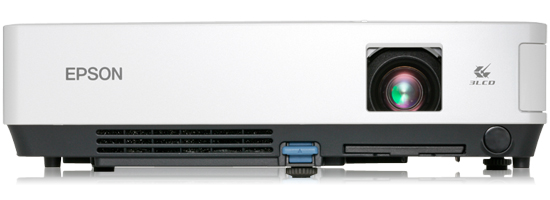
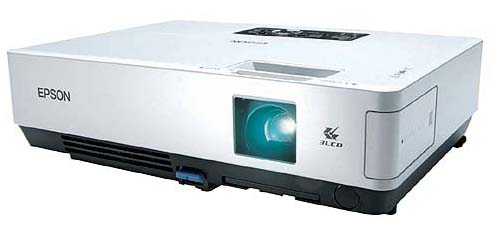
Find out if your projector is compatible with the Epson ELPLP38 lamp! The Epson ELPLP38 is an authentic projector lamp compatible with the following Epson Projectors:

Epson EMP-1700, Epson EMP-1705, Epson EMP-1707, Epson EMP-1710, Epson EMP-1715, Epson EMP-1717, Epson PowerLite 1505, Epson PowerLite 1700, Epson PowerLite 1700c, Epson PowerLite 1705c, Epson PowerLite 1710, Epson PowerLite 1710c, Epson PowerLite 1715c, Epson PowerLite 1717c.

Be sure to buy authentic

Before you install any Epson ELPLP38 lamp look for the seal of approval and be sure to buy authentic:

Buy this lamp on Amazon from the following authorized dealers:

For step-by-step instructions on replacing your Epson ELPLP38 lamp, click on your projector listed below:

powerlite_1705_epson_ELPLP38_light

Click here for step-by-step instructions on how to change the Epson ELPLP38 projector lamp for the Epson PowerLite 1505 projector.

Epson_PowerLite_1700c_Epson_ELPLP38

Click here for step-by-step instructions on how to change the Epson ELPLP38 projector lamp for the Epson PowerLite 1700 projector.

Epson_PowerLite_1700c_Epson_ELPLP38

Click here for step-by-step instructions on how to change the Epson ELPLP38 projector lamp for the Epson PowerLite 1700c projector.

Epson_EMP-1710_projector_Epson_ELPLP38

Click here for step-by-step instructions on how to change the Epson ELPLP38 projector lamp for the Epson PowerLite 1705c projector.

epson_powerlite_1710_projector

Click here for step-by-step instructions on how to change the Epson ELPLP38 projector lamp for the Epson PowerLite 1710 projector.

epson_emp-1717 projector

Click here for step-by-step instructions on how to change the Epson ELPLP38 projector lamp for the Epson PowerLite 1710c projector.

powerlite_1705_epson_ELPLP38_light

Click here for step-by-step instructions on how to change the Epson ELPLP38 projector lamp for the Epson PowerLite 1715c projector.

epson_Powerlite-1717_projector

Click here for step-by-step instructions on how to change the Epson ELPLP38 projector lamp for the Epson PowerLite 1717c projector.

How to extend the life of the Epson ELPLP38 lamp:

Extend the life of the newly installed Epson ELPLP38 with the following tips:

  • Keep your air filters clean to avoid overheating the projector.
  • Turn off the Epson projectors and let it stand for at least one hour ever 24 hours. An average use of four to five hours per day will ensure longer lamp life.
  • Make sure there is enough airflow around the projector particularly if it’s been permanently mounted.
  • Set the Brightness Mode to low or Econo Mode to extend lamp life.
  • Learn more with Top tips for extending DLP projector lamp life.
Tagged with: , , , , , , , , , , , , , ,

Install a new Optoma EP7475 projector lamp

Replacing the Optoma EP7475 projector lamp doesn’t have to be time consuming or difficult. This quick guide will help you install a new Optoma BL-FP230A lamp in less than 15 minutes.

Optoma_EP7475_projectors_Optoma_BL-FP230A_projector_lampWhen the Optoma EP7475 projector lamp lamp is reaching end of life, the Lamp Replacement message will appear on screen. You should prepare to change the lamp as you 30 hours or less Fbefore the projector shuts down.

Be prepared, buy authentic

Be sure to buy an authentic an Optoma BL-FP230A lamp for the Optoma EP7475 projector. Scroll down for the 6 reasons to avoid generics.

Find this lamp on Amazon from these authorize dealers:


Step-by-step instructions

Follow these safety steps before installing the new Optoma BL-FP230A lamp:

  • Switch off the power to the Optoma EP7475 projector by pressing the Power/Standby button.
  • Disconnect the power cord.
  • Allow the projector to cool down for at least 30 minutes. If should be cool to the touch. These projectors run using high temperatures and you can burn yourself badly if you don’t allow the projector to cool down.

Lamp_Replacement_Remove_screws_Optoma_BL-FP230A_projector_lamp_projector_EP7475


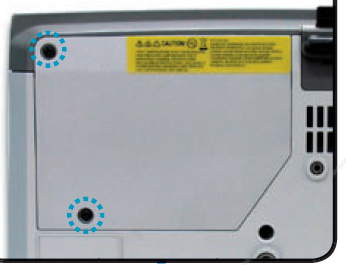
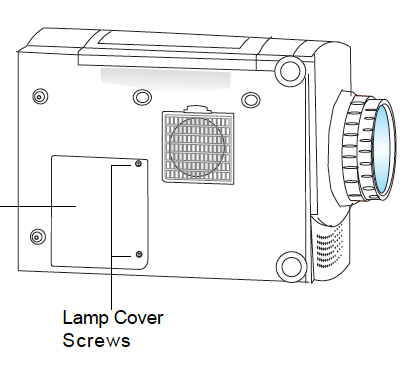
Using a screwdriver, remove the screws holding the cover in place.
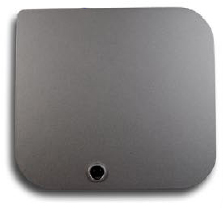
Replacement_remove_cover_Optoma_BL-FP230A_projector_lamp_Optoma_EP7475_projector

Push the cover up to remove.

EP7475_Lamp_Replacement_remove_lamp_screws_Optoma_BL-FP230A_projector_lamp


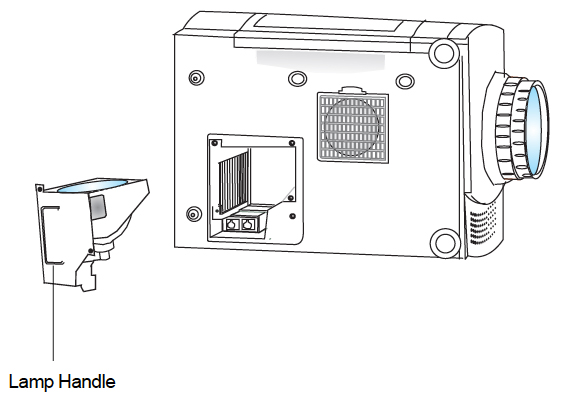
Use a screwdriver to remove the two screws holding the lamp module in place.

Slowly put out the old lamp by grabbing the edge of the lamp. Be careful not to bang the lamp against the projector as this may case the bulb to break. Learn what to do if the lamp has exploded inside the projector.

Note: The used Optoma BL-FP230A lamp contains mercury and should be properly recycled. Don’t throw it into regular garbage.

Optoma_EP7475_projector_remove_ BL-FP230A_lamp


Place the new BL-FP230A into the Optoma EP7475 projector. Tighten the two screws on the lamp. Replace the lamp cover and tighten its two screws.

You must now reset the Lamp Replacement Timer.


Reset the lamp timing on the Optoma EP7475

The Optoma EP7474 projector has an automatic lamp reset timer that tracks the life of the lamp and triggers the lamp replacement warning. You need to reset the timer each time the lamp is replaced.

Optoma_EP7475_projector_Lamp_Control_Menu_Optoma_BL-FP230A_projector_lamp

  • Press the Menu option on either the remote or on the projector.
  • Scroll over the Lamp Setting. Press enter.
  • Select Reset Lamp Hours. Press Enter
  • The Execute/Cancel command line will appear.
  • Scroll over to choose Execute. Press Enter.
  • The lamp hours will be reset to zero.

Extend the life of the Optoma BL-FP230A (SP.83R01G001) lamp by:

  • Turning on the Eco Mode to lower power consumption and extend the lamp life by 130%.
  • Keep your air filters clean to avoid overheating the projector.
  • Turn off the Optoma EP7475 projector and let it stand for at least one hour ever 24 hours.
  • Make sure there is enough airflow around the projector particularly if it’s been permanently mounted.
  • Learn more with Top tips for extending DLP projector lamp life

6 reason to avoid generics:

Learn the 7 Ways to Spot a Counterfeit Lamp.
 

Tagged with: , ,

Epson_ELPLP38_projector_lThe Epson ELPLP38 lamp is compatible with a number of projectors

Wondering which projectors can be paired with the Epson ELPLP38 lamp? Keep reading.

Before you install any Epson ELPLP38 lamp look for the seal of approval and be sure to buy authentic:

Buy this lamp on Amazon from the following authorized dealers:

Compatible projectors with the Epson ELPLP38 lamp

The Epson ELPLP38 is an authentic projector lamp compatible with the following Epson Projectors:

Epson EMP-1700, Epson EMP-1705, Epson EMP-1707, Epson EMP-1710, Epson EMP-1715, Epson EMP-1717, Epson PowerLite 1505, Epson PowerLite 1700, Epson PowerLite 1700c, Epson PowerLite 1705c, Epson PowerLite 1710, Epson PowerLite 1710c, Epson PowerLite 1715c, Epson PowerLite 1717c.

For step-by-step instructions on replacing your Epson ELPLP38 lamp, click on your projector listed below:


Epson_EMP_1700_projector_Epson_ELPLP38

Click here for step-by-step instructions on how to change the Epson ELPLP38 projector lamp for the Epson EMP-1700 projector.


Epson_EMP_1705_projector_Epson_ELPLP38

Click here for step-by-step instructions on how to change the Epson ELPLP38 projector lamp for the Epson EMP-1705 projector.


epson_emp-1707_projector_epson_ELPLP38_lamp

Click here for step-by-step instructions on how to change the Epson ELPLP38 projector lamp for the Epson EMP-1707 projector.


Epson_EMP-1710_projector_Epson_ELPLP38

Click here for step-by-step instructions on how to change the Epson ELPLP38 projector lamp for the Epson EMP-1710 projector.


epson-powerlite-1715c-projector_Epson_ELPLP38

Click here for step-by-step instructions on how to change the Epson ELPLP38 projector lamp for the Epson EMP-1715 projector.


epson_emp-1717 projector


Click here for step-by-step instructions on how to change the Epson ELPLP38 projector lamp for the Epson EMP-1717 projector.

How to extend the life of the Epson ELPLP38 lamp:

Extend the life of the newly installed Epson ELPLP38 with the following tips:

  • Keep your air filters clean to avoid overheating the projector.
  • Turn off the Epson projectors and let it stand for at least one hour ever 24 hours. An average use of four to five hours per day will ensure longer lamp life.
  • Make sure there is enough airflow around the projector particularly if it’s been permanently mounted.
  • Set the Brightness Mode to low or Econo Mode to extend lamp life.
  • Learn more with Top tips for extending DLP projector lamp life.


Tagged with: , , , , , , , , , , , , , ,

powerlite_1715c_epson_ELPLP38_lightInstall a new Epson Powerlite 1715c projector lamp

Replacing the Epson Powerlite 1715c projector lamp can be completed in three easy steps.

Step 1: Watch the warning signs

When the Epson ELPLP38 is approaching end of life in the Epson PowerLite 1715c you’ll see the following warning signs:

  • lamp light on projector continually flashes orange
  • “Replace the lamp” message appears on screen.
  • image is gradually dimming or starting to deteriorate.
  • Colors appear darker than normal

Prolong the life of the Epson ELPLP38 from 2000 hours to 3000 hours by lowering the Brightness Control to low!

Step 2: Have the correct type of lamp

While there are plenty of cheaper options, you should go with authentic Epson ELPLP38 lamps for a number of reasons. Watch for the seal of approval displayed by authorized dealers so you know you are purchasing an authentic lamp.

Be aware that most lamps advertised as “generic” or “compatible” are usually counterfeit lamps with inferior workmanship and will not last the full 3000 hours. But even worse, because these lamps can’t be calibrated properly, they can damage the sensitive optics in your Epson PowerLite 1715c. Most are also a health hazard because of the toxic materials used.

Installing a non-OEM Epson ELPLP38 voids any warranty on your Epson PowerLite 1715c. Better to avoid generics posing as authentic lamps.

Buy this lamp on Amazon from the following authorized dealers:

Step 3: Replacing the lamp

Before installation follow these important safety tips:

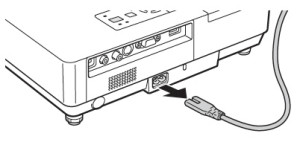
Epson_PowerLite_1715c_unplug_projector_Epson_ELPLP38

  • Turn power button off. Wait for the two beeps that follow and unplug the power cord on the Epson PowerLite 1715c.
  • Wait until the projector is cool to the touch.
  • DO NOT attempt to change the Epson ELPLP38 if the projector is still hot. You get badly burned if you don’t wait for the projector to cool.

IMPORTANT: Do not operate the projector when the lamp is removed as this may result in malfunctions, fire hazard and other accidents.


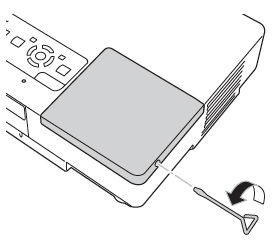
Epson_PowerLite_1715c_loosen_cover_screw_Epson_ELPLP38

  • Loosen the screw on the Epson PowerLite 1715c projector cover using the screwdriver provided.


Epson_PowerLite_1715c_remove_projector_cover


  • Slide the lamp cover to the side and lift it off the Epson PowerLite 1715c projector.

Epson_PowerLite_1715c_loosen_lamp_screws_Epson_ELPLP38


Loosen the two screws holding the Epson ELPLP38 lamp in place. NOTE: You can only loosen these screws. They don’t come out all the way.


Epson_PowerLite_1715c_remove_Epson_ELPLP38

Epson_PowerLite_1717c_change_filter_Epson_ELPLP38

  • Gently insert the new Epson ELPLP38 lamp into the Epson PowerLite 1715c projector.
  • Avoid touching the actual lamp since your fingerprints will cause black out spots to appear when the projector starts working.
  • Push down the corner marked PUSH until the lamp snaps in.
  • Once the Epson ELPLP38 lamp is fully inserted, tighten the screws.
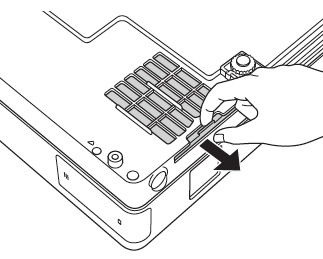
  • Slide out the air filters found at the bottom of the projector. Remove the current filter.
  • Slide in the new air filter until it clicks into place.
  • You are now ready to reset the lamp timer.

Resetting the Epson PowerLite 1715c Lamp Timer

It’s important to reset the PowerLite 1715c has a lamp timer each time a new lamp is installed so the projector can accurately track the Epson ELPLP38 lamp. Never use the Epson ELPLP38 lamp beyond its recommended usage as this can damage the Epson 1715c projector beyond repair.

Epson_PowerLite_1715c_reset_lamp_timer_Epson_ELPLP38


  • Press MENU.
  • Scroll down to RESET. Press ENTER.
  • Scroll down RESET LAMP HOURS. Press ENTER.
  • A second prompt screen will appear. Select YES at the prompt screen. Press ENTER.
  • Press ESC or MENU to exit.


Extending the life of your Epson ELPLP38 lamp

Follow this simple tips to make your Epson ELPLP38 lamp last even longer:

  • Keep your air filters clean to avoid overheating the projector and causing the lamp to overheat.
  • Turn off the Epson PowerLite 1715c projector for at least one hour ever 24 hours.
  • Don’t overuse the lamp. An average use of four to five hours per day will ensure longer lamp life.
  • Make sure there is enough airflow around the projector particularly if it’s been permanently mounted so it doesn’t overheat.
  • Set the Brightness Mode to low.
  • Learn more with Top tips for extending DLP projector lamp life
Tagged with: , ,

Optoma_Ep615H_projectorReplace the Optoma EP615H projector lamp

Changing the Optoma EP615H projector lamp is not complicated. You’ll need a new OEM Optoma BL-FU150A Projector Lamp. Be sure it’s an authentic EP615H projector lamp to keep your Optoma EP615H projector working at its optimum levels.
Scroll down for info on the health risks associated with generic lamps.

End-of-life warning signs

The EP615H projector lamp has an expected lamp life of 2000 hours, if regular maintenance is being done. Read more the Top 10 Maintenance Tips on your 1080p Optoma projector.

Watch for these warning signs that tell you the EP615H projector lamp is reaching its end of life:

  • image that looks washed out, has strange colours or seems to be deteriorating
  • lamp light flashing on the projector
  • warning message appears on screen

Buy this lamp on Amazon from the following authorized dealers:

Replacing the Optoma BL-FU150A lamp

NOTE: The Optoma BL-FU150A lamp contains mercury and should not be thrown into regular garbage. Recycle your used lamps! If you bought from an authentic manufacturer they will recycle the lamp for you at no extra cost. Generic manufacturers don’t recycle.

Follow these safety steps first:

  • Switch off the power to the Optoma EP615H projector by pressing the Power/Standby button.
  • Unplug the electrical cord.
  • Allow the projector to cool down for at least 60 minutes. If should be cool to the touch. These projectors run using high temperatures and you can burn yourself badly if you don’t allow the projector to cool down.

Optoma_EP_615H_Remove__Lamp_Cover_Replace_BL-FU150A


  • The lamp cover is found on the bottom of the EP615H projector.
  • Gently turn the projector onto it’s side.
  • Unscrew the two screw holding the lamp cover in place. Put the cover and screws to one side. Don’t lost the cover since the Optoma EP615H projector won’t work without the lamp cover.

Optoma_EP_615H_Lamp_s

Optoma_EP_615H_remove_Lamp_BL-FU150A

  • Remove the packaging from the new Optoma BL-FU150A lamp. (Did you buy an authentic lamp?)
  • Lift up the wire handle and slowly put the new lamp into the Optoma EP615H projector.
  • Be sure not to touch the actual bulb. Oil from your fingers can burn black spots onto the lamp once it starts heating up.
  • Tighten the two screws on the lamp.
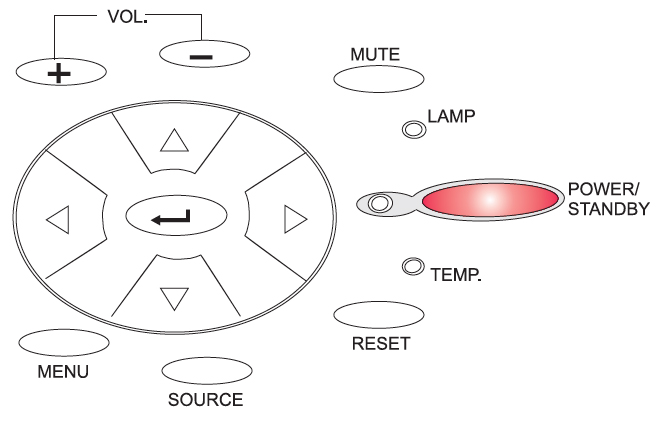
  • Place the lamp cover back on. Screw the two lamp screws back into the lamp cover.


Resetting the Optoma EP615H lamp timer

The lamp timer in the Optoma EP615H is designed to keep track of the lamp life and trigger the lamp replacement warning message when the Optoma BL-FU150A lamp. reaches its end of life. You must reset the lamp timer every time you change the lamp. Do not reset the timer unless the lamp has been changed or you run the risk of using the lamp life beyond it’s recommended time and having it explode inside the projector.
To reset the lamp timer:

Optoma_EP_615H_reset_Lamp_BL-FU150A

  • Place the projector lying back down.
  • Plug in the electrical cord.
  • Turn the projector back on to reset the lamp timer.
  • To open the On-Screen Display(OSD) menu:
  • Press the MENU button on the Remote Control or Panel Control.
  • To select among different menus, press the MENU button again.
  • Use the UP or DOWN keys to scroll through the options until you reach the LAMP option.
  • Scroll down to the Lamp reset option.
  • Choose yes and reset the lamp hours to zero.
  • Use the RIGHT or LEFT buttons to choose your reset selection.
  • To exit the OSD, scroll down to the EXIT MENU and press MENU.

Why avoid generics:

Tagged with: , ,

grey vs white screenWhich type of home theater projector screen do you need?

Should you buy a white or grey home theater projector screen. It all depends on where and what you are showing in your home theater setup.

Once you have decided on the type of projector screen and taken the gain factor into consideration, you need to decide on what material your screen is made from.

This can be more challenging since there are different types available. Some yield better results than others.  Grey screens reflect less light so handle the darker tones better; blacks appear richer.  They work much better in rooms that have little ambient light and are darker. White screens are more versatile.

Matt White

Close to 80% of all home theater projector screens use matt white surfaces due to its versatility. Matt white screens can handle all types of images including business presentations that are graphic-heavy. It can project all colors vividly while keeping a clear image. This screen material is smooth and un-embossed is able to distribute light evenly across large areas with wide angles. You are not going to experience any hotspots, the condition where certain areas on the screen appear much brighter than others so that people viewing from side angles don’t see anything. It’s also the most economical type of material and the most flexible so is often used in portable screens.

Projector_Screens_Materials_grey_vs_whiteHigh Contrast Grey

This material is a smooth grey vinyl surface that is recommended for high output DLP and LCD projector where there needs to be high-resolution and enhanced blacks. These screens typically have a low gain and work best in low ambient light. The vinyl fabric is very flexible so they can be folded or rolled up without any damage. This is the most recommended for home theater set ups.

High Contrast Matte White

This type of screen works best with low to moderate DLP and LCD projectors in a room where the ambient light source can be moderately controlled. It has a diffuse white reflective surface over a grey base material so it can heighten the black levels without sacrificing the white. Recommended for video images without too many high-resolution graphics.

High Performance

This is the most expensive type of screen as it delivers a precise resolution with higher contrast and vivid color palette while handling ambient light. Created from a tear-proof fiberglass base textile that does not reflect ambient light. Recommended in rooms where the lighting can’t be controlled.

Acoustically Transparent

Created from woven fabric or a diffused surface, the acoustically transparent screen consists of hundreds of small holes. This allows speakers to be hidden directly behind the screen so the sound appears to be coming out of the picture. Often a combination of matt white and high contrast grey screens, they deliver a cinema-like experience with vivid colors and rich blacks along with a wide viewing angle. Best suite for home theaters.

Read more about choosing a projector screen:


Tagged with: , , , , ,
Join the discussion on Facebook! All your questions, answered! The Screen & Projector Group