We're now Screen and Projector! For updated content, visit ScreenAndProjector.com and follow @screenandproj on social media!

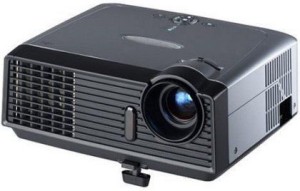
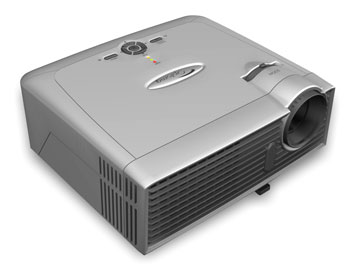
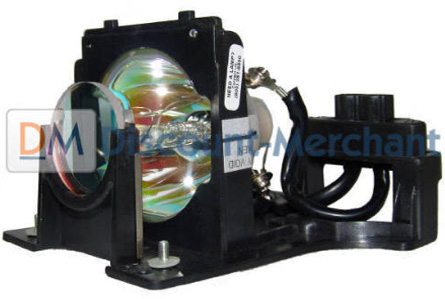
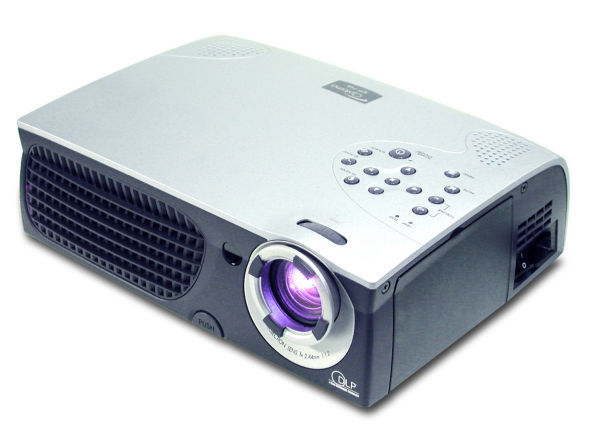
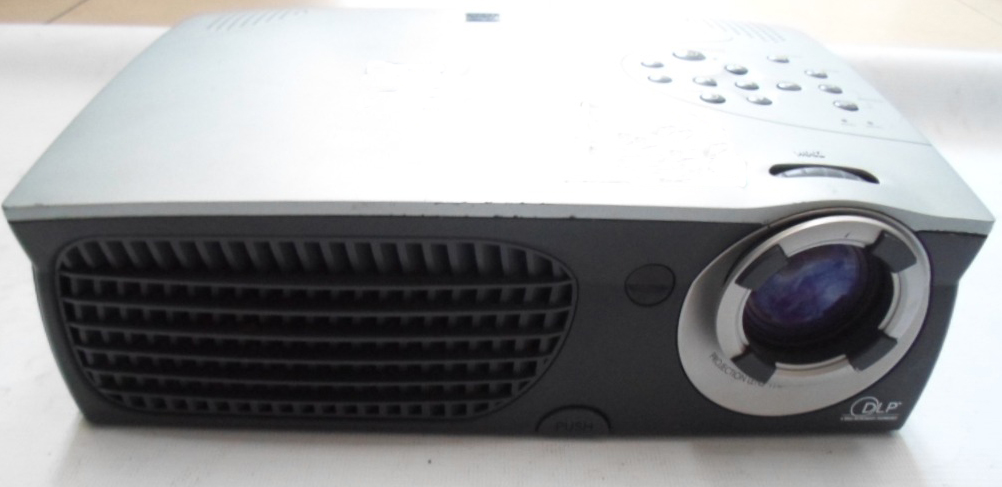
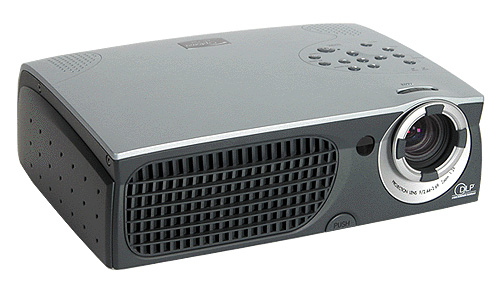
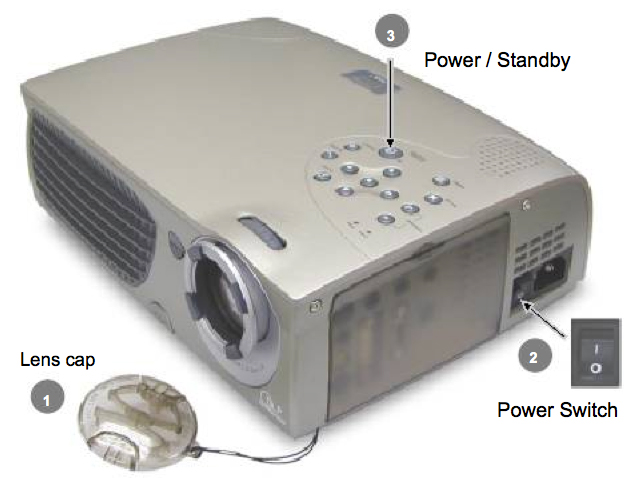
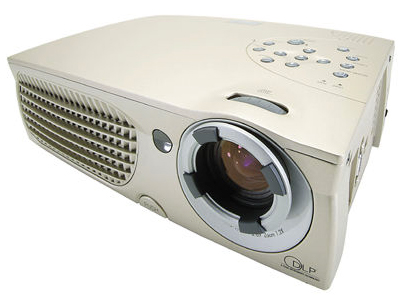
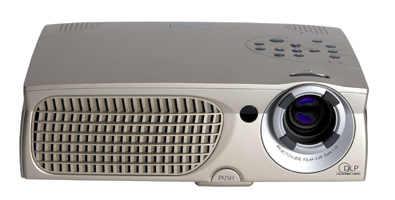
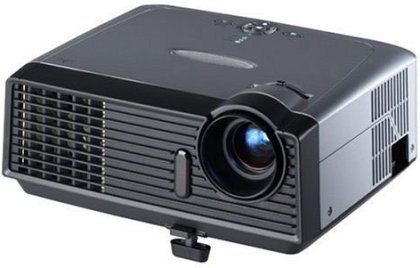
Optoma_EP716P_projector_Optoma _BL-FU180A (SP.82G01.001)_ projector_lampDon’t call the technician! Follow this guide to install a new Optoma TX700 projector lamp.
Step 1: Buy the right projector lamp!

Your Optoma TX700 uses the Optoma BL-FU180A  projector lamp. Only OEM lamps can keep your Optoma TX700 projector working at its best. Be sure to invest in an authentic Optoma TX700 projector lamp.

Look for the seal of approval to be sure you’re getting an authentic projector lamp. Generics are created with toxic materials and often don’t have the proper safeguards to protect your eyesight. They are also prone to explosions, don’t last as long as authentic and can damage the sensitive optics in your Optoma TX700 projector. Learn the 7 Ways to Spot a Counterfeit Lamp.

Buy this lamp on Amazon sold by these authorized dealers:

Step 2: Know when to replace the projector lamp

Watch for these telltale signs that the Optoma TX700 projector lamp is reaching its end of life:

  • faded image
  • colours are off or not as vivid
  • blinking LED lights on the Optoma EP761P projector
  • the following warning sign on your screen:

Optoma_EP716P_projector_Lamp_Replacement_warning_Optoma_BL-FU180A_projector_lamp

Step 3: Installing a new Optoma BL-FU180A projector lamp

Follow these important safety steps before installing a new Optoma BL-FU180A  projector lamp:

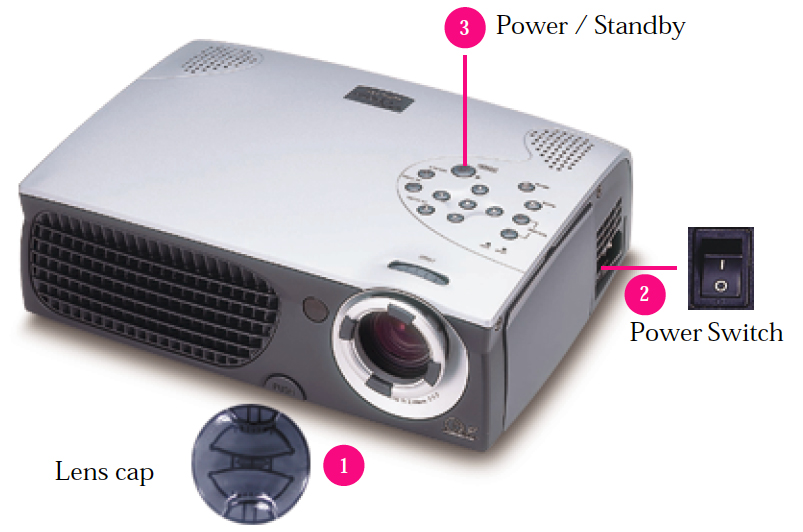
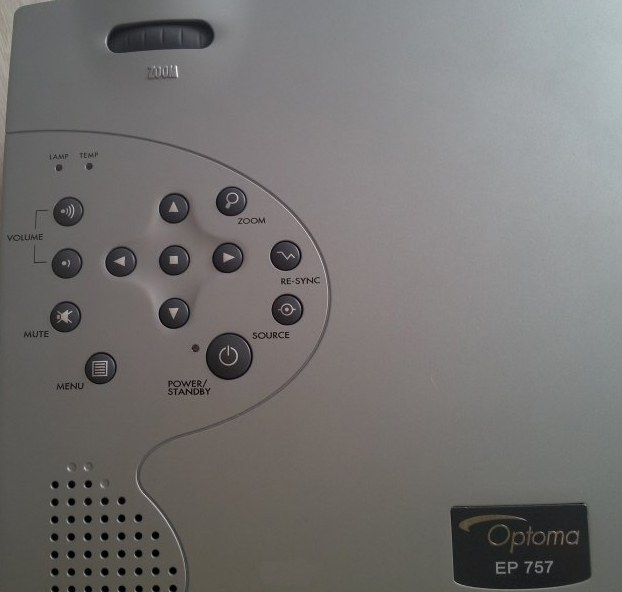
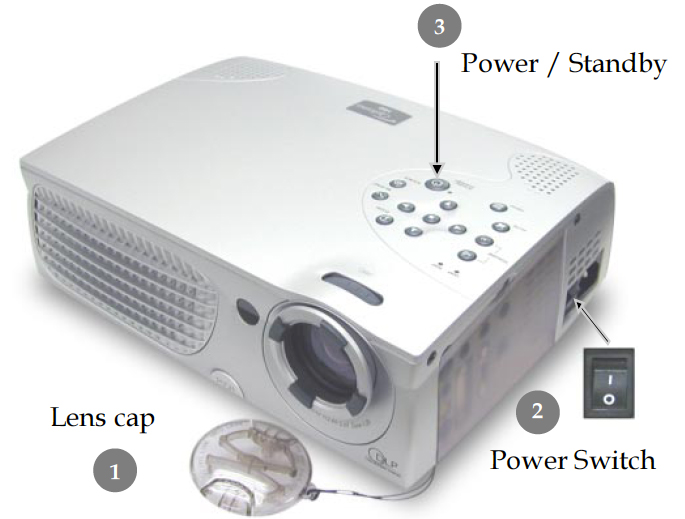
  • Switch off the power to the Optoma TX700 projector by pressing the Power/Standby button.
  • Disconnect the power cord.
  • Allow the projector to cool down for at least 30 minutes. If should be cool to the touch. These projectors run using high temperatures and you can burn yourself badly if you don’t allow the projector to cool down.
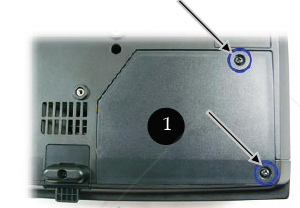
Optoma_TX700_BL-FU180A_remove_projector_lamp_cover


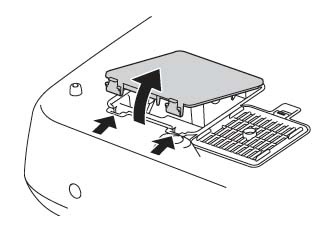
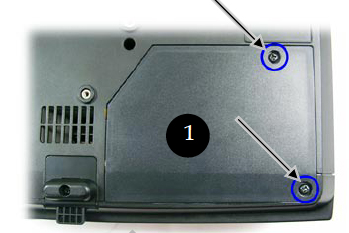
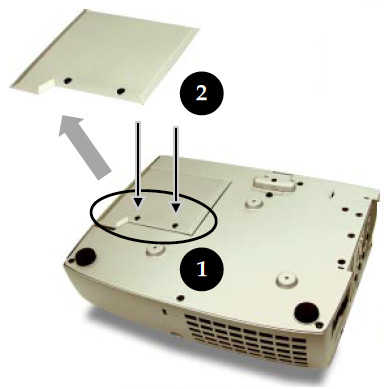
Step 1: Place something soft underneath the Optoma EP716P and then turn the projector onto it’s back. Remove the two screws holding the projector lamp cover in place.

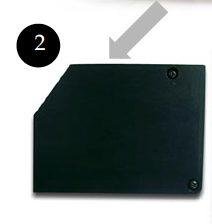
Step 2: Push the Optoma TX700 cover up to remove it.
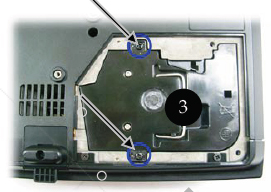
 

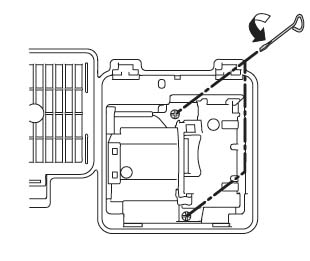
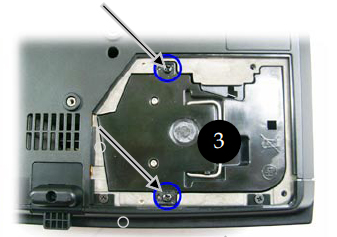
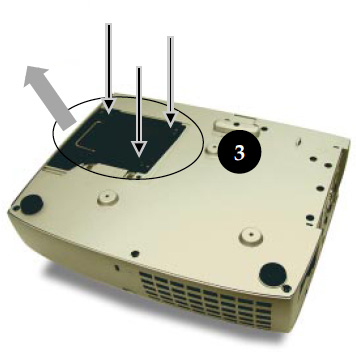
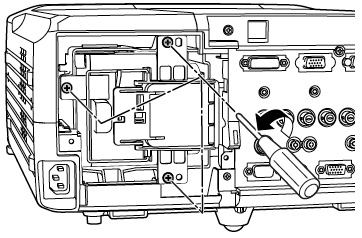
Optoma_TX700_BL-FU180A_remove_projector_lamp_screwsStep 3: Use a screwdriver to remove the two screws holding the Optoma BL-FU180A projector lamp module in place.

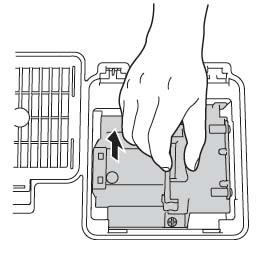
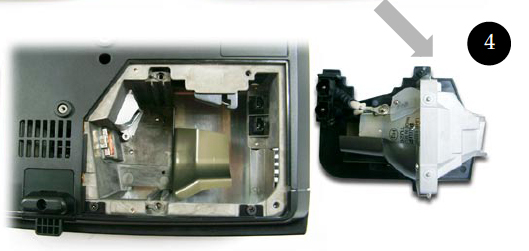
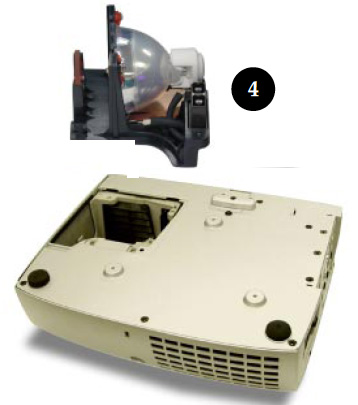
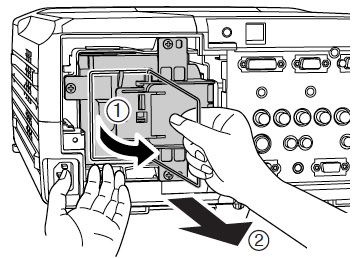
Slowly put out the old lamp by grabbing the edge of the projector lamp. Be careful not to bang the projector lamp against the projector as this may case the bulb to break. Learn what to do if the lamp has exploded inside the projector.

The used projector lamp contains mercury and should be properly recycled. Don’t throw it into regular garbage.

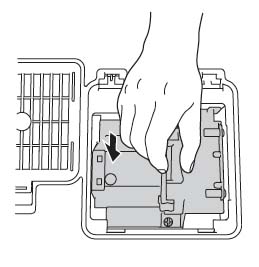
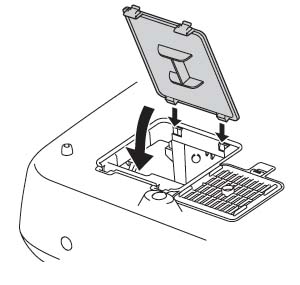
Step 4: Place the new Optoma BL-FU180A projector lamp  into the Optoma TX700 projector. Tighten the two screws on the lamp. Replace the lamp cover and tighten its two screws.
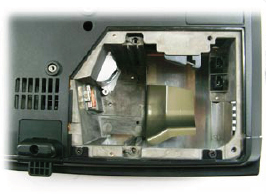
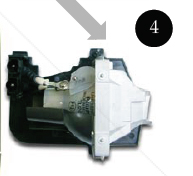
Optoma_TX700_BL-FU180A_new_projector_lampOptoma_TX700_BL-FU180A_projector_lamp


Step 4: Reset the projector lamp timing on the Optoma TX700
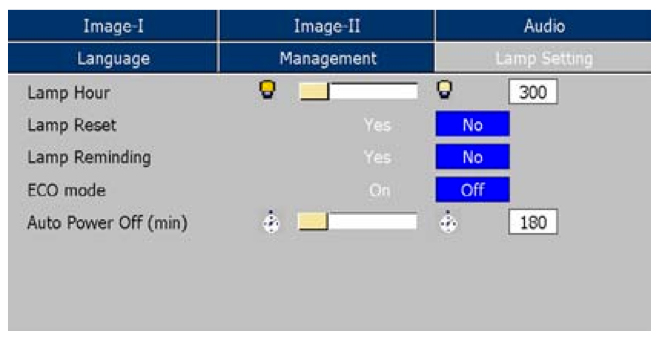
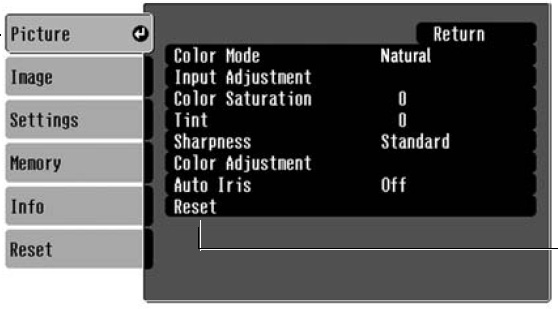
Optoma_EP716P_projector_Lamp_Setting_Menu_Optoma_BL-FU180A_projector_lamp

The Optoma TX700 projector has an automatic projector lamp reset timer that tracks the life of the lamp and triggers the projector lamp replacement warning. You need to reset the projector lamp timer each time the lamp is replaced.

  • Press the Menu option on either the remote or on the projector.
  • Scroll over the Lamp Setting. Press enter.
  • Select Reset Lamp Hours. Press Enter
  • The Execute/Cancel command line will appear.
  • Scroll over to choose Execute. Press Enter. The lamp hours is reset to zero.

Make the Optoma TX700 projector lamp last longer with these tips:

  • Turning on the Eco Mode to lower power consumption and extend the lamp life by 130%.
  • Keep your air filters clean to avoid overheating the projector.
  • Turn off the Optoma TX700 projector and let it stand for at least one hour ever 24 hours.
  • Make sure there is enough airflow around the projector particularly if it’s been permanently mounted.
  • Top tips for extending DLP projector lamp life
Tagged with: , ,

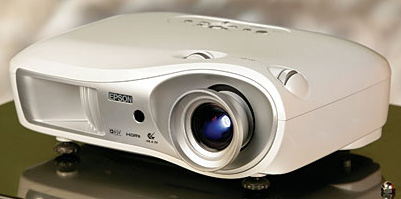
Epson_Cinema-550_ELPLP35_projector_lamp You can change Epson Cinema 550 projector lamp in 3 easy steps.

Your Epson Cinema 550 projector uses the Epson ELPLP35 projector lamp. Be sure to invest in a Epson Cinema 550 projector lamp.

Step 1: Know when to replace

When the Epson Cinema 550 projector lamp is approaching end of life, there will be some obvious signs:

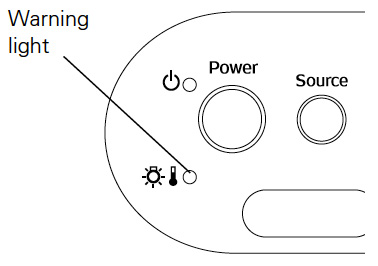
Epson_Cinema-550_ELPLP35_Warning_projector_Lamp

  • The projector’s warning light flashes red at half-second intervals.
  • A warning message REPLACE THE LAMP appears on the screen when you start projecting.
  • The image begins to look strange or the colors are poor.

Replace the Epson ELPLP35  projector lamp immediately when you see any of these signs.

Step 2: Purchasing the correct projector lamp

When buying over the Internet, avoid buying the knock off lamps that are sold as bargain prices. These lamps can cause irreversible damage to your Epson Cinema 550 projector.  Why avoid generics? Here are 6 good reasons:

Look for the seal of approval when you purchase your Epson ELPLP35  projector lamp. Learn how to spot the copycat fake lamps with 7 Ways to Spot a Counterfeit Lamp.

Find this lamp on Amazon sold by these authorized dealers:

Step 3: Installing the Epson Cinema 550 projector lamp

Get ready before installing the new Epson ELPLP35 projector lamp with these preparation steps:

  • press the power button and wait for the light to stop flashing.
  • turn off the power switch at the back on the projector
  • unplug any power cords.
  • let the Epson Cinema 550 projector cool for one full hour since it operates under very high temperatures. You don’t want to burn yourself!

Epson-Cinema-550-projector-remove-cover-Epson-ELPLP35-projector_lamp

Press the latches holding the Epson Cinema 550 projector lamp cover in place. Gently lift off the cover and place it to one side.

Epson-Cinema-550-projector-lamp-screws-removed-Epson-ELPLP35-projector_lamp

Using the screw driver provided, loosen the two screws keeping the Epson ELPLP35 (V13H010L3) projector lamp in place enough so the lamp can lift out.

Epson-Cinema-550E-Eposn-ELPLP35 (V13H010L3)-remove_projector_lampGrab the handle of the Epson ELPLP35 (V13H010L3) projector lamp and pull it straight up.

Pulling too quickly can cause the bulb to shatter. Learn what to do should the bulb shatter.

NOTE: Don’t throw the Epson ELPLP35 (V13H010L3) projector lamp into regular garbage!  Your old projector lamp must be properly recycled.

Epson-Cinema-550-install-Epson-ELPLP35-projector_lamp

Line up the new Epson ELPLP35 projector lamp and slide it into Epson Cinema 550 projector. Avoid touching the actual glass bulb since the oil on your finger can cause black spots on the projector lamp when it heats up.

Once in place, tighten to screws on either side of the Epson ELPLP35 (V13H010L3) projector lamp.

Epson-Cinema 550-reinstall-lamp-cover-Epson-ELPLP35_projector_-lampReplace the Epson Epson Cinema 550 lamp cover making sure it’s clicked into place. Otherwise, the projector will not turn on. You are now ready to reset the Lamp Usage Timer.

Resetting the Projector Lamp Usage Timer

It’s important to reset the Lamp Usage Timer so the Epson Cinema 550 projector will know when it’s time for a new Epson ELPLP39 projector lamp.
Epson_Cinema-550_reset_timer_ELPLP35_projector_lamp

  • Press the MENU button on the projector or remote control.
  • Navigate to the RESET menu. Select Reset Lamp Hours option.
  • Press SELECT.
  • A confirmations screen will pop up on the screen. Highlight YES and the SELECT to reset the hour.
  • Press the MENU button to exit.

NOTE: The projector lamp usage times shows 0H until you’ve used the lamp for at least 10 hours.

Get more life from your Epson Cinema 550 projector lamp:

Get more hours from your Epson ELPLP35 projector lamp by following these maintenance tips:

  • Keep your air filters clean to avoid overheating the projector.
  • Turn off the Epson Cinema 550 projector and let it stand unused for at least one hour ever 24 hours. An average use of four to five hours per day will ensure longer lamp life.
  • Make sure there is enough airflow around the projector particularly if it’s been permanently mounted.
  • Learn more with Top tips for extending DLP projector lamp life.
Tagged with: , , ,

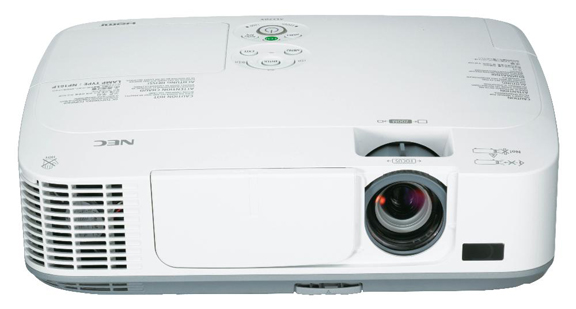
Optoma_DX605R_projector_optoma_BL-FU180A_projector_lampDon’t panic! Keep reading this step-by-step instructions on how to change the Optoma DX605 projector lamp.

Buy the right lamp!

Your Optoma DX605R projector is a sophisticated machine with sensitive optics. The best thing you can do to keep it working at its optimum levels is to use an authentic Optoma DX605R projector lamp.

Look for the seal of approval to purchase an OEM projector lamp. (Keep reading more tips on how to find the best lamp Optoma BL-FU180A projector lamp.

Buy this lamp on Amazon sold by these authorized dealers:

When to replace

When the Optoma DX605R projector lamp is approaching end of life, you may notice the following warning signs:

  • A screen that is gradually dimming or deteriorating.
  • Colour in the image appears dark or off colour.
  • Lamp light flashing a steady orange.

A replacement warning will also appear on screen:

Optoma_DX605_replace_lamp_warning_optoma_BL-FU180A_projector_lamp

Replace the Optoma BL-FU180A

Follow these important safety steps before installing a new Optoma BL-FU180A projector lamp:

  • These lamps contains mercury and should be properly recycled. Don’t throw it into regular garbage.
  • Switch off the power to the Optoma DX605 projector by pressing the Power/Standby button.
  • Disconnect the power cord.
  • Allow the projector to cool down for at least 30 minutes. so it is cool to the touch. Trying to change the lamp while the projectors is not cooled down can result in serious burns as these projectors operate using high heat.

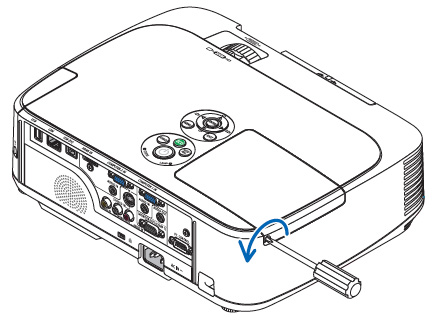
Optoma_DX605R_remove_cover_screws_BL-FU180A_projector_lamp


Step 1: Place something soft underneath the Optoma DX605R before turning the projector onto it’s back. Remove the two screws holding the cover in place.

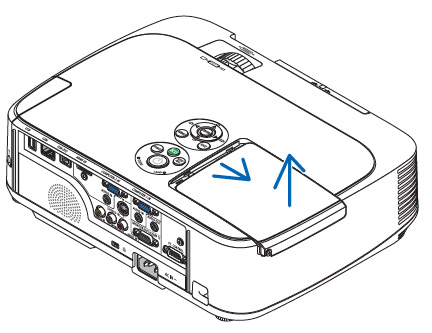
Optoma_DX605R_remove_cover_BL-FU180A_projector_lamp

Step 2: Push the Optoma DX605R cover up to remove it.

Optoma_DX605R_remove_lamp_screws_BL-FU180A_projector_lamp


Step 3: Remove the two screws holding the Optoma BL-FU180A projector lamp module in place.

Lift up the wire handle and slowly put out the old projector lamp. Be careful not to bang the lamp against the projector as this may case the bulb to break. Learn how to properly clean up a broken lamp.

NOTE: The Optoma BL-FU180A  contains mercury and should not be thrown into regular garbage. Recycle this projector lamp.


Optoma_DX605R_insert_new_BL-FU180A_projector_lampStep 4: Remove the Optoma BL-FU180A  projector lamp from its packaging and using the wire handle, place it into the DX605R projector. Tighten the two screws on the projector lamp. Replace the lamp cover and tighten its two screws.

Reset the lamp timing on the Optoma DX605R

In order to track the lamp life, the Optoma DX605R projector has an automatic lamp timer that triggers the projector lamp replacement warning. You need to reset the timer each time the lamp is replaced.

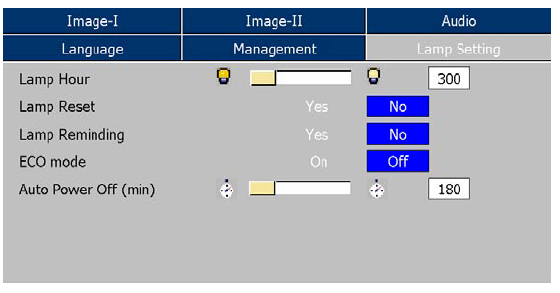
Optoma_DX605R _reset_lamp_timer_optoma_BL-FU180A_projector_lamp

  • Press the Menu option on either the remote or on the projector.
  • Scroll over the Lamp Setting. Press Enter.
  • Select Reset Lamp Hours. Press Yes
  • The lamp hours is reset to zero.
  • You can also used this screen to set ECO mode and turn off the lamp reminder message (not recommended to do).

WHY AVOID COPY-CAT PROJECTOR LAMPS?

Here are six good reasons:

Tips for longer life for the Optoma BL-FU180A projector lamp:

  • Turning on the Eco Mode to lower power consumption and extend the lamp life by 130%.
  • Keep your air filters clean to avoid overheating the projector.
  • Turn off the Optoma DX605R projector and let it stand for at least one hour ever 24 hours.
  • Make sure there is enough airflow around the projector particularly if it’s been permanently mounted.
  • Top tips for extending DLP projector lamp life.
Tagged with: , ,

NEC_M260X_projectr_NE_NP15LP_projector_lampWhen it comes time to change the NEC M260X projector lamp we have you covered. Follow our step-by-step guide.

How will you know the NEC M260X projector lamp needs to be replaced and is reaching end of life?

Watch for the following signs:

  • the LAMP indicator will begin to blink red
  • message on screen reads LAMP HAS REACHED THE END OF ITS USABLE LIFE. PLEASE REPLACE THE LAMP AND FILTER.
  • colour is off
  • picture is faint or has deteriorated

Checking end of projector lamp life

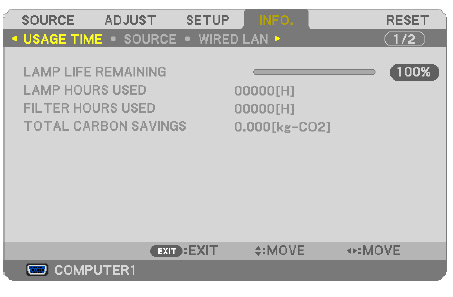
NEC_M260X_check_NE_NP15LP_lamp_usageTrack the life of the NEC NP15LP projector lamp with the usage time menu. The progress indicator shows the percentage of remaining bulb life:

  • Go to INFO menu
  • Scroll down to USAGE TIME to display the LAMP LIFE REMAINING and LAMP HOURS USED
  • When the lamp usage reaches 0, the Lamp Life REMAINING starts a count down from 100 hours.
  • When the count down reaches 0, the projector will turn off and not turn on.

The importance of authentic projector lamp

The first thing to do is make sure you have bought an OEM projector replacement lamp. Avoid the cheaper generic lamps with their shorter lamp life and toxic materials. You don’t want to install one and have it explode or damage the sensitive electronics in your NEC M260X projector.

Installing a generic lamp will also void your warranty. Save yourself unnecessary headaches and buy an authentic You’ll be getting a far superior product with a replacement guarantee and tech support when you buy an OEM NEC NP15LP lamp from a recognized dealer.

NOTE: Your NEC M260X projector uses the NEC NP15LP lamp. New air filters are shipped with the lamp and it’s recommended you replace them at the same time.

Find this lamp sold on Amazon by these authorized dealers:

Changing the NEC NP15LP projector lamp

Follow these important safety instructions before installing the new projector lamp

  • turn off the NEC M260X projector.
  • unplug the projector from its power source.
  • unplug the power cable.
  • wait until the projector is cool to the touch to avoid getting burned.


NEC_NP M311X_NEC_NP16LP_remove_projector_lamp_screwLoosen the NEC M260X projector lamp cover screw.

NEC_M260X_projector_NEC_NP16LP_remove_projector_lamp_cover

Push and slide the lamp NEC M260X projector lamp cover off.

NEC_NP M311X_remove_NEC_NP16LP_projector_lamp_screws

Loosen the two screws holding the NEC NP15LP projector lamp in place. (The screws will not come out only loosen.)

NEC_NP M311X_remove_NEC_NP16LP_projector_lamp

Remove the projector lamp by holding the indent and pulling up.

NOTE: Your NEC NP15LP projector lamp should be properly recycled. These lamps contain mercury and can’t be placed into common garbage.

NEC_M260X_projector_install_new_NEC_NP16LP_projector_lampInstall a new projector lamp housing into the NEC M260X projector by gently pressing the lamp housing into the socket. Take care not to touch the actual bulb as your finger prints can leave oil marks that burn black marks onto the bulb.

NEC_M260X_projector_tighten_NEC_NP16LP_projector_lamp_screws

Push the top center on the projector lamp to secure it. Tighten the screw on the projector  lamp.

NEC_M260X_projector_replace_projector_lamp_cover_NEC_NP16LP_projector_lamp

Reattach the  NEC M260X lamp cover by sliding the cover until it snaps into place. Tighten the screw on the lamp cover.

Replacing the filters

There are four filters in the NEC M260X projector:

  • Honeycomb hard filter – large and small
  • Accordion soft filter — large and small

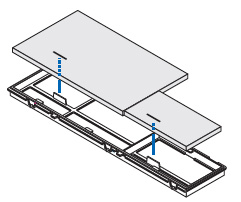
Replace all four filters at the same time. Before replacing the filters wipe off any dust and dirt that came loose from the old filters. NOTE: The filters are made with two different types of material in the membrane. Both perform the same.


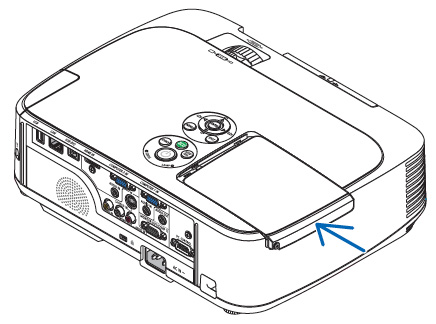
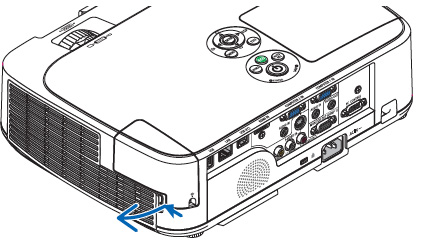
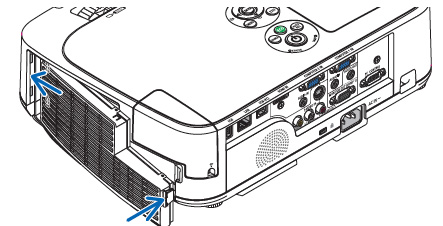
NEC_M260X_projector_NEC_NP16LP_remove_air_filter_after_installing_projector_lampPush the catch to release the filter and gently pull it out.

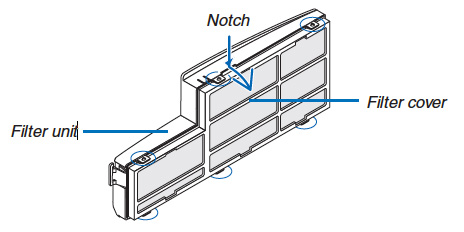
NEC_M260X_projector_NEC_NP16LP_detach_filter_cover_replacing_projector_lamp

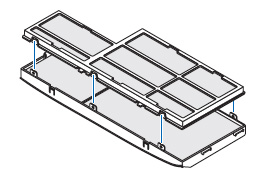
The filter cover is fixed at six separate points in the projector. Bow the filter cover by pushing it slightly until it releases.


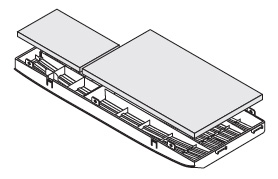
NEC_M260X_projector_NEC_NP16LP_replace_dark_filtersRemove the dark sponge filter and clean the filter unit and cover. Attach the new non-woven white material filters.

NEC_M260X_projector_NEC_NP16LP_replace_four_filters

  • Filter unit: Attach two honeycomb hard filters to the NEC M260X filter unit.
  • Filter cover: Attach the two accordion soft filters to the filter cover. Be sure to align the accordion slits with the protrusions of the filter cover.

NEC_M260X_projector_NEC_NP16LP_attach_filter_cover

Attach the filter cover back to the filter unit. Align the filter until with the filter cover and push the protrusions into place.

Make sure all the six mounting points are aligned properly.

NEC_M260X_projector_NEC_NP16LP_attach_filter

Insert the two catches of the top of the filter into the groove of the cabinet.

Push the filter until it clicks into place.

Reset the projector lamp timer

Once the NEC NP15LP projector lamp and NEC M260X projector air filter have both been replaced you will need to reset the timer for both. You want the projector to be able to accurately track the lamp life.

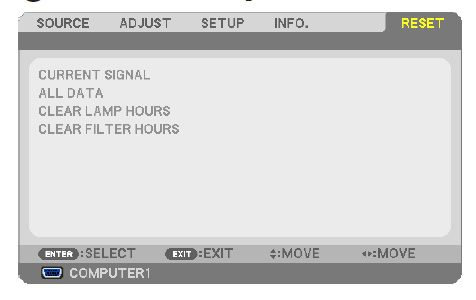
 NEC M260X projector_NEC_NP16LP_lamp_timerClear usage hours and reset hours

  • Plug in the power cored into the wall outlet.
  • Turn on the projector.
  • From the MENU select RESET.
  • Choose CLEAR LAMP HOURS.
  • A confirmation message appears.
  • Select YES.

Reset the filter hours:

  • Scroll up to CLEAR Filter HOURS.
  • A second submenu will appear.
  • Select YES. Press the ENTER button.

Extending the life of the NEC NP15LP projector lamp

Get your newly installed NEC NP15LP projector lamp will last longer by choosing the ECO option. The ECO MODE increases lamp life by lowering the power consumption. There are three modes to choose from:

  • Auto Mode: 4000 hours
  • Normal: 5000 hours
  • Eco ModeL 8000 hours

Learn more tips to extend the life of the NEC NP15LP projector lamp.

Tagged with: , ,

Sony_4k_Ultra_short_projector4K Ultra HD is the newest technology that has everyone buzzing. What’s is it all about?

People have been talking about 4K Ultra HD since it stole the show at the Las Vega 2014 CES show. That’s a tough crowd to please.

While this technology is far from being mainstream, it is the future of watching entertainment and we are going to start seeing 4K projectors start hitting the market this year.

Super resolution

Why is everyone so excited about 4k Ultra HD? It’s simply the most amazing resolution out there. Your current 1080 DLP projector offers a resolution of 1,920 x 1,080. HD has four times the resolution at 3,840 x 2,160. Well Ultra HD gives you cinema quality resolution at 4,096 x 2,160) and eventually to 8K (7,680x 4,320). All those extra pixels mean a picture with ultra definitions, colors that astonish, lifelike textures and more nuance details. The image is going to pop on screen.

While there are some 4K TVs on the market, the major manufacturers are just starting to get on board. Sharp, Toshiba, Sony and some of the smaller Chinese manufacturers have already released their latest models. As consumers jump on the bandwagon, you can expect the prices for 4k TVs to drop even further.

4K_HDTV_4K_Projectors

Perfect marriage

4k Ultra HD and projectors are the perfect combination.  You need a larger screen of 60 inches or more with a cinema-style set-up in order to gain the full benefits. Smaller screens or TV located more than 10 feet away will not benefit from this technology. You just won’t see anything.

The good news for those who already own a HDTV is you can stream the current 4K choices right now. Your HDMI cables can pass 4K so there is no need to upgrade your cables or anything else.

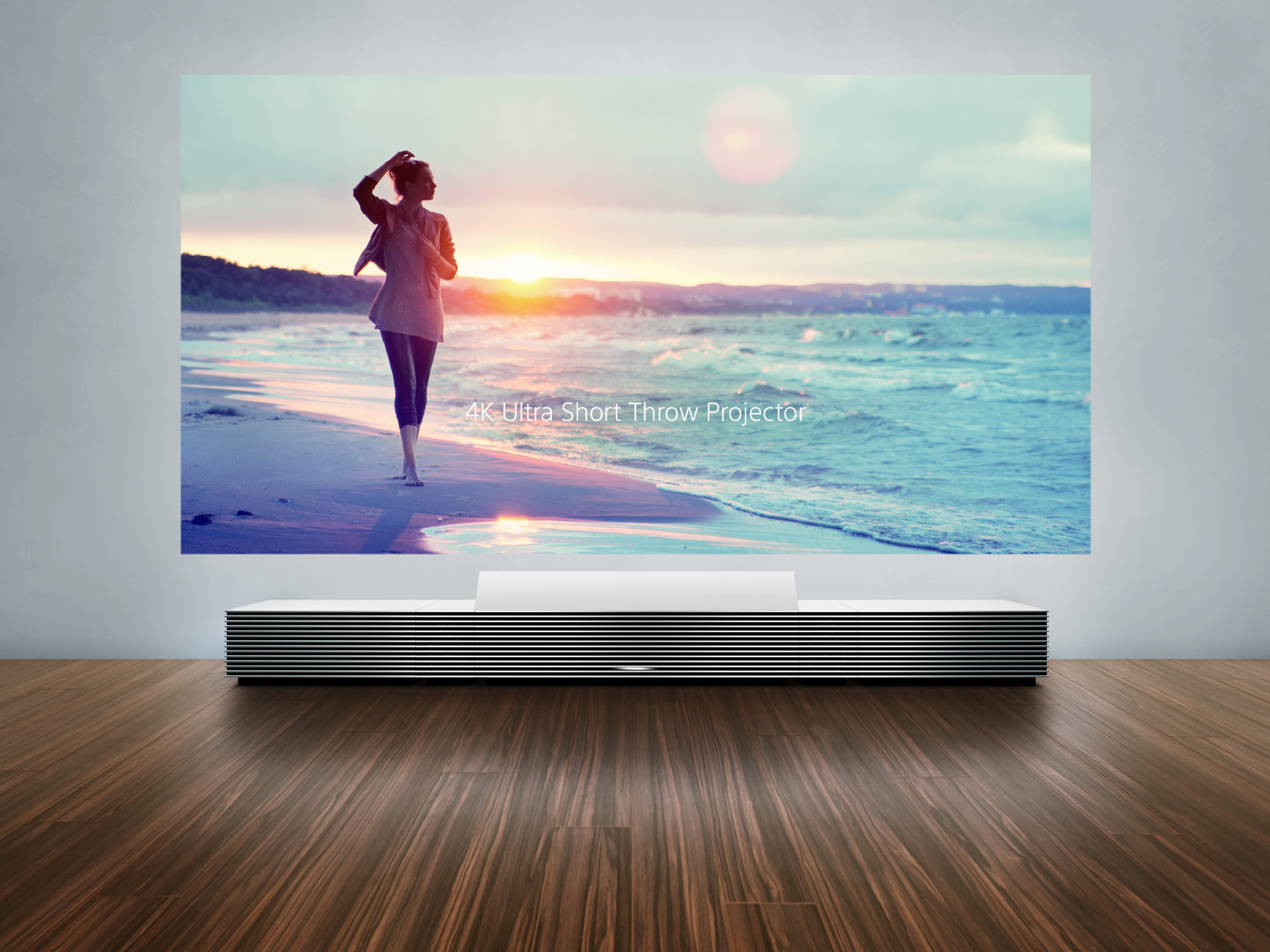
sony-4k-ultra-short-throw-projector-14K Projectors

Sony is leading the pack with 4K projectors. It unveiled its 4K Ultra Short Throw Projector and the results were amazing. It has an even smoother display with more saturated color and lifelike images than any other HD projector

Simply place this projector near a wall and an enormous 147-inch image appears. No installation is needed with this ultimate short throw projector. With the image projected onto the wall, no one can walk in front of the image and there’s no need to ceiling mount this projector. This means it takes up less room. Its 4K technology means there is no pixelation that is sometimes associated with HD viewing. The 1.6x power zoom makes the projector able to change to a size that suits your wall space. You can sit closer and enjoy a larger image.

Sounds amazing doesn’t it? Before you run out to purchase one be prepared for sticker shock. The Sony 4K Ultra Short Throw Projector starts at $30K. It does come loaded with 10 4K movies.

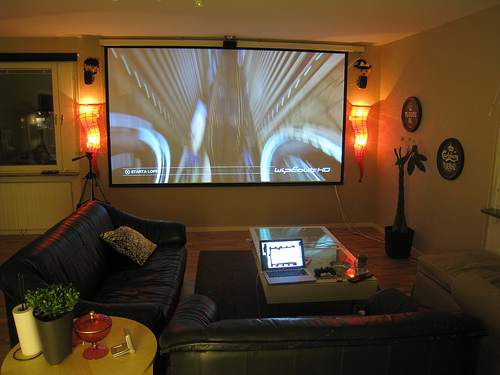
4K_ultraHD_home_theatersCurrent home theaters ready to go

The good news for those who already own a HDTV and have set up home theatres is that you can start stream the current 4K choices right now. Your HDMI cables can pass 4K so there is no need to upgrade your cables or anything else.

House_of_cards_4K_UltraHDNot enough content

The biggest challenge with 4K Ultra HD is with content. This technology is so new that there just hasn’t been enough shows or films produced in the new format. YouTube has some 4K videos but the largest supplier right now is Netflix. House of Cards, Season 2 premiered in 4K and you can get all five seasons of Breaking Bad in 4K. More shows are being added daily.

As the technology evolves, we will see more choices in 4K Ultra HD projectors and TVs. There is also going to be more to watch. Prices will start to drop and soon enough 4K will become the industry standard.

Tagged with: , ,

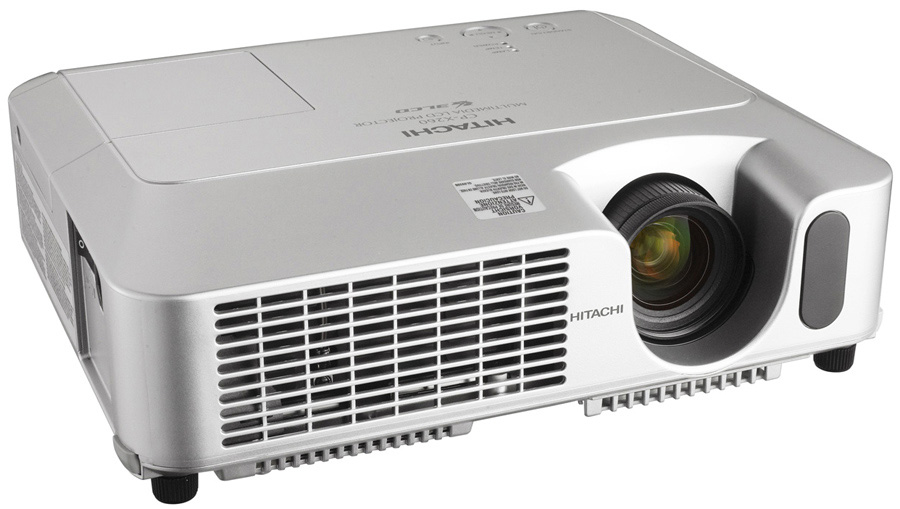
Projectors_cp-x265-Hitachi-DT00751-CPX260_projector _LAMPUse our step-by instructions to change the Hitachi CP-X265 projector lamp.

Invest in a Hitachi CP-X265 projector lamp. Your Hitachi CP-X265 projector uses the Hitachi DT00751 CPX260 projector lamp and when it reaches end of life, there will be several tell tale signs:

  • Hitachi CP-X265 Lamp Indicator light will start flashing red.
  • Color tone on the screen may also appear weak or washed out.
  • Picture has poor colour quality.
  • You may notice the Hitachi DT00751 starts to go dark after being used for long period of time.

The Hitachi DT00751 CPX260 projector lamp has a finite life and trying to force it beyond its normal lamp life can damage your Hitachi CP-X262.

Avoid generics

In order to keep your projector working at its best you need to always install and authentic projector lamp. Even though they may have a lower price their inferior parts are prone to overheating or exploding and have a shorter life. Often these lamps use toxic chemicals as substitutes and can’t be calibrated properly so deliver a much poorer image on screen and can damage your projector’s sophisticated optics. Keep your projector working and go with an authentic Hitachi DT00751 CPX260 lamp.

Always look for the seal of approval and watch for telltale signs you are about to purchase a counterfeit projector lamp:

Spot the copycat fake lamps with 7 Ways to Spot a Counterfeit Lamp.

Find this lamp on Amazon sold by these authorized dealers:

Installing the Hitachi DT00751 CPX260 projector  lamp

Before installing a new lamp be sure to turn off the Hitachi CP-X265 and let the projector cool down for at least one hour. This projector operates using high temperatures and there is a risk of you burning yourself if the projector has not cooled.

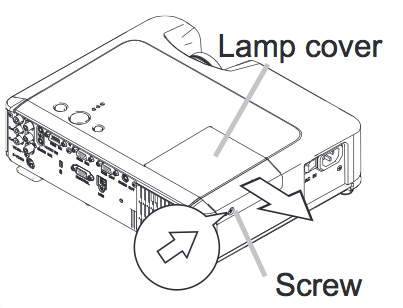
Hitachi-CP-X260_Hitachi_DT00751-CPX265_remove_projector _lamp_cover

  • Turn off the projector by pressing the power button.
  • Unplug any power cords.
  • Loosen the Hitachi CP-X265 projector  lamp cover screw
  • Slide the projector  lamp cover to the side to remove it.


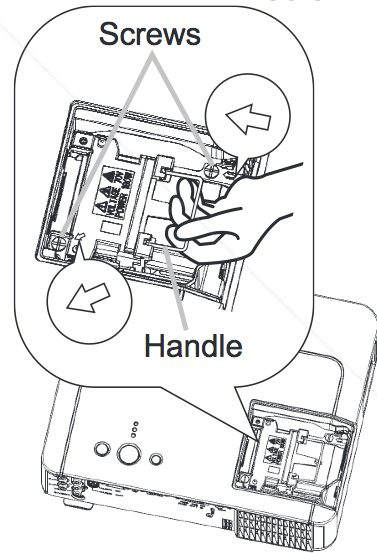
Hitachi-CP-X265_replace_Hitachi_DT00751-CPX260_projector_lamp

  • Loosen the screws on the projector lamp. Gently lift up the wire handle and pull out the Hitachi DT00751 CPX260 projector  lamp.
  • NOTE: The Hitachi DT00751 projector  lamp contains mercury and should be properly recycled. Don’t place it into regular garbage.
  • Take the new DT00751 projector  lamp out of its packaging.
  • Pick up the Hitachi DT00751 projector lamp by the handle and gently insert the lamp into the projector making sure not to bang the lamp.
  • Avoid touching the actual bulb as oil from your fingers can leave marks on the bulb that will burn into black spots.
  • Slide the Hitachi CP-X265 lamp cover back in place and firmly fasten the lamp cover a screw.
  • Turn the projector on and reset the projector  lamp time.

Resetting the Hitachi CP-X265 projector lamp timer

Reset the lamp time only when you have replaced the lamp so the Hitachi CP-X265 projector can properly track the projector lamp life.  Otherwise you run the risk of using the projector lamp beyond its lamp life.

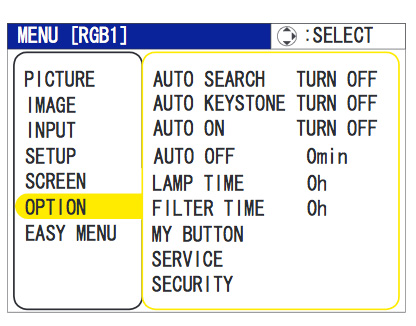
Hitachi-CP-X265_reset_Hitachi_DT00751 CPX260_projector_lamp

  • Press the MENU button
  • When the EASY MENU has appeared press Enter to choose
  • Scroll down to the ADVANCED MENU option.
  • Scroll down to OPTION menu.
  • Press ENTER.
  • Scroll down to LAMP TIME.
  • A dialog field will appear.
  • Choose RESET on the dialog field.
  • Press ENTER.
  • The lamp time will be reset to 0.
  • Press the MENU button to exit.

Get more hours from your Hitachi DT00751 CPX260 projector lamp by keeping your air filters clean to avoid overheating the projector. Learn more with Top tips for extending DLP projector lamp life
Tagged with: , , ,

Screen_Burn_Prevention-2 Do you know how to keep your screen at its best and prevent RPTV Screen Burn?

Nothing beats playing video games or watching movies on your RPTV. Depending on your model, you need to be careful about letting static images remain on your screen for too long as it can result in RPTV screen burn. Normal TV viewing has the screen filled with constantly changing images so that the picture tube ages evenly across the entire screen giving you a picture that is bright and even.

Stationary images that partially fill the screen (such as black bars on the side or a small logo in the corner) create an uneven aging of the phosphors in the tube and leave subtle ghosts of the images on screen. Known as RPTV screen burn, these ghost images can interfere with your viewing experience and be very distracting.

Fortunately, many RPTVs aren’t susceptible to RPTV screen burn but to be sure you don’t end up with a Super Mario logo on your screen, here are some tips to preventing this condition:

  • Avoid stationary patterns over long periods of time. This includes:
    • Letterbox top/bottom black bars: This appears at the top and bottom of the screen when watching a widescreen (16:9) movie on a standard (4:3) TV.
    • Side bar images: These solid bars are shown on each side of an image when watching a standard (4:3) program on a widescreen (16:9) TV.
    • Stock-market report bars: Ticker running at the bottom of the TV screen.
    • Bright graphics: Logos shown constantly or repeatedly in the same location such as the Shopping channel logos or pricing displays.
    • Video game patterns and scoreboards
    • Bright station logos
    • Internet web sites or any other stationary, repetitive computer style image.
  • The normal use of your RPTV should include a variety of TV picture types. Watch a DVD, watch your favorite TV show or movie, play a video game, surf the net. Mixing it up will ensure you don’t have one image displayed too long on the screen that creates RPTV screen burn.
  • Probably the worst thing to do is leave a static image like a DVD menu frozen on the screen. Adjusting your brightness and contrast levels when using a DVD will help.
  • After using your set for video games, put the moving TV image on screen for four to five times longer that the set was used for displaying the video game. This is will allow the screen to recover.
  • Set the contrast (or picture) level between 20-35% of max. You will not see much of a change in the picture but it will reduce the possibility of screen burn.
  • Avoid showing the same stationary image for more than 15% of your total TV viewing in any one week.
  •  Program a timer to shut off the TV at whatever time you choose. This will help avoid burn-in and set an automatic curfew so if you do fall asleep in front of the TV, you’ll be safe.
  • Many RPTVs have a pixel shift feature that prevents screen burn-in. The option allows you to move the picture from side to side or up and down the screen at different intervals. A secondary feature allows you to select a white screen or rolling screen to by changing remaining colored pixels to white and removing them. Check your manual to see if your model has this function to prevent RPTV screen burn.

Read more about the care and maintenance of your RPTV:

Tagged with: , ,

Optoma_BL-FU200A_projector_lamp_discount_merchantThe Optoma BL-FU200A projector lamp

Find out which projectors are compatible with the Optoma BL-FU200A projector lamp and how to install one into your Optoma projector.

Before purchasing look for the seal of approval that lets you know you are buying from an authentic manufacturer.

Avoiding generic lamps

It’s always best to use an authentic projector lamp. Counterfeits can damage your Optoma projector.

6 reasons to buy authentic and avoid generics

Protect yourself from buying counterfeit lamps.

Buy this lamp on Amazon from the following authorized dealers:

Compatible projectors with the Optoma BL-FU200A projector lamp

The Optoma BL-FU200A (SP.83601.001C) projector lamp is compatible with the following Optoma projectors :

For step-by-step instructions on replacing your Optoma BL-FU200A (SP.83601.001C) projector lamp, click on your projector listed below:

Optoma_H750_projector_Lamp_BL-FU200A


Click here for step-by-step instructions on how to change the Optoma BL-FU200A projector lamp for the Optoma EP750 projector.

Click here for step-by-step instructions on how to change the Optoma BL-FU200A projector lamp for the Optoma EP750H projector.


Optoma_EP753_projector_buttons_BL-200A_projector_lamp

Click here for step-by-step instructions on how to change the Optoma BL-FU200A projector lamp for the Optoma EP753 projector.


Optoma_EP753H_projector_lamp_BL-FU200A

Click here for step-by-step instructions on how to change the Optoma BL-FU200A projector lamp for the Optoma EP753H projector.


Optoma_EP755_projector_Optoma_BL-200a_projector_lamp

Click here for step-by-step instructions on how to change the Optoma BL-FU200A projector lamp for the Optoma EP755 projector.


Optoma_EP756_projector_BL-FU200A_projector_lamp

Click here for step-by-step instructions on how to change the Optoma BL-FU200A projector lamp for the Optoma EP756 projector.


Optoma-EP-757_projector_BL-FU200A_projector_lamp

Click here for step-by-step instructions on how to change the Optoma BL-FU200A projector lamp for the Optoma EP757 projector.


Optoma_H50_projector_BLFU200A_lamp


Click here for step-by-step instructions on how to change the Optoma BL-FU200A projector lamp for the Optoma H50 projector.


Optoma_H55_projector_BLFU200A

Click here for step-by-step instructions on how to change the Optoma BL-FU200A projector for the Optoma H55 projector.


Optoma_H56_projector_BL-FU250A_projector_lamp

Click here for step-by-step instructions on how to change the Optoma BL-FU200A lamp for the Optoma H56 projector.


optoma_theme_scene50_Optoma_BL-FU200A_projector_lamp

Click here for step-by-step instructions on how to change the Optoma BL-FU200A projector lamp for the Optoma Theme Scene H50 projector.


Optoma-Theme-Scene-H55_Optoma BL-FU200A SP.83601.001C_projector_lamp

Click here for step-by-step instructions on how to change the Optoma BL-FU200A projector lamp for the Optoma Theme Scene H55 projector.


Optoma_theme_scene_H56_projector_BL-FU200A_projector_lamp

Click here for step-by-step instructions on how to change the Optoma BL-FU200A projector lamp for the  projector.


Learn the TOP Tips for extending the lamp life of the Optoma BL-FU200A lamp.


Tagged with: , , ,

Optoma_theme_scene_H56_projector_BL-FU200A_projector_lampReplace the Optoma Theme Scene H56 projector lamp using this simple guide.

As the Optoma Theme Scene H56 projector lamp approaches its end of life at 2000 hours, a warning message will be projected: “Lamp may fail soon! Replacement Suggested!

You may also notice the projected image is becoming less defined and that the colours are off. Have your authentic Optoma BL-FU200A (SP.83601.001C) lamp ready.

Go with authentic projector lamps

It can be confusing trying to find the correct Optoma BL-FU200A (SP.83601.001C) projector lamp since there are so many choices. It’s easy to get duped into buying an inferior knock-off lamp posing as an authentic one. Always look for the seal of approval and watch for telltale signs you are about to purchase a counterfeit lamp:

Remember that generic lamps have a much shorter life and are often created with toxic chemicals as substitutes. They are also prone to overheat and explode and are often not properly calibrated to work with the sensitive electronics in your Optoms Theme Scene H56 projector.

Buy this lamp on Amazon from the following authorized dealers:

Installing the Optoma BL-FU200A projector lamp

When your Optoma BL-FU200A lamp is reaching end of life you will see the Lamp LED on the Optoma Theme Scene H56 starts.

Follow these important safety tips before changing the projector  lamp:

  • Switch off the power to the projector by pressing the Power/Standby button.
  • After waiting 30 seconds, disconnect the power cord.
  • Allow the Optoma Theme Scene H56 projector to cool down for at least 30 minutes. If should be cool to the touch. These projectors run using high temperatures and you can burn yourself badly if you don’t allow the projector to cool down.

Optoma_Theme_Scene_H56_remove_BL-FU200A_lamp

Step 1: Use a screwdriver to loosen the two screws holding the projector lamp cover in place. Make sure you have followed the safety tips before taking the cover off.


Step 2: Remove the projector lamp cover and place to one side. Don’t lose the screws to the cover as the Theme Scene H56 projector will not turn back on until the projector lamp cover has been properly installed.

Optoma_Theme_Scene_H56_replace_BL-FU200A_projector_lampStep 3: Remove all three screws holding the Optoma BL-FU200A projector lamp in place.

Lift the wire handle and gently remove the projector lamp from the projector. Be careful not to hit the lamp or you can cause it to break. Learn what to do if the projector lamp is broken inside the projector.

Optoma_Theme_Scene_install+new_H56_BL-FU200A_projector_lamp

Step 4: Take the new Optoma BL-FU200A  projector lamp out of its packaging and lift the handle on the projector lamp.

Gently place it into the projector making sure not to touch the actual bulb. Oil from fingerprint marks can burn black spots onto the projector lamp when it heats up.

Tighten the screws on the projector lamp.  Close the lid. Tighten the projector lamp cover screws.

You are now ready to reset the lamp timer.

Reset the Optoma Theme Scene H56 projector lamp timer

Your Optoma Theme Scene H56 comes equipped with an automatic projector lamp timer that tracks the number of hours left for the Optoma BL-FU200A (SP.83601.001C) projector lamp. Each time you change the lamp you need to reset the lamp timer. Failure to do so may cause the projector to use the lamp over the recommended period of time resulting in the projector lamp exploding.

Optoma_Theme_Scene_H56_BL-FU200A_reset_projector_lamp-timer

  • Press the Menu button to open the On-Screen-Data (OSD) menu.
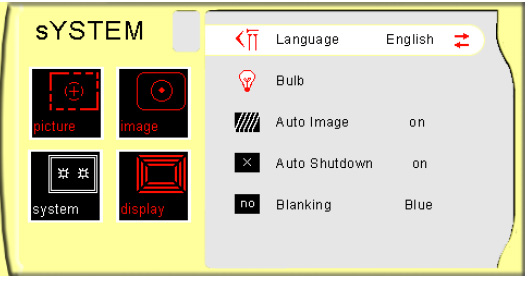
  • Scroll over to the SYSTEM menu.
  • Scroll over to the BULB option.
  • Press Enter.
  • The Status menu appears again showing the Lamp Hours reset to zero.

Learn the TOP Tips for extending the projector lamp life in your Optoma Theme Scene H56 projector.
Tagged with: , , , ,

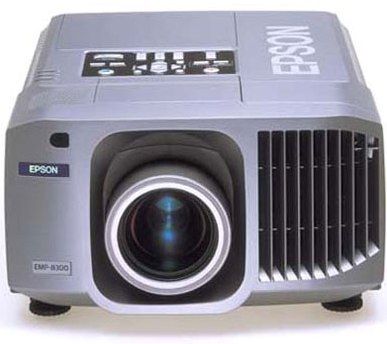
Epson_PowerLife_8300NL_ELPLP23_projector_LampReplace the Epson PowerLite 8300NL projector lamp in three easy steps.

Step 1: Recognizing end of projector lamp

The Epson PowerLite 8300NL projector lamp lasts between 2000 to 3000 hours depending on the brightness settings. The number of hours may vary slightly depending on how much the projector is used and whether regular maintenance is done.

You will know when it’s time to replace the Epson ELPLP23 – V13H010L233 projector lamp in the Epson PowerLite 8300NL projector when the following end of life signs start to appear:
  • projected image gets darks
  • starts to deterioriate
  • the lamp warning light begins to flash orange
  • a message: “LAMP REPLACE flashes on the screen when you start using the projector.

Using the lamp past it’s due date can seriously damage your Epson PowerLite 8300NL projector.

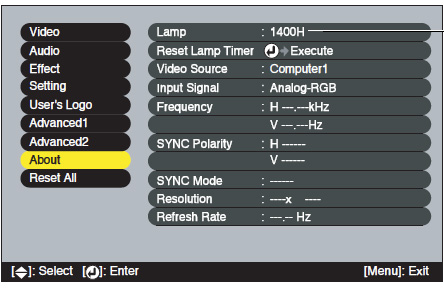
Consult the About menu to see how many hours are left until the Epson ELPLP23 (V13H010L233) projector lamp reaches end of life. To access:

Epson_PowerLite_8300NL_ELPLP23_reset_projector_lamp_timer

  • Press the MENU button to get the projector’s main menu.
  • Scroll down to the ABOUT option.
  • Press ENTER.
  • The lamp usage timer shows 0H until you’ve used the lamp for at least 10 hours.

Step 2: Buying the right projector lamp

Copycat manufacturers offer no guarantee or refunds and the warranty on your Epson PowerLite 8300NL projector will become void. Look for the seal of approval before buying and get the best projector lamp possible — an authentic OEM one!

Reasons for avoiding generic lamps:

Learn how to spot the copycat fake lamps with 7 Ways to Spot a Counterfeit Lamp.

Find this lamp on Amazon sold by these authorized dealers:

Step 3: Installing the Epson ELPLP43 projector lamp

Do these four safety steps BEFORE installing the new Epson ELPLP23 V13H010L233 projector lamp:

  • The Epson PowerLite 8300NL projector operates under very high temperatures. Let it cool for one full hour before attempting to replace the lamp in order to avoid being burned.
  • Turn off the projector by pressing the power button. Wait for the light to stop flashing.
  • Turn off the power switch at the back on the projector
  • Unplug any power cords.

To replace the V13H010L233 projector lamp:

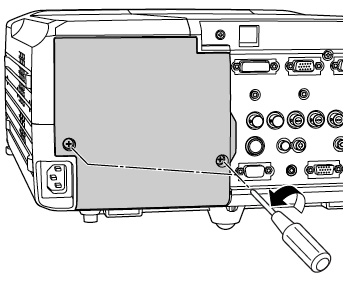
Epson_PowerLite_8300NL_ELPLP23_remove_projector_lamp_coverRemove the cover on the Epson PowerLite 8300NL projector. Take extra precaution if the projector is mounted on the ceiling. If you have installed the rear cover after mounting on the ceiling, you should remove that cover first.

Loosen the projector lamp cover screws –they won’t come all the way out. Put the projector lamp cover to one side.


Epson_PowerLite_8300NL_ELPLP23_remove_projector_lamp_screws

Loosen the three screws holding the projector lamp in place (screws don’t come out the whole way).


Epson_PowerLite_8300NL_ELPLP23_remove_lamp

Lift up the wire handle on the projector lamp. Grasp it and and pull the Epson ELPLP23 – V13H010L233 projector lamp straight out

Pulling too quickly can cause the bulb to shatter. Learn what to do should the bulb shatter.

NOTE: The Epson ELPLP23 projector lamp contains mercury and should be properly recycled. Don’t place it into regular garbage.

To finish the Epson ELPLP23 – V13H010L233 projector lamp installation:

  • Gently insert the new Epson ELPLP23 – V13H010L233 projector lamp.
  • Take care not to touch the actual glass bulb as your fingerprint will burn into a black spot when the lamp heats up. This will cause black spots on the screen.
  • Once the lamp is fully inserted, tighten three screws that will hold the lamp in place.
  • Replace the Epson PowerLite 8300NL projector cover.
  • You must now reset the lamp timer.

Resetting the Projector Lamp Timer

It’s important to reset the Lamp Usage Timer so the Epson PowerLite 8300NL projector can accurately track the lamp lie and send the Lamp replacement message when it’s time for a new Epson ELPLP23 – V13H010L233 projector lamp.

Epson_PowerLite_8300NL_ELPLP23_reset_projector_lamp_timer

  • Press the MENU button on the remote control projector’s control panel to open the main menu.
  • Use the pointer buttons on the remote control to scroll down the menu on the left and highlight the ABOUT option.
  • Scroll down to RESET LAMP TIMER.


Epson_PowerLite_8300NL_ELPLP23_reset_projector_lamp_timer_execute

  • Press ENTER to bring up the Execute prompt.
  • Select YES.
  • Press ENTER.
  • Press ESC or MENU.


Resetting the timer before installing a new Epson ELPLP23 – V13H010L233 projector lamp can cause serious damage to your projector.

Get more life from your Epson ELPLP43 projector lamp
Get more hours from your Epson ELPLP23 lamp by following these maintenance tips:
  • Keep your air filters clean to avoid overheating the projector.
  • Turn off the Epson PowerLite 8300NL projector and let it stand unused for at least one hour ever 24 hours. An average use of four to five hours per day will ensure longer lamp life.
  • Make sure there is enough airflow around the projector particularly if it’s been permanently mounted.
  • Learn more with Top tips for extending DLP projector lamp life.
  • Press the MENU button to exit.


Tagged with: , , , ,
Join the discussion on Facebook! All your questions, answered! The Screen & Projector Group