We're now Screen and Projector! For updated content, visit ScreenAndProjector.com and follow @screenandproj on social media!

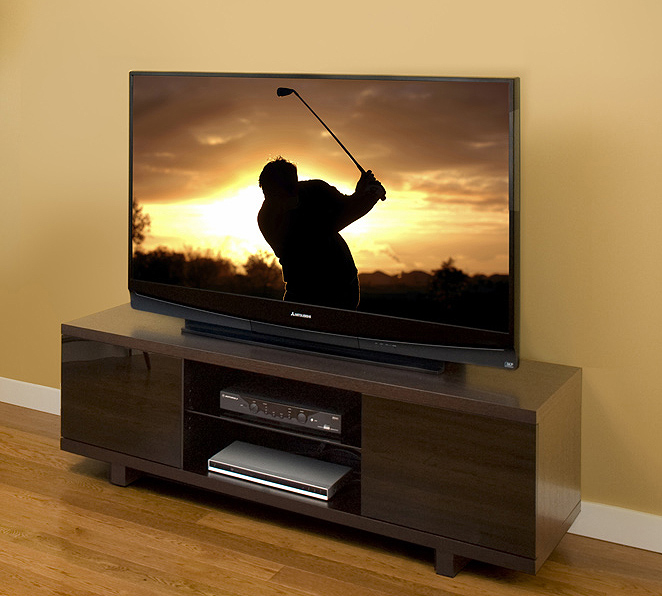
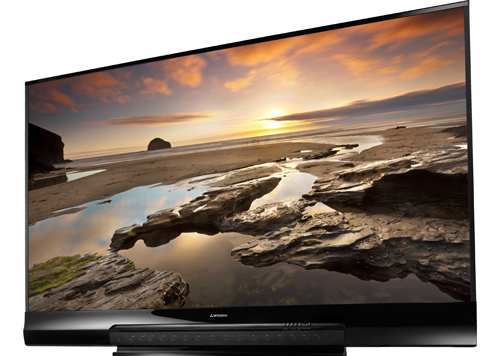
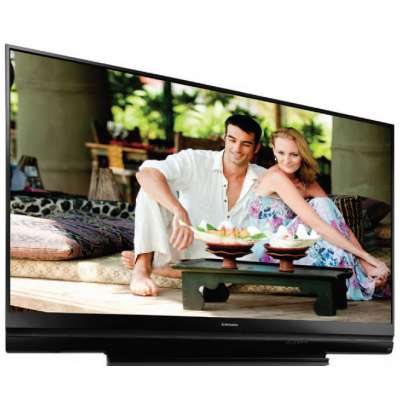
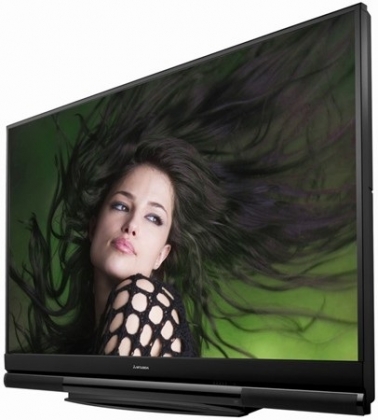
Mitsubishi WD-60735 TV

Mitsubishi WD-60735 TV

Step-by-Step Instructions for replacing the Philips Mitsubishi 915B403001 Lamp

When the picture on your Mitsubishi becomes dimmer it’s time to replace the lamp. You’ll need to purchase a Philips Mitsubishi 915B403001 lamp replacement.

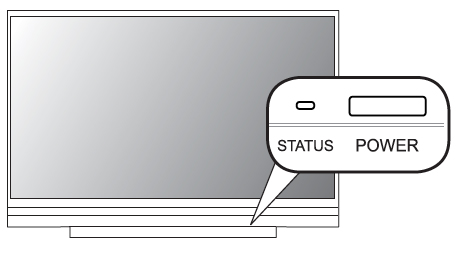
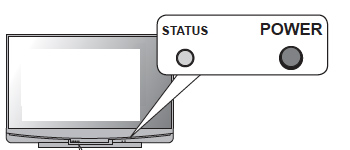
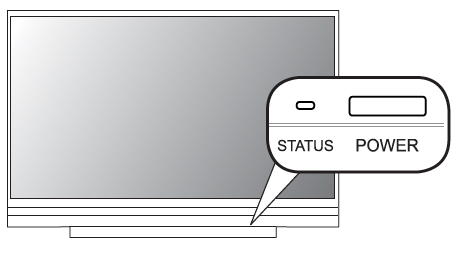
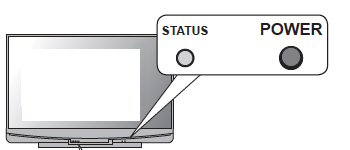
If you have a Mitsubishi series WD-60735, WD-60C8, WD-65735, WD-65736, WD-65835, WD-65C8, WD-73735, WD-73736, WD-73835, WD-73C8 there will be a Lamp Indicator on the front panel just left of the Power button. Mitsubishi DLP Lamp Indicator
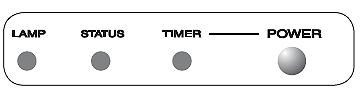
When the TV is operating normally, this indicator will not be lit. When it turns RED, the Mitsubishi 915B403001 has reached its end of life and must be replaced immediately; the TV will not operate with a burnt out lamp since this is the TV’s only light source.

The life of the Mitsubishi 915B403001 lamp can vary depending on the selected lamp mode and how much the TV is used. The original lamp is guaranteed from one year from the date of original purchase.

Before Installation

Be sure to purchase a genuine Mitsubishi 915B403001 Lamp Cartridge (this includes the housing as well as the bulb) either directly from the manufacturer or from an authorized dealer. Cheaper models may damage your set since these are often created with counterfeit, inferior parts that will not fit or perform properly. Your warranty may also be void if you install a lamp bought from an unauthorized source.

The Philips Mitsubishi 915B403001 Lamp is the recommend cartridge for all Mitsubishi series WD-60735, WD-60C8, WD-65735, WD-65736, WD-65835, WD-65C8, WD-73735, WD-73736, WD-73835, WD-73C8 televisions.

For an environmentally friendly and more economical option, you can also just purchase the bare lamp that allows you to re-use the existing housing by swapping the old bulb for the new one. Read more in our Lamp Replacement Guide.

Replacing the Philips Mitsubishi 915B403001 Lamp

CAUTIONBurn Danger! Allow the T.V. to cool for one hour before replacing the lamp. Avoid touching the lamp or lamp cartridge. Use the lamp handles only to remove the lamp.

HELPFUL TIP: Use a pair of rubber gloves during installation. The Philips Mitsubishi 915B403001 Lamp lamps does contain mercury, which may end up on your skin. Don’t touch the lamp glass with bare hands as the oil form your fingers may cause premature lamp failure.

PART ONE: Removing the Old Philips Mitsubishi 915B403001 Lamp Cartridge
  • Turn off the TV and allow it to cool for one hour.
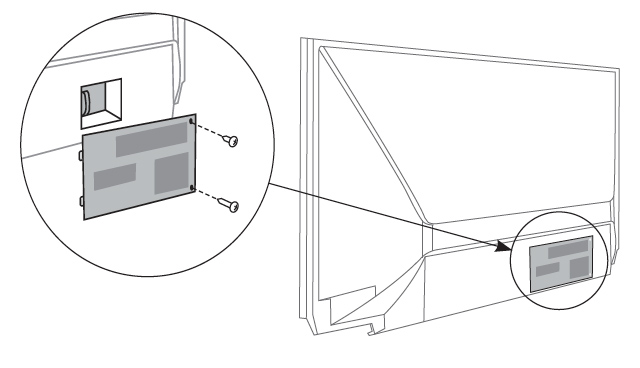
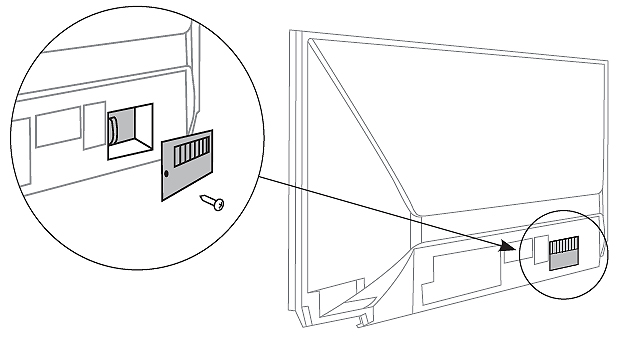
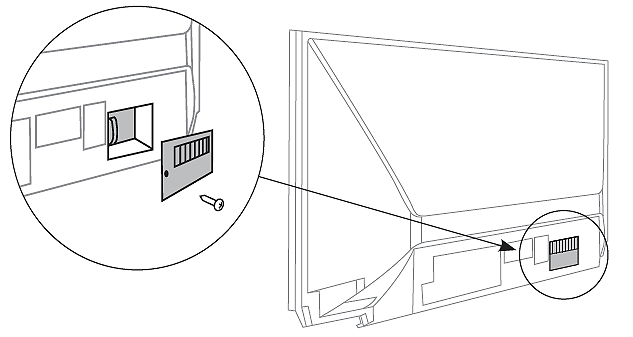
  • After TV has cooled, remove the cover of the lamp compartment, located at the back of the TV. Using a #2 Philips screwdriver, loosen the screw holding the cover in place. Put the cover to one side.
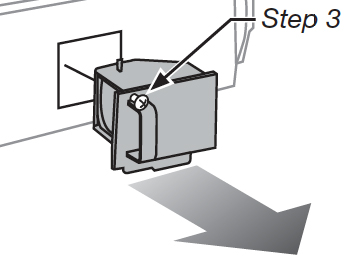
  • Loosen the two screws on either side of the lamp cartridge (they are the shiniest screws). These screws can only be loosened and not removed completely from the lamp cartridge.
  • Take out the bag supplied with your new lamp and open it up. You’ll store the old lamp in this bag.
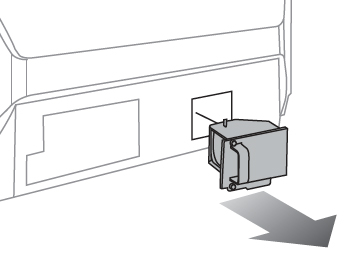
  • Gently grasp the handle on the lamp cartridge and pull the lamp straight out. DO NOT TILT, as there may be glass fragments that will fall inside the TV. If this happens, carefully pick up the larger shards wearing rubber gloves. Take a cloth just damp enough to pick up the small shreds. It’s important to pick up the broken lamps since this lamps does have mercury. Read more about proper clean-up from the EPA.
  • Put the old lamp gently into the opened bag. Close the bag.

PART TWO: Installing the New Philips Mitsubishi 915B403001 Lamp
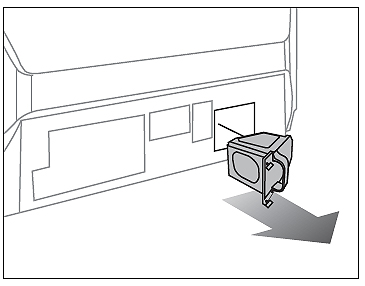
Mitsubishi series WD-60735, WD-60C8, WD-65735, WD-65736, WD-65835, WD-65C8, WD-73735, WD-73736, WD-73835, WD-73C8 lamp replacement

  • Using the lamp handle, carefully remove the new Philips Mitsubishi 915B403001 Lamp cartridge from the bag. DON’T TOUCH the glass parts of the lamp.
  • Do a final wipe with a clean, non-abrasive, lint-free cloth to remove any possible dust. Insert the new cartridge into the TV without tilting the lamp. The lamp cartridge should slide in easily.
  • Gently tighten the two shiny screws. AVOID OVER TIGHTENING as this will trigger a warning light and your TV will not turn on.
  • Replace the plastic cover and tighten the one screw. Again, avoid over tightening.
  • If you haven’t used gloves while changing the cartridge: WASH YOUR HANDS immediately. If you did use gloves, dispose of them immediately


PART THREE: Disposal of the used Philips Mitsubishi 915B403001 lamp cartridge

  • The old Philips Mitsubishi 915B403001 Lamp is e-waste because of the mercury inside the bulb. DON’T THROW IT AWAY into the common garbage. Recycle correctly according to regulations in your area. These lamps contain mercury and should not be included in regular garbage.
  • Contact your local recycling center or Recycle Your Lamp.org for help in recycling your old lamp.

PART FOUR: Setting the lamp mode

You can prolong the life of your Philips Mitsubishi 915B403001 lamp by changing the lamp mode. Mitsubishi WD-60735, WD-60C8, WD-65735, WD-65736, WD-65835, WD-65C8, WD-73735, WD-73736, WD-73835, WD-73C8 lamp mode
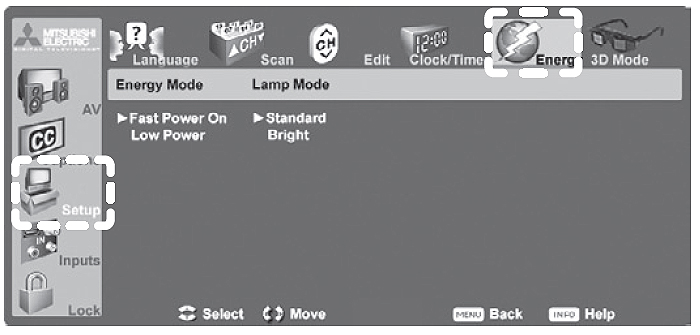
  • Using the TV remote press MENU.
  • Scroll down to pick the SET UP menu. A top menu will appear.
  • Scroll across the top menu to the ENERGY option.
  • Scroll down to the LAMP MODE option on the right hand side. You’ll have the choice of STANDARD or BRIGHT.
  • The STANDARD option is suitable for most viewing conditions and since it uses a lower wattage can prolong the life of your lamp.
  • BRIGHT mode is suitable for brightly lit rooms but uses more wattage and may reduce the life of your lamp. Using this mode makes the TV hotter and he fan may turn on more frequently.

Mitsubishi TVs Compatible with the Philips Mitsubishi 915B403001 Lamp

C Series: WD-60C8, WD-65C8, WD-73C8
735 Series:WD-60735, WD-65735, WD-73735736
736 Series:WD-65736, WD-73736
835 Series: WD-65835, WD-73835
C9 Series: WD-60C9, WD-65C9, WD-73C9
737 Series: WD-60737, WD-65737, WD-73737, WD-82737
837 Series: WD-65837, WD-73837, WD-82837
Tagged with:

Mitsubishi WD-82837 DLP TV

Mitsubishi WD-82837 DLP TV

Step-by-Step Instructions for replacing the Philips Mitsubishi 915B403001 Lamp

When the picture on your Mitsubishi starts to dim it’s time to replace the lamp. The Lamp Indicator will also turn red. You’ll need to purchase a Philips Mitsubishi 915B403001 lamp replacement.

If you have a Mitsubishi series  WD-60C9 /WD-65C9 /WD-73C9 / WD-60737 / WD-65737 / WD-73737 / WD-82737 / WD-65837 / WD-73837 / WD-82837 the Lamp Indicator will be found on the front panel just left of the Power button.

Control Panel for Mitsubishi TV series WD-60737 / WD-60C9 /WD-65737 / WD-65837 / WD-65C9 / WD-73737 / WD-73837 / WD-73C9 / WD-82737When the TV is operating normally, this indicator will not be lit. When it turns RED, the Philips Mitsubishi 915B403001 has reached its end of life and must be replaced immediately; the TV will not operate with a burnt out lamp since this is the TV’s only light source.

The life of the Philips Mitsubishi 915B403001 lamp can vary depending on the selected lamp mode and how much the TV is used. The original lamp is guaranteed from one year from the date of original purchase.

Before Installation

Be sure to purchase a genuine Philips Mitsubishi 915B403001 Lamp Cartridge (this includes the housing as well as the bulb) either directly from the manufacturer or from an authorized dealer. Cheaper models may damage your set since these are often created with counterfeit, inferior parts that will not fit or perform properly. Your warranty may also be void if you install a lamp bought from an unauthorized source.

The Philips Mitsubishi 915B403001 Lamp is the recommend model for all Mitsubishi series WD-60C9 /WD-65C9 /WD-73C9 / WD-60737 / WD-65737 / WD-73737 / WD-82737 / WD-65837 / WD-73837 / WD-82837 televisions.

For an environmentally friendly and more economical option, you can also just purchase the bare lamp that allows you to re-use the existing housing by swapping the old bulb for the new one. Read more in our Lamp Replacement Guide.

Replacing the Philips Mitsubishi 915B403001 Lamp

CAUTION:  Burn Danger! Allow the T.V. to cool for one hour before replacing the lamp. Avoid touching the lamp or lamp cartridge. Use the lamp handles only to remove the lamp.

HELPFUL TIP: Use a pair of rubber gloves during installation. The Philips Mitsubishi 915B403001 Lamp lamps does contain mercury, which may end up on your skin. Don’t touch the lamp glass with bare hands as the oil form your fingers may cause premature lamp failure.

PART ONE: Removing the Old Philips Mitsubishi 915B403001 Lamp Cartridge

  • Turn off the TV and allow it to cool for one hour.
  • After TV has cooled, remove the cover of the lamp compartment, located at the back of the TV. Using a #2 Philips screwdriver, loosen the screw holding the cover in place. Put the cover to one side.
  • Loosen the two screws on either side of the Philips Mitsubishi 915B403001 (they are the shiniest screws). These screws can only be loosened and not removed completely from the lamp cartridge.
  • Take out the bag supplied with the new lamp and open it.
  • Gently grasp the handle on the lamp cartridge and pull the lamp straight out. DO NOT TILT, as there may be glass fragments that will fall inside the TV. If this happens, carefully pick up the larger shards wearing rubber gloves. Take a cloth just damp enough to pick up the small shreds. It’s important to pick up the broken lamps since this lamp does contain mercury. Read more about proper clean-up from the EPA.
  • Put the old lamp gently into the opened bag. Close the bag.

PART TWO: Installing the New Philips Mitsubishi 915B403001 Lamp

Mitsubishi series WD-60735, WD-60C8, WD-65735, WD-65736, WD-65835, WD-65C8, WD-73735, WD-73736, WD-73835, WD-73C8 lamp replacement

  • Using the lamp handle, carefully remove the new Philips Mitsubishi 915B403001 Lamp cartridge from the bag. DON’T TOUCH the glass parts of the lamp.
  • Do a final wipe with a clean, non-abrasive, lint-free cloth to remove any possible dust. Insert the new cartridge into the TV without tilting the lamp. The lamp cartridge should slide in easily.
  • Gently tighten the two shiny screws. AVOID OVER TIGHTENING as this will trigger a warning light and your TV will not turn on.
  • Replace the plastic cover and tighten the one screw. Again, avoid over tightening.
  • If you haven’t used gloves while changing the cartridge: WASH YOUR HANDS immediately. If you did use gloves, dispose of them immediately


PART THREE: Disposal of the used Philips Mitsubishi 915B403001 lamp cartridge

  • The used Philips Mitsubishi 915B403001 Lamp is e-waste because of the mercury inside the bulb. DON’T THROW IT AWAY into the common garbage. Recycle correctly according to regulations in your area. These lamps contain mercury and should not be included in regular garbage.
  • Contact your local recycling center or Recycle Your Lamp.org for help in recycling your old lamp.

PART FOUR: Setting the lamp mode

You can prolong the life of your Philips Mitsubishi 915B403001 lamp by changing the lamp mode.

Menu settings Mitsubishi WD-60737 / WD-60C9 / WD-65737 / WD-65837 / WD-65C9 / WD-73737 / WD-73837 / WD-73C9 / WD-82737 / WD-82837

  • Using the TV remote press MENU.
  • Use the down arrow key to scroll to the INITIAL Menu. Press the ENTER key.

Lamp mode setting Mitsubishi Menu settings Mitsubishi WD-60737 / WD-60C9 / WD-65737 / WD-65837 / WD-65C9 / WD-73737 / WD-73837 / WD-73C9 / WD-82737 / WD-82837

  • Use the right arrow key to move into the submenu and scroll across to choose the LAMP option.
  • Use the down to scroll to one of the two options of STANDARD or BRIGHT. Press the ENTER key.
  • The STANDARD option is suitable for most viewing conditions and since it uses a lower wattage can prolong the life of your lamp.
  • BRIGHT mode is suitable for brightly lit rooms but uses more wattage and may reduce the life of your lamp. Using this mode makes the TV hotter and the fan may turn on more frequently. You may also notice more noise on the TV.

Mitsubishi TVs Compatible with the Philips Mitsubishi 915B403001 Lamp

C9 Series: WD-60C9, WD-65C9, WD-73C9
737 Series: WD-60737, WD-65737, WD-73737, WD-82737
837 Series: WD-65837, WD-73837, WD-82837

C Series: WD-60C8, WD-65C8, WD-73C8
735 Series:WD-60735, WD-65735, WD-73735736
736 Series:WD-65736, WD-73736
835 Series: WD-65835, WD-73835


Tagged with: , ,

Mitsubishi WD-82840 HD-DLP

Step-by-Step Instructions for replacing the Philips Mitsubishi 915B455011 Lamp

When the picture on your Mitsubishi HD-LP TV becomes dimmer it’s time to replace the lamp. When the lamp is no longer working the Lamp Indicator will show red. You’ll need to buy a Philips Mitsubishi 915B455011 replacement lamp.

Control panel Mitsubishi WD-73740 / WD-82740 / WD-73840 / WD-82840/ WD-92840 / WD-82CB1If you have a  Mitsubishi HD-DLP TV series WD-73740 / WD-82740 / WD-73840 / WD-82840/ WD-92840 / WD-82CB1 the Lamp Indicator will be found on the front panel left of the Power button.

When the TV is operating normally, this indicator will not be lit. When the light has turned RED, the lamp has burnt out and since this is the only source of light for the TV, it will not turn on.

Before Installation

The life of the lamp can vary depending on the selected lamp mode and how much the TV is used.

Be sure to purchase a genuine Philips Mitsubishi 915B455011 Lamp Cartridge (this includes the housing as well as the bulb) either directly from the manufacturer or from an authorized dealer. Cheaper models may damage your set since these are often created with counterfeit, inferior parts that will not fit or perform properly. Your warranty may also be void if you install a lamp bought from an unauthorized source.

The Philips Mitsubishi 915B455011 Lamp is the recommend model for HD-DLP TV series D-DLP TV series WD-73740 / WD-82740 / WD-73840 / WD-82840/ WD-92840 / WD-82CB1 televisions.

For an environmentally friendly and more economical option, you can also just purchase the bare lamp that allows you to re-use the existing housing by swapping the old bulb for the new one.

Replacing the Philips Mitsubishi 915B455011 Lamp

CAUTION:  Burn Danger! Allow the T.V. to cool for one hour before replacing the lamp. Avoid touching the lamp or lamp cartridge. Use the lamp handles only to remove the lamp.

HELPFUL TIP: Use a pair of rubber gloves during installation. These lamps contain mercury, which may end up on your skin. Don’t touch the lamp glass with bare hands as the oil form your fingers may cause premature lamp failure.

PART ONE: Removing the Old Philips Mitsubishi 915B455011 Lamp Cartridge

Lamp Cover for Mitsubishi HD-DLP TWD-73740 / WD-82740 / WD-73840 / WD-82840/ WD-92840 / WD-82CB1

  • Turn off the TV and allow it to cool for one hour.
  • After TV has cooled, remove the cover of the lamp compartment, located at the back of the TV. Using a #2 Philips screwdriver, loosen the two screws holding the cover in place. Put the cover to one side.
  • Loosen the screw on the left hand side of the lamp cartridge keeping it in place. This is a captive screw so can only be loosened and not removed.
  • Open the bag supplied with the new Philips Mitsubishi 915B455011 lamp replacement. You’ll store the old lamp in this bag.
  • Gently grasp the handle on the lamp cartridge and pull the lamp straight out. DO NOT TILT, as there may be glass fragments that will fall inside the TV. If this happens, carefully pick up the glass larger shards wearing rubber gloves. Take a cloth just damp enough to pick up the small shreds. It’s important to pick up the broken lamps since this lamps does have mercury. Read more about proper clean-up from the EPA.
  • Put the old lamp gently into the opened bag. Close the bag.

PART TWO: Installing the New Philips Mitsubishi 915B455011 Lamp

Mitsubishi HD-DLP TV Lamp Cover for Mitsubishi HD-DLP TWD-73740 / WD-82740 / WD-73840 / WD-82840/ WD-92840 / WD-82CB1

  • Using the lamp handle, carefully remove the new Philips Mitsubishi 915B455011 Lamp from the bag. DON’T TOUCH the glass parts of the lamp.
  • Do a final wipe with a clean, non-abrasive, lint-free cloth to remove any possible dust. Insert the new cartridge into the TV without tilting the lamp. The lamp cartridge should slide in easily.
  • Gently tighten the screw. AVOID OVER TIGHTENING as this will trigger a warning light and your TV will not turn on.
  • Replace the lamp cover and tighten the two screws. Again, avoid over tightening.
  • If you haven’t used gloves while changing the cartridge: WASH YOUR HANDS immediately. If you did use gloves, dispose of them immediately


PART THREE: Disposal of the used Philips Mitsubishi 915B455011 Lamp Cartridge

  • The old lamp is e-waste. DON’T THROW IT AWAY. Recycle correctly according to regulations in your area. These lamps contain mercury and should not be included in regular garbage.
  • Contact your local recycling center or Recycle Your Lamp.org for help in recycling your old lamp.


PART FOUR: Setting the Lamp Mode

Energy Mode Mitsubishi HD-DLP TV WD-73740 / WD-82740 / WD-73840 / WD-82840/ WD-92840 / WD-82CB1

  • You can prolong the life of your Philips Mitsubishi 915B455011 lamp by changing the lamp mode.
  • Using the TV remote press MENU.
  • Use the down arrow key to scroll to the SETUP Menu. Hit the ENTER key.
  • Use the right arrow key to move into the submenu and scroll across to choose the ENERGY option.
  • Use the down to scroll to one of the two options of STANDARD or BRIGHT. Hit the ENTER key.
  • The STANDARD option is suitable for most viewing conditions and since it uses a lower wattage can prolong the life of your lamp.
  • BRIGHT mode is suitable for brightly lit rooms but uses more wattage and may reduce the life of your lamp. Using this mode makes the TV hotter and he fan may turn on more frequently.


Mitsubishi TVs Compatible with the Philips Mitsubishi 915B455011 Lamp Cartridge

WD-73640 / WD-73C11 / WD-73CA1
740 Series: WD-73740 / WD-82740
840 Series: WD-73840 / WD-82840/ WD-92840
WD-82CB1

Tagged with: ,

Mitsubishi WD-60638 HD-DLP TV

Mitsubishi WD-60638 HD-DLP TV

Step-by-Step Instructions for replacing the Philips Mitsubishi 915B441001 lamp.

When the picture on your Mitsubishi HD-LP TV becomes dimmer it’s time to replace the lamp. When the lamp is no longer working the Lamp Indicator will  blink red. You’ll need to buy a Philips Mitsubishi 915B441001 replacement lamp.

If you have a Mitsubishi HD-DLP TV series WD-60638 / WD-60738 /WD-60C10 /WD-65638 /WD-65C10 /WD-73638 /WD-73738 /WD-73C10 /WD-82838 the Lamp Indicator will be found on the front panel left of the Power button. Control Panel for Mitsubishi WD-60638 / WD-60738 /WD-60C10 /WD-65638 /WD-65C10 /WD-73638 /WD-73738 /WD-73C10 /WD-82838

When the TV is operating normally, this indicator will not be lit. When has turned RED, the lamp has burnt out and since this is the only source of light for the TV, it will not turn on.

Before Installation

The life of the lamp can vary depending on regular maintenance and how much the TV is used. Be sure to purchase a genuine Philips Mitsubishi 915B441001 Lamp Cartridge (this includes the housing as well as the bulb) either directly from the manufacturer or from an authorized dealer. Cheaper models may damage your set since these are often created with counterfeit, inferior parts that will not fit or perform properly. Your warranty may also be void if you install a lamp bought from an unauthorized source.

The Philips Mitsubishi 915B441001 is the recommend model for WD-60638 / WD-60738 /WD-60C10 /WD-65638 /WD-65C10 /WD-73638 /WD-73738 /WD-73C10 /WD-82838 HD-DLP televisions.

For an environmentally friendly and more economical option, you can also just purchase the bare lamp that allows you to re-use the existing housing by swapping the old bulb for the new one.

Replacing the Philips Mitsubishi 915B441001 Lamp

CAUTION:  Burn Danger! Allow the T.V. to cool for one hour before replacing the lamp. Avoid touching the lamp or lamp cartridge. Use the lamp handles only to remove the lamp.

HELPFUL TIP: Use a pair of rubber gloves during installation. These lamps contain mercury, which may end up on your skin. Don’t touch the lamp glass with bare hands as the oil form your fingers may cause premature lamp failure.

 PART ONE: Removing the Old Philips Mitsubishi 915B441001 Lamp

Lamp cover for Mitsubishi WD-60638 / WD-60738 /WD-60C10 /WD-65638 /WD-65C10 /WD-73638 /WD-73738 /WD-73C10 /WD-82838

  • Turn off the TV and allow it to cool for one hour.
  • After TV has cooled, remove the cover of the lamp compartment, located at the back of the TV. Using a #2 Philips screwdriver, loosen the screw holding the cover in place. Put the cover to one side.
  • Loosen the two screws holding the lamp cartridge in place. This is a captive screw so can only be loosened and not removed.
  • Opened the bag supplied with the new Philips Mitsubishi 915B441001 lamp replacement. You’ll store the old lamp in this bag.
  • Gently grasp the handle on the lamp cartridge and pull the lamp straight out. DO NOT TILT, as there may be glass fragments that will fall inside the TV. If this happens, carefully pick up the larger shards wearing rubber gloves. Take a cloth just damp enough to pick up the small shreds. It’s important to pick up the broken lamps since this lamps does have mercury. Read more about proper clean-up from the EPA.
  • Put the old lamp gently into the opened bag. Close the bag.

PART TWO: Installing the New Philips Mitsubishi 915B441001 Lamp

Lamp replacement for Mitsubishi WD-60638 / WD-60738 /WD-60C10 /WD-65638 /WD-65C10 /WD-73638 /WD-73738 /WD-73C10 /WD-82838

  • Using the lamp handle, carefully remove the new lamp cartridge from the bag. DON’T TOUCH the glass parts of the lamp.
  • Do a final wipe with a clean, non-abrasive, lint-free cloth to remove any possible dust. Insert the new cartridge into the TV without tilting the lamp. The lamp cartridge should slide in easily.
  • Gently the screw. AVOID OVER TIGHTENING as this will trigger a warning light and your TV will not turn on.
  • Replace the lamp cover and tighten the two screws. Again, avoid over tightening.
  • If you haven’t used gloves while changing the cartridge: WASH YOUR HANDS immediately. If you did use gloves, dispose of them immediately.

PART THREE: Disposal of the old Philips Mitsubishi 915B441001 lamp cartridge

  • The old lamp is e-waste. DON’T THROW IT AWAY. Recycle correctly according to regulations in your area. These lamps contain mercury and should not be included in regular garbage.
  • Contact your local recycling center or Recycle Your Lamp.org for help in recycling your old lamp.

Watch this video for more info.

Mitsubishi TVs Compatible with the Philips Mitsubishi 915B441001

638 Series: WD-60638/ WD-60738 / WD-65638 / WD-73638 /WD-73738 / WD-82838
C10 Series: WD-60C10 / WD-65C10 /73C10

Tagged with:

Mitsubishi WD-73640 HD-DLP Television

Mitsubishi WD-73640

Step-by-Step Instructions for replacing the Philips Mitsubishi 915B455011 lamp

When the picture on your Mitsubishi HD-LP TV becomes dimmer it’s time to replace the lamp. When the lamp is no longer working the Lamp Indicator will show red. You’ll need to buy a Philips Mitsubishi 915B455011 replacement lamp.
Lamp indicator panel Mitsubishi WD-73640 / WD-73C11 / WD-73CA1
If you have a Mitsubishi HD-DLP TV series WD-73640 / WD-73C11 / WD-73CA1 the Lamp Indicator will be found on the front panel left of the Power button.

When the TV is operating normally, this indicator will not be lit. When has turned RED, the lamp has burnt out and since this is the only source of light for the TV, it will not turn on. The life of the lamp can vary depending on the selected lamp mode and how much the TV is used.

Before Installation

Be sure to purchase a genuine Philips Mitsubishi 915B455011 Cartridge (this includes the housing as well as the bulb) either directly from the manufacturer or from an authorized dealer. Cheaper models may damage your set since these are often created with counterfeit, inferior parts that will not fit or perform properly. Your warranty may also be void if you install a lamp bought from an unauthorized source.

The Philips Mitsubishi 915B455011 is the recommend model for Mitsubishi WD-73640/WD-73C11/ WD-73CA1 HD-DLP televisions.

For an environmentally friendly and more economical option, you can also just purchase the bare lamp that allows you to re-use the existing housing by swapping the old bulb for the new one. Read more in our Lamp Replacement Guide.


Replacing the Philips Mitsubishi 915B455011 Lamp

CAUTION:  Burn Danger! Allow the T.V. to cool for one hour before replacing the lamp. Avoid touching the lamp or lamp cartridge. Use the lamp handles only to remove the lamp.

HELPFUL TIP: Use a pair of rubber gloves during installation. These lamps contain mercury, which may end up on your skin. Don’t touch the lamp glass with bare hands as the oil form your fingers may cause premature lamp failure.


PART ONE: Removing the Old Philips Mitsubishi 915B455011 Lamp Cartridge

Lamp Cover for Mitsubishi HD-DLP TV series WD-73640 / WD-73C11 / WD-73CA1

  • Turn off the TV and allow it to cool for one hour.
  • After TV has cooled, remove the cover of the lamp compartment, located at the back of the TV. Using a #2 Philips screwdriver, loosen the two screws holding the cover in place. Put the cover to one side.
  • Loosen the screw on the left hand side of the lamp cartridge keeping it in place. This is a captive screw so can only be loosened and not removed.
  • Open the bag supplied with the new Philips Mitsubishi 915B455011 lamp replacement. You’ll store the old lamp in this bag.
  • Gently grasp the handle on the lamp cartridge and pull the lamp straight out. DO NOT TILT, as there may be glass fragments that will fall inside the TV. If this happens, carefully pick up the  larger shards wearing rubber gloves. Take a cloth just damp enough to pick up the small shreds. It’s important to pick up the broken lamps since this lamps does have mercury. Read more about proper clean-up from the EPA.
  • Put the old lamp gently into the opened bag. Close the bag.


PART TWO: Installing the New Philips Mitsubishi 915B455011 Lamp Cartridge

Mitsubishi HD-DLP TV series WD-73640 / WD-73C11 / WD-73CA1

  • Using the lamp handle, carefully remove the new Philips Mitsubishi 915B455011 lamp cartridge from the bag. DON’T TOUCH the glass parts of the lamp.
  • Do a final wipe with a clean, non-abrasive, lint-free cloth to remove any possible dust. Insert the new cartridge into the TV without tilting the lamp. The lamp cartridge should slide in easily.
  • Gently tighten the screw. AVOID OVER TIGHTENING as this will trigger a warning light and your TV will not turn on.
  • Replace the lamp cover and tighten the two screws. Again, avoid over tightening.
  • If you haven’t used gloves while changing the cartridge: WASH YOUR HANDS immediately. If you did use gloves, dispose of them immediately


PART THREE: Disposal of the old Philips Mitsubishi 915B455011 Lamp Cartridge

  • The old lamp is e-waste. DON’T THROW IT AWAY. Recycle correctly according to regulations in your area. These lamps contain mercury and should not be included in regular garbage.
  • Contact your local recycling center or Recycle Your Lamp.org for help in recycling your old lamp.


PART FOUR: Setting the Lamp Mode

Energy Mode Mitsubishi HD-DLP TV series WD-73640 / WD-73C11 / WD-73CA1

  • You can prolong the life of your Philips Mitsubishi 915B455011 lamp by changing the lamp mode.
  • Using the TV remote press MENU.
  • Use the down arrow key to scroll to the SETUP Menu. Hit the ENTER key.
  • Use the right arrow key to move into the submenu and scroll across to choose the ENERGY option.
  • Use the down to scroll to one of the two options of STANDARD or BRIGHT. Hit the ENTER key.
  • The STANDARD option is suitable for most viewing conditions and since it uses a lower wattage can prolong the life of your lamp.
  • BRIGHT mode is suitable for brightly lit rooms but uses more wattage and may reduce the life of your lamp. Using this mode makes the TV hotter and he fan may turn on more frequently.


Mitsubishi TVs Compatible with the Philips Mitsubishi 915B455011 Lamp Cartridge

WD-73640 / WD-73C11 / WD-73CA1
740 Series: WD-73740 / WD-82740
840 Series: WD-73840 / WD-82840/ WD-92840
WD-82CB1

Tagged with: , , ,

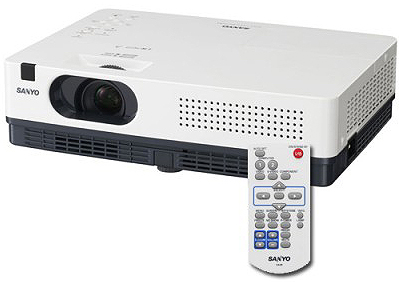
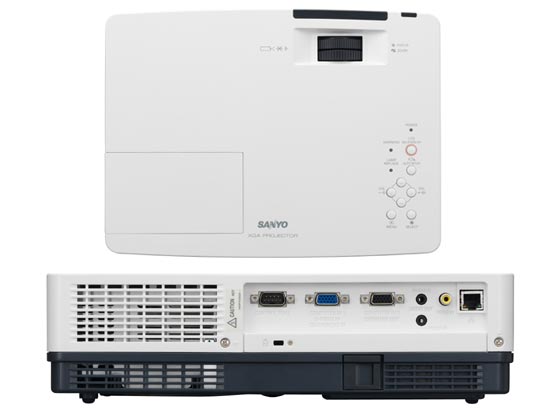
Sanyo PLC-XW300 Projector, Sanyo POA-LMP132 (service parts no 610 345 2456)

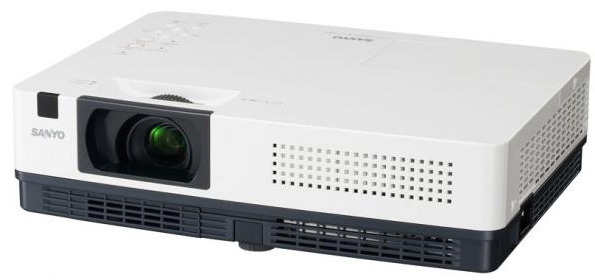
Sanyo PLC-XW300 Projector

STEP-BY-STEP INSTRUCTIONS FOR SANYO PLC-XW300 LAMP REPLACEMENT

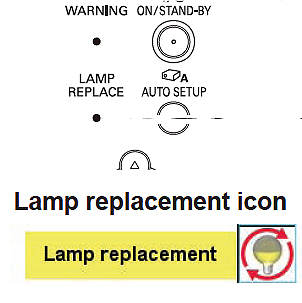
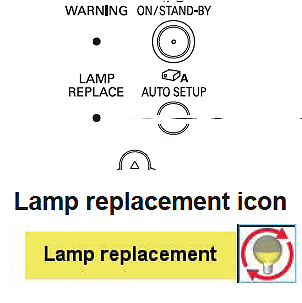
When your Sanyo POA-LMP132 (service parts no 610 345 2456) projector lamp is nearing its end of life you’ll see the  Lamp Replace Indicator on the projector flash yellow. Sanyo PLC-XW300 Replace Lamp Icon, Sanyo POA-LMP132 (service parts no 610 345 2456)

The Replace Lamp icon will also appear on the projector screen.

The lifespan of your Sanyo POA-LMP132 (service parts no 610 345 2456) lamp will vary depending on how much the projector is used and if the filters are cleaned regularly.

Before installation:

Buy your Sanyo POA-LMP132 (service parts no 610 345 2456) from an authorized manufacturer and avoid the lower-priced knock-off lamps. These fake lamps are usually made with counterfeit parts that are inferior and can damage the sensitive mechanisms in your Sanyo PLC-XW300 projector. They may end up costing you more if they damage your projector since they also void your warranty. Buying from a legitimate source keeps your projector under warranty and gives you a solid guarantee that the lamp you are installing is suitable for your projector.

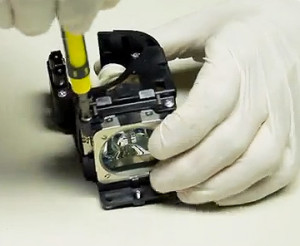
Sanyo_projector_bulb_replacementFor additional savings, you can replace only the POA-LMP132 bulb and keep the original lamp cage. Watch our video guide and learn how.

Replacing the POA-LMP132 Lamp Assembly

1. Safety steps:

  • Turn off the projector and unplug the AC cord.
  • Allow the Sanyo PLC-XW300 projector to cool to the touch. This can take between 45 to 60 minutes. Don’t open the projector when its still hot since these machines operate under high temperatures and you can burn yourself.


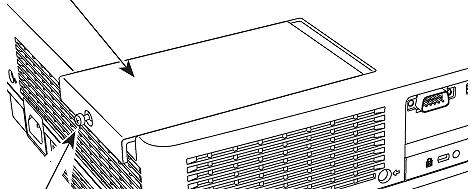
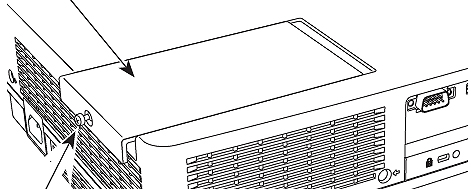
Sanyo PLC-XW300 Lamp Cover, Sanyo POA-LMP132 (service parts no 610 345 2456)2. Remove the lamp cover for the Sanyo PLC-XW300it’s  located at the top of the projector towards the back. Locate the screw holding the lamp cover in place found on the side over top of the ventilation holes. Loosen the screw to remove the cover.


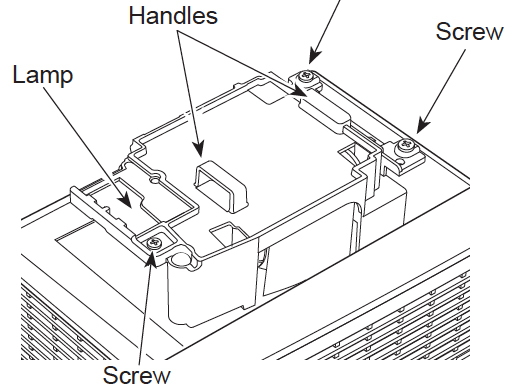
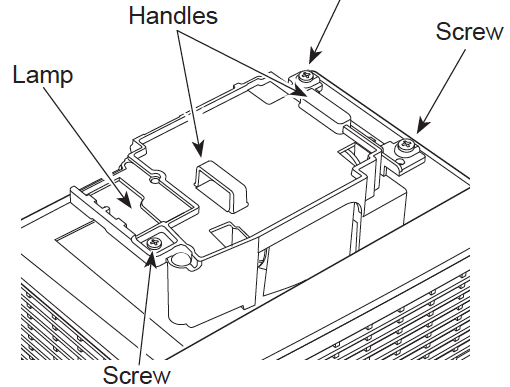
Sanyo PLC-XW300 Lamp Cage Replacement, Sanyo POA-LMP132 (service parts no 610 345 2456)3. Inside you’ll find the Sanyo POA-LMP132 (service parts no 610 345 2456) lamp cage. Loosen all three screws holding the lamp cage in place. Grab the handles on the lamp cage and gently lift the lamp out of its socket. Place to one side. Be sure to dispose of the lamp properly through a local recycling program.

4. Take the new Sanyo POA-LMP132 (service parts no 610 345 2456) lamp cage by the handle—avoid touching the lamp surface as oil from your fingers can cause black spots to appear when the projector is turned on. Gently maneuver the lamp into place. Don’t force the lamp as this may damage it.

5. Tighten all three screws on the Sanyo POA-LMP132 (service parts no 610 345 2456) Lamp Assembly. Make sure the screws have been tightened properly or the Sanyo PLC-XW300  projector will not turn on. Replace the Lamp Cover and tighten the screw.

6. Re-connect the power cord and turn on the Sanyo PLC-XW300. If the lamp does not turn on after the warm-up period, try re-installing the lamp. Reset the lamp hour using the Lamp Control mode found on the Setting menu.

NOTE: Your old Sanyo POA-LMP132 (service parts no 610 345 2456) lamp should be properly recycled. These lamps contain mercury and can’t be placed into common garbage.

RESETTING THE SANYO PLC-XW300 LAMP CONTROL MODE

Resetting the lamp replacement counter will ensure your projector correctly tracks the hours left in your newly installed Sanyo POA-LMP132 (service parts no 610 345 2456) lamp.

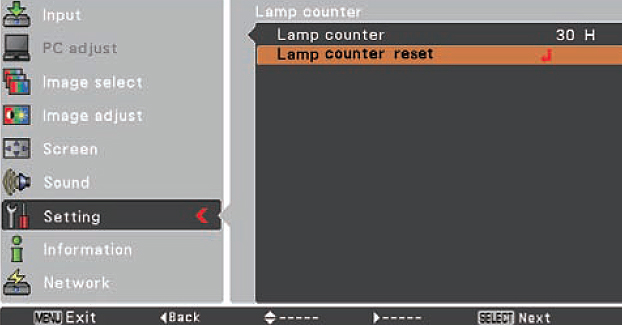
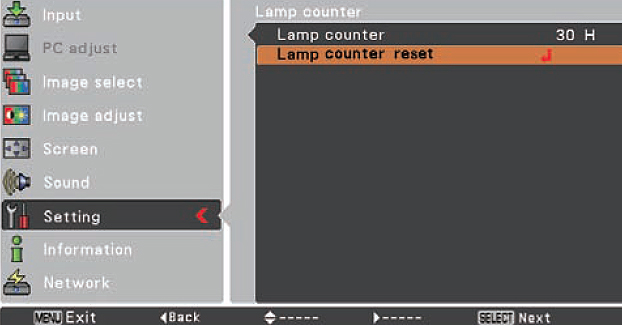
Sanyo PLC-XW300 Lamp Counter Screen, Sanyo POA-LMP132 (service parts no 610 345 2456)

  • Turn the Sanyo PLC-XW300 projector on.
  • Press the Menu option to display the On-Screen Menu.
  • Press Point left/right button(s) to move a red frame poster to Setting Menu icon.
  • Press the black arrow point button to move the red framed pointer to the Setting Menu Icon.
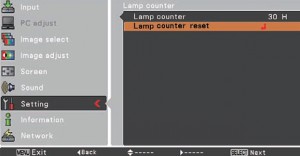
  • Press Point Down button to move the red frame pointer to Lamp counter reset.
  • Press the Select button.
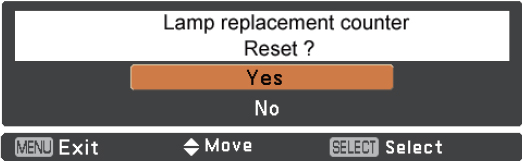
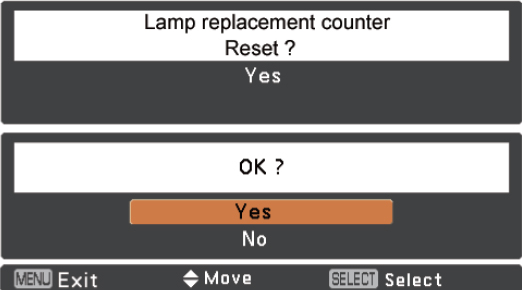
  • Another confirmation dialog box appears, select YES.
  • The Lamp box will disappear and the Lamp Replace Dialog box appears.
  • Select YES to reset Lamp Replace Counter.

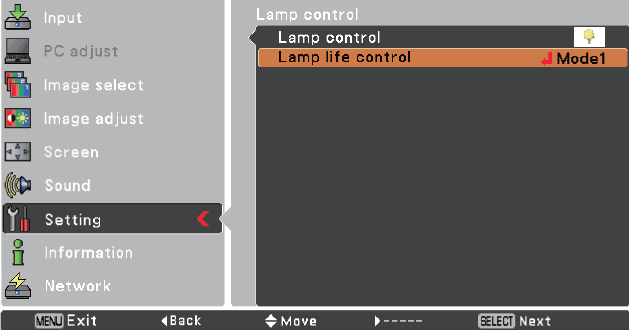
Sanyo PLC-XW300 Lamp Reset Screen 2, Sanyo POA-LMP132 (service parts no 610 345 2456)

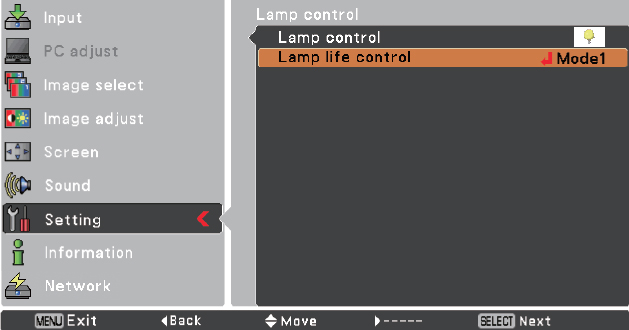
  • There are two modes for Lamp life control. Mode 1 lets the lamp be turned on even after exceeding the recommended total hours of use. Mode 2 lets the lamp be turned on even after exceeding the recommended total hours BUT the projector turns off automatically after 3 minutes.
  • The Sanyo PLC-XW300 projector has a Lamp control that allows you to change the brightness of the screen and extend the life of your lamp. High Mode: Brighter than the Normal mode. It will shorten the lamp life using this mode. Normal Mode: Normal brightness. Eco Mode: Lowers the brightness and reduces the lamp power consumption thereby extending the lamp life.  NOTE: When you reset the Lamp Replace Counter the Lamp Replace indicator stops lighting.

Prolong the life of your new POA-LMP132 lamp

You can prolong the life of your newly installed Sanyo POA-LMP132 (service parts no 610 345 2456) lamp by:

  • regular cleaning the the air filter
  • allowing the Sanyo PLC-XW300 projector to stand for five minutes per turning the projector off.
  • wait at least five minutes before turning the Sanyo PLC-XW300 projector off.
  • don’t operate the projector continuously without letting it stand for at least one hour
  • turned off every 24 hours
Tagged with: , , , , , ,

Sanyo PLC-XW200 Projector, Sanyo POA-LMP132 (service parts no 610 345 2456)

Sanyo PLC-XW200 Projector

STEP-BY-STEP INSTRUCTIONS FOR PLC-XW200/ PLC-XW250 LAMP REPLACEMENT

When your Sanyo POA-LMP132 (service parts no 610 345 2456) projector lamp is nearing its end of life you’ll see the  Lamp Replace Indicator on the projector flash yellow and the Replace Lamp icon appear on the projector screen.

The lifespan of your Sanyo POA-LMP132 (service parts no 610 345 2456) lamp will vary depending on how much the projector is used and if the filters are cleaned regularly.

Before installation

Buy your Sanyo POA-LMP132 (service parts no 610 345 2456) from an authorized manufacturer and avoid the lower-priced knock-off lamps. These counterfeit lamps are usually made with inferior parts that can damage your projector; they may end up costing you more if they damage the sensitive mechanisms in your Sanyo PLC-XW200/ PLC-XW250 projector. Buying from a legitimate source keeps your projector under warranty and gives you a solid guarantee.

Sanyo_projector_bulb_replacementFor additional savings, you can replace only the POA-LMP132 bulb and keep the original lamp cage. Watch our video guide and learn how.

Replacing the Sanyo POA-LMP132 Lamp Assembly

NOTE: These instructions can also be applied to the Sanyo PLC-XW200K/ PLC-XW250K projectors.


Sanyo PLC-XW200/ PLC-XW250 Lamp Cover, Sanyo POA-LMP132 (service parts no 610 345 2456)1. Turn off the projector and unplug the AC cord. Allow the Sanyo PLC-XW200/ PLC-XW250 projector to cool for 45 to 60 minutes. Opening the projector while still hot is dangerous due to the high temperatire. You can burn yourself badly.

2. Remove the lamp cover for the Sanyo PLC-XW200/ PLC-XW250it’s  located at the top of the projector towards the back. Locate the screw holding the lamp cover in place found on the side over top of the ventilation holes. Loosen the screw to remove the cover.

Sanyo PLC-XW200/ PLC-XW250 Lamp Cage, Sanyo POA-LMP132 (service parts no 610 345 2456)3. Inside you’ll find the Sanyo POA-LMP132 (service parts no 610 345 2456) lamp cage. Loosen all three screws holding the lamp cage in place. Grab the handles on the lamp cage and gently lift the lamp out of its socket. Place to one side. Be sure to dispose of the lamp properly through a local recycling program.

4. Take the new Sanyo POA-LMP132 (service parts no 610 345 2456) lamp cage by the handle—avoid touching the lamp surface as oil from your fingers can cause black spots to appear when the projector is turned on. Gently maneuver the lamp into place. Don’t force the lamp as this may damage it.

5. Once the lamp is in, tighten all three screws on the Sanyo POA-LMP132 (service parts no 610 345 2456) Lamp Assembly. Make sure the screws have been tightened properly or the Sanyo PLC-XW200/ PLC-XW250  projector will not turn on.

6. Replace the Lamp Cover and tighten the screw. Re-connect the power cord and turn on the Sanyo PLC-XW200/ PLC-XW250 projector. If the Sanyo POA-LMP132 (service parts no 610 345 2456) lamp does not turn on after the warm-up period, try re-installing the lamp.

Reset the lamp hour using the Lamp Control mode found on the Setting menu.

NOTE: Your old Sanyo POA-LMP132 (service parts no 610 345 2456) lamp should be properly recycled. These lamps contain mercury and can’t be placed into common garbage.

RESETTING THE SANYO PLC-XW200/ PLC-XW250 LAMP CONTROL MODE

Resetting the lamp counter will ensure your projector accurately tracks the hours left in your newly installed Sanyo POA-LMP132 (service parts no 610 345 2456)) lamp.

Sanyo PLC-XW200/ PLC-XW250 Lamp Counter, Sanyo POA-LMP132 (service parts no 610 345 2456)

  • Turn the Sanyo PLC-XW200/ PLC-XW250 projector on.
  • Press the Menu option to display the On-Screen Menu.
  • Press Point left/right button(s) to move a red frame poster to Setting Menu icon.
  • Press the black arrow point button to move the red framed pointer to the Setting Menu Icon.
  • Press Point Down button to move the red frame pointer to Lamp counter reset.
  • Press the Select button.

Sanyo PLC-XW200/ PLC-XW250 Lamp Control Screen 2, Sanyo POA-LMP132 (service parts no 610 345 2456)

  • Another confirmation dialog box appears, select YES.
  • The Lamp box will disappear and the Lamp Replace Dialog box appears.
  • Select YES to reset Lamp Replace Counter.
  • There are two modes for Lamp life control. Mode 1 lets the lamp be turned on even after exceeding the recommended total hours of use. Mode 2 lets the lamp be turned on even after exceeding the recommended total hours BUT the projector turns off automatically after 3 minutes.
  • The  Sanyo PLC-XW200/ PLC-XW250 has a Lamp control that allows you to change the brightness of the screen and extend the life of your lamp. High Mode: Brighter than the Normal mode. It will shorten the lamp life using this mode. Normal Mode: Normal brightness. Eco Mode: Lowers the brightness and reduces the lamp power consumption thereby extending the lamp life.

NOTE: When you reset the Lamp Replace Counter the Lamp Replace indicator stops lighting.

Prolong the life of your new Sanyo POA-LMP132 (610 345 2456) lamp

To maintain the life of your newly installed Sanyo POA-LMP132 (service parts no 610 345 2456), wait at least five minutes before turning the Sanyo PLC-XW200/ PLC-XW250 projector off. Don’t operate the projector continuously without letting it stand for at least one hour turned off every 24 hours. Regular cleaning of the air filter will also prolong lamp life.

Tagged with: , , , , , , , , , , ,

Sanyo PLC-XR301 Projector, Sanyo POA-LMP132 (service parts no 610 345 2456)

Sanyo PLC-XR301 Projector

The lamp on your Sanyo PLC-XR301 projector should last between 1,000 to 2,000 hours depending on the usage and regular maintenance.

When the Sanyo POA-LMP132 (service parts no 610 345 2456) projector lamp is nearing its end of life you’ll see the Replace Lamp icon appear on the projector screen and the Lamp Replace Indicator will begin flashing yellow. Depending on the Lamp Mode chosen, the Sanyo PLC-XR301 projector may also  turn off after three minutes.Sanyo PLC-XR301 Lamp Replace Icon, Sanyo POA-LMP132 (service parts no 610 345 2456)

Be sure to buy an authentic Sanyo POA-LMP132 (service parts no 610 345 2456) from an authorized manufacturer. Knock-off lamps may be cheaper in the beginning but since these lamps are usually made with counterfeit parts that can damage your projector–they may end up costing you more in the long run. Authentic lamps have been manufactured with reliable parts that work with the sensitive mechanisms in your Sanyo PLC-XR301 projector. They also come with a guarantee and won’t void your projector’s warranty.

The lifespan of your Sanyo POA-LMP132 (service parts no 610 345 2456) lamp will vary depending on how much the projector is used and if the filters are cleaned regularly.

Sanyo_projector_bulb_replacementFor additional savings, you can replace only the POA-LMP132 bulb and keep the original lamp cage. Watch our video guide and learn how.

STEP-BY-STEP INSTRUCTIONS FOR SANYO PLC-XR301 LAMP REPLACEMENT

Before installation: Turn off the projector and unplug the AC cord. Allow the Sanyo PLC-XR301 projector to cool to the touch. This may take between 45 to 60 minutes. Don’t open the projector when hot since these machines operate under high temperatures and you can burn yourself.

Replacing the Sanyo POA-LMP132 (610 345 2456) Lamp Assembly

Sanyo PLC-XR301 Projector Lamp Cover, Sanyo POA-LMP132 (service parts no 610 345 2456)1. Remove the lamp cover for the Sanyo PLC-XR301it’s  located at the top of the projector towards the back. Locate the screw holding the lamp cover in place found on the side over top of the ventilation holes. Loosen the screw to remove the cover.

2. Inside you’ll find the Sanyo POA-LMP132 (service parts no 610 345 2456) lamp cage. Loosen all three screws holding the lamp cage in place. Grab the handles on the lamp cage and gently lift the lamp out of its socket. Place to one side. Be sure to dispose of the lamp properly through a local recycling program.

Sanyo PLC-XR301 Lamp Cage, Sanyo POA-LMP132 (service parts no 610 345 2456)3. Take the new Sanyo POA-LMP132 (service parts no 610 345 2456) lamp cage by the handle—avoid touching the lamp surface as oil from your fingers can cause black spots to appear when the projector is turned on. Gently maneuver the lamp into place. Don’t force the lamp as this may damage it.

4. Once the lamp is in, tighten all three screws on the Sanyo POA-LMP132 (service parts no 610 345 2456) Lamp Assembly. Make sure the screws have been tightened properly or the Sanyo PLC-XR301 projector will not turn on.

5. Replace the Lamp Cover and tighten the screw.

6. Re-connect the power cord and turn on the Sanyo PLC-XR301 projector. If the Sanyo POA-LMP132 (service parts no 610 345 2456)lamp does not turn on after the warm-up period, try re-installing the lamp. Reset the lamp hour using the Lamp Counter mode found on the Setting menu.

NOTE: Your old Sanyo POA-LMP132 (service parts no 610 345 2456) lamp should be properly recycled. These lamps contain mercury and can’t be placed into common garbage.

RESETTING THE SANYO PLC-XR301 LAMP COUNTER

Resetting the Lamp Control Mode will ensure your projector tracks the hours in your Sanyo POA-LMP132 (service parts no 610 345 2456) accurately.

Sanyo PLC-XR301 Lamp Counter, Sanyo POA-LMP132 (service parts no 610 345 2456)

  • Turn the Sanyo PLC-XR301 projector on.
  • Press the Menu option to display the On-Screen Menu.
  • Press Point left/right button(s) to move a red frame poster to Setting Menu icon.
  • Press the black arrow point button to move the red framed pointer to the Setting Menu Icon.
  • Press Point Down button to move the red frame pointer to Lamp counter reset.
  • Press the Select button.

Sanyo PLC-XR301 Lamp Counter Lamp Reset Screen 2, Sanyo POA-LMP132 (service parts no 610 345 2456)

  • Another confirmation dialog box appears, select YES.
  • The Lamp box will disappear and the Lamp Replace Dialog box appears.
  • Select YES to reset Lamp Replace Counter.

Sanyo PLC-XR301  Lamp Reset Screen 3, Sanyo POA-LMP132 (service parts no 610 345 2456)

  • There are two modes for Lamp life control. Mode 1 lets the lamp be turned on even after exceeding the recommended total hours of use. Mode 2 lets the lamp be turned on even after exceeding the recommended total hours BUT the projector turns off automatically after 3 minutes.
  • The Sanyo PLC-XR301 projector has a Lamp control that allows you to change the brightness of the screen and extend the life of your lamp. High Mode: Brighter than the Normal mode. It will shorten the lamp life using this mode. Normal Mode: Normal brightness. Eco Mode: Lowers the brightness and reduces the lamp power consumption thereby extending the lamp life.

NOTE: When you reset the Lamp Replace Counter the Lamp Replace indicator stops lighting.

Prolong the life of your new Sanyo POA-LMP132  (610 345 2456) lamp

Prolong the life of your new Sanyo POA-LMP132 (service parts no 610 345 2456) lamp by:

  • regular cleaning the the air filter
  • allow the Sanyo PLC-XR301 projector to stand for five minutes per turning the projector off.
  • don’t operate the projector continuously without letting it stand for at least one hour every 24 hours.
Tagged with: , , , , , , , , , , , ,

Sanyo PLC-XR251 projector, Sanyo POA-LMP132 (service parts no 610 345 2456)

Sanyo PLC-XR251 projector

When the Sanyo POA-LMP132 (service parts no 610 345 2456) nears the end of life, the Lamp life control menu will begin blinking yellow on your Sanyo PLC-XR201/PLC-XR251 projector. The Lamp replacement icon will also appear on screen. If Mode 2 has been selected in the Lamp life control menu, the projection will turn off automatically after 3 minutes as soon as the Lamp Replacement icon appears. Sanyo PLC-XR201/PLC-XR251 Lamp Replace Icon, Sanyo POA-LMP132 (service parts no 610 345 2456)

Replace the Sanyo POA-LMP132 (service parts no 610 345 2456) immediately with a guaranteed authentic lamp. Be sure to verify that your lamp is authentic and buy from an authorized manufacturer. If the price of the lamp you’re about to buy seems like an incredible bargain, chances are it’s counterfeit and has been created using inferior parts that can damage the inside of your projector since it will not fit properly. Buying a knock-off lamp will also void your warranty and should anything happen to the projector you will not be covered.

The lifespan of your Sanyo POA-LMP132 (service parts no 610 345 2456) lamp will vary depending on how much the projector is used and if the filters are cleaned regularly. To maintain the life of your lamp, wait at least five minutes before turning it off. Don’t operate the projector continuously without letting it stand for at least one hour every 24 hours.

STEP-BY-STEP INSTRUCTIONS FOR PLC-XR201/PLC-XR251 LAMP REPLACEMENT

Before installation: Turn off the projector and unplug the AC cord. Allow the Sanyo PLC-XR201/PLC-XR251 projector to cool to the touch. This can tke between 45 to 60 minutes. Don’t open the projector when hot since these machines operate under high temperatures and you can burn yourself.

Replacing the Sanyo POA-LMP132 Lamp Assembly

Sanyo PLC-XR201/PLC-XR251 Lamp Cover, Sanyo POA-LMP132 (service parts no 610 345 2456)1. Remove the lamp cover for Sanyo PLC-XR201/PLC-XR251 projectorit’s  located at the top of the projector towards the back. Locate the screw holding the lamp cover in place found on the side over top of the ventilation holes. Loosen the screw to remove the cover.

2. Inside you’ll find the Sanyo POA-LMP132 (service parts no 610 345 2456) lamp cage. Loosen all three screws holding the lamp cage in place. Grab the handles on the lamp cage and gently lift the lamp out of its socket. Place to one side. Be sure to dispose of the lamp properly through a local recycling program.

Sanyo PLC-XR201/PLC-XR251 Lamp Cage, Sanyo POA-LMP132 (service parts no 610 345 2456)3. Take the new Sanyo POA-LMP132 (service parts no 610 345 2456) lamp cage by the handle—avoid touching the lamp surface as oil from your fingers can cause black spots to appear when the projector is turned on. Gently maneuver the lamp into place. Don’t force the lamp as this may damage it.

4. Once the lamp is in, tighten all three screws on the Sanyo POA-LMP132 (service parts no 610 345 2456) Lamp Assembly. Make sure the screws have been tightened properly or the Sanyo PLC-XR201/PLC-XR251 projector will not turn on.

5. Replace the Lamp Cover and tighten the screw.

6. Re-connect the power cord and turn on the Sanyo PLC-XR201/PLC-XR251. If the Sanyo POA-LMP132 (service parts no 610 345 2456) lamp does not turn on after the warm-up period, try re-installing the lamp. Reset the lamp hour using the Lamp Control mode found on the Setting menu.

NOTE: Your old Sanyo POA-LMP132 (service parts no 610 345 2456) lamp should be properly recycled. These lamps contain mercury and can’t be placed into common garbage.

Sanyo_projector_bulb_replacementFor additional savings, you can replace only the POA-LMP132 bulb and keep the original lamp cage. Watch our video guide and learn how.

RESETTING THE SANYO PLC-XR201/PLC-XR251 LAMP CONTROL MODE

Resetting the lamp control mode means your projector will be able to accurately track the number of hours left in your newly installed Sanyo POA-LMP132 (service parts no 610 345 2456) lamp.

Sanyo PLC-XR201/PLC-XR251 Lamp Counter, Sanyo POA-LMP132 (service parts no 610 345 2456)

  • Turn the Sanyo PLC-XR201/PLC-XR251 projector on.
  • Press the Menu option to display the On-Screen Menu.
  • Press Point left/right button(s) to move a red frame poster to Setting Menu icon.
  • Press the black arrow point button to move the red framed pointer to the Setting Menu Icon.
  • Press Point Down button to move the red frame pointer to Lamp counter reset.
  • Press the Select button.


Sanyo PLC-XR201/PLC-XR251 Lamp Counter Lamp Reset Screen 2, Sanyo POA-LMP132 (service parts no 610 345 2456)

  • Another confirmation dialog box appears, select YES.
  • The Lamp box will disappear and the Lamp Replace Dialog box appears.
  • Select YES to reset Lamp Replace Counter.

Sanyo PLC-XR201/PLC-XR251 Lamp Counter Lamp Reset Screen 3, Sanyo POA-LMP132 (service parts no 610 345 2456)

  • There are two modes for Lamp life control for the Sanyo PLC-XR201/PLC-XR251 . Mode 1 lets the lamp be turned on even after exceeding the recommended total hours of use. Mode 2 lets the lamp be turned on even after exceeding the recommended total hours BUT the projector turns off automatically after 3 minutes.
  • The Sanyo PLC-XE33 projector has a Lamp control that allows you to change the brightness of the screen and extend the life of your lamp. High Mode: Brighter than the Normal mode. It will shorten the lamp life using this mode. Normal Mode: Normal brightness. Eco Mode: Lowers the brightness and reduces the lamp power consumption thereby extending the lamp life.

NOTE: When you reset the Lamp Replace Counter the Lamp Replace indicator stops lighting.

Prolong the life of your new Sanyo POA-LMP132 (service parts no 610 345 2456) lamp by regular cleaning the the air filter and allowing the Sanyo PLC-XR201/PLC-XR251 projector to stand for five minutes per turning the projector off.


Tagged with: , , , , , , , , , ,

Sanyo PLC-XE33 Projector, Sanyo POA-LMP132 (service parts no 610 345 2456)

This guide shows you how to replace the Sanyo PLC-XE33 projector lamp

When the Sanyo POA-LMP132 (service parts no 610 345 2456) nears the end of life, the Lamp life control menu will begin blinking yellow on your Sanyo PLC-XE33 projector.Sanyo PLC-XE33 Lamp Replace Icon, Sanyo POA-LMP132 (service parts no 610 345 2456)

The Lamp replacement icon will also appear on screen. If Mode 2 has been selected in the Lamp life control menu, the projection will turn off automatically after 3 minutes as soon as the Lamp Replacement icon appears.

Replace the Sanyo POA-LMP132 (service parts no 610 345 2456) immediately with a guaranteed authentic lamp. Be sure to verify that your lamp is authentic and buy from an authorized manufacturer.

Sanyo_projector_bulb_replacementFor additional savings, you can replace only the POA-LMP132 bulb and keep the original lamp cage. Watch our video guide and learn how.

Buy authentic

If the price of the Sanyo POA-LMP132 (service parts no 610 345 2456) lamp you’re about to buy seems like an incredible bargain, chances are it’s counterfeit and has been created using inferior parts that  can damage the inside of your projector since it will not fit properly. Buying a knock-off lamp will also void your warranty and should anything happen to the projector you will not be covered.

The lifespan of your Sanyo POA-LMP132 (service parts no 610 345 2456) lamp will vary depending on how much the projector is used and if the filters are cleaned regularly. To maintain the life of your lamp, wait at least five minutes before turning it off. Don’t operate the projector continuously without letting it stand for at least one hour every 24 hours.

STEP-BY-STEP INSTRUCTIONS

Before installation: Turn off the projector and unplug the AC cord. Allow the Sanyo PLC-XE33 projector to cool to the touch. This can take between 45 to 60 minutes. Don’t open the projector when hot since these machines operate under high temperatures and you can burn yourself.

Replacing the Sanyo POA-LMP132 (610 345 2456) Lamp Assembly

Sanyo XE33 lamp cover, Sanyo POA-LMP132 (service parts no 610 345 2456)1. Remove the lamp cover for the Sanyo PLC-XE33 projectorit’s  located at the top of the projector towards the back. Locate the screw holding the lamp cover in place found on the side over top of the ventilation holes. Loosen the screw to remove the cover.

2. Inside you’ll find the Sanyo POA-LMP132 (service parts no 610 345 2456) lamp cage. Loosen all three screws holding the lamp cage in place. Grab the handles on the lamp cage and gently lift the lamp out of its socket. Place to one side. Be sure to dispose of the lamp properly through a local recycling program.

Sanyo PLC-XE33 Lamp Cage, Sanyo POA-LMP132 (service parts no 610 345 2456)3. Take the new Sanyo POA-LMP132 (service parts no 610 345 2456) lamp cage by the handle—avoid touching the lamp surface as oil from your fingers can cause black spots to appear when the projector is turned on. Gently maneuver the lamp into place. Don’t force the lamp as this may damage it.

4. Once the lamp is in, tighten all three screws on the Sanyo POA-LMP132 (service parts no 610 345 2456) Lamp Assembly. Make sure the screws have been tightened properly or the Sanyo PLC-XE33 projector will not turn on.

5. Replace the Lamp Cover and tighten the screw.

6. Re-connect the power cord and turn on the Sanyo PLC-XE33 projector. If the Sanyo POA-LMP132 (service parts no 610 345 2456) lamp does not turn on after the warm-up period, try re-installing the lamp. Reset the lamp hour using the Lamp Control mode found on the Setting menu.

NOTE: Your old Sanyo POA-LMP132 (service parts no 610 345 2456) lamp should be properly recycled. These lamps contain mercury and can’t be placed into common garbage.

RESETTING THE SANYO PLC-XE33 LAMP TRACK

Resetting the lamp contol mode will let your projector accurately track the number of hours left in your Sanyo POA-LMP132 (service parts no 610 345 2456) projector lamp.

Sanyo PLC-XE33 Lamp Counter, Sanyo POA-LMP132 (service parts no 610 345 2456)

  • Turn the Sanyo PLC-XE33 projector on.
  • Press the Menu option to display the On-Screen Menu.
  • Press Point left/right button(s) to move a red frame poster to Setting Menu icon.
  • Press the black arrow point button to move the red framed pointer to the Setting Menu Icon.
  • Press Point Down button to move the red frame pointer to Lamp counter reset.
  • Press the Select button.


Sanyo PLC-XE33 Lamp Counter Lamp Reset Screen 2, Sanyo POA-LMP132 (service parts no 610 345 2456)

  • Another confirmation dialog box appears, select YES.
  • The Lamp box will disappear and the Lamp Replace Dialog box appears.
  • Select YES to reset Lamp Replace Counter.

Sanyo PLC-XE33 Lamp Reset Screen 3, Sanyo POA-LMP132 (service parts no 610 345 2456)

  • There are two modes for Lamp life control. Mode 1 lets the lamp be turned on even after exceeding the recommended total hours of use. Mode 2 lets the lamp be turned on even after exceeding the recommended total hours BUT the projector turns off automatically after 3 minutes.
  • The Sanyo PLC-XE33 projector has a Lamp control that allows you to change the brightness of the screen and extend the life of your lamp. High Mode: Brighter than the Normal mode. It will shorten the lamp life using this mode. Normal Mode: Normal brightness. Eco Mode: Lowers the brightness and reduces the lamp power consumption thereby extending the lamp life.


NOTE: When you reset the Lamp Replace Counter the Lamp Replace indicator stops lighting.

Prolong the life of your new Sanyo POA-LMP132 (service parts no 610 345 2456) lamp by regular cleaning the the air filter and allowing the Sanyo PLC-XE33 projector to stand for five minutes per turning the projector off.


Tagged with: , , , , ,
Join the discussion on Facebook! All your questions, answered! The Screen & Projector Group