We're now Screen and Projector! For updated content, visit ScreenAndProjector.com and follow @screenandproj on social media!

learning-high-contrast-ratioThe projector contrast ratio makes all the difference in your view!

You’ve picked out the projector model and you’re ready to buy. It’s got all the features you were looking for but there’s one final consideration: projector contrast ratio.

After lumens – a projector’s light output – contrast is the next most important factor to consider. It determines the difference between the whitest white and the blackest black shown on screen. The higher the contrast the richer the blacks and the crisper the image.

Location matters

Contrast is particularly important for home theaters since it’s often in a darker room than your typical office boardroom. With home theaters, you need the blacks to be rich and deep with clearly defined shadows. A high contrast gives depth to the projector images and can make 2-D images appear almost 3-D. With business projectors, lumens are the primary importance since most business projectors are used in rooms with lots of ambient light.

It can be tricky to figure out contrast ratio. Sometimes a high number doesn’t mean the projector has a superior contrast ratio. A model offering a 10,000:1 contrast ratio may not always be better than the projector with a lower contrast ratio.

contrast ratio chartCheck the settings

Check your projector’s specs to find out its contrast ratio. If the specs just say “Contrast” you can expect a setting of On/Off with a limited ratio of what is shows for the whitest white and darkest black. “ANSI” settings give a more accurate contrast ratio since it’s been determined by using a checkerboard pattern to compare the relative brightness of the white and black squares. While the On/Off option will have a much larger number it doesn’t mean it will be more accurate than an ANSI control with lower contrast ratio. Do some homework to determine how a particular model does perform and don’t be seduced by a high number.

bright room_projector_washed_outLight makes a difference

The bottom line: If you have too much light in your room, it won’t matter how much contrast ratio you have. Most front projectors look best when the viewing room is dark. Too much light reduces contrast so that images appear washed out or flat as the blacks become a dark gray. It won’t matter how many adjustments are made. Too much light cancels out any contrast ratio gains.

According to Samsung the benefits of a high contrast ratio include:

  • Pictures that feel more immersive
  • Colors which stand out more and look brighter
  • Differentiation between shades of black, even in darker rooms
  • Easier to read the display, especially in well-lit rooms and from a distance
  • Avoiding eye strain and fatigue

Check out contrast ratio before buying your projector.
Save

Save

Save

Save

Tagged with: , ,

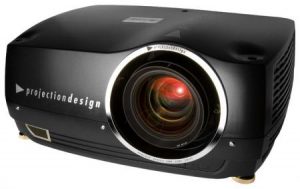
projectiondesign_cineo3_projectorHow to install a replacement ProjectionDesign Cineo 3 projector lamp

End of life warning signs

When it’s time to replace the ProjectionDesign Cineo 3 projector lamp the projector lamp status indicators will turn red. Other warning signs may include a darker screen or colors that appear washed out or an deteriorating on screen image.

Go with authentic

Be sure to buy your ProjectionDesign Cineo 3 projector uses the ProjectionDesign 400-0003-00 model. Be sure to buy from an authorized dealer to keep your projector working properly.

Find this replacement lamp on Amazon from the following authorized dealers:

6 reasons to avoid counterfeit lamps:

Replacing the ProjectionDesign Cineo 3 projector lamp
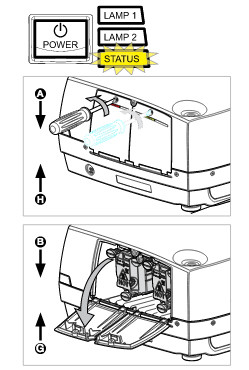
Before installation follow these important safety steps:

  • Turn off the ProjectionDesign Cineo 3 projector and unplug the AC cord.
  • These projectors operate under high temperatures and there is a risk of burning if the projector has not cooled enough. Allow the projector to cool for one hour.

ProjectionDesign-Cineo3_remove_400-0003-00_projector_lamp_cover

a. Remove the two screws from the ProjectionDesign Cineo 3 projector lamp cover.
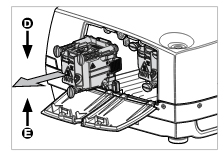
b. Push the lamp cover down to open the projector lamp cover.

c. Turn the three screws counter clockwise to release the lamp.

ProjectionDesign_cineo3_install_400-0003-00 Projector Lamp
d. Pull out the ProjectionDesign 400-0003-00 projector lamp.
e. Replace the new lamp into the projector. Being careful not to touch the actual bulb. Oil from your fingerprints will turn black spots onto the bulb.

ProjectionDesign-Action_Model3_400-0003-00_projector_lamp_reinstall projector_cover
Turn the three screws a quarter turn clockwise to screw the lamp.
f. Close the lamp lid.
e. Tighten the screws on the projector lamp lid.

NOTE: The ProjectionDesign 400-0003-00 projector lamp contains mercury and should not be thrown into regular garbage. Recycle this lamp!

Resetting the projector lamp timer

The lamp timer will be set to zero when the lamp is replaced. You can also use the lamp mode found on the sub menu to switch between lamp modes.

Extending the projector lamp life

  • Use the Eco Mode for more lamp hours.
  • Keep your air filters clean to avoid overheating the projector.
  • Make sure there is enough airflow around the ProjectionDesign Cineo 3.
  • Learn more with Top tips for extending DLP projector lamp life


Save

Save

Save

Tagged with: , ,

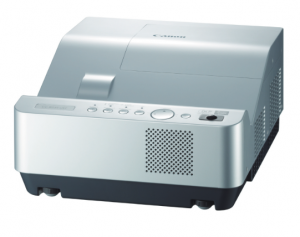
Canon_LV-8235_projectorLearn how to replace the Canon LV-8235 projector lamp.
Invest in authentic

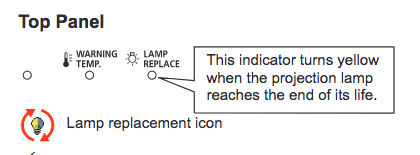
When it’s time to replace the Canon LV-8235 projector lamp you’ll see a lamp replacement icon appear on screen and the LAMP REPLACE indicator will show yellow. Replace the lamp immediately and don’t wait. Canon_LV-8235_projector_lamp_warning_Canon LV-LP36


Be sure to always install an authentic Canon LV-8235 projector lamp. Avoid counterfeits — even if the price seems like a great deal in the long wrong it will cost you more. Most counterfeit lamps have:

Find this lamp at Amazon from these authorized dealers:


Install the projector lamp

Your Canon LV-8235projector uses the Canon LV-LP36 projector lamp.  Before changing the projector lamp follow these important safety procedures:

  • Unplug the electrical cord on the Canon LV-8235 so there is no chance the projector could get turned on during the installation.
  • The Canon LV-8235 operates under high temperatures so give it at least one hour to cool down before opening the projector to change the projector lamp.

Canon_LV-8235_projector_lamp_replacement_Canon LV-LP36

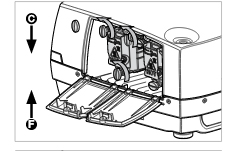
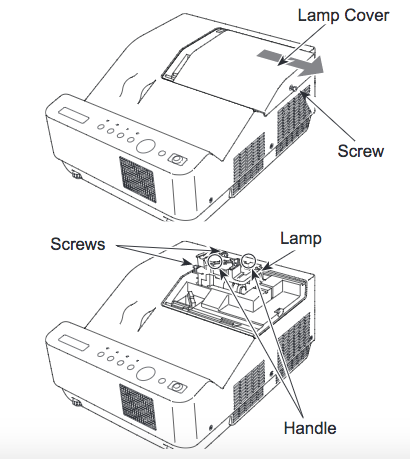
  • Loosen the screw holding the Canon LV-8235 projector lamp cover in place. Place the cover aside.
  • Loosen the two screws on the projector lamp and slowly pull out the Canon LV-LP36 projector lamp assembly by using the built in handle.
  • NOTE: The used Canon LV-LP36 contains mercury and should be properly recycled. Don’t throw it into regular garbage.
  • Replace the lamp assembly with a new Canon LV-LP36 projector lamp. Be careful not to touch the actual bulb as oil from your fingers can leave black marks on the lamp.
  • Tighten the two screws on the lamp.
  • Put back the lamp cover and tighten its two screws.
  • You are now ready to reset the lamp time.

Resetting the lamp timer counter

After replacing the Canon LV-8235 projector lamp, you’ll need to turn off the LAMP REPLACE indicator by resetting the LAMP REPLACE COUNTER in the Canon LV-S2. This counter tracks the number of hours the lamp has been used by the Canon LV-S1 and triggers the warning light when the lamp is reaching its end of life. Not resetting it after may stop your projector from turning back on.

Canon_LV-8235_projector_lamp_Ca

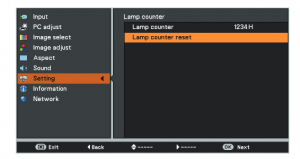
  • Turn the projector on and press the MENU.
  • Using the arrow buttons, scroll down to SETTING menu icon. Press OK.
  • Press the up/down buttons, move to the LAMP COUNTER option.
  • Press OK to open up as the LAMP COUNTER RESET.
  • Click on the SET option to open a confirmation window.

Canon_LV-8235_projector_lamp_Canon LV-LP36_reset_timer-2


Save

Save

Save

Tagged with: , ,

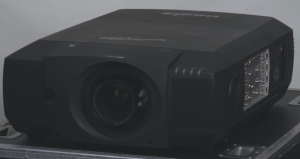
Christie LX77 projectorThis guide shows how to replace the Christie RoadRunner LX77 projector lamp.
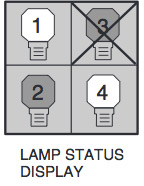
When the Christie LX77 projector lamp is reaching end of life the LAMP REPLACE indicator will turn yellow.  Its uses four projector lamps for a bright image. You can control the lamps from the Management Menu. and check the number of Christie RoadRunner LX77 projector lamps that need to be replaced using the  Lamp Status Display. The following menu applies:

Christie_RoadRunner_LX10_projector_Christie_-03-000709-01P_projector_lamp_statusCheck number of lamp on Lamp Status Display and replace lamp.

  • Yellow Lamp: Projector lamp lights normally
  • Dim Lamp: Projector lamp is turned off.
  • Red Lamp: Projector lamp is nearing its end. When image becomes darker or color becomes unnatural, replace lamp.
  • X Mark on Lamp: Projector lamp is defective or has reached end of life and won’t turn on. Restart the projector on, and if the mark still appears, replace the corresponding projector lamp marked with the X.

Go with authentic

Your Christie RoadRunner LX77 uses the Christie 03-000709-01P projector lamp. In order to keep your projector working at its best, be sure to install an authentic projector lamp. Counterfeit lamps have a shorter lamp life and are prone to explosions. Along with missing safeguards to protect your eyes, counterfeits can’t be properly calibrated so can damage the projector’s sensitive optics.

Find this lamp on Amazon from these authorized dealers:

Installing the projector lamp

Before replacing the Christie RoadRunner LX77 projector lamp, follow these safety steps:

  1. Check number of lamp to be replaced on Lamp Status Display.
  2. Unplug the Christie RoadRunner LX77 projector.
  3. Wait until the projector is cool to the touch before removing the lamp. These projector work at a high temperatures and you can get badly burned.

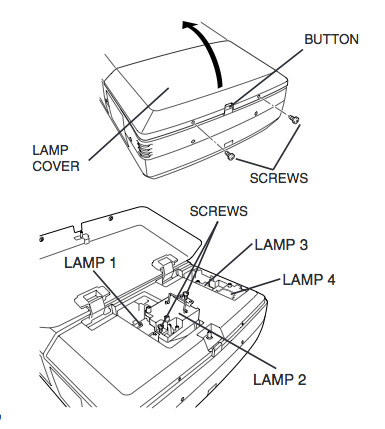
Christie_RoadRunner_LX10_projector_Christie_-03-000709-01P_replace_projector_lamp

  • Remove two screws on RoadRunner LX77 projector lamp Cover. Press button to open the projector lamp Cover.
  • Loosen two screws and pull out RoadRunner LX77 projector lamp to replaced by grabbing the handle.
  • Replace with a new Christie 03-000709-01P projector lamp and tighten two screws. Make sure the projector lamp is set properly. NOTE: The Christie 03-000709-01P projector lamp contains mercury and should not be thrown into regular garbage. Recycle this lamp.
  • Follow these steps to replace each projector lamp that needs replacing.
  • Replace the projector lamp cover and tighten two screws.
  • Connect AC power cord and turn the projector on.
  • Reset Lamp Replacement Counter

Reset the lamp timer

Your Christie RoadRunner LX77 comes equipped with a lamp timer that tracks the number of hours left for each lamp.

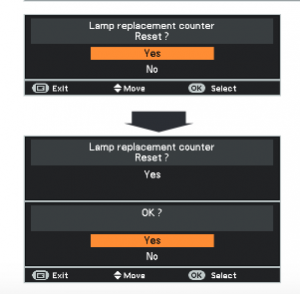
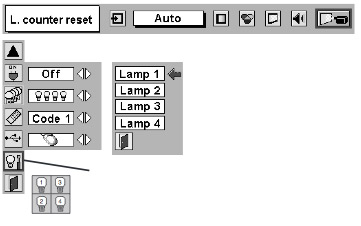
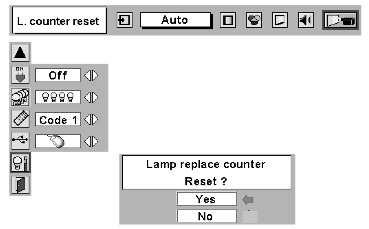
Christie_RoadRunner_LX10_projector_Christie_-03-000709-01P_projector_lamp_reset_counterTo reset the lamp timer:

  • Turn projector on.
  • Press MENU button and ON-SCREEN MENU will appear.
  • Press POINT LEFT/RIGHT button(s) to move a red frame pointer to SETTING Menu icon.
  • Press POINT DOWN button to move a red frame pointer to Lamp counter reset
  • Press SELECT button.

Christie_RoadRunner_LX10_projector_Christie_-03-000709-01P_projector_lamp_reset_counter_screen2

  • Another confirmation dialog box appears.
  • Select YES to reset Lamp Replace Counter.
  • Move arrow to replaced lamp number (Lamp 1, Lamp 2, Lamp 3 or Lamp 4)
  • Press SELECT button. Message “Lamp replace counter Reset?” is displayed. Move pointer to YES.
  • Press SELECT button.

Tips for longer lamp life

  • Don’t operate the projector continuously without letting it stand for at least one hour turned off every 24 hours.
  • Cleaning the air filter regularly will also prolong the life .
  • Use the Lamp Menu to move to MODE and switch between dual or single projector lamp life. Using only one lamp will prolong usage.
  • Learn more with Top tips for extending DLP projector lamp life.


Save

Save

Save

Save

Tagged with: , ,

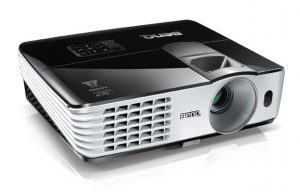
BenQ MX615 projectorFollow these instructions to replace the BenQ MX615 projector lamp.
Start off with authentic

Save yourself unnecessary headaches by buying an authentic BenQ MX615 projector lamp. Why go authentic? Counterfeit “compatible” lamps may appear to be a bargain but in the long run end up costing more due to their shorter lamp life. They are prone to explosions and can put your eyesight at risk. Due to their substitute toxic materials and carcinogenic parts, the few dollars you will save are not worth it. Protect your health and keep your BenQ MX613ST working at optimum levels. Go with an authentic projector lamp.

Find this lamp on Amazon from the following authorized dealers:
MX660 BenQ Projector Lamp Replacement. Projector Lamp Assembly with Genuine Original Philips UHP Bulb Inside.

End of life warning signs

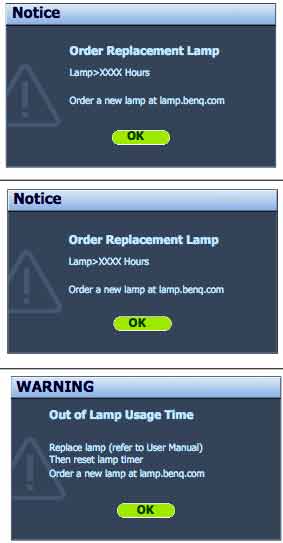
Your BenQ MX613ST projector uses the BenQ 5J.J3T05.001 replacement projector lamp. When it’s time to replace the BenQ MX613ST projector lamp you’ll see a series warnings appear on screen.

benq-mx615-projector_benq-5j-j3t05-001_replacement_lamp-warnings

First warning: The BenQ MX615 projector lamp has been in operation equivalent to 4500 hours or for 6,000 hours Econo Mode, you have up to 6000 hours before changing the lamp. You can wait until the second warning to replace the projector lamp. Press MODE/ENTER to dismiss the message.

Second Warning: The BenQ MX615 projector lamp has been in operation equivalent to 4000 hours or 6,000 hours in Econo mode. You should replace the lamp immediately. Press MODE/ENTER to dismiss the message.

Out of lamp: The BenQ MX615 projector lamp has reached its end of life and the projector will shut down until the lamp is replaced. Install a new BenQ 5J.J3T05.00 projector lamp immediately.

Follow these safety instructions before changing the lamp:

  • Reduce the risk of electrical shock by disconnecting the power cord on the BenQ MX615 projector.
  • Reduce the risk of severe burns by allowing the projector to cool for at least 45 minutes. The projector should be cool to the touch.

Replacing the projector lamp


benq-mx615-projector_benq-5j-j3t05-001_replace_lamp_cover

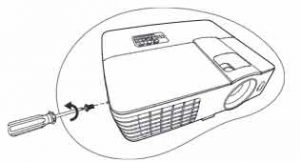
  • The projector lamp cover is found on the side of the Benbenq-mx615-projector_benq-5j-j3t05-001_replace_lamp_cover-2Q MX615projector.
  • Loosen the screw holding the projector lamp cover in place
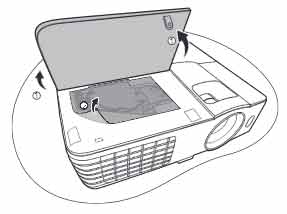
  • Lift up the projector lamp cover.


benq-mx615-projector_benq-5j-j3t05-001_replace_lamp_screw-1

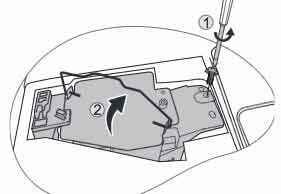
  • Loosen the screw that secures the lamp.
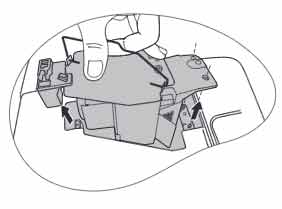
  • Lift the handle so that it stands up. Use it to slowly pull the BenQ 5J.J3T05.00 projector lamp out of the projector. Pulling out too quickly may cause the bulb to break. benq-mx615projector_benq-5j-j3t05-001_remove_lamp

NOTE: The BenQ 5J.J3T05.00 projector lamp contains mercury and should not be thrown into regular garbage. Recycle your used lamps!

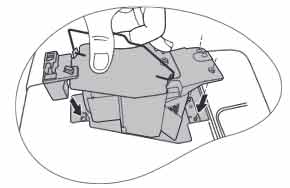
benq-mx615-projector_benq-5j-j3t05_insertInsert the new BenQ 5J.J3T05.00 projector lamp.

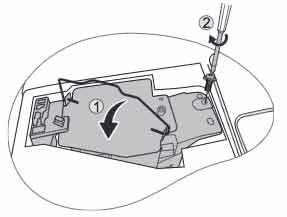
  • Tighten the screw that secures the lamp. Loose screw may cause a bad connection,
    which could result in malfunction. Do not over tighten the screw. benq-mx613st-projector_benq-5j-j3t05-001_replace_lamp_screw-2
  • Replace the lamp cover on the BenQ MX615 projector.
  • Reset the lamp timer.

Resetting the lamp timer

Do not reset the BenQ MX615 projector lamp timer if the lamp has not been replaced as this could cause damage. Don’t start the if the lamp cover has not been replaced. To reset the projector lamp timer:

  • Plug the BenQ MX615 projector and get it started.
  • Open up the menu and scroll over to SYSTEM/SETUP: Advanced. Press ENTER
  • Press MODE/ENTER to display the Lamp Settings page
  • Highlight Reset lamp timer to display a warning asking it you want to reset the lamp timer.
  • Select RESET. Press ENTER.
  • Lamp time will be reset to zero.

Extend the BenQ MX615 projector lamp

  • Keep your air filters clean to avoid overheating the projector.
  • Setting Lamp Power to Eco mode. Using Whisper mode reduces system noise and power consumption. It also extends the projector lamp life. To set Econo mode, go into the Advanced Setup > Lamp > Lamp Power menu.
  • Learn more with Top tips for extending DLP projector lamp life.


Save

Save

Save

Save

Tagged with: , ,

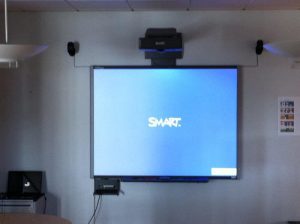
Smartboard SB680i3 projector lamp

Learn how to replace the Smartboard SB680i3 projector lamp

After 2,000 hours of operation in standard mode or 3,000 hours in Eco mode, the Smartboard SB680i3 projector lamp will need to be replaced. If the projector turns off and goes into Standby mode then it’s time to replace the Smartboard SB680i3 projector lamp. Another sign that the lamp has reached end of life is when the image gets darker or starts to deteriorate.

Go with authentic

An authentic projector lamp makes all the difference in keeping your Smartboard SB680i3 projector working. If the price is too good to true, then you should avoid the lamp. Bargain basement prices mean problems down the road.

Find these lamp on Amazon sold by these authorized dealers:

6 reasons to avoid generic lamps:

Changing the Smartboard projector lamp

Your Smartboard SB680i3 projector uses the SmartBoard 20-01032-20 projector lamp.

Important Safety tips BEFORE replacing the projector lamp:

  1. Wear protective eyewear while changing the lamp.
  2. Turn off the power switch and disconnect the power cord and all connected cables.
  3. This projector operates under high temperature and there is a burn risk so be sure to wait at least one hour minutes for the projector’s housing to completely cool.

Smartboard_SB680i3_remove_projector_lamp_20-01032-20

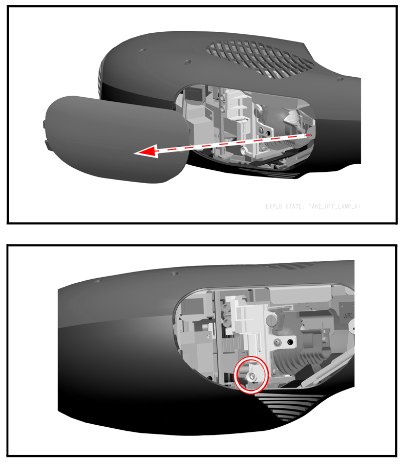
Use a Phillips No. 2 screwdriver to loosen the captive screw from the lamp cover on the right side of the projector head.
Remove the cover and put it aside.
Remove the lamp retention screw (circled inthe diagram).
NOTE: Do not remove any other screws.
Gently pull the lamp assembly out of the projector head.
Don’t touch any part of the replacement lamp assembly’s bulb with either
your fingers or tools. Fingerprints and other contamination can cause
premature bulb failure.
NOTE: The SmartBoard 20-01032-20 projector lamp contains mercury and should properly recycled and NEVER thrown into regular garbage


Smartboard_SB680i3_replace_projector_lamp_20-01032-20

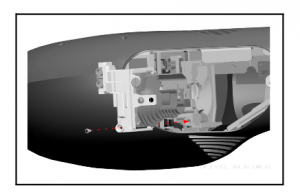
Take the new SmartBoard 20-01032-20 and push it onto the Smartboard SB680i3 projector head.
Make sure the lamp is pressed into the power connector all the way.

Replace the lamp retention screw and tighten.

Replace the lamp cover and screw.

You are now ready to reset the lamp timer.

Resetting the lamp timer

Your Smartboard SB680i3 projector has a built in lamp timer that tracks the life of the SmartBoard 20-01032-20 projector lamp. Whenever you change the lamp you need to reset the lamp timer back to zero.

Smartboard_SB680i3_projector_lamp_20-01032-20_reset timer

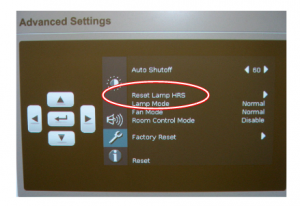
Press the Settings button on the on-screen menu.
Scroll down to select Advanced Settings.
You can also access it via the remote control INFO button.
Select the SETUP Menu (wrench icon).
Select the RESET LAMP HRS option.
Press Yes to confirm.
Lamp hours will be reset to zero.


Learn how to extend the life of your SmartBoard 20-01032-20 projector lamp with Top tips for extending DLP projector lamp life.


Save

Save

Save

Save

Save

Tagged with: , ,

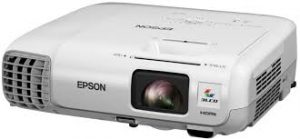
Epson_EB945_projectorWhen it’s time to replace the Epson EB945 projector lamp follow this guide

When it’s time to replace the Epson EB945 projector lamp you’ll notice the power indicator is flashing blue, and the lamp indicator is flashing orange. You may also notice the picture has gone dimmer or the color is off. An on screen message will also appear; “Time to replace the lamp. ” You can expect 4900 hours of use when the projector is set to Normal and about 5900 hours when the ECO mode has been started.

Why invest in authentic?

The best thing you can do to keep your prjector working properly is to buy an authentic Epson EB945 projector lamp. Most counterfeit lamps cost more in the long run because they have a shorter life than original lamps. While counterfeits claim to be compatible they are often created with toxic materials including including Krypton-85. Lamps that are not OEM are prone to explosions and usually can damage the projector’s sensitive optics. Your eyesight is also at risk. Buy an OEM authentic Epson EB945 projector lamp and keep your projector working properly.

Find this authentic lamp on Amazon:

Installing the lamp

The Epson EB945 projector uses model Epson ELPLP78Before installation:

  • Turn off the Epson EB945 projector and unplug the AC cord.
  • Allow the projector to cool for one hour – it should be cool to the touch. Inside of the projector can be very hot since these machines operator under high temperatures and you run the risk of being burned if the projector has not cooled down.
  • Do not operate the projectors while any of the lamps are removed as this may result in malfunctions, fire hazard and other accidents.

Caution: Don’t touch the screen or the actual bulb with your finger since the oil from your skin can cause a black spot on the bulb.

Epson_EB945_projector_lamp-Epson ELPLP78_remove_cover

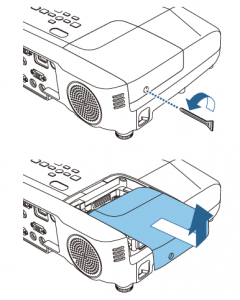
The Epson EB945 lamp cover is on the side. Using a screwdriver to gently release the cover switch. Slide the lamp cover off.

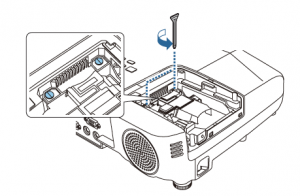
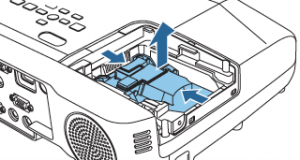
Epson_EB945_projector_lamp-Epson ELPLP78_remove_screwsRemove the two screws on either side of  Epson ELPLP78 lamp. Place the screws to either side. Grip the raised section of the old lamp and remove it.
Epson_EB945_projector_lam


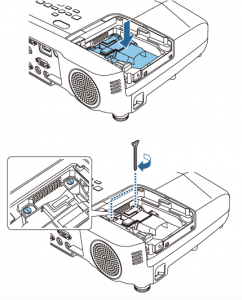
Take the new Epson ELPLP78 projector lamp by the handle and gently put it into place making sure the lamp is facing in the right direction.

Epson_EB945_projector_lamp-Epson ELPLP78_install new

Replace the projector lamps screws and re-connect the lamp cover. Re-attach the power cord. Turn the projector on and let it warm up. You are ready to reset the lamp timer.

NOTE: The Epson ELPLP78 lamp contains mercury and should not be thrown into regular garbage. Recycle your used lamp.

Reset Lamp Timer

Reset the Epson EB945 Lamp Replacement Counter only when the Epson ELPLP78 lamp has been replaced.

Epson_EB945_projector_lamp-Epson ELPLP78_reset_timer

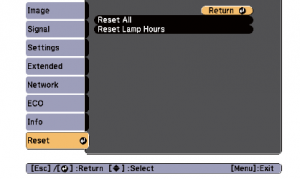
  • Press MENU to display the RESET menu.
  • Press the down arrow to move down the menu to the RESET ALL option.
  • A prompt message appear. Select YES and press ENTER.
  • The lamp hours will be reset to zero.
  • Press MENU or ESC to exit the menu
  • The lamp timer will be a zero.

Extend the life of the newly installed Epson ELPLP78 with the following tips:

  • Keep your air filters clean to avoid overheating the projector.
  • Turn off the Epson PowerLite 93 and let it stand for at least one hour ever 24 hours. An average use of four to five hours per day will ensure longer lamp life.
  • Make sure there is enough airflow around the projector particularly if it’s been permanently mounted.
  • Learn more with Top tips for extending DLP projector lamp life


Tagged with: , ,

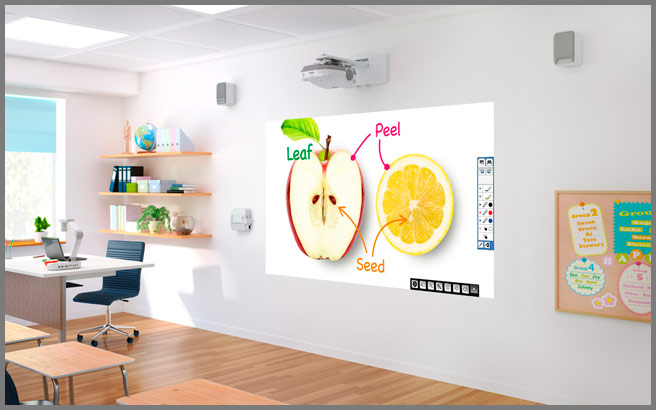
whiteboard-projectors-classroom-mounted

You’ve got your whiteboard projector set up and ready to go.

Here are some tips to make your presentation on the whiteboard projector a success.

Avoid small and crooked images

Making your audience squint to see photos is not going to help your presentation. Make your images fill the space of the whiteboard and use the projector’s keystone feature to make them straight on the screen. Having the projector the proper distance from the screen is also important. Don’t sacrifice the quality of your images.

See it from the audience viewpoint

As the presenter you are going to be close to the computer and interactive whiteboard so don’t use that position to judge how it looks. Be sure to check how the picture looks from the back of the room. Practice zooming in and out so everyone in the room has a clear view of the material being presented.

Be prepared technically

Become familiar with the equipment set-up so you can set up quickly or troubleshoot easily. You don’t want your presentation being eaten up by fumbling with cables and connections.

Face your audience

Being able to maintain eye contact with your audience makes your presentation have more connection. Turning your back to face the whiteboard not only severs your connection and makes it harder for the audience to hear you. Flip the direction of the laptop so you can see the entire room and read off the computer. By seeing the participant’s reactions you will know if you are communicating effectively and if they are understanding the material being presented.

Stay off the screen

Replace your finger with a pointing stick or laser beam. When you point directly to the board you create a shadow that actually covers what you are trying to show.

Leave some light

Turning off all the lights for complete darkness can make your audience fall asleep instead of listening to you. Instead just shut off the front lights and leave something in the back to give some light. You’ll be able to actually see the audience members this way and improve your communication.


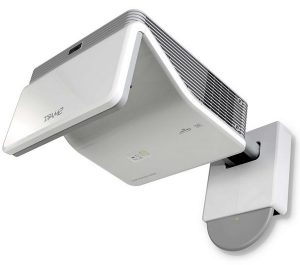
Smartboard_60wi21_projector

How to replace the Smartboard Lightraise 60Wi2 projector lamp

Replace the Smartboard Lightraise 60Wi2 projector when you see the status light is solid green. If the projected image gets darker or starts to deteriorate then it’s also time to replace the projector lamp.

Go with authentic

An authentic projector lamp makes all the difference in keeping your Smartboard Lightraise 60Wi2 projector working. If the price is too good to true, then you should avoid the lamp. Bargain basement prices mean problems down the road.

6 reasons to avoid generic lamps:

Find this lamp on Amazon from these authorized dealers:

Changing the Smartboard projector lamp

Your Smartboard Lightraise 60Wi2 projector uses the SmartBoard 1018580 projector lamp.

Important Safety tips BEFORE replacing the projector lamp:

  1. Close the projector lens door to prevent scratching or touching of the lens.
  2. Turn off the power switch and disconnect the power cord and all connected cables.
  3. This projector operates under high temperature and there is a burn risk so be sure to wait at least one hour minutes for the projector’s housing to completely cool.
  4. You’ll need a Philips No 2 screwdriver
 Smartboard_Lightraise_60Wi2_SmartBoard_1018580_projector_lamp_Ceiling_remove

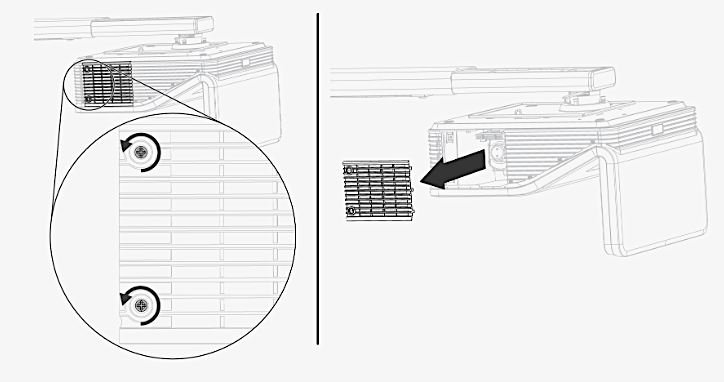
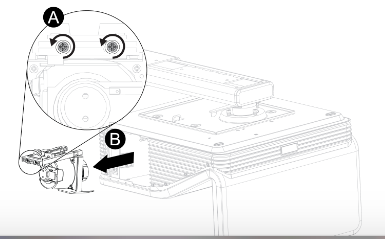
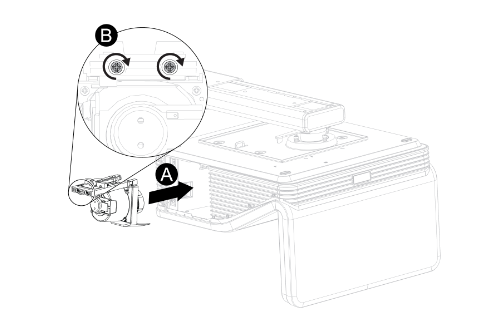
Loosen the two screws holding the Smartboard Lightraise 60Wi2 lamp cover in place. These are captive screws so can only be loosened and not removed.

Place the cover to one side.

Smartboard_Lightraise_60Wi2_SmartBoard_1018580_projector_lamp

 
Loosen the two screws holding the SmartBoard 1018580 projector lamp in place. Step A
Press on the tab and pull up with the handle on the old lamp. Release the tab. Step B. NOTE: The SmartBoard 1018580 contains mercury and should properly recycled. NEVER throw into regular garbage

Smartboard_Lightraise_60Wi2_SmartBoard_1018580_install_newprojector_lamp Remove all packaging from the new SmartBoard 1018580 projector lamp projector lamp. Press the tab, put the new lamp into the lamp slot, and push it all the way down. Release the tab. Step A.

Put the outer lamp cover back into its original position. Align the cover and tighten the screws until the outer Smartboard Lightraise 60Wi2 projector projector lamp cover is secure.

Resetting the lamp timer

Your Smartboard Lightraise 60Wi2 projector has a built in lamp timer that tracks the life of the projector lamp.

Whenever you change the lamp you need to reset the lamp timer back to zero.

  1. Using the remote control, press the following buttons quickly to access the service menu: Down, Up, Up, Left, Up.
  2. Scroll down to the Lamp Hour Reset field and press OK.
  3. Press the MENU button on the remote to bring up the Settings.
  4. Select the Lamp Hours to confirm that it’s been reset to zero.
  5. Wait five minutes for the projector lamp to warm up.

Learn how to extend the life of yourSmartBoard 1018580 projector lamp with Top tips for extending DLP projector lamp life.


Tagged with: , ,

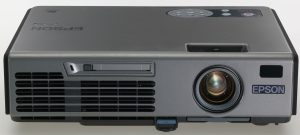
epson-EMP765-projectorTo replace the Epson EMP-5500 projector lamp follow this guide.

Invest in authentic

Your projector lamp works best with an authentic Epson EMP-5500 projector installed. Counterfeit lamps may appear to be a bargain but in the long run end up costing you more for the following reasons:

Find this lamp on Amazon from the following authorized dealers:

Replacement Warning Signs

After 2000 hour of use, the Epson EMP-5500 projector lamp will start to reach end of life and you’ll notice the following warning signs:

  • The projector lamp indicator flashes orange
  • The message “Lamp Replace” appears on the screen
  • The images gets darker or starts to deteriorates.

Installing the Epson EMP-5500 projector lamp

The Epson EMP-5500 projector uses the Epson ELPLP06 projector lamp. Follow these important safety tips before replacing the projector lamp:

  • Turn off the projector power and wait for the cool-down period which is about two minutes. Disconnect the power cord after the two minutes is over.
  • Wait at least 30 minutes to one hour for the Epson EMP-5500 projector to cool internally before opening it up. It should be cool to the touch.

To replace the lamp:

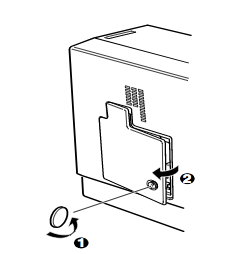
Epson_EMP-55_projector_Epson_ELPLP06_lamp_remove_coverUse the screwdriver provided loosen the screw holding the Epson EMP-5500 projector lamp cover in place. Slide the Epson EMP-5500 projector lamp cover off and place it to one side.
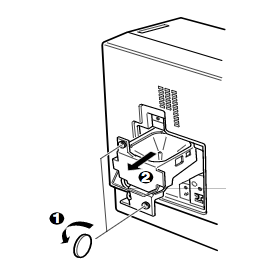
Lift up the wire handle on the Epson ELPLP06 projector lamp and gently pull the projector lamp out of the Epson EMP-5500projector lamp. Don’t knock the actual bulb as it may break. Learn what to do should the bulb shatter.

NOTE: The Epson ELPLP06 projector lamp contains mercury and should not be thrown into regular garbage. Recycle your used lamp.


Epson_EMP-55_projector_Epson_ELPLP06_lamp_replacement

Tighten the screws on the newly installed Epson ELPLP06 projector lamp. Replace the lid on the Epson EMP-5500 projector. Tighten the screw on the projector lamp cover. Reset the lamp timer.

How to extend lamp life

Extend the life of the newly installed Epson ELPLP069 with the following tips:

  • Keep your air filters clean to avoid overheating the projector.
  • Turn off the Epson EMP-5500 projector and let it stand for at least one hour ever 24 hours.
  • Make sure there is enough airflow around the projector particularly if it’s been permanently mounted.

Learn more with Top tips for extending DLP projector lamp life.

Tagged with: , ,
Join the discussion on Facebook! All your questions, answered! The Screen & Projector Group