We're now Screen and Projector! For updated content, visit ScreenAndProjector.com and follow @screenandproj on social media!

mitsubishi_hc1500

Your guide to installing a new  Mitsubishi HC1500 projector lamp.

The best investment you can make to keep your Mitsubishi HC1500 projector working at its best is to buy an authentic projector lamp . Knock-off counterfeit lamps have a shorter lamp life and have been created with toxic substitutes and are prone to explosions that s often damage the sensitive electronics in your projectors. Invest in authentic.

Replacing the projector lamp

The recommended interval of lamp replacement is about 3000 hours of consecutive use depending on the usage. If you notice a d crease in luminescence and or color brightness your projector lamp may be reaching end of life. When the projector lamp is about to finish the message “LAMP EXCHANGE” will start blinking on the screen. The indicator will brink between green and red until the lamp is changed.

Changing the projector lamp

Your Mitsubishi HC1500 projector lamp uses the Mitsubishi VLT-HC910LP projector lamp. Before replacing the projector lamp, please follow these safety precautions.

  • Reduce the risk of electrical shock by disconnecting the power cord on the Mitsubishi HC1500 projector.
  • Reduce the risk of severe burns by allowing the projector to cool for at least 45 minutes. It should be cool to the touch.

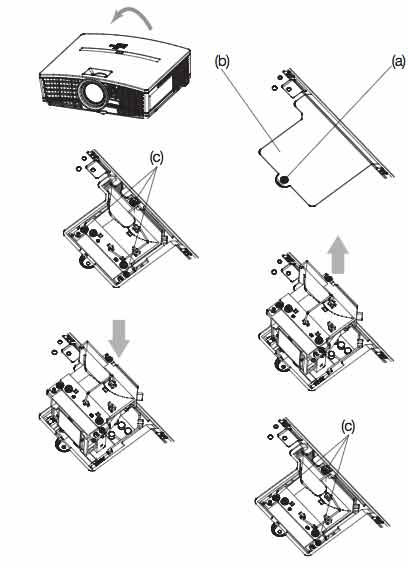
mitsubishi_hc1500_projector_mitsubishi_vlt-hc910lp_projector_lamp


1. Place the Mitsubishi HC1500 projector on a soft surface.
2. Turn the Mitsubishi HC1500 projector over.
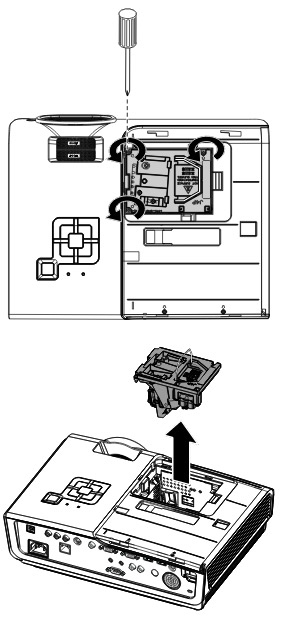
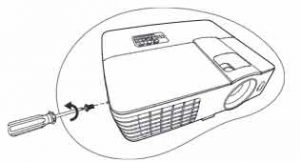
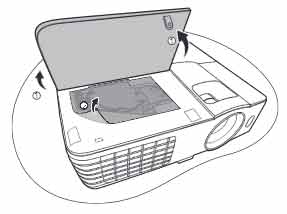
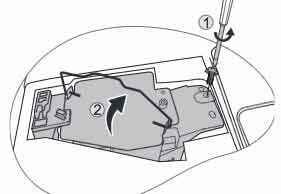
3. Loosen the screw (a) using a Phillips screwdriver to remove the lamp cover (b).
4. Loosen the screws (c) on the Mitsubishi VLT-HC910LP projector lamp
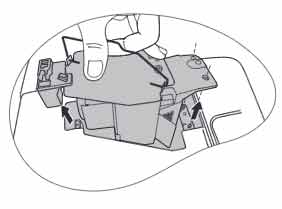
5. Pull up the handle on the Mitsubishi VLT-HC910LP projector lamp
6. Pull out the lamp box by the handle while holding the
projector. Pull the lamp box out of the projector slowly. If it is
pulled out quickly, the lamp may break scattering glass
fragments. Be sure to recycle the used Mitsubishi VLT-HC910LP as it contains mercury. Do NOT place it into regular garbage.
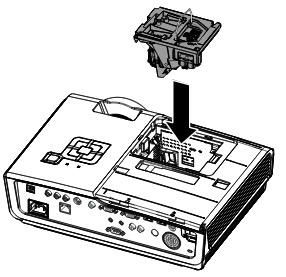
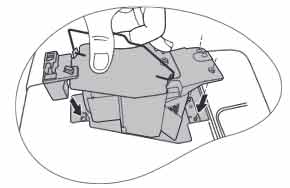
7. Insert a new on the Mitsubishi VLT-HC910LP projector lamp lamp box securely into the projector in the right
orientation.
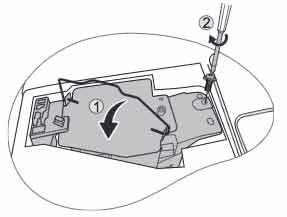
8. Put the Mitsubishi VLT-HC910LP handle back to the original position. Make sure that the handle is locked.
9. Tighten up the screws (c) using a Phillips screwdriver (+).
10. Replace the lamp cover and tighten the screw.
You are no ready to reset the Mitsubishi HC1500 projector lamp timer.


Resetting the Lamp Hour Timer

It’s important to only reset the lamp timer when the Mitsubishi VLT-HC910LP projector lamp has been replaced. Resetting the projector lamp timer without changing the lamp can make it work beyond its recommended hours and cause harm to your Mitsubishi HC1500 projector.

To reset the lamp operation time

  • Plug in the power cord
  • Reset the lamp operation time by holding down the ARROW key and the POWER button on the control panel at the same time.
  • Make sure that the STATUS indicator blinks twice and the lamp operation time is reset successfully.
  • IMPORTANT: Unless these three buttons are pressed at the same time, the lamp operation time isn’t reset.

Extending the life of the projector lamp:


Tagged with: , ,

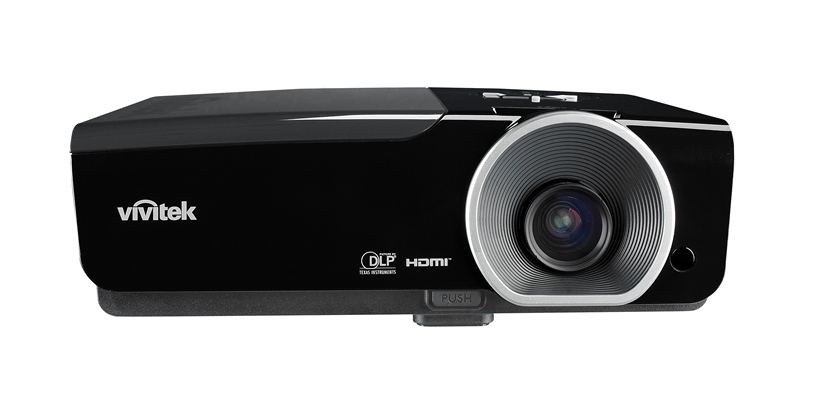
Follow this guide to replace the Vivitek D965 projector lamp.

projector_vivitek_d965

Go with authentic

When it’s time for a new Vivitek D965 projector lamp, the best investment you can make is to buy an authentic projector lamp. An authentic OEM lamp is gauranteed to keep your Vivitek D965 working at its best. Knock-off counterfeit lamps have a shorter lamp life  and have been created with toxic substitutes and are prone to explosions that s often damage the sensitive electronics in your projectors. Invest in authentic.

Find this lamp sold on Amazon by this authorized dealer:

Replacing the projector lamp

When you notice the Power LED flashing 5 times consecutively, your projector lamp is reaching its end of life and needs to be replaced immediately. The Vivitek D965 projector uses the Vivitek 5811116701-SVV projector lamp. Before changing the Vivitek D965 projector lamp:

  • Reduce the risk of electrical shock by disconnecting the power cord on the Vivitek D965 projector.
  • Reduce the risk of severe burns by allowing the projector to cool for at least 45 minutes.

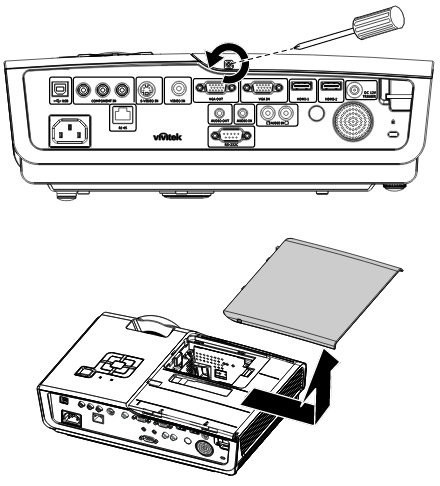
1116701-SVV_replace_projector_lamp_Vivitek D965 projector lamp

Vivitek_D963HD_Replace_Vivitek_5811116701-SVV_lamp_Vivitek D965 projector lamp

  • Loosen the captive screw holding the lamp cover in place.
  • Slide the lamp cover off and place it to one side.
  • Remove the tw0 screws holding the Vivitek 5811116701-SVV projector lamp in place.
  • Remove the two captive screws holding the lamp cover place.
  • Remove the lamp cover and place it to one side.
  • Remove the three screws holding the Vivitek 5811116701-SVV projector lamp in place.

NOTE: The Vivitek 5811116701-SVV projector lamp contains mercury and should not be thrown into regular garbage. Recycle your used lamps!

Vivitek D965 projector lamp_install_Vivitek_5811116701-SVV_lampTo finish the installation:

  • Take the new Vivitek 5811116701-SVV projector lamp out of its packaging. Lift up the wire handle and gently guide it into the Vivitek D95 projector.
  • Take care not to touch the actual bulb as the oil from your fingers can leave a smudge that will burn into a black spot when the projector heats up.
  • Tighten the lamp screw.
  • Re-install the Vivitek D965 projector lamp cover and tighten the screw.
  • Reset the total lamp hour timer.

Resetting the Vivitek D965 Lamp Hour Timer

It’s important to only reset the lamp timer when the Vivitek 5811116701-SVV(5811100760S) projector lamp has been replaced.

Vivite-D965-projector=lamp_replacement_5811116701-svv_reset_lamp_timerResetting the projector lamp timer without changing the lamp can make it work beyond its recommended hours and cause harm to your Vivitek D965 projector.

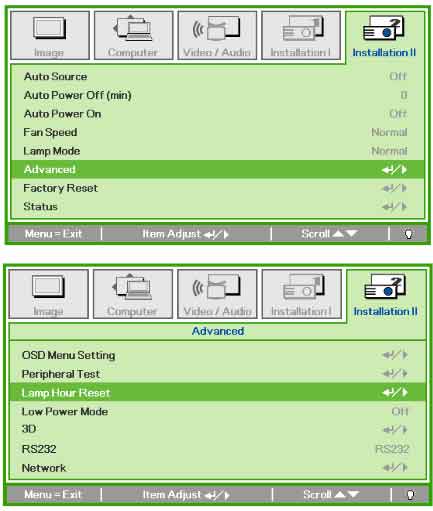
  • Press the Menu button to open the OSD menu.
  • Press left/right arrow keys to move to the Advanced menu.
  • Press up/down arrows to move to the Lamp menu.
  • Press Enter.
  • Using the or up/down arrow keys to move down to the Reset Lamp Timer menu.
  • Press Enter.
  • A message will appear saying the Lamp Hour has been reset to zero.
  • Press the Menu button to return to the main menu.

Extending the life of the projector lamp:

  • Keep your air filters clean to avoid overheating the projector.
  • Use the Lamp Power option on the Vivitek D965 projector and set to Eco Mode to reduce the amount of power used but extend projector lamp life.
  • Learn more with Top tips for extending DLP projector lamp life.


Tagged with: , ,

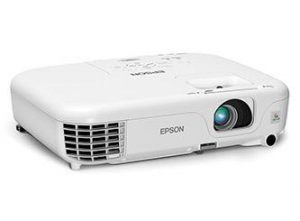
epson-powerlite-home-cinema-500_epson_projector_lamp_ELPLP67

When it’s time to replace the Epson PowerLite Home Cinema 500 projector lamp, this guide shows you how to do it properly

Why invest in authentic projector lamps

An authentic projector lamp makes all the difference in how your Epson PowerLite Home Cinema 500 performs. Look for the seal of approval before buying your Epson 500 projector lamp. Keep reading for the 6 reasons to avoid counterfeit lamps. Read the 7 Ways to Spot a Counterfeit Lamp.


Find this lamp on Amazon sold by these authorized dealers:

6 reasons to avoid generic lamps:

Watching for end of life

It’s time to replace the Epson PowerLite Home Cinema 500 projector lamp when the following signs are seen:

  • The projected image gets darker or starts to deteriorate.
  • A message appears saying to replace the lamp when the projector is turned off
  • The projector lamp warning light flashes orange.

Installing the Projector Lamp Replacement

The Epson Powerlite 500 uses the Epson ELPLP67 projector lamp replacement.

Before installation:

  • Turn power button off wait for light to stop flashing.
  • Turn off power switch on Epson PowerLite Home Cinema 500 projector.
  • Unplug the power cord.
  • Allow the Epson PowerLite Home Cinema 500 projector to cool for one hour. It should be cool to the touch before changing the projector lamp.
  • Do not operate the projectors while any of the lamps are removed as this may result in malfunctions, fire hazard and other accidents.

Caution: Don’t touch the actual bulb with your fingers since the oil from your skin can cause a black spot on the bulb.

Installing the Epson ELPLP67 projector lamp

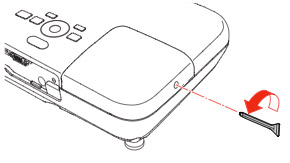
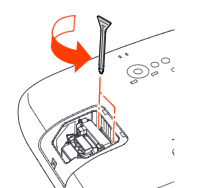
PowerLite_Home-Cinema_500HD_Epson_ELPLP67_replacement_lampLoosen the lamp cover screw and slide the 500 projector lamp cover off.

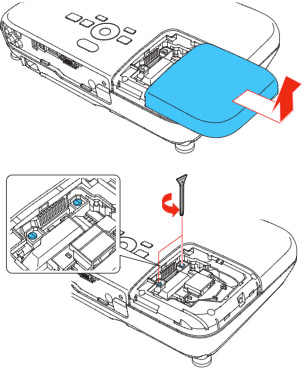
PowerLite_Home-Cinema_500HD_Epson_ELPLP67_remove_projector_lampLoosen the two screws holding the Epson ELPLP67 projector lamp in place.

NOTE: The Epson ELPLP67 projector lamp contains mercury and should not be thrown into regular garbage. Recycle your used lamps!

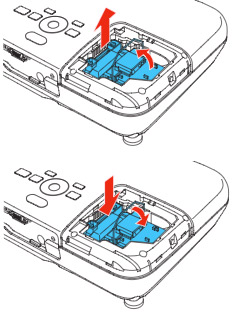
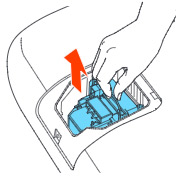
PowerLite_Home-Cinema_500HD_Epson_ELPLP67_replacement_projectors_lamp_step2Grab the Epson ELPLP67 projector lamp by the wire handle and gently pull the sprojector lamp out. Pulling too quickly can cause the bulb to shatter. Learn what to do should this happen. Gently insert the Epson ELPLP67 projector lamp making sure it’s facing the right way.

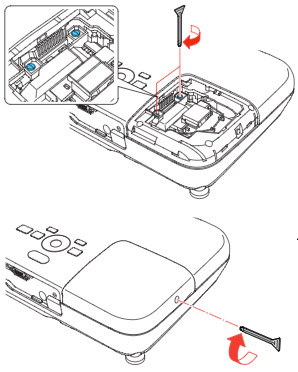
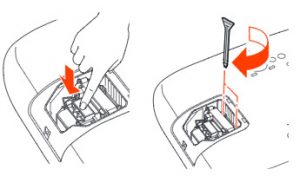
PowerLite_Home-Cinema_500HD_Epson_ELPLP67_insert_new_replacement_lampTighten the screws on the new Epson ELPLP67 projector lamp. Be sure not to tighten too much or the lamp may not work.

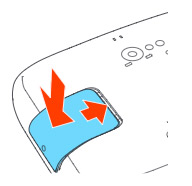
Replace the lamp cover and tighten the screw on the Epson PowerLite Home Cinema 500 projector lamp cover. You a ready to reset the projector lamp timer.

Reset the projector lamp timer

Reset the Epson PowerLite Home Cinema 500 projector Lamp Replacement Counter only when the Epson ELPLP67 projector lamp has been replaced.

PowerLite_Home-Cinema_750HD_Epson_ELPLP67_rest_lamp_timer

  • Press the MENU button on the remote control. The Lamp Reset Menu will appear.
  • Scroll down to the RESET LAMP HOURS. Press ENTER.
  • A prompt appears asking if you want to RESET LAMP HOURS?
  • Select YES and press ENTER.
  • Press MENU to exit.

Prolong the life of the Home Cinema 500 projector lamp:

Extend the life of the newly installed Epson ELPLP67 projector lamp with the following tips:

  • Keep your air filters clean to avoid overheating the projector.
  • Turn off the Epson PowerLite Home Cinema 500 projector and let it stand for at least one hour ever 24 hours. An average use of four to five hours per day will ensure longer lamp life.
  • Make sure there is enough airflow around the projector particularly if it’s been permanently mounted.
  • Learn more with Top tips for extending DLP projector lamp life


Tagged with: , ,

psycho_zombie_lamps

Counterfeit projector lamps wait until you install them into your projector. Then the nightmare begins.

Zombie counterfeits projector lamps can be a real drag!! Buy authentic. Stay safe out there. Beware!

 

chopping-mall-head-explosionZombie problem 1: Brain explodes

After years of research, PHILIPS developed a revolutionary arc tube filled with a mercury-argon mixture creating intense light but less heat. The intense light needed for projectors is created by the two electrodes in the ballast igniting gases in arc.

Zombie counterfeits often have filaments in the ballast too weak to light the gases in the arc. Without this ignition unlit arc tube continues to heat up until it explodes inside the projector. You’ll hear the loud pop and smoke may come pouring out of your projector. You have counterfeit lamp guts in your projector to clean up. Follow these instructions for a safe clean-up

  1. Turn the projector off immediately. Unplug the AC cord.
  2. Wait for the projector to cool down.
  3. Open a window to ventilate the room. Avoid breathing in any dust from the lamp
  4. Check there are no broken shards or pieces of glass around the projector or coming out from the cooling air circulation vents. Check the interior of the projector
  5. Use rubber gloves to pick up any shards or broken bits of lamp coming out of the projector. These projector lamps contain mercury so don’t handle any shards with bare hands.
  6. Place shards in closed containers to avoid generating dust and mercury vapour. Don’t put the container into the regular garbage or down the drain. Send the remains to a hazardous waste facility near you.
  7. Don’t attempt to clean up the inside of the projector.
  8. Take the projector into an authorized service station. They will clean the inside of the projector thoroughly with a mercury vacuum cleaner. Never use a regular vacuum cleaner to do this.
  9. Ask the service technician to do a thorough check of the unit paying attention to the ballast and color wheel

Zombie problem 2: The picture is bad

full_tvzombie1


Unfortunately zombie counterfeits are not made with the same materials as OEM projector lamps. Your colors are not going to be as vivid, your blacks not as rich and the whole  picture will look off. Zombie generics simply can’t deliver good picture quality — they haven’t been made with the proper materials that work with the sophisticated optics in your projector. To get the clear, crisp picture with your projector, install an authentic projector lamp.

Nothing can replace an authentic projector lamp.


Zombie scenario 3: Headaches

After years of research, PHILIPS developed a revolutionary arc tube filled with a mercury-argon mixture creating intense light but less heat.The arc tube in counterfeit lamps is usually no filled with the proper gas. Authentic projector lamps use a mercury-argon mixture but this patented technology not available to counterfeit manufacturers. Most counterfeit manufacturers substitute Krypton-85 to achieve the same results.

This is a radioactive gas  created by nuclear reactors during the fission between uranium and plutonium. It’s only safe when used in a  controlled environment. When the counterfeit lamps explodes, the gas released is dangerous whether the projector is in the home,  office or school

Zombie alert! Short-term symptoms of Krypton-85 exposure :

  • dizziness
  • nausea
  • vomiting
  • loss of consciousness

Solution: Get rid of your zombie lamp immediately and open windows to clear out this gas. Buy authentic.

Zombie scenario 4: Your eyes hurt

broken_eyeYour projector emits an extremely bright lamp that does have some UV rays. All PHILIPS projector lamps have special coated reflectors to reduce harmful rays and protect your eyes if you do look into the projector. Without this coating, looking into the projector lamps is similar to looking directly into the sun.

Counterfeit lamps either have no reflectors or a non-coated reflector that offers no protection. Prolonged UV exposure eventually damages the retina causing macular degeneration and poor eyesight. Operating your projector with a generic compatible lamp means putting your eyesight at risk. Buy authentic.

Solution: Stop using zombie lamps! Buy authentic.

If you did fall under the spell of a zombie generics, reclaim your projector by installing an authentic lamp. Don’t let the horrors of zombie counterfeit projector lamps haunt you. Buy authentic today.

 

Tagged with: ,

benq-mx613st-projectorOur guide gives you step-by-step instructions on how to replace the BenQ MX613ST projector lamp.
Start off with authentic

Save yourself unnecessary headaches by buying an authentic BenQ MX613ST projector lamp. Why go authentic?

Counterfeit “compatible” lamps may appear to be a bargain but in the long run end up costing more due to their shorter lamp life. They are prone to explosions and can put your eyesight at risk.  Due to their substitute toxic materials and carcinogenic parts, the few dollars you will save are not worth it. Protect your health and keep your BenQ MX613ST working at optimum levels. Go with an authentic projector lamp.

Find this lamp on Amazon from the following authorized dealers:
MX660 BenQ Projector Lamp Replacement. Projector Lamp Assembly with Genuine Original Philips UHP Bulb Inside.

End of life warning signs

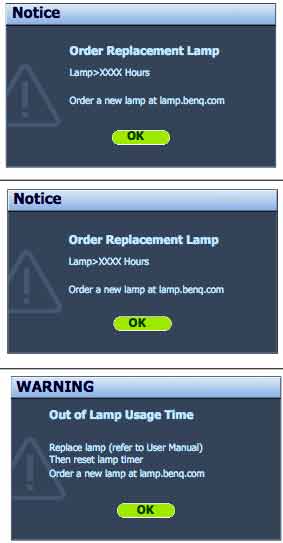
Your BenQ MX613ST projector uses the BenQ 5J.J3T05.001 replacement projector lamp.  When it’s time to replace the BenQ MX613ST projector lamp you’ll see a series warnings appear on screen.

benq-mx613st-projector_benq-5j-j3t05-001_replacement_lamp-warnings

First warning: The BenQ 5J.J3T05.001 projector lamp has been in operation equivalent to 4500 hours. Install a new lamp for optimal performance. If the BenQ MX613ST projector is running in Econo Mode, you have up to 6000 hours before changing the lamp. You can wait until the second warning to replace the projector lamp. Press MODE/ENTER to dismiss the message.

Second Warning: The BenQ 5J.J3T05.00 projector lamp has been in operation equivalent to 4000 hours. You should replace the lamp immediately. Press MODE/ENTER to dismiss the message.

Out of lamp: The BenQ 5J.J3T05.00 projector lamp has reached its end of life and the projector will shut down until the lamp is replaced.  The is approaching it’s end of life and has been in operation equivalent to 3000 hours. Change the BenQ 5J.J3T05.00 projector lamp must be replaced immediately.

Follow these safety instructions before changing the lamp:

  • Reduce the risk of electrical shock by disconnecting the power cord on the BenQ MX613ST projector.
  • Reduce the risk of severe burns by allowing the projector to cool for at least 45 minutes. The projector should be cool to the touch.

Replacing the projector lamp


benq-mx613st-projector_benq-5j-j3t05-001_replace_lamp_cover

  • The projector lamp cover is found on the side of the Benbenq-mx613st-projector_benq-5j-j3t05-001_replace_lamp_cover-2Q MX613ST projector.
  • Loosen the screw  holding the projector lamp cover in place
  • Lift up the projector lamp cover.


benq-mx613st-projector_benq-5j-j3t05-001_replace_lamp_screw-1

  • Loosen the screw that secures the lamp.
  • Lift the handle so that it stands up. Use it to slowly pull the BenQ 5J.J3T05.00 projector lamp out of the projector. Pulling out too quickly may cause the bulb to break. benq-mx613st-projector_benq-5j-j3t05-001_remove_lamp

NOTE: The BenQ 5J.J3T05.00 projector lamp contains mercury and should not be thrown into regular garbage. Recycle your used lamps!

benq-mx613st-projector_benq-5j-j3t05_insertInsert the new BenQ 5J.J3T05.00 projector lamp.

  • Tighten the screw that secures the lamp. Loose screw may cause a bad connection,
    which could result in malfunction. Do not over tighten the screw. benq-mx613st-projector_benq-5j-j3t05-001_replace_lamp_screw-2
  • Replace the lamp cover on the BenQ  MX613ST  projector.
  • Reset the lamp timer.

Resetting the lamp timer

Do not reset the BenQ MX613ST projector lamp timer if the lamp has not been replaced as this could cause damage. Don’t start the if the lamp cover has not been replaced. To reset the projector lamp timer:

  • Plug the BenQ MX613ST projector and get it started.
  • Open up the menu and scroll over to SYSTEM/SETUP: Advanced. Press ENTER
  • Press MODE/ENTER to display the Lamp Settings page
  • Highlight Reset lamp timer to display a warning asking it you want to reset the lamp timer.
  • Select RESET. Press ENTER.
  • Lamp time will be reset to zero.

Extend the BenQ MX613ST projector lamp

  • Keep your air filters clean to avoid overheating the projector.
  • Setting Lamp Power to Eco mode. Using Whisper mode reduces system noise and power consumption. It also extends the projector lamp life. To set Econo mode, go into the Advanced Setup > Lamp > Lamp Power menu.
  • Learn more with Top tips for extending DLP projector lamp life.


Save

Save

Tagged with: , ,

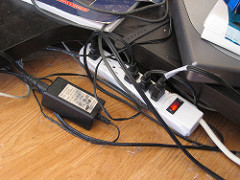
Photo by Tom Raftery

Photo by Tom Raftery

Protect your projector from power failures

Do you know the difference between a surge protector or power strip? When it comes to keeping your projector safe, it’s good to know how to choose between a simple power strip and a surge protector.

Like most electronics with sophisticated optics, projectors can be damaged when jolted back to life after an electrical failure.

Bad weather can result in power spikes when electricity becomes unstable and there is a very high increase in power that last for less than a second. But that small increase is enough to trip breakers, short circuits and cause power outages.

The best protection against electrical damage is to use a surge protector. This is not your ordinary power strip but can sometimes look the same. However, there is a big difference between a surge protector and a power strip.

Differences

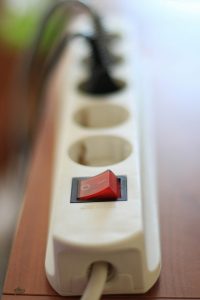
power_bar

Photo by Jon Lesser

The power strip or power bar is a simple block of electrical sockets attached to a flexible cable. You plug it into a single electrical wall and immediately have more outlets to plug in a variety of devices. Very handy but power strips won’t stop power spikes from ripping through your electronics. Some power strips have small circuit breakers to interrupt electricity in case of an overload but they can’t offer full protection.

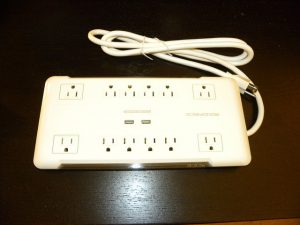
While a surge protector may resemble a power strip and work in the same manner, it does offer more protection. Inside are series of metal-oxide varistors (MOVs) that take the electrical hit rather than your projector. A surge protector with a healthy supply of MOVs regulates the voltage by either blocking or grounding excess voltage while also preventing electrical surges coming from a wall outlet. It’s definitely a great investment.

What to look for

surge_protector

Photo by tsilb


Surge protectors are not that much more expensive that an ordinary power bar and do a great job of preventing damages to your projector. The average price is between $10 and $20 — slightly more than what you would pay for a power bar. A good rule of thumb is to always buy slightly more outlets that what you need. This way you can add future gear to the protector and resist the urge to daisy chain plug one on top of another.

There are three parts to consider while buying your surge protector:

  • High absorption: Energy absorption is measured in joules and lets you know how much energy the surge protector can absorb before it blows out. The higher the number, the more protection offered. Average ratings are between 200 to 400 joules but for the best protection go for a rating between 600-700 joules. Don’t cheap out on this. It’s worth spending a few extra dollars for a higher joule rating.
  • Low voltage: Clamping voltage is how much voltage will make the MOVs send the electricity to the ground line. For clamping you want a low number, somewhere between 300 to 400 volts. Anything higher isn’t going to offer much grounding at all.
  • Quick response: You want a surge protector with a quick response time. If it’s got a rating higher than one second it’s not going to offer you protection at that crucial moment. Most electrical surges take less then two seconds to fry your projector. So look for a surge protector with response time less than one second and if possible less than one nanosecond.

Ignore the claims that some manufacturers put on surge protectors claiming to “condition” the power from the wall to improve performance. Most projectors already have this function installed in their hardware.

Need to replace

Surge protectors don’t last forever. They will eventually wear out like all consumable electronic goods. Look for a protector with the red indicator light that shows all the protective MOVs and other components are in good working condition. If you do experience a big power surge, then chances are the MOVs will stop functioning. An indicator light lets you know when your MOVs are done and it’s time to buy a new surge protector.

Surge protectors are a great investment to protect the life of your projector. Read more about the best surge protectors on the market from The Wirecutter’s consumer test.

Tagged with: , , , ,

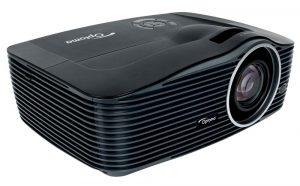
Optoma W501 ProjectorFollow this step-by-step installation guide for installing a new Optoma W501 projector lamp

With so many choices, it can be confusing finding the the correct Optoma W501 projector lamp. It’s easy to get duped into buying counterfeit projector lamp posing. Always look for the seal of approval and watch for telltale signs you are about to purchase a counterfeit lamp:

See below for more reasons to avoid counterfeit lamps.

Find this lamp on Amazon sold by these authorized dealers:

Installing the projector lamp

The Optoma W501 uses the Optoma BL-FU310B projector lamp. Before replacing the projector lamp, follow these safety precautions

  • Turn off the Optoma W501 projector
  • Unplug the power cord
  • Allow the Optoma W501 projector to cool down for at least 30 minutes. If should be cool to the touch to prevent to getting burned.

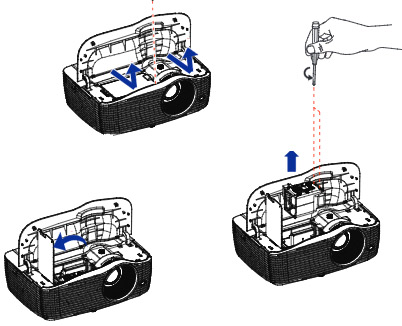
optoma_w501_projector_optoma_bl-fu310b_replacement_lamp

  • Open the top cover, by sliding the top cover forward, and lifting the top cover off.
  • Remove the screw on the Optoma BL-FU310B projector lamp cover and then open it up.
  • Loosen the screws from the Optoma BL-FU310B projector lamp
  • Raise the handle and pull out the Optoma BL-FU310B projector lamp. NOTE: The Optoma BL-FU310B projector lamp contains mercury and should not be thrown into regular garbage. Recycle this lamp.
  • Insert the new Optoma BL-FU310B projector lamp into the projector and tighten the screws.
  •  Replace the Optoma BL-FU310B projector lamp cover and tighten the screw.
  • Align the top cover and slide it towards the back to lock in place.
  • Turn on the projector. If the lamp does not turn on after the warm-up period, try reinstalling the lamp

Reset the Optoma W501 lamp timer

Your Optoma W501 comes equipped with an automatic lamp timer that tracks the number of hours left on the projector lamp. Each time you change the lamp you need to reset the lamp timer.

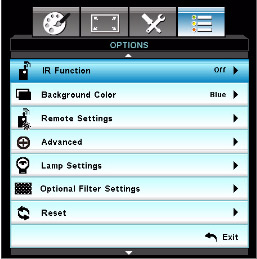
optoma_w501_projector_optoma_bl-fu310b_menu

  • Press the Menu button to open the menu.
  • Scroll down to the OPTIONS menu. Press ENTER.
  • Scroll down to the Reset menu. Press ENTER.
  • Choose the LAMP RESET option to set the timer back to zero.

Longer lamp life

You can extend the Optoma W501 projector lamp life by adjusting the lamp mode.

  • Bright: increases the brightness.
  • „Dynamic: dims lamp power so it’s based on brightness level of the content.  Adjust lamp power consumption between 100% and 30% dynamically to extend projector lamp life.
  • „Eco+: Dims the lamp powerbe based on brightness level of the content. Lamp power consumption is adjusting between 80% and 30% dynamically to extend projector lamp life.
  • Learn the TOP Tips for extending the lamp life in your Optoma W501 projector lamp projector.

6 reasons to avoid generic lamps

Tagged with: , ,

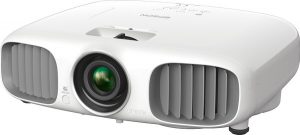
Our guide spowerlite_home_cinema_3010_projectorhows how to install a new Epson PowerLite Home Cinema 3010 projector lamp.

Look for the seal of approval before purchasing your replacement and buy from an authentic manufacturer.

Replacement Warning Signs

You can expect up to 4000 hours with your projector lamp depending on maintenance or how often you use your projector.  When the Epson PowerLite Home Cinema 3010 projector lamp is reaching end of life, you may notice these warning signs:

  • The projector lamp indicator flashes orange or intervals of red.
  • The message “Lamp Replace” appears on the screen
  • The images gets darker or starts to deteriorates.

Keep your projector working

The Epson PowerLite Home Cinema 3010 needs the Epson ELPLP68 projector lamp. OEM authentic Epson ELPLP68 lamps have been manufactured to meet the specifications of the Epson PowerLite 3010 projector and should always be used.

Counterfeit projector lamps can damage the sensitive and expensive mechanisms in your Epson PowerLite 3010 projector and actually have a much shorter lamp life. They are also more prone to explosions due to the inferior materials used during their production.

Find this lamp on Amazon sold by these authorized dealers:

Installing the projector lamp

Pre-installation Preparation:

  • Turn off the projector power and wait for the cool-down period which is about two minutes. Disconnect the power cord after the two minutes is over.
  • Wait at least 30 minutes to one hour for the Epson PowerLite Home Cinema 3010 projector to cool internally before opening it up. It should be cool to the touch.

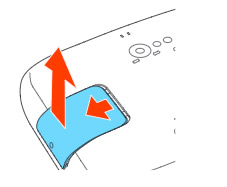
powerlite_home_cinema_3010_remove_epson_elplp68_coverLoosen the screw holding the Epson PowerLite Home Cinema 3010 projector lamp cover in place.

powerlite_home_cinema_3010_remove_epson_elplp68_screw-coverSlide the Epson PowerLite Home Cinema 3010 projector lamp cover off and place it to one side.powerlite_home_cinema_3010_epson_elplp68_remove_replacement_lamp_screws

Loosen the two screws holding the Epson PowerLite Home Cinema 3010 projector lamp in place.

powerlite_home_cinema_3010_remove_epson_elplp68_lamp

Lift up the wire handle on the Epson ELPLP68 projector lamp and gently pull the projector lamp out of the Epson PowerLite Home Cinema 3010 projector lamp. Don’t knock the actual bulb as it may break.
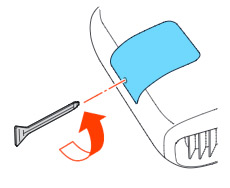
NOTE: The Epson ELPLP68 projector lamp contains mercury and should not be thrown into regular garbage. Recycle your used lamps!

powerlite_home_cinema_3010_insert_epson_elplp68_replacement_lampSlowly insert the Epson ELPLP68 projector lamp until it clicks into place. Be sure not to touch the actual bulb apowerlite_home_cinema_3010_re-install_epson_elplp68_lamp_covers the oil from your skin will case blackouts.
Tighten the screws on the newly installed Epson ELPLP68 projector lamp. Replace the lid on the Epson PowerLite Home Cinema 3010 projector.

Tighten the screw on the projector lamp cover. Reset the lamp timer.

Resetting the lamp timer

The projector lamp timer will need to be reset after replacing the Epson ELPLP68 This timer helps the Epson PowerLite Home Cinema 3010 projector to properly track the lamp life. Only reset the timer when a new Epson ELPLP68 lamp has been installed, otherwise the projector will NOT know when it’s time to replace the lamp. You run the risk of damaging your projector.

  • Press the MENU button on the remote control. The Lamp Reset Menu will appear.
  • Scroll down to the RESET. Press ENTER.
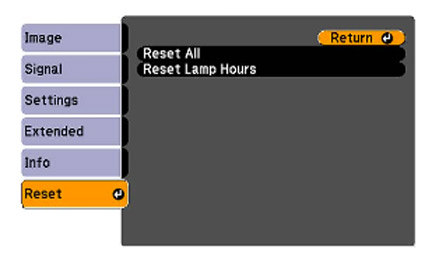
  • Scroll down to the option RESET ALL.
  • A prompt appears asking if you want to replace the lamp.
  • Select YES when the confirmation pop up screen is shown. Press ENTER.
  • Press MENU to exit.

The lamp hours will be reset to zero. The lamp usage timer shows 0H until you’ve used the lamp for at least 10 hours.

How to extend projector lamp life

Extend the life of the newly installed Epson ELPLP68 with the following tips:

  • Keep your air filters clean to avoid overheating the projector.
  • Turn off the Epson PowerLite Home Cinema 3010 projector and let it stand for at least one hour ever 24 hours. An average use of four to five hours per day will ensure longer lamp life.
  • Make sure there is enough airflow around the projector particularly if it’s been permanently mounted.
  • Learn more with Top tips for extending DLP projector lamp life.

Save

Save

Tagged with: , ,

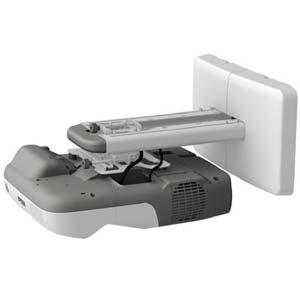
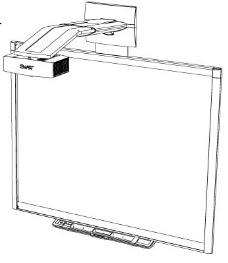
SMART-Board-885i4

Follow this step by step guide to replace the Smartboard 885i4 projector lamp.

When the projected image gets darker or starts to deteriorate then it’s time to replace the Smartboard 880i4 projector lamp.

Go with authentic

An authentic projector lamp makes all the difference in keeping your Smartboard 885i4 projector working. If the price is too good to true, then you should avoid the lamp. Bargain basement prices mean problems down the road. Scroll down to see more reasons to avoid counterfeit lamps.

Find these lamp on Amazon sold by these authorized dealers:

Changing the Smartboard  projector lamp

Your Smartboard 885i4 projector uses the SmartBoard 20-01032-20 projector lamp.

Important Safety tips BEFORE replacing the projector lamp:

  1. Close the projector lens door to prevent scratching or touching of the lens.
  2. Press the power button twice on the ECP (extended control panel) or on the remote to put the system in Standby mode.
  3. Turn off the power switch and disconnect the power cord and all connected cables.
  4. This projector operates under high temperature and there is a burn risk so be sure to wait at least one hour minutes for the projector’s housing to completely cool.

Step 1: Remove the projector from the boom


Smartboard_885i4_Smartboard_-20-01032-20_-remove_projector_lid
Remove the cable cover and disconnect all cables from the Smartboard 885i4 projector.

To remove the projector from the mount, hold tSmartboard_-885i4_Smartboard_-20-01032-20_-remove_projector_mounthe projector and without applying pressure, remove the screw holding the cable cover in place. Lift the cover off.
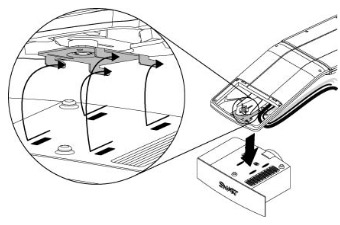
Remove the projector padlock from the locking loop if you are using it.
Smartboard_-885i4_Smartboard_20-01032-20_remove_projector_mount-3

Loosen the wing nut and slide the Smartboard 885i4 projector away from the interactive whiteboard screen. Then remove the single screw on the bracket.

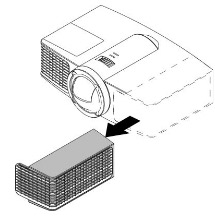
Using two hands carefully unhook and remove the projector from the projector boom. Lay the Smartboard 885i4 projector boom flat with the warning lights facing upwards.

Step 2: Remove the old lamp

Smartboard_885i4_Smartboard_20-01032-20_remove_projector_lid-2

Smartboard_880i4_Smartboard_20-01032-20_remove_projector_lid-3

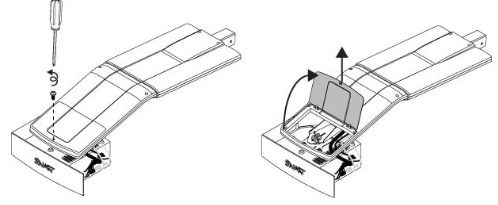
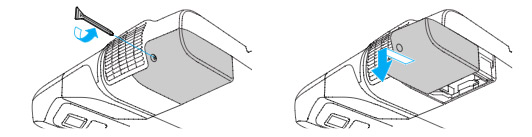
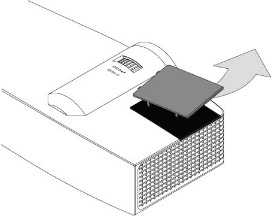
  1. Pull off the outer lamp cover with the your finger and set it aside.
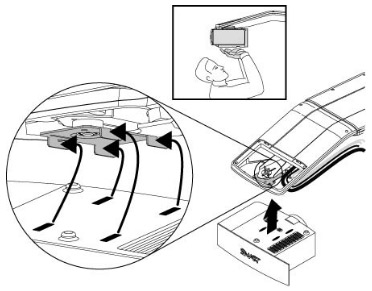
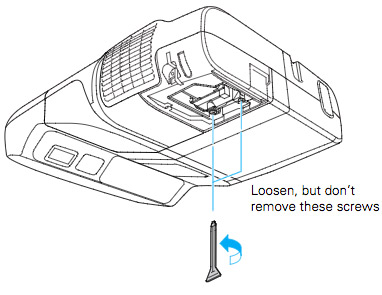
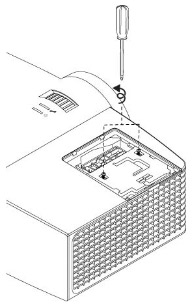
  2. Loosen the two screws holding the SmartBoard 20-01032-20 projector lamp in place. Smartboard_885i4_Smartboard_20-01032-20_remove_projector_lamp
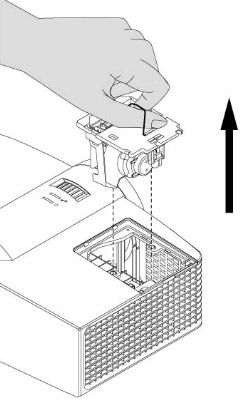
  3. Press on the tab and pull up with the handle on the old lamp. Release the tab. NOTE: The SmartBoard 20-01032-20 projector lamp contains mercury and should properly recycled and NEVER thrown into regular garbage.

Inserting the new lamp

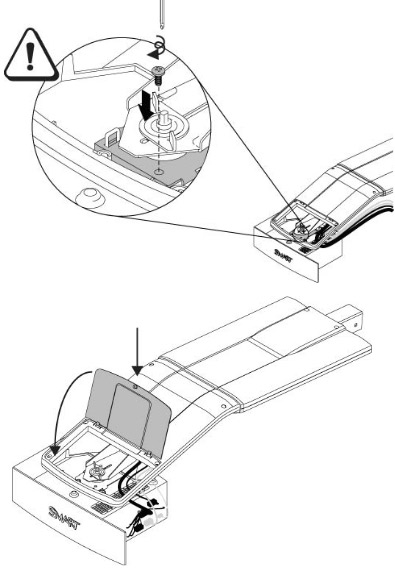
  1. Remove all packaging from the new SmartBoard 20-01032-20 projector lamp. Press the tab, put the new lamp into the lamp slot, and push it all the way down. Release the tab.
  2. Tighten the two lamp screws on the SmartBoard 20-01032-20 projector lamp. Slide the inner lamp cover back onto the projector.
  3. Put the outer lamp cover back into its original position. Align the cover and tighten the screws until the outer Smartboard 885i4 projector lamp cover is secure.

To replace the projector plate assembly on the projector boomSmartboard_885i4_Smartboard_20-01032-20_replace_projector_mount-2

Smartboard_885i4_Smartboard_20-01032-20_replace_projector_mount

  1. Using both hands, left the projector and align the hooks on the boom with the slots on the projector.
  2. To place the projector back into the boom, attach the projector plate hinges into the corresponding flange hook on the projector boom.
  3. Secure the projector to the plate with the original screw.
  4. Replace the projector padlock.
  5. Replace the projector cover on the top of the boom. Without applying pressure to the boom, replace and tighten the screw on the cover until it’s secure. Connect all the cables and put the cable cover back on.

Resetting the lamp timer

Your Smartboard 885i4 projector has a built in lamp timer that tracks the life of the SmartBoard 20-01032-20 projector lamp. Whenever you change the lamp you need to reset the lamp timer back to zero.

  1. Using the remote control, press the following buttons quickly to access the service menu: Down, Up, Up, Left, Up.
  2. Scroll down to the Lamp Hour Reset field and press OK. Both Standard and Economy setting will be reset to zero.
  3. Press the Menu button on the remote control to make the 885i4 Setting menu appear.
  4.  Select the Lamp Hours to confirm that it’s been reset to zero.
  5. Wait five minutes for the projector lamp to warm up.

Learn how to extend the life of your SmartBoard 20-01032-20 projector lamp with Top tips for extending DLP projector lamp life.

6 reasons to avoid generic lamps:

Tagged with: , ,

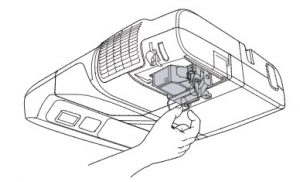
powerlite-460_projector

Replace the Epson PowerLite 460 projector lamp.

Invest in an authentic OEM projector lamp to keep your Epson PowerLite 460 working. Extremely cheap lamps bought over the internet are usually counterfeits and don’t offer the same performance as authentic lamps.

With an authentic OEM, you can expect between 2500 to 3500 hours of usage before it’s time to install a replacement projector lamp.

When it’s time for a new projector lamp

End of life warnings include:

  • the image gets darker or starts to deteriorate.
  • the message Replace the lamp appears on the screen
  • the lamp light starts flashing orange or begins to flash red
  • Replacing the Epson BrightLink 450Wi projector lamp

Find this lamp on Amazon sold by these authorized dealers:

Installing the new Projector Lamp

Safety tips

Before installing the replacement Epson ELPLP57 projector lamp follow these important safety tips:

          • Turn off power switch on Epson PowerLite 460 projector.
          • Unplug the electrical cord.
          • Allow the Epson PowerLite 460 projector to cool down. It should be cool to the touch before you open it to change the projector lamp. Otherwise you run the risk of burning yourself.
          • Do not operate the projector while the lamp has been removed as this may result in malfunctions, fire hazard and other accidents.
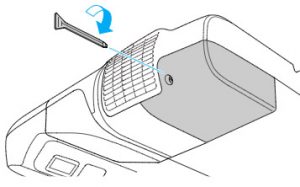
          • Loosen the Epson PowerLite 460 lamp cover screw — you can’t remove it only loosen it.
          • Slide the projector lamp cover off.Epson_PowerLite_460_projector_remove_cover-one_Epson_ELPLP57_replacement_lampEpson_PowerLite_460_projector_screws_Epson_ELPLP57_replacement_lamp
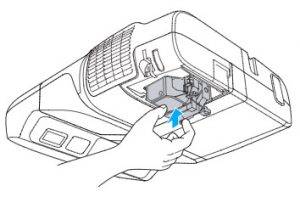
          • Loosen the two screws holding the Epson ELPLP57 projector lamp in place.
          • Using the wire handle on the projector lamp, gently pull the lamp out. Be careful not to bang the lamp against the projector. Epson_PowerLite_460_projector_remove_Epson_ELPLP57_replacement_lamp
          • NOTE: The Epson ELPLP57 projector lamp contains mercury and should be recycled properly.
          • Epson_PowerLite_460_projector_install-1_Epson_ELPLP57_replacement_lampGently insert the replacement Epson ELPLP57 projector lamp. Be sure not to touch the actual glass bulb as the oil from your fingers will leave a black mark on the screen.
          • Tighten the screws on the new Epson ELPLP57 projector lamp. Be sure not to tighten too much or the lamp may not work.Epson_PowerLite_460_projector_install_cover_Epson_ELPLP57_replacement_lamp
          • Replace the lamp cover and tighten the screw on the projector lamp cover.

You are now ready to reset the Epson PowerLite 460 projector lamp timer.

Reset the projector lamp timer

Reset the Epson PowerLite 460 projector Lamp Replacement Counter only when the Epson ELPLP57 projector lamp has been replaced. You need the projector to track lamp life correctly. Otherwise the projector may run past the recommended lamp life and suffer an explosion.

Epson_PowerLite_460_projector_reset_Epson_ELPLP57_replacement_lamp

          • Turn on the projector
          • Press the MENU button on the remote control.
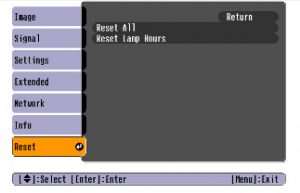
          • Scroll down to the RESET MENU. Press ENTER.
          • Select RESET LAMP HOURS. Press ENTER.
          • Select YES to the prompt asking if you want to reset the lamp hours. Press ENTER.
          • Press MENU to exit.


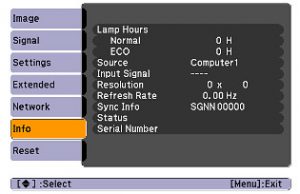
BrightLink-450Wi_projector_reset-2_Epson_ELPLP57_replacement_lampAfter resetting the Epson PowerLite 460 lamp tracking function, check that the Lamp Hours have been reset to zero:

          • Press the MENU button
          • Scroll down to the INFO menu.
          • Lamp hours will be seen on the right hand menu. If not reset to zero, repeat the reset again.


Prolong the life of the projector lamp:

Extend the life of the newly installed Epson ELPLP57 projector lamp with the following tips:

          • Keep your air filters clean to avoid overheating the projector.
          • Turn off the Epson PowerLite 460 projector and let it stand for at least one hour ever 24 hours. An average use of four to five hours per day will ensure longer lamp life.
          • Make sure there is enough airflow around the projector particularly if it’s been permanently mounted.
          • Learn more with Top tips for extending DLP projector lamp life

Reasons to avoid counterfeit lamps:

Look for the seal of approval before buying your projector lamp. Read the 7 Ways to Spot a Counterfeit Lamp.


Tagged with: , ,
Join the discussion on Facebook! All your questions, answered! The Screen & Projector Group