We're now Screen and Projector! For updated content, visit ScreenAndProjector.com and follow @screenandproj on social media!

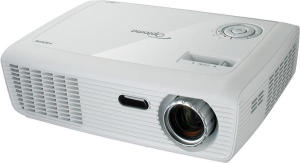
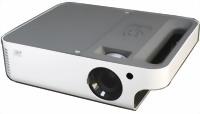
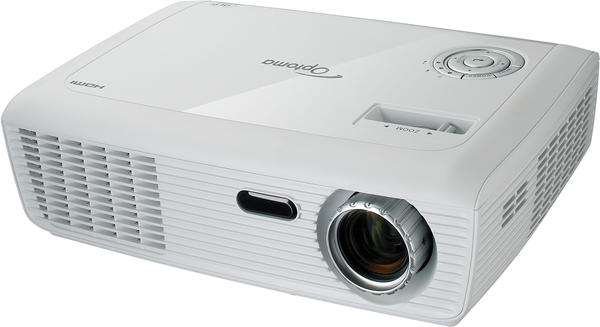
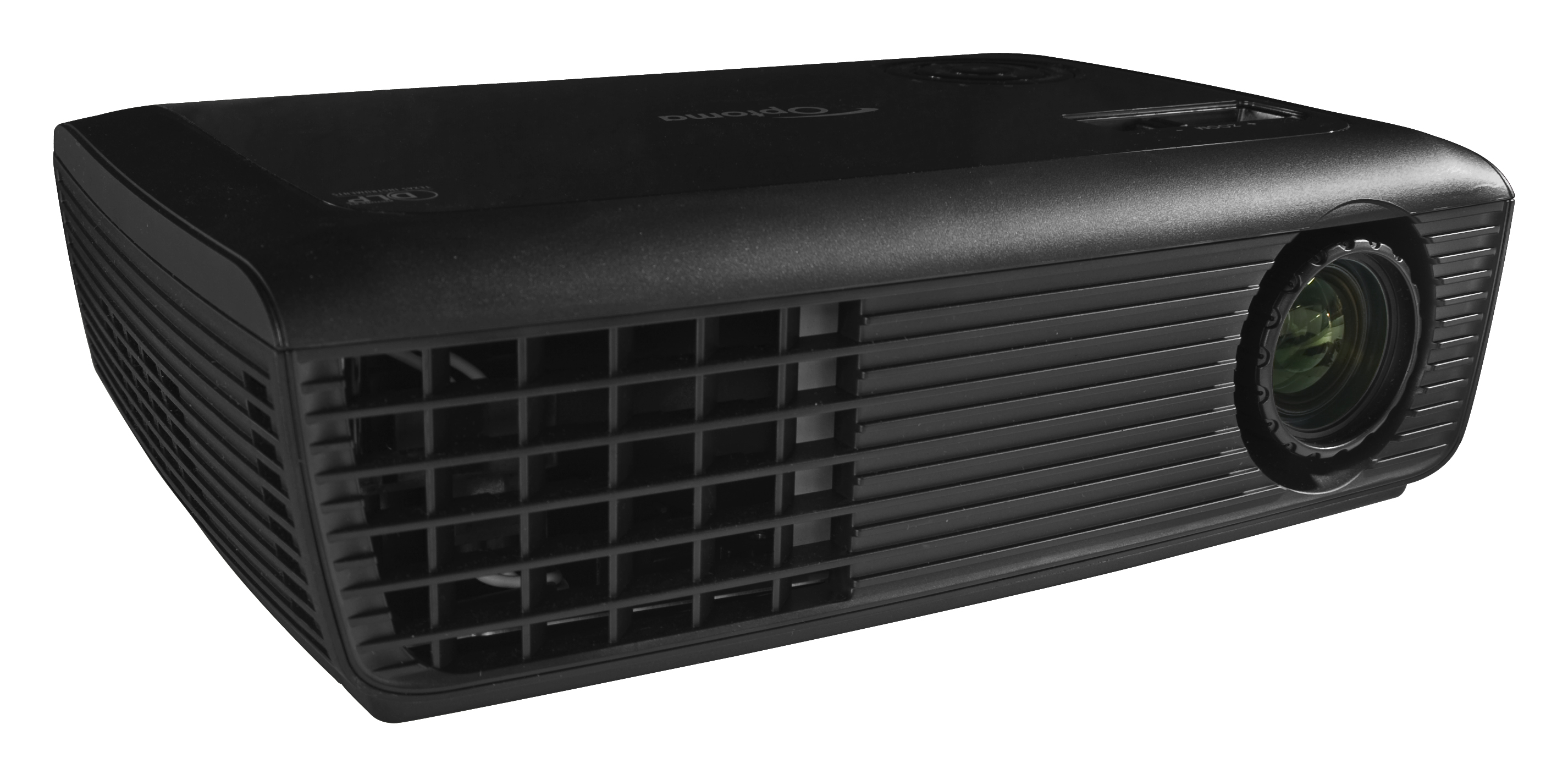
Optoma_HD67_Optoma_BL-FU185A_SP.8EH01GC01_projector_lampThis D.I.Y guide shows you how the replace the Optoma HD67 projector lamp.
When to replace the projector lamp

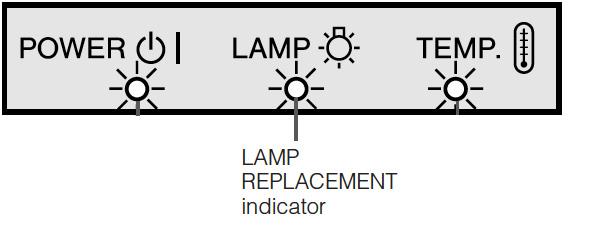
Optoma_HD67_lamp_warning_Optoma_BL-FU185A_projector_lampWhen it’s time to replace the Optoma HD67 projector lamp you’ll see a lamp replacement message flash on screen. Change the lamp in your Optoma HD67 projector immediately. You may also notice the Lamp-LED light flashing red or the picture quality starting to get poor resolution with washed out colours.

Why buy authentic?

The Internet has been flooded with generic projector lamps stating they are “compatible” with Optoma HD67 projectors. Consider the source before purchasing. Generic lamps have a long list of problems:

Learn how to buy an authentic lamp. Look for a registered OEM manufacturer in North America using the correct materials and specifications for your Optoma HD67 replacement projector lamp.

Find this lamp sold on Amazon by these authorized dealers:

Installing the Optoma BL-FU185A projector lamp

Before replacing the Optoma BL-FU185A  projector lamp follow these important safety tips:

  • Switch off the power to the Optoma HD67 projector by pressing the Power/Standby button.
  • Disconnect the power cord.
  • Allow the projector to cool down for at least 30 minutes. If should be cool to the touch. These projectors run using high temperatures and you can burn yourself badly if you don’t allow the projector to cool down.
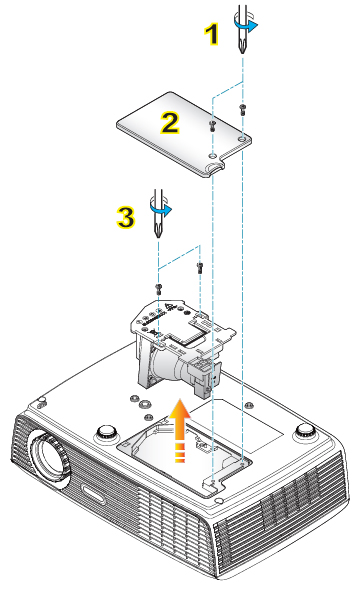
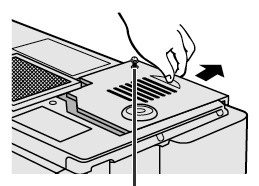
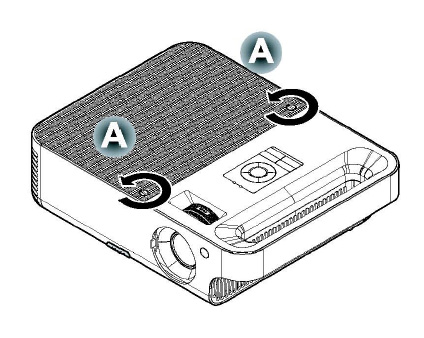
Optoma_HD67_replacing_Optoma_BL-FU185A_projector_lamp 1. Use a screwdriver to undo the two screws holding the projector lamp cover in place. The screws on the lamp cover and the lamp cannot be removed.

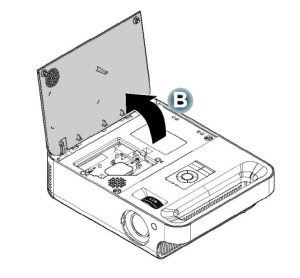
2. Remove the lid and place to one side. Don’t lose the lid as the Optoma HD67 projector will not turn back on until the lamp cover has been properly installed.

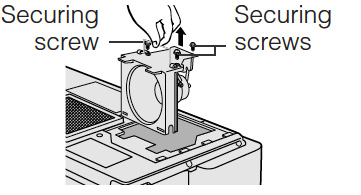
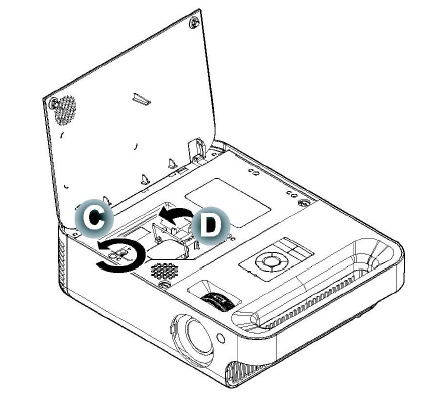
3. Remove the two screws holding the Optoma BL-FU185A projector lamp in place. Note: The used Optoma BL-FU185A projector lamp contains mercury and should be properly recycled. Don’t throw it into regular garbage.
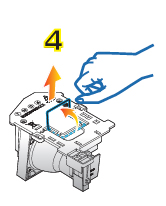
Optoma_HD67_replace_Optoma_BL-FU185A_projector_lamp4. Lift up the wire handle on the Optoma BL-FU185A lamp and slowly remove it from the projector. Be careful not to bang the lamp against the projector as this may case the bulb to break. Learn what to do if the lamp has exploded inside the projector.

5. Remove the new Optoma BL-FU185A  from its packaging. Taking care not to touch the actual bulb, lift up the handle on the new projector lamp and insert it gently into the Optoma HD67 projector.

6. Tighten the two screws on the lamp.

7. Replace the lamp cover and tighten its two screws.

Reset the Lamp Replacement Timer

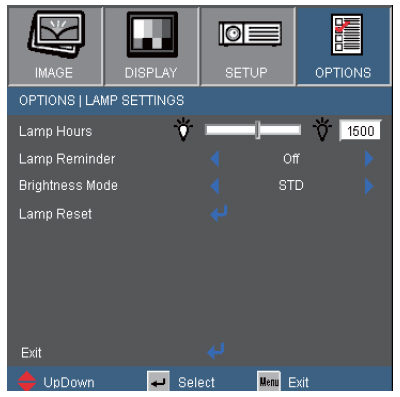
The Optoma HD67 projector has an automatic lamp timer that tracks the numbers of hours left in the projector lamp. When the Optoma BL-FU185A  is approaching end of life, the lamp replacement timer will trigger the warning system. If you don’t reset the lamp replacement timer you run the risk of the lamp being used beyond its recommended life and possibly exploding in the projector. Should the lamp explode, learn what to do. To reset the Lamp Replacement Timer:
 

Optoma_HD67_lamp_control_menu_Optoma_BL-FU185A_projector_lamp

  • Turn on the projector.
  • Using the remote press MENU
  • Select OPTIONS
  • Select LAMP SETTINGS
  • Select LAMP RESET
  • Select YES.
  • Press MENU to exit.

Extend the life of the Optoma BL-FU185A  projector lamp:

  • Chose the “STD” mode to to dim the projector lamp and lower power consumption. This will extend the lamp life by up to 130%.
  • Keep your air filters clean to avoid overheating the projector.
  • Every 24 hours, turn off the projector and let it stand for 1 hour
  • Make sure there is enough airflow around the Optoma HD67 projector particularly if it’s been permanently mounted.
  • Learn more with Top tips for extending DLP projector lamp life.

Green your Optoma HD67 projector
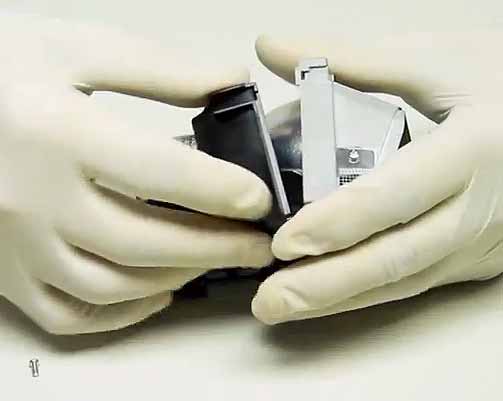
Optoma-BL-FU185A_replacement_bulb_training_videoThe Optoma HD67 projector has the option of re-using the existing lamp cage and replacing only the actual bulb. You recycle and reduce waste this way. Watch our Optoma BL-FU185A training video to learn more.
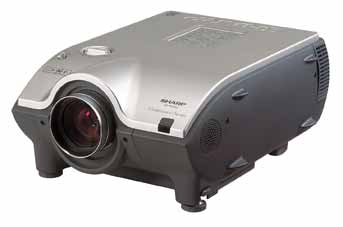
Tagged with: , , ,

Optoma_HD6700_Optoma_BL-FU185A_SP.8EH01GC01_projector_lampFollow our three easy steps to install a new Optoma HD6700 projector lamp.

Step 1: Buy authentic

Purchase your Optoma HD6700 projector lamp ahead of time and be prepared. The Optoma HD6700 projector uses the Optoma BL-FU185A projector lamp Be sure to purchase an authentic, OES projector lamp for your Optoma HD6700 projector and learn how to spot the counterfeit.

Avoid counterfeit lamp for the following reaons;

Find this lamp sold on Amazon by these authorized dealers:

Step 2: Watch for end of life warning signs

Your Optoma HD6700 projector is approaching end of life, you may notice the Lamp-LED light flashing red or the picture quality starting to get poor resolution with washed out colours.

As the projector lamp approaches end of life, the projector lamp replacement message flashes on screen. Change your proejctor lamp immediately. The projector will not work if the lamp has burnt out or broken.

If you hear a loud pop when turning on the projector, the Optoma BL-FU185A projector lamp has broken. Learn what to do if the lamp has exploded inside the projector.

Step 3: Installing the Optoma HD6700 projector projector lamp

Before replacing the Optoma BL-FU185A projector lamp follow these important safety tips:

  • Switch off the power to the Optoma HD6700 projector by pressing the Power/Standby button.
  • Disconnect the power cord.
  • Allow the projector to cool down for at least 30 minutes. If should be cool to the touch. These projectors run using high temperatures and you can burn yourself badly if you don’t allow the projector to cool down.

Optoma_HD6700_replacing_Optoma_BL-FU185A_projector_lamp

1. Use a screwdriver to undo the two screws holding the lamp cover in place. The screws on the lamp cover and the lamp cannot be removed.

2. Remove the lid and place to one side. Don’t lose the lid as the Optoma HD6700 projector will not turn back on until the lamp cover has been properly installed.

3. Remove the two screws holding the Optoma BL-FU185A in place.

Note: The used Optoma BL-FU185A projector lamp contains mercury and should be properly recycled. Don’t throw it into regular garbage.

Optoma_HD6700_replace_Optoma_BL-FU185A_projector-lamp4. Lift up the wire handle on the Optoma BL-FU185A (SP.8EH01GC01) projector lamp and slowly remove it from the projector.

Be careful not to bang the projector lamp against the projector as this may case the bulb to break. Learn how to clean up a broken projector lamp.

5. Remove the new Optoma BL-FU185A projector lamps from its packaging. Without touching the actual bulb, lift up the handle on the lamp and gently insert.

6. Tighten the two screws on the lamp.

7. Replace the lamp cover and tighten its two screws. You are now ready to reset the Lamp Replacement Timer.

Reset the Lamp Replacement Timer

The Optoma HD6700 projector has an automatic lamp timer that tracks the numbers of hours left in the lamp. If you don’t reset the lamp replacement timer you run the risk of the lamp being used beyond its recommended life and possibly exploding in the projector.

Optoma_HD6700_lamp_control_menu_Optoma_BL-FU185A To reset the Lamp Replacement Timer:

  • Turn on the projector.
  • Using the remote press MENU
  • Select OPTIONS
  • Select LAMP SETTINGS
  • Select LAMP RESET
  • Select YES.
  • Press MENU to exit.

Tips for extending Optoma BL-FU185A lamp life:

  • Chose the “STD” mode to to dim the projector lamp and lower power consumption. This will extend the lamp life by up to 130%.
  • Keep your air filters clean to avoid overheating the projector.
  • Every 24 hours, turn off the projector and let it stand for 1 hour
  • Make sure there is enough airflow around the Optoma HD6700 projector particularly if it’s been permanently mounted.
  • Learn more with Top tips for extending DLP projector lamp life.

Green your Optoma HD6700 projector

Optoma-BL-FU185A_replacement_bulb_training_videoThe Optoma HD6700 projector has the option of re-using the existing lamp cage and replacing only the actual bulb. You recycle and reduce waste this way. Watch our Optoma BL-FU185A training video to learn more.


Tagged with: , , ,

Sharp_XG-P20XE_projector_Sharp_BQC-XGP20X_projector_lampInstall a new Sharp XG-P20XE projector lamp in three easy steps using this guide.

Step 1: Buying the right projector lamp

The Internet has been flooded with generic projector lamps stating they are “compatible” with Sharp XG-P20XE projector. However, these projector lamps don’t offer much savings and come with many problems that can affect the life of your projector.

Six reasons to avoid generic lamps:

Consider the source before purchasing. Learn how to spot the fake.

Find this lamp sold on Amazon by these authorized dealers:

Step 2: Know the warning signs

Depending on the usage and maintenance, the Sharp BQC-XGP20X//1 projector lamp in the Sharp XG-P20XE projector operates for approximately 1,000 hours. At 900 hours, the projector LAMP REPLACEMENT indicator lights up red. At the same time the LAMP icon flashes yellow in the lower-left corner of the picture. If you notice a significant deterioration of the picture and color quality, you should also replace the Sharp BQC-XGP20X//1  projector lamp.

You can see the hours remaining for lamp usage by checking the On-screen Display option found on the Main Menu.

Sharp_XG-P20XE_projector_Sharp_BQC-XGP20X_RLMPF0072CEZZ_projector_lamp_warning_lights Replace the Sharp BQC-XGP20X//1 projector lamp immediately at 900 hours and don’t wait! Should the projector lamp explode, learn what to do.


Installing the Sharp BQC-XGP20X//1 projector lamp

Before replacing the Sharp BQC-XGP20X//1 RLMPF0072CEZZ projector lamp follow these important safety tips:

  • Switch off the power to the Sharp XG-P20XE projector by pressing the Power button.
  • Disconnect the power cord.
  • Allow the projector to cool down for at least one hour. If should be cool to the touch. The Sharp XG-P20XE projector uses high temperatures and you can burn yourself badly if you don’t allow the projector to cool down.

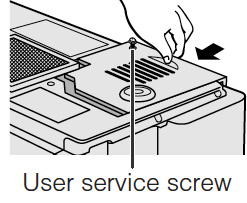
Sharp_XG-P20XE_projector_Sharp_BQC-XGP20X_RLMPF0072CEZZ_projector_lamp_cover_removalTurn over the Sharp XG-P20XE projector onto a soft service and loosen the user service screw that holds the projector lamp cover on place. Slide the cover off away from the projector and place it to one side.

Sharp_XG-P20XE_projector_Sharp_BQC-XGP20X_RLMPF0072CEZZ_projector_lamp_screws

Remove the screws holding the Sharp BQC-XGP20X//1 projector lamp in place. Grab the wire handle and gently pull the Sharp BQC-XGP20X//1 projector lamp out.


Sharp_XG-P20XE_projector_Sharp_BQC-XGP20X_RLMPF0072CEZZ_projector_lamp_insert_new

Take the new Sharp BQC-XGP20X//1 projector lamp and press it firmly into the lamp cage compartment. Be careful not to touch the actual bulb as the oil from your fingers left on the lamp will burn black holes onto the lamp that appear on screen.

Note: The used Sharp BQC-XGP20X//1 projector lamp contains mercury and should be properly recycled. Don’t throw it into regular garbage.

Sharp_XG-P20XE_projector_Sharp_BQC-XGP20X_RLMPF0072CEZZ_projector_lamp_replace_cover Fasten the securing screws. Slide the lamp cage cover back on in the direction of the projector. Then tighten the user service screw.

Reset the lamp timer and clean the air filters.

To reset the Sharp XG-P20XE projector lamp timer:

While pressing DOWN arrow, RIGHT arrow and ENTER on the projector, press POWER ON on the projector.

“LAMP 0000H” is displayed, indicating that the lamp timer is reset. Sharp_XG-P20XE_projector_Sharp_BQC-XGP20X_RLMPF0072CEZZ_projector_lamp_reset_timer_message

To clean the Sharp XG-P20XE air filter

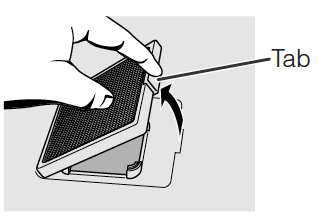
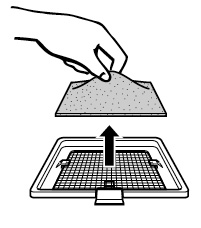
Sharp_XG-P20XE_projector_Sharp_BQC-XGP20X_RLMPF0072CEZZ_projector_lamp_remove_air_dirty_filterSharp_XG-P20XE_projector_Sharp_BQC-XGP20X_RLMPF0072CEZZ_projector_lamp_change_dirty_air_filter

Press the air filter tab and lift open the filter cover away from the projector.

  • Grasp the air filter between your fingers and lift it off the filter cover.
  • Vacuum the dust off the air filter – DO NOT WASH.
  • Put the air filter back on the filter frame.
  • Insert the tab on the end of the filter cover into the filter cover opening and press the filter cover into position.

Extend the life of the Sharp BQC-XGP20X//1 projector lamp:

  • Chose the “STD” mode to to dim the projector lamp and lower power consumption. This will extend the lamp life by up to 130%.
  • Keep your air filters clean to avoid overheating the projector.
  • Every 24 hours, turn off the projector and let it stand for 1 hour
  • Make sure there is enough airflow around the Sharp XG-P20XE projector particularly if it’s been permanently mounted.
  • Learn more with Top tips for extending DLP projector lamp life.

Go for a green alternative!

 Sharp_BQC-XGP20X//1 RLMPF0072CEZZ_1_projector_lamp

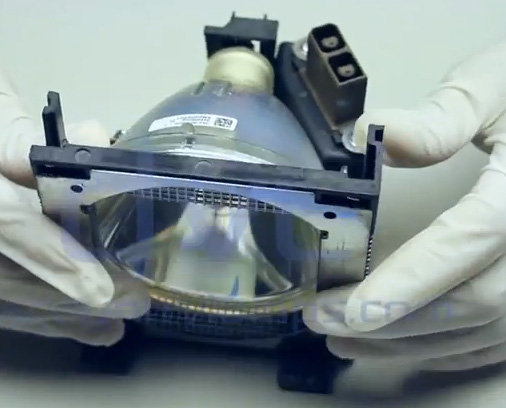
If you are looking for an even more eco-friendly option for your Sharp XG-P20XE projector why not consider replacing only the projector bulb and not the entire projector lamp? You recycle the lamp cage and reduce waste. Our step-by-step video shows you how.

Tagged with: , ,

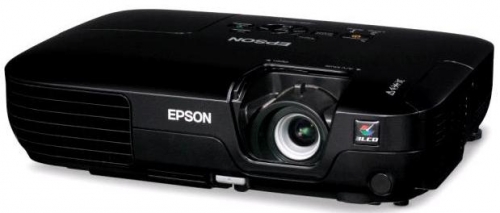
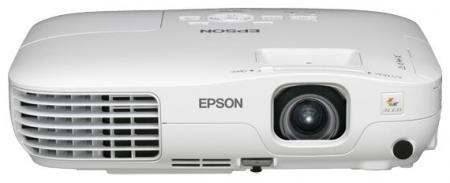
Epson_EB-X92_projector_Epson_ELPLP58_projector_lampReplace the Epson EB-X92 projector lamp in three easy steps using this easy guide.

Step 1: Recognizing the end of life warning signs

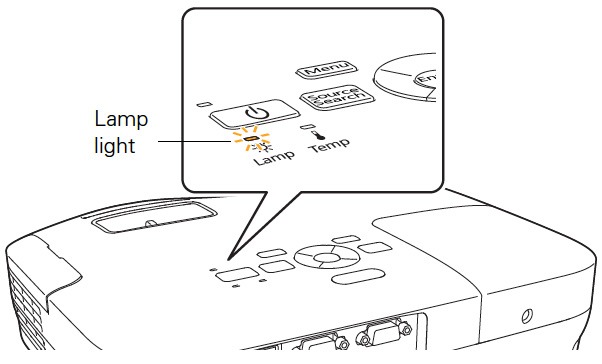
The Epson EB-X92 projector lamp can last for close to 4,000 hours with power consumption set to NORMAL and up to 5,000 hours if the ECO option is used. n order to maintain projector brightness and image quality, replace with a new Epson LPLP58 projector lamp as soon as possible. When the Epson EB-X92 projector lamp is reaching end of life you’ll notice the following warning signs:

  • projector lamp indicator will flash orange and continue flashing until the projector lamp has been changed. Epson_EB-X92_projector_Epson_ELPLP58_projector_lamp_lamp_warning
  • The message Replace the lamp appears on the screen.
  • on-screen image on screen gets darker
  • colors start to deteriorate altogether.

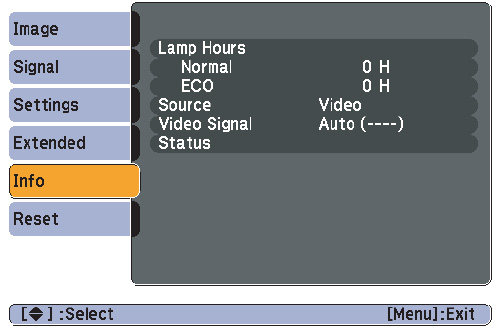
Check the hours left on the ELPLP58 projector lamp from the INFO Menu access off the Main Menu.

Find this lamp on Amazon sold by these authorized dealers:

Step 2: Avoid generics, invest in authentic

When buying look for the seal of approval. Learn to spot copycat lamps posing as authentic lamps. While these generic lamps appear to be a bargain, they will actually end up costing you more money in the long run for the following rules:

Step 3: Installing the new projector lamp

Before replacing the ELPLP58 projector lamp follow these important safety rules:

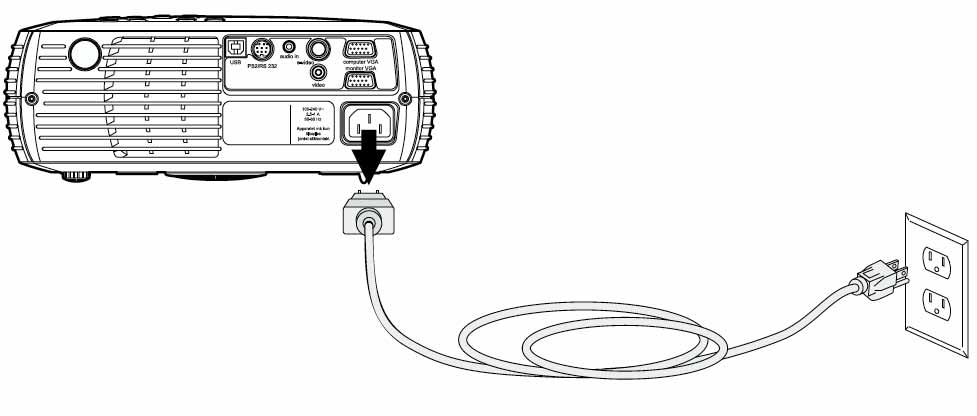
  1. Always unplug the power cord on the Epson EB-X92 projector before replacing the projector lamp.
  2. This projector operates using high temperature. Wait at least 60 minutes before replacing the lamp so you don’t run the risk of getting burned.
  3. Never touch the bare projector lamp bulb as the oil from your fingers will burn black marks onto the projector lamp when it heats up.
  4. Never operate the Epson EB-X92 projector with the projector lamp removed.

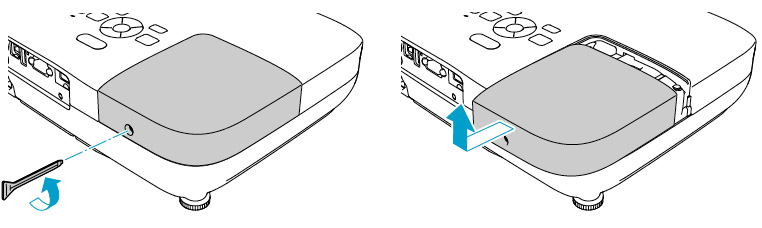
Epson_EB-X92_projector_Epson_ELPLP58_remove_projector_lamp_cover Epson_EB-X92_projector_Epson_ELPLP58__remove_projector_lamp_screws Remove the projector lamp cover screws and place to one side.

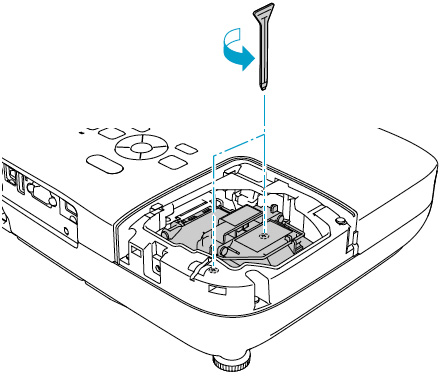
Loosen the two screws holding the Epson ELPLP58 projector lamp in place (you can’t remove them).

Gently lift out the Epson LPLP58 projector lamp taking care not to bang it against the projector.

NOTE: The LPLP58 projector lamp contains mercury and should not be thrown into regular garbage. Recycle this lamp! Epson_EB-X92_projector_Epson_ELPLP58_install_new_projector_lampGently insert the new Epson LPLP58 projector lamp. Make sure it fits into the Epson EB-X9 projector properly. (Check that it’s facing the right way.) Tighten the Epson LPLP58 projector lamp. You can know reset the lamp timer.

Reset the lamp timer

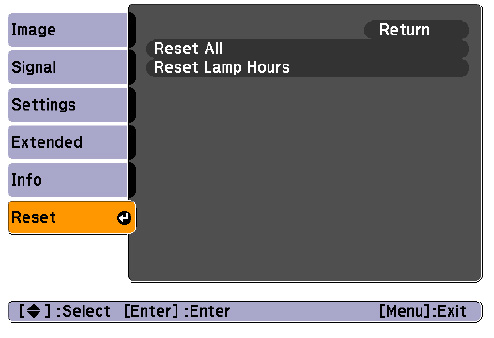
After you replace the lamp, you need to reset the Epson EB-X92 projector lamp timer using the projector’s menu system. Epson_EB-X10_projector_Epson_ELPLP58_reset_projector_lamp_timer

  • Press the MENU button on the remote control or on the projector’s control panel. You see the main menu.
  • Select the RESET menu. Press ENTER.
  • Scroll down to select RESET LAMP HOURS. Press ENTER.
  • A prompt filed appears asking if you want to reset the lamp timer. Select YES. Press ENTER.
  • Press MENU to exit.

Longer life for the ELPLP58  projector lamp

Extend the life of the Epson ELPLP58  projector lamp with the following tips:

  • Set the Power Consumption to ECO option.
  • Clean the air filters regularly so the Epson EB-X92 projector doesn’t overheat.
  • Make sure there is enough airflow around the projector.
  • Turn it off when it’s not in use.
  • Learn more: Top tips for extending DLP projector lamp life.
Tagged with: , , ,

Boxlight_SP-45M_Projector_Boxlight_SP45M-930_projector_lampWhen it’s time to replace your Boxlight SP-45M projector lamp our handy step-by-step guide is here to help!

Get the right projector lamp

Be sure to buy an authentic Boxlight SP45M-930 projector lamp replacement rom a recognized dealer for your Boxlight SP-45M projector. The cheaper knock off lamps being sold on popular e-commerce sites may seem like a bargain but will end up costing you money. You get what you pay for and in the case of generic lamps it’s some serious problems:

Save yourself unnecessary headaches and buy an authentic Boxlight SP45M-930 from a recognized dealer. You’ll be getting a far superior product with a replacement guarantee and tech support.

Find this lamp sold on Amazon by these authorized dealers:

Knowing when to replace the projector lamp

When the Boxlight SP45M-930 is reaching end of life, the alarm light on the Boxlight SP-45M will start blinking red.

The lamp hours used timer in the ABOUT menu counts the number if hours the lamp has been in use. After 1980 hours the message “Change lamp” appears on the screen at start up. When the timer reaches 2000 hours, the lamp will no longer light. It will be tome to replace the Boxlight SP45M-930

Other indications that the lamp is reaching end of life include a picture that looks dim on screen or one with faded colors. Don’t use the lamp in the projector past it’s due date or it may overheat, stop working or explode causing the projector to shut down.

Replacing the Boxlight SP45M-930 projector lamp

Before replacing the Boxlight SP45M-930 follow these safety tips:

Boxlight_SP-45M_Projector_Boxlight_SP45M-930_unplug_projector_lamp

  • Disconnect the power cord on the Boxlight SP-45M projector.
  • Reduce the risk of severe burns by allowing the Boxlight SP-45M projector to cool for at least 45 minutes. These projectors operate using high temperatures and you run the risk of severe burns if you don’t allow it to cool down.

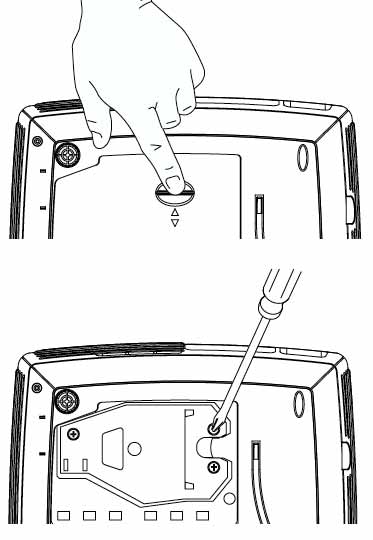
Boxlight_SP-45M_Projector_Boxlight_SP45M-930_replace_projector_lampPlace the projector on a soft surface and turn it over. Remove the lamp door by pushing the tab forward towards the lens. Loosen the three screws holding the lamp unit in place.

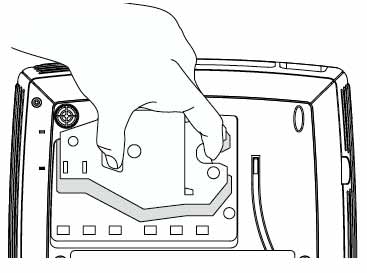
Carefully pull out and remove lamp housing. Be careful not to bang the bulb or it can shatter. Learn what to do if the bulb has broken. Boxlight_SP-45M_Projector_Boxlight_SP45M-930_Install_new_projector_lamp

Insert the new Boxlight SP45M-930 projector lamp using the side dents. Be careful not to touch the actual bulb as this can result in black spots from the oil on your hands. Tighten the screws on the new projector lamp. Close the lid. You are now ready to reset the lamp timer.

NOTE: Be sure to recycle this projector lamp properly. The Boxlight SP45M-930 projector lamp contains mercury and should not be thrown into regular garbage. It must be recycled properly!

 Resetting the Boxlight SP-45M lamp counter

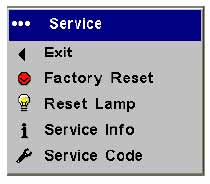
Boxlight_SP-45M_Projector_Boxlight_SP45M-930_projector_lamp_reset_timerOnce the Boxlight SP45M-930 has been replaced, you will need to reset the lamp counter so the Boxlight SP-45M projector can accurately track the number of lamp hours remaining.

To reset the lamp hours:

  • Plug in the power cord and press the Power switch to turn the projector back on.
  • Go to SERVICE MENU.
  • Scroll down to the Reset lamp.
  • Press Enter to reset the lamp hours to zero.

Learn how to extend the life of the Boxlight SP45M-930. Check out Top tips for extending DLP projector lamp life.

Interested in a green alternative?

Boxlight_SP-45M_Projector_Boxlight_SP45M-930_replace_projector_bulb

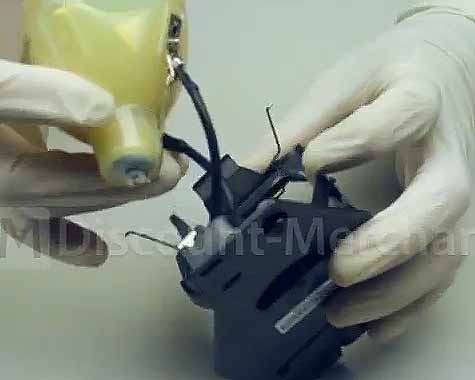
The Boxlight SP-45M has the option of replacing only the actual bulb and re-using the plastic cage. This reduces waste and is a great way to green your projector. Watch our step-by-step training video to learn more.


Tagged with: , ,

Optoma_HD66_Optoma_BL-FU185A_SP.8EH01GC01_projector_lampThis D.I.Y guide shows you how the replace the Optoma HD66 projector lamp.

Why buy authentic?

The Internet has been flooded with generic projector lamps stating they are “compatible” with Optoma HD66 projectors. Consider the source before purchasing and be sure to buy an authentic Optoma HD66 projector lamp. Generic lamps have a long list of problems:

Learn How to buy an authentic lamp. Look for a registered OEM manufacturer in North America using the correct materials and specifications for your Optoma HD66 replacement projector lamp.

Find this lamp sold on Amazon by these authorized dealers:

When to replace the projector lamp

Optoma_HD66_lamp_warning_Optoma_BL-FU185A_projector_lampWhen it’s time to replace the Optoma BL-FU185A (SP.8EH01GC01) projector lamp you’ll see lamp replacement message flash on screen. Change the lamp in your Optoma HD66 projector immediately. You may also notice the Lamp-LED light flashing red or the picture quality starting to get poor resolution with washed out colours.

Installing the Optoma BL-FU185A projector lamp

Before replacing the Optoma BL-FU185A (SP.8EH01GC01) projector lamp follow these important safety tips:

  • Switch off the power to the Optoma HD66 projector by pressing the Power/Standby button.
  • Disconnect the power cord.
  • Allow the projector to cool down for at least 30 minutes. If should be cool to the touch. These projectors run using high temperatures and you can burn yourself badly if you don’t allow the projector to cool down.

Optoma_HD66_replacing_Optoma_BL-FU185A_projector_lamp

1. Use a screwdriver to undo the two screws holding the projector lamp cover in place. The screws on the lamp cover and the lamp cannot be removed.

2. Remove the lid and place to one side. Don’t lose the lid as the Optoma HD66 projector will not turn back on until the lamp cover has been properly installed.

3. Remove the two screws holding the Optoma BL-FU185A (SP.8EH01GC01) projector lamp in place.

Note: The used Optoma BL-FU185A (SP.8EH01GC01) projector lamp contains mercury and should be properly recycled. Don’t throw it into regular garbage.

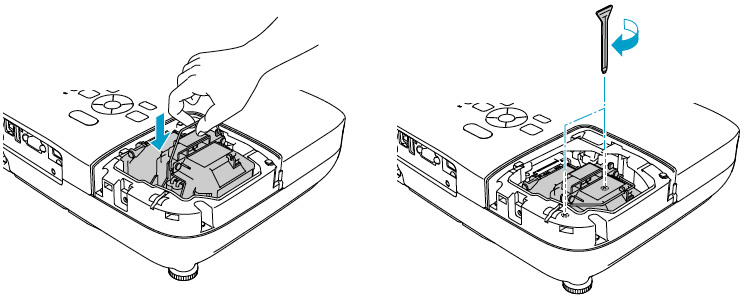
Optoma_HD66_replace_Optoma_BL-FU185A_projector_lamp4. Lift up the wire handle on the Optoma BL-FU185A (SP.8EH01GC01) lamp and slowly remove it from the projector. Be careful not to bang the lamp against the projector as this may case the bulb to break. Learn what to do if the lamp has exploded inside the projector.

5. Remove the new Optoma BL-FU185A (SP.8EH01GC01) from its packaging. Taking care not to touch the actual bulb, lift up the handle on the new projector lamp and insert it gently into the Optoma HD66 projector.

6. Tighten the two screws on the lamp.

7. Replace the lamp cover and tighten its two screws.

Reset the Lamp Replacement Timer

The Optoma HD66 projector has an automatic lamp timer that tracks the numbers of hours left in the projector lamp. When the Optoma BL-FU185A (SP.8EH01GC01) is approaching end of life, the lamp replacement timer will trigger the warning system. If you don’t reset the lamp replacement timer you run the risk of the lamp being used beyond its recommended life and possibly exploding in the projector. Should the lamp explode, learn what to do.

Optoma_HD66_lamp_control_menu_Optoma_BL-FU185A_projector_lampTo reset the Lamp Replacement Timer:

  • Turn on the projector.
  • Using the remote press MENU
  • Select OPTIONS
  • Select LAMP SETTINGS
  • Select LAMP RESET
  • Select YES.
  • Press MENU to exit.

Extend the life of the Optoma BL-FU185A (SP.8EH01GC01) projector lamp:

  • Chose the “STD” mode to to dim the projector lamp and lower power consumption. This will extend the lamp life by up to 130%.
  • Keep your air filters clean to avoid overheating the projector.
  • Every 24 hours, turn off the projector and let it stand for 1 hour
  • Make sure there is enough airflow around the Optoma HD66 projector particularly if it’s been permanently mounted.
  • Learn more with Top tips for extending DLP projector lamp life.

Green your Optoma HD66 projector

Optoma-BL-FU185A_replacement_bulb_training_videoThe Optoma HD66 projector has the option of re-using the existing lamp cage and replacing only the actual bulb. You recycle and reduce waste this way. Watch our Optoma BL-FU185A training video to learn more.


Tagged with: , , ,

Boxlight_Phoenix_X30_Boxlight_PHOENIXS25-930_projector_lampInstalling a new Boxlight Phoenix X30 projector lamp is not complicated. This guide shows you how.

Buy the right projector lamp

Your Boxlight Phoenix X30 projector has been built with high-end optics that needs a proper lamp built specifically for it.  An OEM Phoenix S25-930 Projector lamp has created with highly specialized materials and calibrated to the Boxlight Phoenix X30 projector. When you install a counterfeit Boxlight X30 projector lamp you are getting a product that can damage the optics in your projectors as well as exposing you to carcinogenic toxic substitutes. Generic lamps also have shorter lives and are prone to explosions. Protect your investment and purchase an authentic projector lamp.

Find this lamp sold on Amazon by these authorized dealers:

Warning messages

When the Boxlight Phoenix X30 projector lamp is reaching its end of life, the Power LED starts flashing consecutively five times, At the same time, the Ready LED will flash. When you see this sequence of flashing lights, replace the Boxlight Phoenix X30 projector at once.  Other symptoms of end of projector lamp life are darker images and unnatural colors. Change the projector lamp immediately when any of these symptoms happen.

Replacing the Phoenix S25-930 projector lamp

Before replacing the Phoenix S25-930 follow these safety tips:

  • Disconnect the power cord on the Phoenix X30 projector
  • Reduce the risk of severe burns by allowing the Phoenix X30 projector to cool for at least one hour. These projectors operate using high temperatures and you run the risk of severe burns if you don’t allow it to cool down.

Boxlight_Phoenix_X30_Boxlight_PHOENIXS25-930_projector_lamp_remove_lampBoxlight_Phoenix_X30_Boxlight_PHOENIXS25-930_projector_lamp_loosen_cover_screws

  • Loosen the two top screw holding the lamp cover in place.
  • Open the projector cover.
  • NOTE: Be sure to recycle the projector lamp as contains mercury and should not be thrown into regular garbage. Recycle it!Boxlight_Phoenix_X30_Boxlight_PHOENIXS25-930_projector_lamp_install_replacement
  • Insert the new Phoenix S25-930 and avoid touching the actual bulb as this can result in black spots from the oil on your hands.
  • Tighten the two screws on the Phoenix S25-930 projector lamp
  • Place the cover back onto the Boxlight Phoenix X30 projector and tighten the lamps screw. You must now reset the lamp timer.

Resetting the Boxlight Phoenix X30 lamp counter

Boxlight_Phoenix_X30_Boxlight_PHOENIXS25-930_projector_lamp_reset_timerOnce the PhoenixS25-930 projector lamp has been replaced, you will need to reset the lamp counter so the Phoenix X30 projector can accurately track the number of lamp hours remaining:

  • Turn the projector on.
  • Press the MENU button. The ON-SCREEN MENU will appear.
  • Press the POINT LEFT/RIGHT buttons to move across the top menu. Select STATUS.
  • Press the POINT DOWN button and scroll down to LAMP HOUR. Press ENTER.
  • Lamp hours will be set to zeto.

Extend the life of the Phoenix S25-930 projector lamp by always keeping the air filters clean so the projector doesn’t overheat. The Eco modes for the lamp setting uses less power by decreasing lamp brightness and extending lamp life. Read more with Top tips for extending DLP projector lamps.

Interested in a green alternative?

Boxlight_Phoenix_X30_Boxlight_PHOENIXS25-930_ecofriendly_projector_lamp_install_replacement

With the Phoenix X30 projector you also have the option of just replacing the actual bulb to re-use the plastic cage. This reduces waste and is a great way to green your projector. Watch our training video to learn more.
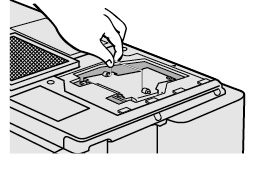


Tagged with: , ,

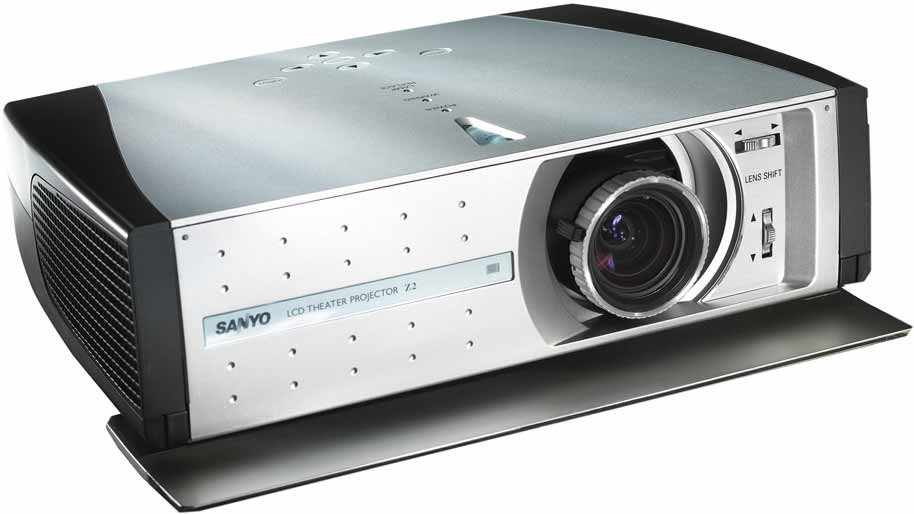
Sanyo_LP-Z2_projector_Sanyo_POA-LMP69_projector_lampThis guide will help you replace the Sanyo LP-Z2 projector lamp.

End of life warnings

When the Sanyo LP-Z2 projector lamp is approaching end of life, the Indicator Light on the Sanyo LP-Z2 projector will starting blinking yellow. Replace the lamp immediately when the yellow light is blinking.

Why buy authentic?

Only genuine Sanyo POA-LMP69  lamps should be used in order to keep your projector is good working order. The authentic POA-LMP69 has been manufactured to meet the specifications of the Sanyo LP-Z2 projector.

The price of counterfeit knock-off lamps may be tempting but can cost you more money in the long run. Counterfeit lamps are not manufactured according to Sanyo’s specifications and can damage the sensitive (and expensive) mechanisms in your Sanyo LP-Z2 projector.

Find this lamp sold on Amazon by these authorized dealers:


Replacing the SANYO POA-LMP69 projector lamp

Turn off the projector and unplug the AC cord. The Sanyo LP-Z2 projector should be cool to the touch before you replace the projector lamp. It usually takes one hour for the projector to fully cool since these projectors operate under high temperatures.

NOTE: Do not operate the projector while any of the lamps are removed as this may result in malfunctions and may be a fire hazard.

Caution: Avoid creating black spots on the projector lamp. Don’t touch the screen or the actual bulb with your finger or hands. Oil from your hands can damaged the lamp.

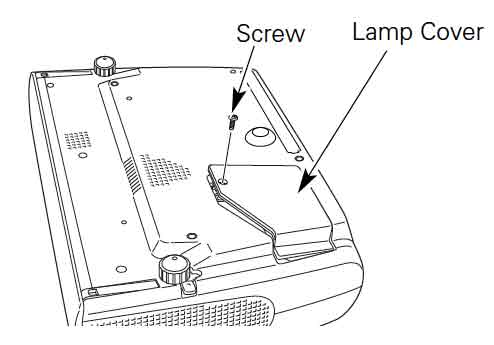
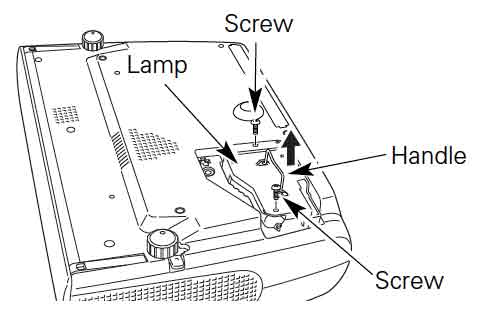
Sanyo_LP-Z2_projector_Sanyo_POA-LMP69_Remove_projector_lamp_cover The lamp cover is found underneath the Sanyo LP-Z2 projector. Gently turn it upside, making sure to protect the top of the projector. Using a screwdriver loosen the screw holding the cover in place. Put the cover to one side.

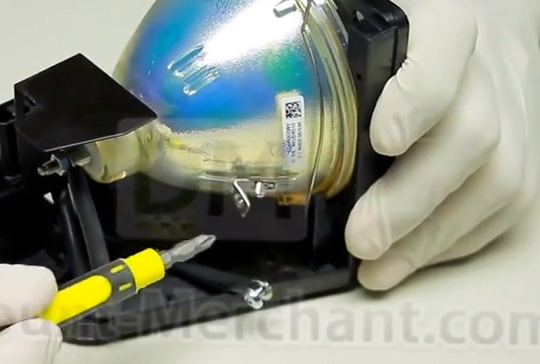
Inside will be the lamp projector cage. Remove the two screws on either side of the Sanyo POA-LMP69 lamp. Grab the handle on the lamp cage and gently pull out the lamp. Place to one side. You’ll need to recycle the old lamp.

Grab the handles of the Sanyo POA-LMP69  lamp cage and gently maneuver it into place. Avoid touching the glass or the bulb. The lamp should slide in easily – don’t force it.Sanyo_LP-Z2_projector_Sanyo_POA_LMP69_replace_projector_lamp

Once the lamp is in, tighten the screws on the Lamp Assembly.

Replace the Lamp Cover and tighten the screw.

Re-connect the power cord and turn on the Sanyo LP-Z2 projector. You’ll need to reset the lamp replacement counter.

Resetting the Sanyo PLV-Z2 Lamp Replacement counter

NOTE: Reset the Lamp Replacement Counter only when the Sanyo POA-LMP69  lamp has been replaced.

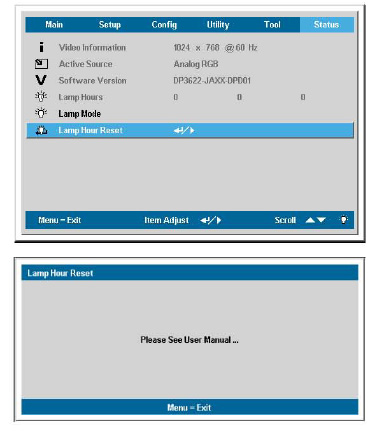
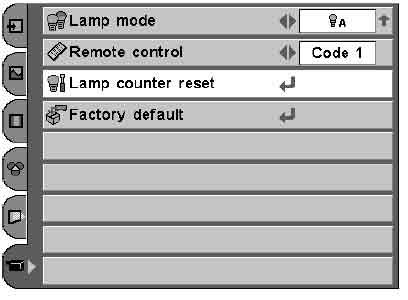
Sanyo_LP-Z2_projector_Sanyo_POA-LMP69_projector_lamp_reset_timer

  • Turn the Sanyo LP-Z2 projector on.
  • Press the Menu option to display the On-Screen Menu.
  • Press the left/right button(s) to move to the Setting Menu icon.
  • Press the Point Down button to move to Lamp Counter Reset.
  • Press the Select button
  • When the next confirmation dialog box appears, press select.
  • The Lamp box will disappear and the Lamp Replace Dialog box appears.
  • Select YES to reset Lamp Replace Counter.

NOTE: When you reset the Lamp Replace Counter the Lamp Replace indicator stops blinking.

3 tips for extending the life of the Sanyo POA-LMP69 projector lamp

Extend the life of your newly installed Sanyo POA-LMP69  by following these helpful tips:

  • Wait at least five minutes before turning the Sanyo LP-Z2 projector off.
  • Don’t operate the projector continuously without letting it stand for at least one hour turned off every 24 hours.
  • Cleaning the air filter regularly will also prolong the life of the Sanyo POA-LMP69  and prevent the Sanyo LP-Z2 projector from overheating.

Eco-friendly alternative

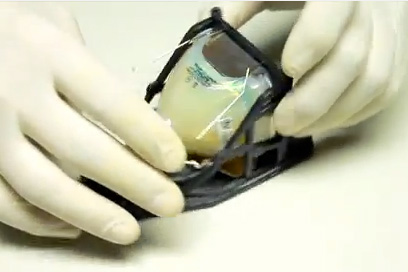
Replace_lamp_keep_plastic_cageLooking for a green alternative? Try replacing only the bulb and re-using the plastic cage. Watch our Sanyo POA-LMP69 replacement training guide to find out more.
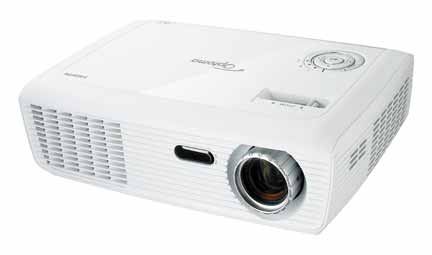
Tagged with: , ,

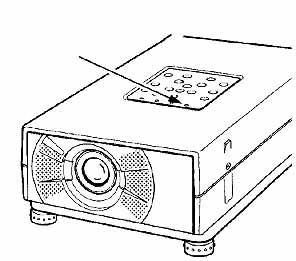
Sanyo_-PLC-SU10_projector_Sany_-LMP27_-610-273-6441_replace_projector_lampYou can replace the Sanyo PLC-SU10 projector lamp in three easy steps.

Note: These instructions can be used with the Sanyo PLC-SU10BA, Sanyo PLC-SU10EA, Sanyo PLC-SU10NA and Sanyo PLC-SU10UA projectors.

Sanyo_-PLC-SU10_projector_Sany_-LMP27_-610-273-6441_projector_lamp_warningStep 1: Buy authentic

When it time to replace the Sanyo PLC-SU10 projector lamp the lamp indicator will flash yellow. Be sure to invest in an authentic Sanyo LMP27 projector lamp for your Sanyo PLC-SU10 projector lamp. It’s the best insurance you can have to keep your Sanyo PLC-SU10 projector working. Generic lamps just have too many problems:

Find this lamp sold on Amazon by these authorized dealers:

Step 2: Instructions for projector lamp replacement

Turn off the projector and unplug the AC cord. Allow the Sanyo PLC-SU10 projector lamp tto cool for at least 45 minutes. Don’t open the projector until it is cool to the touch. These projectors operate under high temperatures.

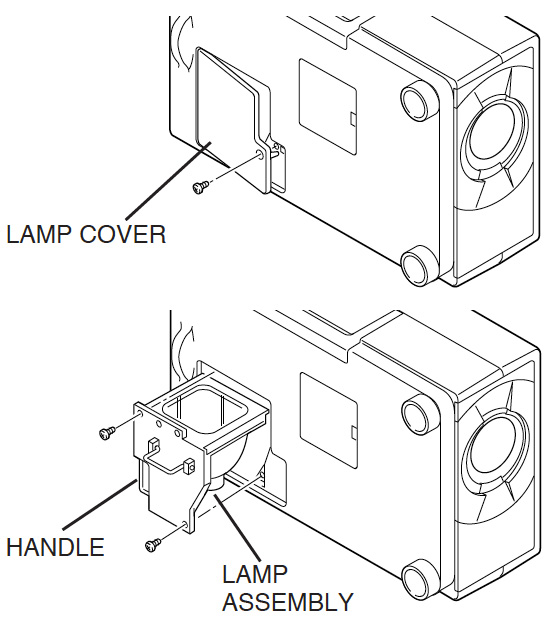
Sanyo_-PLC-SU10_projector_Sanyo_-LMP27_-610-273-6441_replace_projector_lamp

  • Place the Sanyo PLC-SU10 on it side to access the lamp cover. Loosen the screw holding the projector lamp cover in place (found over top of the ventilation holes).
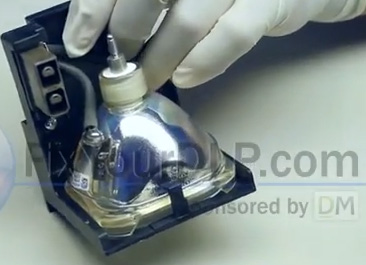
  • Loosen the two screws keeping the Sanyo LMP27  projector lamp in place. Grab the indents on the projector lamp cage and gently remove the lamp. Place to one side. Your old projector lamp should be properly recycled. These lamps contain mercury and can’t be placed into regular garbage.
  • Take the new Sanyo LMP27 projector lamp cage by the indent and gently maneuver it into place. Avoid touching the glass or the bulb since the oil from your fingers may cause black spots on the bulb when the projector heats up.
  • Tighten the two screws on the Lamp Assembly for the Sanyo LMP27 .
  • Replace and tighten the screw on either side of projector lamp cover. Let the projector stand for five minutes so the projector lamp can stabilize. Re-connect the power cord and turn on the Sanyo PLC-SU10 projector. You’ll need to reset the Lamp Counter.
  • Resetting the Sanyo PLC-SU10 projector lamp timer

  • Reset the Lamp Control Mode only when Sanyo LMP27  projector lamp has been replaced. Do not operate the projectors while any of the lamps are removed as this may result in malfunctions, fire hazard and other accidents.

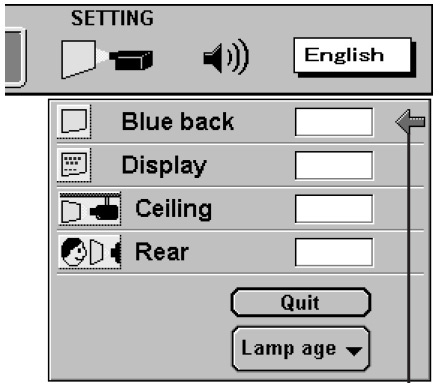
Sanyo_-PLC-SU07_projector_Sanyo_-LMP27_-610-273-6441_reset_projector_lamp_timer

  • Turn the projector on
  • Press the MENU button to bring up the ON-SCREEN MENU.
  • Press the LEFT/RIGHT button to select SETTING and press the SELECT button. to bring up the SETTING MENU.
  • Press the DOWN button and a red-arrow icon appears.
  • Scroll over to LAMP AGE and then press the SELECT button.
  • The message “LAMP REPLACE MONITOR RESET” is displayed.
    Select YES to reset the Timer.

Tips for longer projector lamp life:

  • Avoid frequent on and offs to avoid power surges.
  • Don’t let the projector overheat as this puts stress on the lamp. Make sure there is enough airflow around the projector particularly if it’s been permanently mounted.
  • Let the projector stand unused for at least one hour ever 24 hours. An average use of four to five hours per day will ensure longer lamp life.
  • Keep the air filters clean and free of dust so it can do its job and keep the projector lamp for overheating. so on your Using “Eco mode” or “Lamp Economy Mode” can reduces lamp brightness by 20% while extending the lamp life by 50%.
  • Learn more with Top tips for extending projector lamp life.
Sanyo_LMP_27_projector_lamp_video

Looking for a less expensive option? Want more information? Watch our step-by-step video on replacing only the Sanyo LMP27  bulb instead of the entire lamp housing.


Tagged with: , ,

Epson_EB-W10_projector_Epson_projecor_lamp_ELPLP58Replace the Epson EB-W10 projector lamp in three easy steps using this guide.

Step 1: Invest in authentic

Save yourself hassles and protect your projector by investing in an authentic Epson EB-W10 projector lamp. Look the seal of approval and learn to spot copycat lamps posing as authentic lamps. You may be tempted to buy a cheaper generic lamp in order to save money. While these knock-off lamps appear to be a bargain, they  end up costing  more money in the long run .

Why avoid generics:

Find this lamp on Amazon sold by these authorized dealers:

Step 2: Recognize end of warning signs

Epson_EB-W10_projector_Epson_ELPLP58_check_projector_lamp_hoursKnow when the Epson EB-W10 projector lamp is reaching end of life so you can be prepared with a new lamp. When the projector lamp indicator is continually flaand continue it’s time to replace the lamp.

Epson_EB-W10_projector_Epson_ELPLP58_projector_lamp_lamp_warningWhen the message Replace the lamp appears on the screen it’s also time for a new projector lamp.  You may also the image on screen gets darker or starts deteriorate altogether. In order to maintain projector brightness and image quality, replace with a new Epson LPLP58 (V13H010L58) projector lamp as soon as possible.

The Epson EB-W10 projector lamp can last for close to 4,000 hours when the power consumption is set to NORMAL and up to 5,000 hours if the ECO option is used. You can check the hours left on the ELPLP58 (V13H010L58) projector lamp from the INFO Menu access off the Main Menu.

Installing a new ELPLP58 (V13H010L58) projector lamp

Before replacing the ELPLP58 (V13H010L58) projector lamp follow these important safety rules:

  1. Always unplug the power cord on the Epson EB-W10 projector before replacing the projector lamp.
  2. This projector operates using high temperature. Wait at least 60 minutes before replacing the lamp so you don’t run the risk of getting burned.
  3. Never touch the bare projector lamp bulb as the oil from your fingers will burn black marks onto the projector lamp when it heats up.
  4. Never operate the Epson EB-W10 projector with the projector lamp removed.

Epson_EB-W10_projector_Epson_ELPLP58_remove_projector_lamp_cover

Remove the projector lamp cover screws and place to one side.

Epson_EB-W10_projector_Epson_ELPLP58__remove_projector_lamp_screwsLoosen the two screws holding the Epson ELPLP58 (V13H010L58) projector lamp in place (you can’t remove them).

Epson_EB-W10_projector_Epson_ELPLP58_install_new_projector_lamp

Gently lift out the Epson LPLP58 projector lamp taking care not to bang it against the projector. NOTE: The LPLP58 projector lamp contains mercury and should not be thrown into regular garbage. Recycle this lamp!

Gently insert the new Epson LPLP58 projector lamp. Make sure it fits into the Epson EB-W10 projector properly. (Check that it’s facing the right way.) Tighten the Epson LPLP58 projector lamp.

You can know reset the lamp timer.

Reset the lamp timer

Epson_EB-W10_projector_Epson_ELPLP58_reset_projector_lamp_timer

After you replace the lamp, you need to reset the Epson Epson EB-W10 projector lamp timer using the projector’s menu system.

  • Press the MENU button on the remote control or on the projector’s control panel. You see the main menu.
  • Select the RESET menu. Press ENTER.
  • Scroll down to select RESET LAMP HOURS. Press ENTER.
  • A prompt filed appears asking if you want to reset the lamp timer. Select YES. Press ENTER.
  • Press MENU to exit.

Longer life for the ELPLP58 (V13H010L58) projector lamp

Extend the life of the Epson ELPLP58 (V13H010L58) projector lamp with the following tips:

  • Set the Power Consumption to ECO option.
  • Clean the air filters regularly so the Epson EB-W10 projector doesn’t overheat.
  • Make sure there is enough airflow around the projector.
  • Turn it off when it’s not in use.
  • Learn more: Top tips for extending DLP projector lamp life.
Tagged with: , ,
Join the discussion on Facebook! All your questions, answered! The Screen & Projector Group