We're now Screen and Projector! For updated content, visit ScreenAndProjector.com and follow @screenandproj on social media!

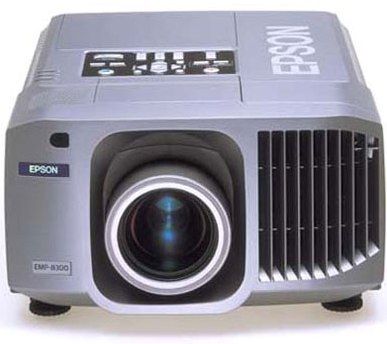
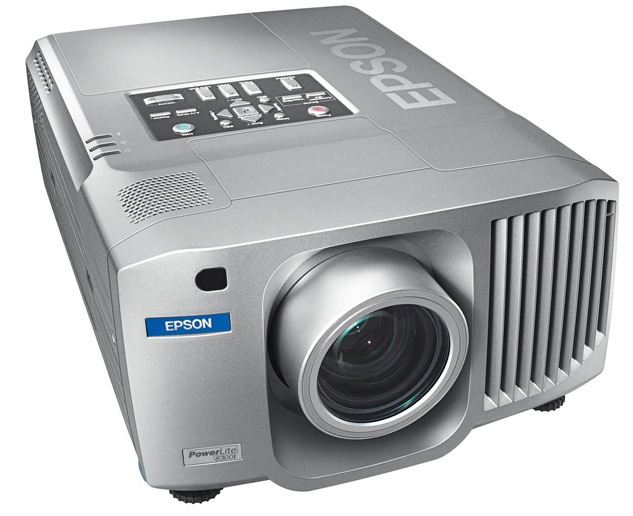
Epson_PowerLife_8300NL_ELPLP23_projector_LampReplace the Epson PowerLite 8300NL projector lamp in three easy steps.

Step 1: Recognizing end of projector lamp

The Epson PowerLite 8300NL projector lamp lasts between 2000 to 3000 hours depending on the brightness settings. The number of hours may vary slightly depending on how much the projector is used and whether regular maintenance is done.
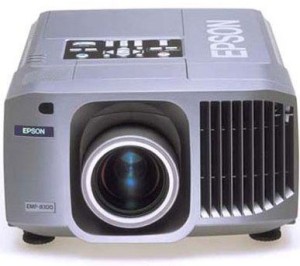
You will know when it’s time to replace the Epson ELPLP23 – V13H010L233 projector lamp in the Epson PowerLite 8300NL projector when the following end of life signs start to appear:

  • projected image gets darks
  • starts to deterioriate
  • the lamp warning light begins to flash orange
  • a message: “LAMP REPLACE flashes on the screen when you start using the projector.

Using the lamp past it’s due date can seriously damage your Epson PowerLite 8300NL projector.

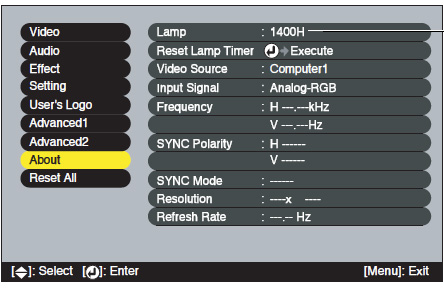
Consult the About menu to see how many hours are left until the Epson ELPLP23 (V13H010L233) projector lamp reaches end of life. To access:
Epson_PowerLite_8300NL_ELPLP23_reset_projector_lamp_timer

  • Press the MENU button to get the projector’s main menu.
  • Scroll down to the ABOUT option.
  • Press ENTER.
  • The lamp usage timer shows 0H until you’ve used the lamp for at least 10 hours.

Step 2: Buying the right projector lamp

Copycat manufacturers offer no guarantee or refunds and the warranty on your Epson PowerLite 8300NL projector will become void. Look for the seal of approval before buying and get the best projector lamp possible — an authentic OEM one!

Reasons for avoiding generic lamps:

Learn how to spot the copycat fake lamps with 7 Ways to Spot a Counterfeit Lamp.

Find this lamp on Amazon sold by these authorized dealers:

Step 3: Installing the Epson ELPLP43 projector lamp

Do these four safety steps BEFORE installing the new Epson ELPLP23 V13H010L233 projector lamp:

  • The Epson PowerLite 8300NL projector operates under very high temperatures. Let it cool for one full hour before attempting to replace the lamp in order to avoid being burned.
  • Turn off the projector by pressing the power button. Wait for the light to stop flashing.
  • Turn off the power switch at the back on the projector
  • Unplug any power cords.

To replace the V13H010L233 projector lamp:
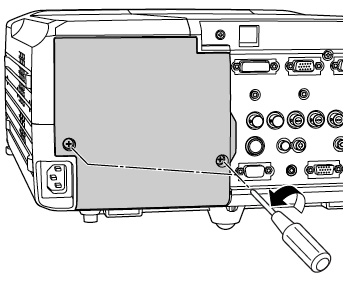
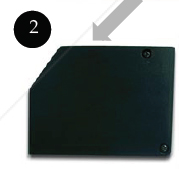
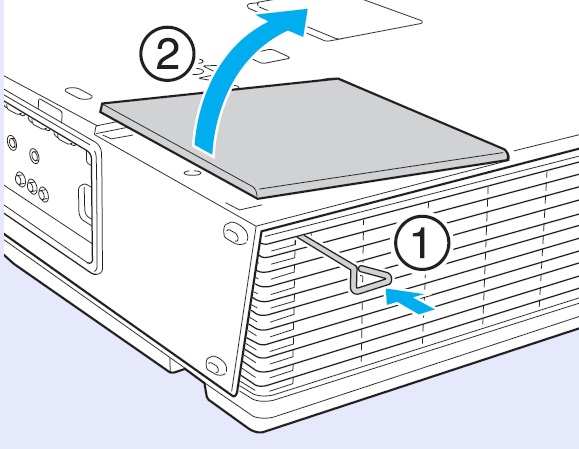
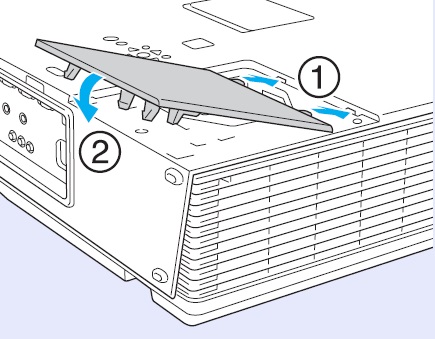
Epson_PowerLite_8300NL_ELPLP23_remove_projector_lamp_coverRemove the cover on the Epson PowerLite 8300NL projector. Take extra precaution if the projector is mounted on the ceiling. If you have installed the rear cover after mounting on the ceiling, you should remove that cover first.

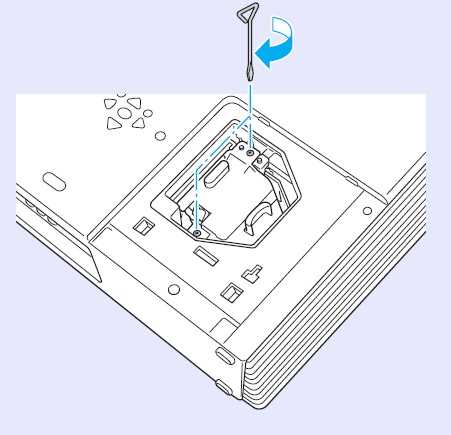
Loosen the projector lamp cover screws –they won’t come all the way out. Put the projector lamp cover to one side.
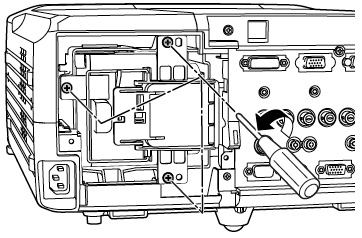
 

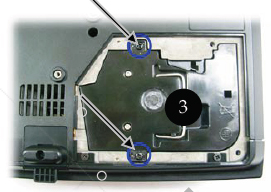
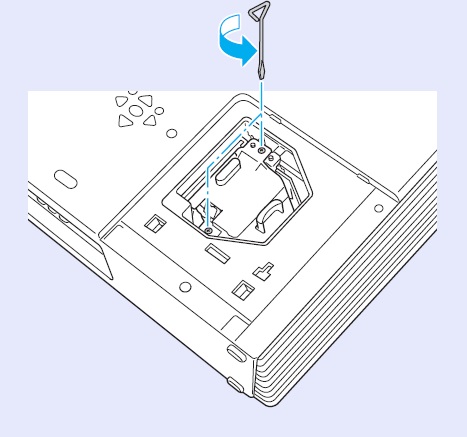
Epson_PowerLite_8300NL_ELPLP23_remove_projector_lamp_screws

Loosen the three screws holding the projector lamp in place (screws don’t come out the whole way).
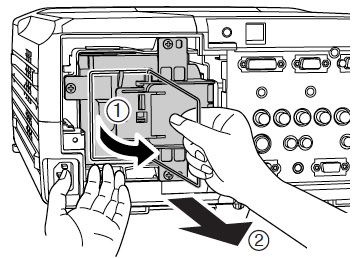


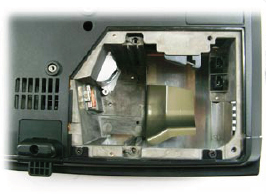
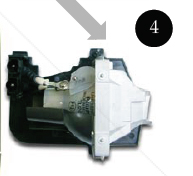
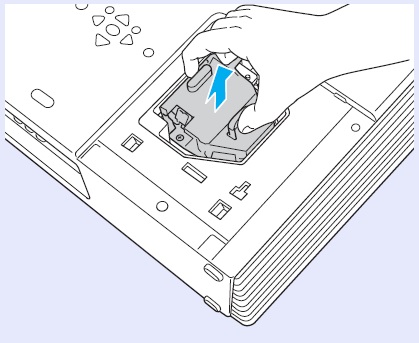
Epson_PowerLite_8300NL_ELPLP23_remove_lamp

Lift up the wire handle on the projector lamp. Grasp it and and pull the Epson ELPLP23 – V13H010L233 projector lamp straight out

Pulling too quickly can cause the bulb to shatter. Learn what to do should the bulb shatter.

NOTE: The Epson ELPLP23 projector lamp contains mercury and should be properly recycled. Don’t place it into regular garbage.

To finish the Epson ELPLP23 – V13H010L233 projector lamp installation:

  • Gently insert the new Epson ELPLP23 – V13H010L233 projector lamp.
  • Take care not to touch the actual glass bulb as your fingerprint will burn into a black spot when the lamp heats up. This will cause black spots on the screen.
  • Once the lamp is fully inserted, tighten three screws that will hold the lamp in place.
  • Replace the Epson PowerLite 8300NL projector cover.
  • You must now reset the lamp timer.

Resetting the Projector Lamp Timer

It’s important to reset the Lamp Usage Timer so the Epson PowerLite 8300NL projector can accurately track the lamp lie and send the Lamp replacement message when it’s time for a new Epson ELPLP23 – V13H010L233 projector lamp.

Epson_PowerLite_8300NL_ELPLP23_reset_projector_lamp_timer

  • Press the MENU button on the remote control projector’s control panel to open the main menu.
  • Use the pointer buttons on the remote control to scroll down the menu on the left and highlight the ABOUT option.
  • Scroll down to RESET LAMP TIMER.


Epson_PowerLite_8300NL_ELPLP23_reset_projector_lamp_timer_execute

  • Press ENTER to bring up the Execute prompt.
  • Select YES.
  • Press ENTER.
  • Press ESC or MENU.


Resetting the timer before installing a new Epson ELPLP23 – V13H010L233 projector lamp can cause serious damage to your projector.

Get more life from your Epson ELPLP43 projector lamp

Get more hours from your Epson ELPLP23 lamp by following these maintenance tips:

  • Keep your air filters clean to avoid overheating the projector.
  • Turn off the Epson PowerLite 8300NL projector and let it stand unused for at least one hour ever 24 hours. An average use of four to five hours per day will ensure longer lamp life.
  • Make sure there is enough airflow around the projector particularly if it’s been permanently mounted.
  • Learn more with Top tips for extending DLP projector lamp life.
  • Press the MENU button to exit.
 

Tagged with: , , , ,

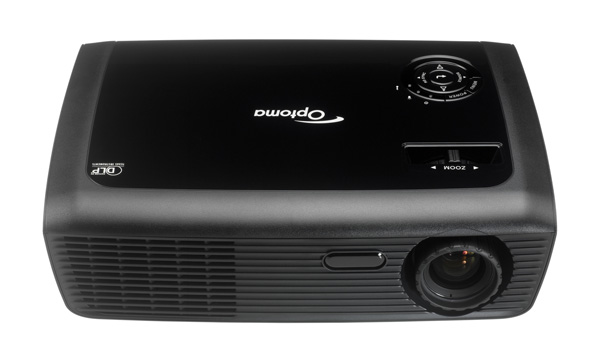
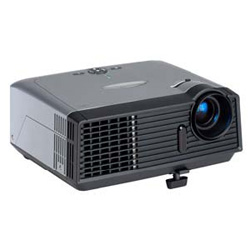
optoma_ds216_projector_Optoma BL-FU185A SP.8EH01GC01_lampYou can replace the Optoma DS216 projector lamp by following our 4-step guide. Installation takes about 2o minutes.

Step 1: Be ready with the right type of projector lamp

You will want to be prepared and have your Optoma DS216 projector lamp purchased ahead of time. Otherwise, you may be caught off guard with a broken projector lamp and projector that isn’t working. Be sure to purchase an authentic, OES lamp for your Optoma DS216 projector.

Why avoid generics:

They are simply not worth the hassles for the few dollars you save. Protect your projector and invest in authentic projector lamps. Learn How to spot a counterfeit.

Find this lamp sold on Amazon by these authorized dealers:

Step 2: When to replace the projector lamp?

Optoma_DS216_lamp_warning_Optoma_BL-FU185A_projector_lampYour Optoma DS216 projector uses the Optoma BL-FU185A projector  lamp. When the projector lamp is approaching end of life, you will see the Lamp-LED light flashing red and the lamp warning message will start flashing on screen. Other indications include faded colors and poor resolution. Don’t wait to change the lamp when you get these warnings. If you do try to extend the hours beyond the recommended hours, the lamp may explode inside the projector. Learn what to do if the projector lamp has exploded inside the projector.

Step 3: Installing the Optoma BL-FU185A projector lamp

Before replacing the Optoma BL-FU185A  projector lamp follow these important safety tips:

  • Switch off the power to the Optoma DS216 projector by pressing the Power/Standby button.
  • Disconnect the power cord.
  • Allow the projector to cool down for at least 30 minutes. If should be cool to the touch. These projectors run using high temperatures and you can burn yourself badly if you don’t allow the projector to cool down.

Optoma_DS216_replacing_Optoma_BL-FU185A

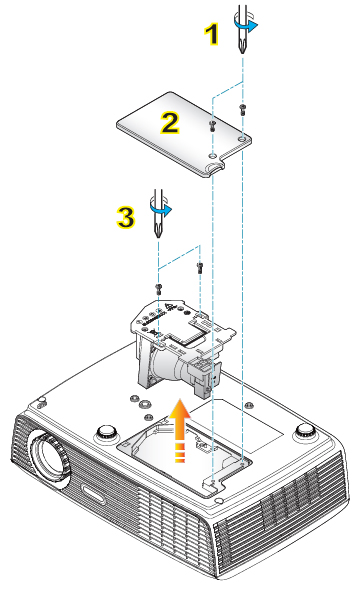
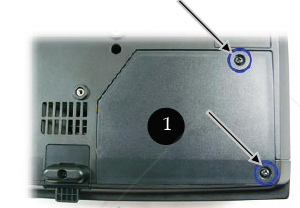
1. Use a screwdriver to undo the two screws holding the projector lamp cover in place. The screws on the projector lamp cover and the lamp cannot be removed.

2. Remove the lid and place to one side. Don’t lose the lid as the Optoma DS216 projector will not turn back on until the lamp cover has been properly installed.

3. Remove the two screws holding the Optoma BL-FU185A  projector lamp in place. Note: The used Optoma BL-FU185A  projector lamp contains mercury and should be properly recycled. Don’t throw it into regular garbage

Optoma_DS216_replace_Optoma_BL-FU185A_projector_lamp


4. Lift up the wire handle on the Optoma BL-FU185A projector lamp and slowly remove it from the projector.

Be careful not to bang the projector lamp against the projector as this may case the bulb to break. Learn how to clean up a broken projector lamp.

5. Remove the new Optoma BL-FU185A  projector lamp from its packaging. Taking care not to touch the actual bulb, lift up the handle on the new lamp and insert it gently into the Optoma DS216 projector.

6. Tighten the two screws on the projector lamp.

7. Replace the projector lamp cover and tighten its two screws. You are now ready to reset the Lamp Replacement Timer.

Reset the Projector Lamp Replacement Timer

The Optoma DS216 projector has an automatic lamp timer that tracks the numbers of hours left in the projector lamp. If you don’t reset the projector lamp replacement timer you run the risk of the lamp being used beyond its recommended life and possibly exploding in the projector.

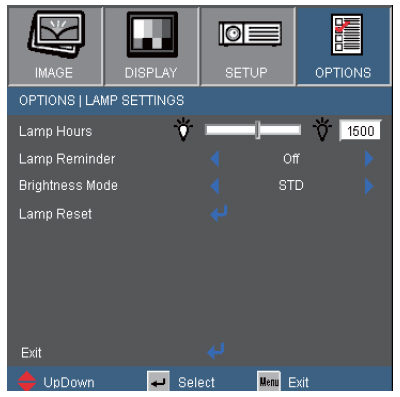
Optoma_DS216_lamp_control_menu_Optoma_BL-FU185A_projector_lamp To reset the Lamp Replacement Timer:

  • Turn on the projector.
  • Using the remote press MENU
  • Select OPTIONS
  • Select LAMP SETTINGS
  • Select LAMP RESET
  • Select YES.
  • Press MENU to exit.

Tips for extending Optoma BL-FU185A  projector lamp life:

  • Chose the “STD” mode to to dim the projector lamp and lower power consumption. This will extend the lamp life by up to 130%.
  • Keep your air filters clean to avoid overheating the projector.
  • Every 24 hours, turn off the projector and let it stand for 1 hour
  • Make sure there is enough airflow around the Optoma DS216 projector particularly if it’s been permanently mounted.
  • Learn more with Top tips for extending DLP projector lamp life.

Green your Optoma DS216 projector

Optoma-BL-FU185A_replacement_bulb_training_videoThe Optoma DS216 projector has the option of re-using the existing lamp cage and replacing only the actual bulb. A great way to reduce and recycle. Watch our Optoma BL-FU185A training video to learn more.

Tagged with: , , , ,

Optoma_DS316_projector_BL-FU185A_projector_lamp Here’s how to replace the Optoma DS316 projector lamp using our step-by-step guide.

Reaching end of life

Optoma_DS316_lamp_warning_Optoma_BL-FU185A_projector_lampWhen the Optoma DS316 projector lamp is reaching end of life, you may notice the Lamp-LED light flashing red. A lamp warning message will also appear on screen. Another warning sign may be a change in the quality of the picture on screen.

If you hear a loud pop when turning on the projector, the Optoma BL-FU185A  projector lamp has broken. Learn what to do if the projector lamp has exploded inside the projector.

Invest in authentic replacement projector lamps

Be sure to have your back-up replacement Optoma BL-FU185A projector lamp ready so you can replace the lamp immediately when needed. Keep your Optoma DS316 projector working at optimum levels by investing in an authentic projector lamp. When buying on the Internet, make sure you are buying an OEM and look for the seal of approval.  Generic lamps have a shorter lamp life than original lamps and are created with toxic materials. When you buy copy-cat lamps you get no guarantee or refunds and they can damage the sensitive electronics in your projectors. Learn How to spot a counterfeit.

Find this lamp sold on Amazon by these authorized dealers:

Install the Optoma BL-FU185A projector lamp

Follow these important safety tips before replacing the Optoma BL-FU185A  projector lamp:

  • Switch off the power to the Optoma DS316 projector by pressing the Power/Standby button.
  • Disconnect the power cord.
  • Allow the projector to cool down for at least 30 minutes. If should be cool to the touch. These projectors run using high temperatures and you can burn yourself badly if you don’t allow the projector to cool down.

Optoma_DS316_replacing_Optoma_BL-FU185A_projector_lamp

1. Use a screwdriver to undo the two screws holding the projector lamp cover in place. The screws on the lamp cover and the lamp cannot be removed.

2. Remove the lid and place to one side. Don’t lose the lid as the Optoma DS316 projector will not turn back on until the lamp cover has been properly installed.

3. Remove the two screws holding the Optoma BL-FU185A  projector lamp in place.

Note: The used Optoma BL-FU185A projector lamp contains mercury and should be properly recycled. Don’t throw it into regular garbage.

Optoma_DS316_replace_Optoma_BL-FU185A_projector_lamp4. Lift up the wire handle on the Optoma BL-FU185A  projector lamp and slowly remove it from the projector. Be careful not to bang the lamp against the projector as this may case the bulb to break. Learn how to clean up a broken lamp.

5. Remove the new Optoma BL-FU185A projector lamp from its packaging. Taking care not to touch the actual bulb, lift up the handle on the new lamp and insert it gently into the Optoma DS316 projector.

6. Tighten the two screws on the projector lamp.

7. Replace the lamp cover and tighten its two screws.

Reset the Projector Lamp Replacement Timer

The Optoma DS316  projector has an automatic projector lamp timer that tracks the numbers of hours left in the lamp. If you don’t reset the lamp replacement timer you run the risk of the lamp being used beyond its recommended life and possibly exploding in the projector.

Optoma_DS316_lamp_control_menu_Optoma_BL-FU185A_projector_lamp To reset the Projector Lamp Replacement Timer:

  • Turn on the projector.
  • Using the remote press MENU
  • Select OPTIONS
  • Select LAMP SETTINGS
  • Select LAMP RESET
  • Select YES.
  • Press MENU to exit.

Tips for extending Optoma BL-FU185A projector lamp life:

  • Chose the “STD” mode to to dim the projector lamp and lower power consumption. This will extend the lamp life by up to 130%.
  • Keep your air filters clean to avoid overheating the projector.
  • Every 24 hours, turn off the projector and let it stand for 1 hour
  • Make sure there is enough airflow around the Optoma DS316 projector particularly if it’s been permanently mounted.
  • Learn more with Top tips for extending DLP projector lamp life.

Green your Optoma DS316 projector

Optoma-BL-FU185A_replacement_bulb_training_videoThe Optoma DS316 projector has the option of re-using the existing lamp cage and replacing only the actual bulb. A great way to reduce and recycle. Watch our Optoma BL-FU185A training video to learn more.

Tagged with: , , ,

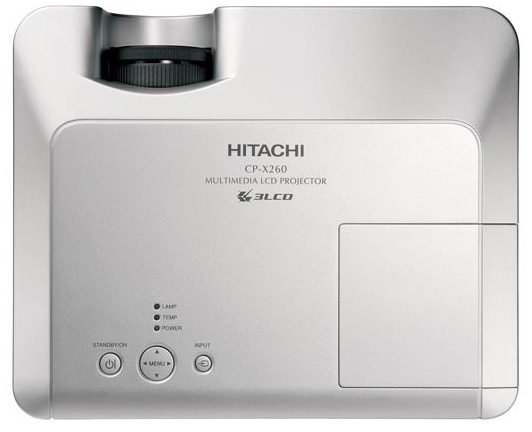
Hitachi-CP-X260_projects_uses_Hitachi_DT00751-CPX260_projector_lampWondering when to change the Hitachi CP-X260 projector lamp? Keep reading our step-by-step guide.

Your Hitachi CP-X260 uses the Hitachi DT00751 CPX260 lamp. As the Hitachi CP-X260 projector lamp reaches end of life, the Hitachi CP-X260 Lamp Indicator light will start flashing red. Color tone on the screen may also appear weak or washed out. This is another indication that it’s time to replace the lamp.

NOTE: You may notice the Hitachi DT00751 screen starts to go dark after being used for long period of time. It’s a good idea to turn off the projector for at least one or two hours each day.

The Hitachi DT00751 CPX260 projector lamp has a finite life and trying to force it beyond its normal lamp life can damage your Hitachi CP-X260.

Avoid generics

Copycat manufacturers offer no guarantee or refunds and the warranty on your Hitachi CP-X260 projector will become void. Look for the seal of approval before buying and get the best lamp possible — an authentic OEM projector lamp!

Reasons for avoiding generic lamps:

Spot the copycat fake lamps with 7 Ways to Spot a Counterfeit Lamp.

Find this lamp on Amazon sold by these authorized dealers:

Installing the Hitachi DT00751 CPX260 projector lamp

Before installing a new lamp be sure to turn off the Hitachi CP-X260 and let the projector cool down for at least one hour. This projector operates using high temperatures and there is a risk of you burning yourself if the projector has not cooled.

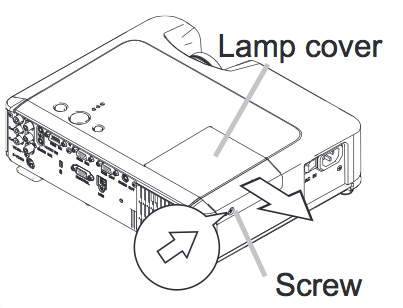
Hitachi-CP-X260_Hitachi_DT00751-CPX260_remove_projector_lamp_cover

  • Turn off the projector by pressing the power button.
  • Unplug any power cords.
  • Loosen the Hitachi CP-X260 projector lamp cover screw
  • Slide the projector  lamp cover to the side to remove it.

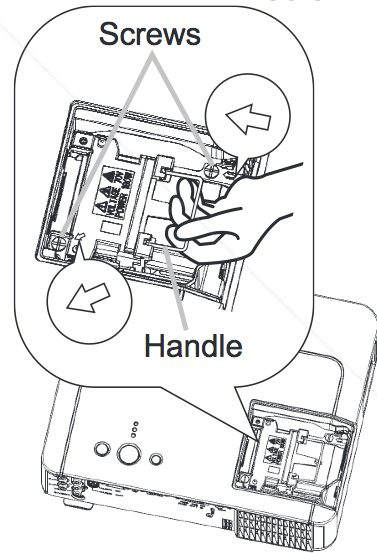
Hitachi-CP-X260_replace_Hitachi_DT00751-CPX260_projector_lamp

  • Loosen the screws on the projector lamp. Gently lift up the wire handle and pull out the Hitachi DT00751 CPX260 projector  lamp. NOTE: The Hitachi DT00751 projector lamp contains mercury and should be properly recycled. Don’t place it into regular garbage.
  • Take the new DT00751 projector lamp out of its packaging.
  • Pick up the Hitachi DT00751 projector lamp by the handle and gently insert the lamp into the projector making sure not to bang the lamp.
  • Avoid touching the actual bulb as oil from your fingers can leave marks on the bulb that will burn into black spots.
  •  Slide the Hitachi CP-X260 projector lamp cover back in place and firmly fasten the lamp cover a screw.
  • Turn the projector on and reset the lamp time.

To reset the Hitachi CP-X260 projector lamp timer

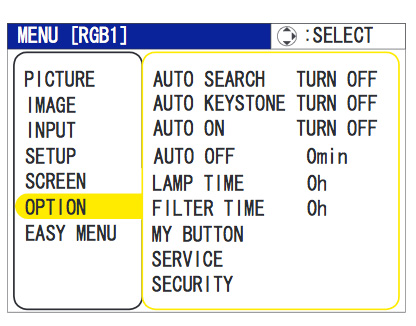
Hitachi-CP-X260_reset_Hitachi_reset_projector_lamp_timer

  • Press  the MENU button
  • When the EASY MENU has appeared press Enter to choose
  • Scroll down to the ADVANCED MENU option.
  • Scroll down to OPTION menu.
  • Press ENTER.
  • Scroll down to LAMP TIME.
  • A dialog field will appear.
  • Choose RESET on the dialog field.
  • Press ENTER.
  • The lamp time will be reset to 0.
  • Press the MENU button to exit.
NOTE: Reset the lamp time only when you have replaced the projector lamp, for a suitable indication about the lamp. Otherwise you run the risk of using the projector lamp beyond its lamp life.

Get more hours from your Hitachi DT00751 CPX260 projector lamp by keeping your air filters clean to avoid overheating the projector. Learn more with Top tips for extending DLP projector lamp life

Tagged with: , , , ,

Epson_Power_Lite_8300i_projector_lampFast, simple and easy! Follow this step-by-step guide for replacing the Epson PowerLite 8300i projector lamp.

End of life

The Epson PowerLite 8300i projector lamp lasts between 2000 to 3000 hours depending on the brightness settings. The number of hours may vary slightly depending on how much the projector is used and whether regular maintenance is done. Consult the About menu to see how many hours are left until the Epson ELPLP23 (V13H010L233) projector lmp reaches end of life. To access this information follow these steps:

Epson_PowerLite_8300i_ELPLP23_reset_projector_lamp_timer

  • Press the MENU button to get the projector’s main menu.
  • Scroll down to the ABOUT option.
  • Press ENTER.
  • The lamp usage timer shows 0H until you’ve used the lamp for at least 10 hours.

When to replace

You will know when it’s time to replace the Epson ELPLP23 – V13H010L233 lamp when the following telltale signs start to appear:

  • projected image gets darks
  • starts to deterioriate
  • the lamp warning light begins to flash orange
  • a message: “LAMP REPLACE flashes on the screen when you start using the projector.

Using the projector lamp past it’s due date can seriously damage your Epson PowerLite 8300i projector.

Find this lamp on Amazon sold by these authorized dealers:

Avoid generics

Copycat manufacturers offer no guarantee or refunds and the warranty on your Epson PowerLite 8300i projector will become void. Look for the seal of approval before buying and get the best lamp possible — an authentic OEM one!

Reasons for avoiding generic lamps:

Learn how to spot the copycat fake lamps with 7 Ways to Spot a Counterfeit Lamp.

Installing the Epson ELPLP43 projector lamp

Do these four safety steps BEFORE installing the new Epson ELPLP23 V13H010L233 projector lamp:

  • The Epson PowerLite 8300i projector operates under very high temperatures. Let it cool for one full hour before attempting to replace the lamp in order to avoid being burned.
  • Turn off the projector by pressing the power button. Wait for the light to stop flashing.
  • Turn off the power switch at the back on the projector
  • Unplug any power cords.

To replace the V13H010L233 projector lamp:

Epson_PowerLite_8300i_ELPLP23_remove_projector_lamp_coverRemove the cover on the Epson PowerLite 8300i projector. Take extra precaution if the projector is mounted on the ceiling. If you have installed the rear cover after mounting on the ceiling, you should remove that cover first.

Loosen the lamp screws –they won’t come all the way out. Put the lamp cover to one side.

Epson_PowerLite_8300i_ELPLP23_remove_projector_lamp_screws

Loosen the three screws holding the projector lamp in place (screws don’t come out the whole way).


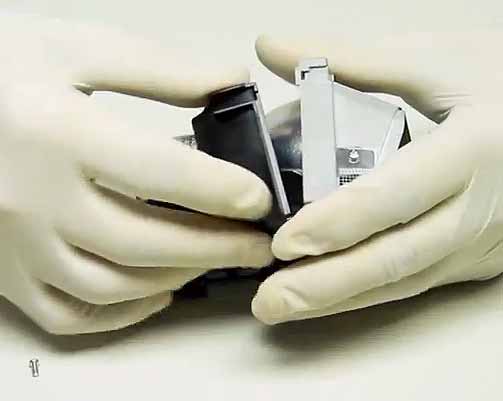
Epson_PowerLite_8300i_ELPLP23_remove_projector_lamp


Lift up the wire handle. Grasp it and and pull the Epson ELPLP23 – V13H010L233 projector lamp straight out

Pulling too quickly can cause the bulb to shatter. Learn what to do should the bulb shatter.

NOTE: The Epson ELPLP23 projector lamp contains mercury and should be recycled properly.. Don’t place it into regular garbage.

To finish the Epson ELPLP23 – V13H010L233 installation:

  • Gently insert the new Epson ELPLP23 – V13H010L233 projector lamp.
  • Take care not to touch the actual glass bulb as your fingerprint will burn into a black spot when the lamp heats up. This will cause black spots on the screen.
  • Once the projector lamp is fully inserted, tighten three screws that will hold the lamp in place.
  • Replace the Epson PowerLite 8300i projector cover.
  • You must now reset the projector lamp timer.

Resetting the Lamp Timer

It’s important to reset the Lamp Usage Timer so the Epson PowerLite 8300i projector can accurately track the lamp lie and send the Lamp replacement message when it’s time for a new Epson ELPLP23 – V13H010L233 projector lamp.

Epson_PowerLite_8300i_ELPLP23_reset_projector_lamp_timer

  • Press the MENU button on the remote control projector’s control panel to open the main menu.
  • Use the pointer buttons on the remote control to scroll down the menu on the left and highlight the ABOUT option.
  • Scroll down to RESET LAMP TIMER.
  • Press ENTER to bring up the Execute prompt.Epson_PowerLite_8300i_ELPLP23_reset_projector_lamp_timer_execute_screen
  • Select YES.
  • Press ENTER.
  • Press ESC or MENU.

NOTE: Resetting the timer before installing a new Epson ELPLP23  projector lamp can damage to your projector.

Get more life from your Epson ELPLP43 projector lamp

Get more hours from your Epson ELPLP23 projector lamp by following these maintenance tips:

  • Keep your air filters clean to avoid overheating the projector.
  • Turn off the Epson PowerLite 8300i projector and let it stand unused for at least one hour ever 24 hours. An average use of four to five hours per day will ensure longer lamp life.
  • Make sure there is enough airflow around the projector particularly if it’s been permanently mounted.
  • Learn more with Top tips for extending DLP projector lamp life.
  • Press the MENU button to exit.
 

Tagged with: , , ,

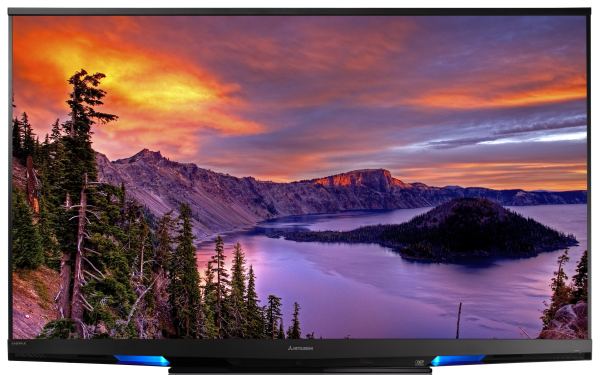
If you are having trouble with any of your HDMI connected devices to your 620 Mitsubishi home cinema, check some of the following settings.

This is part three of replacing the 620 Mitsubishi home cinema. Be sure to read:

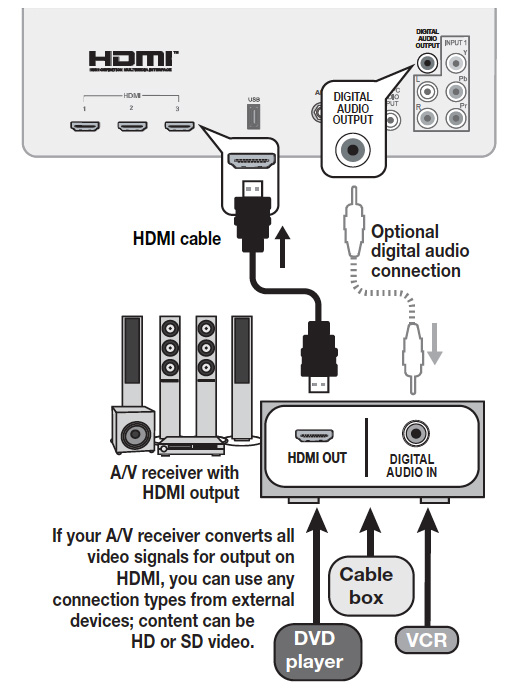
Mitsubishi_series_642_RPTV_HDMI_cablesChecking HDMI Receiver and Connected Devices

  • Make sure your device has been enabled (see Part 2: Connecting HDMI devices to your 620 Mitsubishi home cinema)
  • Power on the HDMI device you wish to connect to  the A/V receiver (disc player, cable box, or satellite receiver). Stop anything from playing.
  • Select the device’s HDMI input on the A/V receiver’s front panel controls or remote control.
  • Connect the device to the A/V receiver with an HDMI cable.
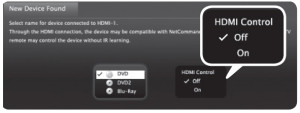
  • When the TV detects the connection, the New Device Found screen will appear.
  • If the TV is unable to detect the device, either the device’s CEC capability is not enabled or the device is not CEC compatible.
  • Use the device’s menus to enable HDMI controls If you can’t see the menu, temporarily connect the device to the TV to see the device’s menu.

Mitsubishi_series_642_RPTV_HDMI_connections

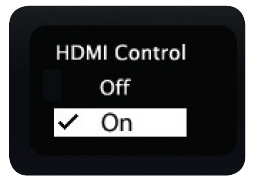
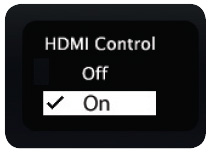
  • Highlight On and press ENTER to add a check.
  • Highlight EXIT and press ENTER to close the New Device Found screen.

Optional: Connect the TV’s DIGITAL AUDIO OUTPUT to an input on the A/V receiver. Use this additional connection if:

  • You want the ability to switch between the A/V receiver speakers and the TV speakers.
  • You want to use the A/V receiver to listen to devices connected to the TV only, e.g. camcorder.

Resolving CEC Conflicts

No two manufacturers select which CEC functions to support so some conflicts may arise. To control conflicts:

  • Turn off TV control of an individual CEC-enabled device.
  • Turn off CEC in the device itself.

Turning Off the TV’s HDMI Control of a CEC Device

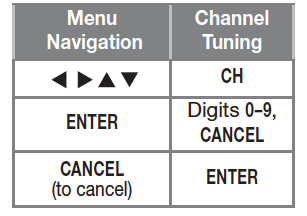
  • Press MENU on the TV remote control.
  • Scroll over to highlight Inputs.
  • Scroll down to HDMI Control.
  • Scroll to the device name and press ENTER to select
  • Select OFF to turn off the TV’s ability to control the device.
  • Press EXIT to clear the menu.

Removing an HDMI Device

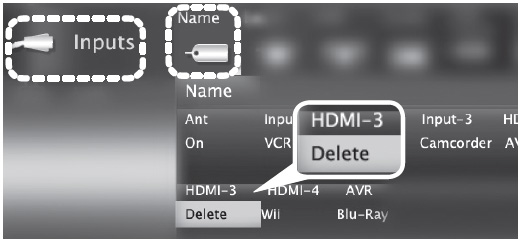
Mitsubishi_series_642_RPTV_HDMI_Delete_device

  • Power off the device.
  • Disconnect the HDMI cable.
  • Press MENU on the TV remote control to enter the TV main menu.
  • Scroll over to Inputs choice.
  • Scroll down to choose Name of the device
  • Highlight the HDMI input name.
  • Press ENTER to select Delete.
  • Press EXIT to clear the menus.

Using HDMI Control

As an example of using HDMI Control, press PLAY on the device itself to:

  • Power on the TV
  • Switch to the device (no need to display the Input Selection menu)
  • Begin play of the device

Direct Keys

Mitsubishi_series_642_RPTV_HDMI_Direct_KeysTest your equipment with the TV’s remote control to find additional supported commands:

  • CEC-enabled VCR, DVD, and DVR functions will be shown on the chart.
  • If you have a CEC-enabled A/V receiver, connected CEC-enabled devices connected can be selected from the TV’s Input Selection menu.
  • Try the VOL, MUTE, and menu-navigation keys to control the device.

 Having problems figuring this out or need more help? Sign up to our forum and get all the help you need.

Tagged with: , , ,

Series_642_Mitsubishi_home_cinema_RPTVPart 2 in a series on how to connect HDMI devices to your 620 Mitsubishi home cinema.

The Mitsubishi 642 home cinemae series has HDMI feature called CEC (Consumer Electronics Control) that allows one device to control another. Similar to an A/V receiver or disc player being controlled through the TV.

Be sure to read Part 1: Adding HDMI devices to your 620 Mitsubishi home cinema before starting this section.

Enabling HDMI controls in the 620 Mitsubishi home cinema

In order to find which CEC functions are available with the 620 Mitsubishi home cinema, you must enable  the HDMI Control. First enable the HDMI Control.

  • From the TV: Enable HDMI control from either the New Device Found menu showing on screen or from the Inputs/HDMI Control menu.
  • From the device: Most HDMI CEC compatibile devices have an off/on switch the device menu. Look for a menu item listed as HDMI Control.

Proper detection of CEC in the 620 Mitsubishi home cinema

To ensure proper detection of HDMI control of CEC devices:

  • Power on HDMI devices before connecting them to the TV.
  • Connect and set up HDMI devices one at a time.

Do the following steps:

620 Mitsubishi home cinema
  • Power on the device and allow it to complete the power-on sequence (boot up).
  • Stop any playback.
  • Connect the device to one of the TV’s HDMI inputs.
  • When the TV detects the connection, the New Device Found screen will appear.
  • Note: See “If the New Device Found Screen Has No HDMI Control Option” on this page is not an option that is being offered.

Series_642_Mitsubishi_home_cinema_RPTV_Hdmi_CEC_menu

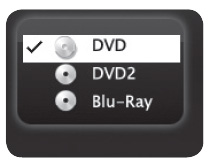
  • When prompted for a name, highlight a name for the device and press ENTER to add a check. This may later override the name you assign.

Series_642_Mitsubishi_RPTV_Hdmi_set_devices

  • Highlight On and press ENTER to add a check.
  • Highlight EXIT and press ENTER to close the New Device Found screen.
  • NOTE: At any time after completing Auto Input Sensing, you can set the TV’s HDMI control on or off in the Inputs /HDMI Control menu.


HDMI Control Option found in the 620 Mitsubishi home cinema

If the New Device Found screen shows no option for HDMI Control, one of these conditions applies:
A. HDMI Control is turned off in the menus of the new device:
Action needed:

  1. Highlight EXIT and press ENTER to close the New Device Found screen.
  2. Display the device’s setup menus and enable the device’s CEC capabilities.
  3. Wait for the TV’s New Device Found screen to appear again.
  4. If the New Device Found screen does not appear, power off the device. Power on the device and wait for the New Device Found screen to display the HDMI Control option.

B. The HDMI cable cannot support CEC Action:
Action needed: Upgrade your HDMI cable to one that supports CEC.

C. The device does not have CEC compatibility:

Action needed: Control the device with its own remote control or program the TV’s remote control to operate the device.

Continue reading:

Part 3: Troubleshooting HDMI connection to your 620 Mitsubishi home cinem

Having problems figuring this out or need more help? Sign up on our forum and get all the help you need.

Tagged with: , , ,

mitsubishi-642-RPTV_HDMI_connectionsYour 620 Mitsubishi home cinema can bring variety to your home entertainment centre.

You can your 620 Mitsubishi home cinema of your Blu-ray players, newer DVD players, video games, 3D content, and set-top boxes to watch your favourite films, TV shows or play favourite games.

Review all the available options

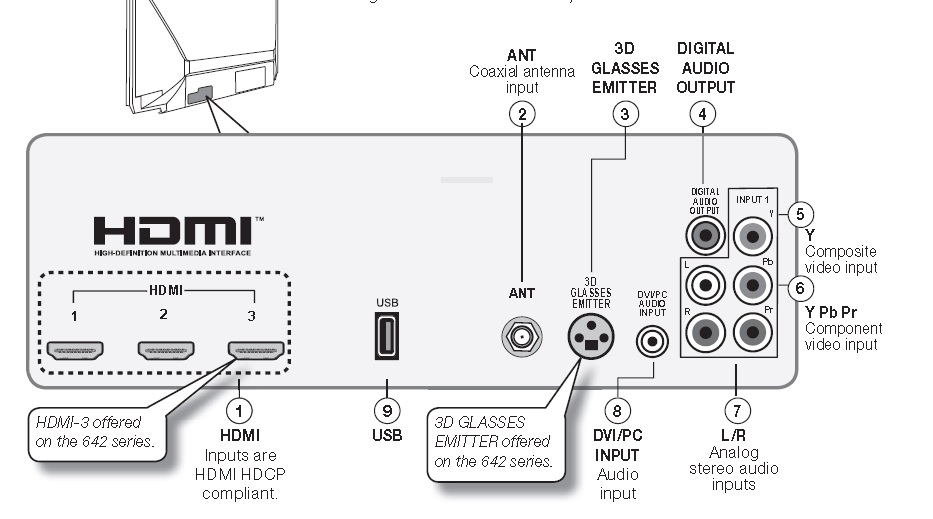
1. HDMI® Inputs (High-Definition Multimedia Interface)

The HDMI inputs support uncompressed standard and high-definition digital video formats, bitstream Dolby Digital 5.1, and PCM digital stereo audio. Use the HDMI inputs to connect to high-definition receiver or DVD player. These inputs support 480i, 480p, 720p, 1080i, and 1080p video formats. The TV’s HDMI inputs are compatible with many DVI-D and HDMI computer video signals.  To connect a device’s DVI output to the TV’s HDMI input, use an HDMI-to-DVI adapter or cable plus an analog audio cable. Connect the audio cable to the DVI/PC AUDIO INPUT jack on the TV to receive audio from your DVI device.

2. ANT ( Antenna)

Connect your main antenna or direct cable service(without a cable box) to ANT. The ANT input can receive digital and analog over-the-air channels from a VHF/UHF antenna or non-scrambled digital/analog cable source.

3. 3D GL ASSES EMITTER

Use this jack for the special synchronization emitter supplied with some 3D glasses. The emitter sends out a signal that synchronizes your 3D glasses with the screen display.

4. DIGITAL AUDIO OUTPUT

This output sends Dolby Digital or PCM digital audio to your digital A/V surround sound receiver. Incoming analog audio is converted by the TV to PCM digital audio. If you have a digital A/V receiver, this is the only audio connection needed between the TV and your A/V receiver.

5. Y/VIDEO (Composite Video)

Analog standard-definition video inputs. Use the adjacent R and L inputs if you wish to send audio to the TV speakers.

6. Y/VIDEO Pb Pr (Component Video)

Analog video inputs able to accept high-definition video from a high-definition source device. Use the adjacent R and L inputs if you wish to send audio to the TV speakers.

7. L/R (INPUT 1 audio)

Analog stereo inputs for use in conjunction with adjacent composite or component video jacks.

8. DVI/PC INPUT

Connect a DVI device to one of the TV’s HDMI inputs and use this jack to send analog audio to the TV.

9. USB

For software updates only. To check for updates, visit www.mitsubishi-tv.com and follow the support link.

HDMI Cable Categories

HDMI cables are available as Standard and High-Speed types.

High-Speed HDMI Cables:

Blu-ray players, newer DVD players, video games, 3D content, and set-top boxes require High-Speed HDMI cables, suitable for clock frequencies up to 340 MHz or data rates of up to 10.2 gigabits per second. Use high-speed cables for 1080p HD signals carrying extended color encodings (i.e., 30 or more bits, also called Deep Color). High-Speed HDMI cables are also suitable for standard HDTV signals. Mitsubishi recommends you use high-speed HDMI cables to connect newer source devices High-speed cables bring you the full benefits of Deep Color. These HDMI inputs can also accept digital DVI video signals.

Standard HDMI Cables:

Standard HDMI cables may be unmarked. They are suitable for standard HDTV 720p, 1080i, and 1080p signals with 8-bit color depth. Use Standard HDMI cables for clock frequencies up to 74.25 MHz or data rates of up to 2.2 gigabits per second.

Continue reading:

Part 2: Connecting HDMI devices to your 620 Mitsubishi home cinema

Having problems figuring this out or need more help? Sign up to our forum and get all the help you need.


Tagged with: , ,

Optoma_EP7161_projector_lampDon’t call the technician! Consult our installation guide to replace the Epson EP7161 projector lamp.

Step 1: Get the right lamp!

Your Optoma EP7161 uses the Optoma BL-FU180A  projector lamp. Only OEM lamps can keep your projector working at optimal best. Invest in an authentic Epson EP7161 projector lamp.

Why avoid generic lamps?

Look for the seal of approval to be sure you’re getting an authentic lamp. Generic appear to be a great deal with their great price tag. But they are actually going to cost you more in the long run. These generics are created with toxic materials and often don’t have the proper safeguards to protect your eyesight. They are also prone to explosions, don’t last as long as authentic and can damage the sensitive optics in your Optoma EP7161 projector. Learn the 7 Ways to Spot a Counterfeit Lamp.

Buy this lamp on Amazon sold by these authorized dealers:

Step 2: Know when to replace

Watch for these telltale signs that the Optoma BL-FU180A projector lamp is reaching end of life:

  • faded image
  • colours are off or not as vivid
  • blinking LED lights on the Optoma EP761P projector
  • the following warning sign on your screen:

Optoma-EP7161_projector_Lamp_Replacement_warning_Optoma_BL-FU180A_projector_lamp

Step 3: Installing a new Optoma BL-FU180A

Follow these important safety steps before installing a new Optoma BL-FU180A  projector lamp:

  • Switch off the power to the Optoma EP7161 projector by pressing the Power/Standby button.
  • Disconnect the power cord.
  • Allow the projector to cool down for at least 30 minutes. If should be cool to the touch. These projectors run using high temperatures and you can burn yourself badly if you don’t allow the projector to cool down.

Optoma_EP7161_BL-FU180A_remove_lamp_cover-Optoma BL-FU180A (SP.82G01.001)_projector_lamp


Step 1: Place something soft underneath the Optoma EP7161 and then turn the projector onto it’s back. Remove the two screws holding the cover in place.

Optoma_EP7161_BL-FU180A_remove__projector_lamp_cover


Step 2: Push the cover up to remove it.


Optoma_EP7161_BL-FU180A_remove_lamp_screws__projector_lamp

Step 3: Use a screwdriver to remove the two screws holding the Optoma BL-FU180A projector lamp module in place.

Slowly put out the old lamp by grabbing the edge of the lamp. Be careful not to bang the lamp against the projector as this may case the bulb to break. Learn what to do if the lamp has exploded inside the projector.

The used projector lamp contains mercury and should be properly recycled. Don’t throw it into regular garbage.


Optoma_EP7161_BL-FU180A_new_lamp_projector_lampOptoma_EP7161_BL-FU180A_lamp_projector_lamp

Step 4: Place the new Optoma BL-FU180A  into the Optoma EP7161 projector lamp. Tighten the two screws on the lamp. Replace the lamp cover and tighten its two screws.
You must now reset the Lamp Replacement Timer.

Reset the lamp timing on the Optoma EP7161

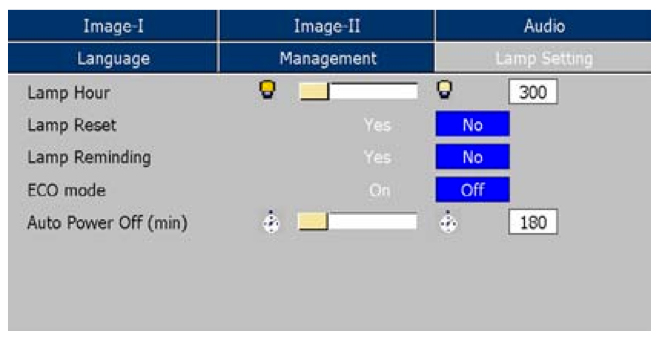
Optoma_EP7161_projector_Lamp_Setting_Menu_Optoma_BL-FU180A_projector_lamp

The Optoma EP7161 projector has an automatic lamp reset timer that tracks the life of the lamp and triggers the lamp replacement warning. You need to reset the timer each time the lamp is replaced.

  • Press the Menu option on either the remote or on the projector.
  • Scroll over the Lamp Setting. Press enter.
  • Select Reset Lamp Hours. Press Enter
  • The Execute/Cancel command line will appear.
  • Scroll over to choose Execute. Press Enter. The lamp hours is reset to zero.

Make the Optoma BL-FU180A projector lamp last longer with these tips:

  • Turning on the Eco Mode to lower power consumption and extend the lamp life by 130%.
  • Keep your air filters clean to avoid overheating the projector.
  • Turn off the Optoma EP7161 projector and let it stand for at least one hour ever 24 hours.
  • Make sure there is enough airflow around the projector particularly if it’s been permanently mounted.
  • Top tips for extending DLP projector lamp life
Tagged with: , , ,

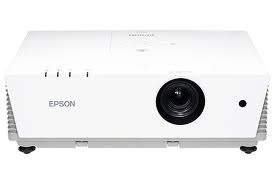
Epson_EMP_6010_projector-Epson_EMP_6010_projector

Follow our 3-step guide to replace the Epson EMP-6010 projector lamp.

Warning signs

Watch for the signs that the Epson EMP-6010 projector lamp needs to be replaced. Look for these signs:

  • Dark image
  • Image that has deteriorated
  • On warning message appears on screen
  • Lamp light flashes red and stays lit
  • Lamp light turns red and stays on
  • Check Lamp Usage

Buy authentic Epson EMP-6010 projector lamp

Protect your investment and buy the best possible lamp for your Epson EMP-6010. Bargain lamps advertised as “generic compatible” lamps actually end up costing more in the long run due to their shorter lamp life. They are also prone to explosions and have been manufactured with toxic materials. Installing one can also damage the sensitive components in your projector. Save yourself unnecessary headaches. Buy authentic.

Buy this lamp on Amazon from the following authorized dealers:


Install the Epson ELPLP45

Before installation:

  • Turn power button off wait for light to stop flashing.
  • Turn off power swtich on the back of the Epson EMP-6010 projector.
  • Unplug the power cord.
  • Allow the Epson EMP-6010 projector to cool for one hour – it should be cool to the touch. Inside of the projector can be very hot since these machines operator under high temperatures and you run the risk of being burned if the projector has not cooled down.
  • Do not operate the projectors while any of the lamps are removed as this may result in malfunctions, fire hazard and other accidents.

Epson_EMP-6010_ELPLP45_lamp_remove_coverStep 1: Loosen the screw holding the lamp cover in place.

Step 2: Remove the lamp. Put the cover to one side.

Epson_EMP-6010_ELPLP45_lamp_remove_screws

Step 3: Loosen the two screws holding the Epson ELPLP45 lamp in place.

Epson_EMP-6010_ELPLP45_remove_lampStep 4: Gently remove the lamp. Pulling too quickly can cause the bulb to shatter. Learn what to do should the bulb shatter.

NOTE: The Epson ELPLP45 lamp contains mercury and should not be thrown into regular garbage. Recycle your used lamps!

Epson_EMP-6010_ELPLP45_install_new_lampStep 5: Gently insert the Epson ELPLP45 lamp making sure it’s facing the right way.

Caution: Don’t touch the actual bulb with your finger since the oil from your skin can cause a black spot on the bulb.

Tighten the screws on the new Epson ELPLP45 lamp.

Epson_EMP-6010_ELPLP45_replace_cover

Step 6: Repeat Steps 1 and 2. Replace the lamp cover and tighten the screw on the Epson EMP-6010  lamp cover. You are now ready to reset the lamp timer.

Reset the lamp timer on the Epson EMP-6010

Reset the Epson EMP-6010 Lamp Replacement Counter only when the Epson ELPLP45 lamp has been replaced.

  • Press the MENU button on the remote control. The Lamp Reset Menu will appear.
  • Scroll down to the RESET LAMP HOURS. Press ENTER.
  • A prompt appears asking if you want to replace the lamp.
  • Select YES and press ENTER. Press MENU to exit.

Prolong the life of the Epson ELPLP45 lamp:

Extend the life of the newly installed Epson ELPLP45 with the following tips:

  • Keep your air filters clean to avoid overheating the projector.
  • Turn off the Epson EMP-6010 projector and let it stand for at least one hour ever 24 hours. An average use of four to five hours per day will ensure longer lamp life.
  • Make sure there is enough airflow around the projector particularly if it’s been permanently mounted.
  • Learn more with Top tips for extending DLP projector lamp life
Tagged with: , , , ,
Join the discussion on Facebook! All your questions, answered! The Screen & Projector Group