We're now Screen and Projector! For updated content, visit ScreenAndProjector.com and follow @screenandproj on social media!

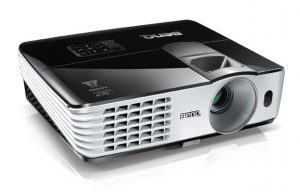
BenQ MX615 projectorFollow these instructions to replace the BenQ MX615 projector lamp.

Start off with authentic

Save yourself unnecessary headaches by buying an authentic BenQ MX615 projector lamp. Why go authentic? Counterfeit “compatible” lamps may appear to be a bargain but in the long run end up costing more due to their shorter lamp life. They are prone to explosions and can put your eyesight at risk. Due to their substitute toxic materials and carcinogenic parts, the few dollars you will save are not worth it. Protect your health and keep your BenQ MX613ST working at optimum levels. Go with an authentic projector lamp.

Find this lamp on Amazon from the following authorized dealers:
MX660 BenQ Projector Lamp Replacement. Projector Lamp Assembly with Genuine Original Philips UHP Bulb Inside.

End of life warning signs

Your BenQ MX613ST projector uses the BenQ 5J.J3T05.001 replacement projector lamp. When it’s time to replace the BenQ MX613ST projector lamp you’ll see a series warnings appear on screen.
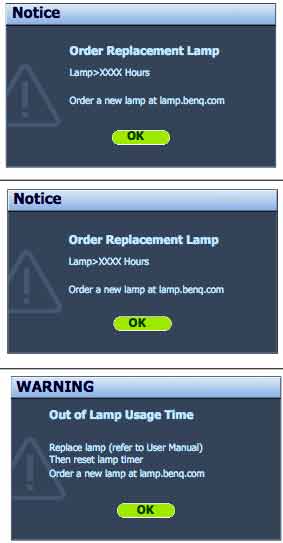
benq-mx615-projector_benq-5j-j3t05-001_replacement_lamp-warnings

First warning: The BenQ MX615 projector lamp has been in operation equivalent to 4500 hours or for 6,000 hours Econo Mode, you have up to 6000 hours before changing the lamp. You can wait until the second warning to replace the projector lamp. Press MODE/ENTER to dismiss the message.

Second Warning: The BenQ MX615 projector lamp has been in operation equivalent to 4000 hours or 6,000 hours in Econo mode. You should replace the lamp immediately. Press MODE/ENTER to dismiss the message.

Out of lamp: The BenQ MX615 projector lamp has reached its end of life and the projector will shut down until the lamp is replaced. Install a new BenQ 5J.J3T05.00 projector lamp immediately.

Follow these safety instructions before changing the lamp:

  • Reduce the risk of electrical shock by disconnecting the power cord on the BenQ MX615 projector.
  • Reduce the risk of severe burns by allowing the projector to cool for at least 45 minutes. The projector should be cool to the touch.

Replacing the projector lamp
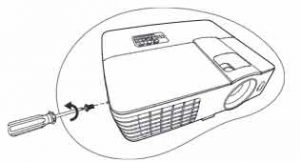
 

benq-mx615-projector_benq-5j-j3t05-001_replace_lamp_cover

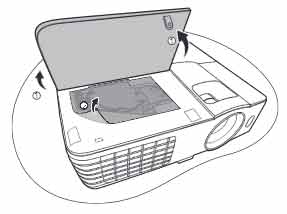
  • The projector lamp cover is found on the side of the Benbenq-mx615-projector_benq-5j-j3t05-001_replace_lamp_cover-2Q MX615projector.
  • Loosen the screw holding the projector lamp cover in place
  • Lift up the projector lamp cover.


benq-mx615-projector_benq-5j-j3t05-001_replace_lamp_screw-1

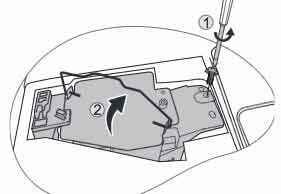
  • Loosen the screw that secures the lamp.
  • Lift the handle so that it stands up. Use it to slowly pull the BenQ 5J.J3T05.00 projector lamp out of the projector. Pulling out too quickly may cause the bulb to break. benq-mx615projector_benq-5j-j3t05-001_remove_lamp
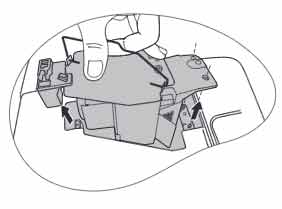
NOTE: The BenQ 5J.J3T05.00 projector lamp contains mercury and should not be thrown into regular garbage. Recycle your used lamps!
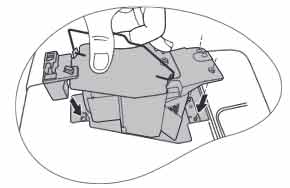
benq-mx615-projector_benq-5j-j3t05_insertInsert the new BenQ 5J.J3T05.00 projector lamp.

  • Tighten the screw that secures the lamp. Loose screw may cause a bad connection,
    which could result in malfunction. Do not over tighten the screw. benq-mx613st-projector_benq-5j-j3t05-001_replace_lamp_screw-2
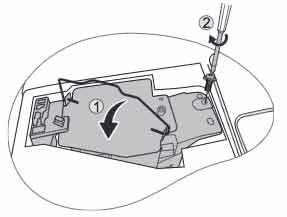
  • Replace the lamp cover on the BenQ MX615 projector.
  • Reset the lamp timer.

Resetting the lamp timer

Do not reset the BenQ MX615 projector lamp timer if the lamp has not been replaced as this could cause damage. Don’t start the if the lamp cover has not been replaced. To reset the projector lamp timer:

  • Plug the BenQ MX615 projector and get it started.
  • Open up the menu and scroll over to SYSTEM/SETUP: Advanced. Press ENTER
  • Press MODE/ENTER to display the Lamp Settings page
  • Highlight Reset lamp timer to display a warning asking it you want to reset the lamp timer.
  • Select RESET. Press ENTER.
  • Lamp time will be reset to zero.

Extend the BenQ MX615 projector lamp

  • Keep your air filters clean to avoid overheating the projector.
  • Setting Lamp Power to Eco mode. Using Whisper mode reduces system noise and power consumption. It also extends the projector lamp life. To set Econo mode, go into the Advanced Setup > Lamp > Lamp Power menu.
  • Learn more with Top tips for extending DLP projector lamp life.
 

Save

Save

Save

Save

Tagged with: , ,

Smartboard SB680i3 projector lamp

Learn how to replace the Smartboard SB680i3 projector lamp

After 2,000 hours of operation in standard mode or 3,000 hours in Eco mode, the Smartboard SB680i3 projector lamp will need to be replaced. If the projector turns off and goes into Standby mode then it’s time to replace the Smartboard SB680i3 projector lamp. Another sign that the lamp has reached end of life is when the image gets darker or starts to deteriorate.

Go with authentic

An authentic projector lamp makes all the difference in keeping your Smartboard SB680i3 projector working. If the price is too good to true, then you should avoid the lamp. Bargain basement prices mean problems down the road.

Find these lamp on Amazon sold by these authorized dealers:

6 reasons to avoid generic lamps:

Changing the Smartboard projector lamp

Your Smartboard SB680i3 projector uses the SmartBoard 20-01032-20 projector lamp.

Important Safety tips BEFORE replacing the projector lamp:

  1. Wear protective eyewear while changing the lamp.
  2. Turn off the power switch and disconnect the power cord and all connected cables.
  3. This projector operates under high temperature and there is a burn risk so be sure to wait at least one hour minutes for the projector’s housing to completely cool.

Smartboard_SB680i3_remove_projector_lamp_20-01032-20

Use a Phillips No. 2 screwdriver to loosen the captive screw from the lamp cover on the right side of the projector head.
Remove the cover and put it aside.
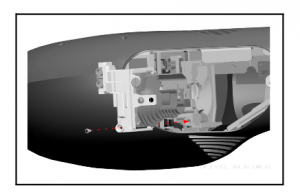
Remove the lamp retention screw (circled inthe diagram).
NOTE: Do not remove any other screws.
Gently pull the lamp assembly out of the projector head.
Don’t touch any part of the replacement lamp assembly’s bulb with either
your fingers or tools. Fingerprints and other contamination can cause
premature bulb failure.
NOTE: The SmartBoard 20-01032-20 projector lamp contains mercury and should properly recycled and NEVER thrown into regular garbage


Smartboard_SB680i3_replace_projector_lamp_20-01032-20

Take the new SmartBoard 20-01032-20 and push it onto the Smartboard SB680i3 projector head.
Make sure the lamp is pressed into the power connector all the way.

Replace the lamp retention screw and tighten.

Replace the lamp cover and screw.

You are now ready to reset the lamp timer.

Resetting the lamp timer

Your Smartboard SB680i3 projector has a built in lamp timer that tracks the life of the SmartBoard 20-01032-20 projector lamp. Whenever you change the lamp you need to reset the lamp timer back to zero.

Smartboard_SB680i3_projector_lamp_20-01032-20_reset timer

Press the Settings button on the on-screen menu.
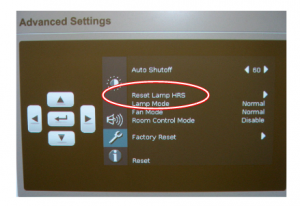
Scroll down to select Advanced Settings.
You can also access it via the remote control INFO button.
Select the SETUP Menu (wrench icon).
Select the RESET LAMP HRS option.
Press Yes to confirm.
Lamp hours will be reset to zero.


Learn how to extend the life of your SmartBoard 20-01032-20 projector lamp with Top tips for extending DLP projector lamp life.


Save

Save

Save

Save

Save

Tagged with: , ,

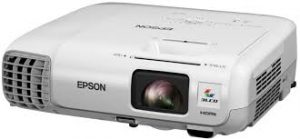
Epson_EB945_projectorWhen it’s time to replace the Epson EB945 projector lamp follow this guide

When it’s time to replace the Epson EB945 projector lamp you’ll notice the power indicator is flashing blue, and the lamp indicator is flashing orange. You may also notice the picture has gone dimmer or the color is off. An on screen message will also appear; “Time to replace the lamp. ” You can expect 4900 hours of use when the projector is set to Normal and about 5900 hours when the ECO mode has been started.

Why invest in authentic?

The best thing you can do to keep your prjector working properly is to buy an authentic Epson EB945 projector lamp. Most counterfeit lamps cost more in the long run because they have a shorter life than original lamps. While counterfeits claim to be compatible they are often created with toxic materials including including Krypton-85. Lamps that are not OEM are prone to explosions and usually can damage the projector’s sensitive optics. Your eyesight is also at risk. Buy an OEM authentic Epson EB945 projector lamp and keep your projector working properly.

Find this authentic lamp on Amazon:

Installing the lamp

The Epson EB945 projector uses model Epson ELPLP78Before installation:

  • Turn off the Epson EB945 projector and unplug the AC cord.
  • Allow the projector to cool for one hour – it should be cool to the touch. Inside of the projector can be very hot since these machines operator under high temperatures and you run the risk of being burned if the projector has not cooled down.
  • Do not operate the projectors while any of the lamps are removed as this may result in malfunctions, fire hazard and other accidents.

Caution: Don’t touch the screen or the actual bulb with your finger since the oil from your skin can cause a black spot on the bulb.

Epson_EB945_projector_lamp-Epson ELPLP78_remove_cover

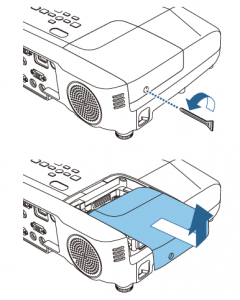
The Epson EB945 lamp cover is on the side. Using a screwdriver to gently release the cover switch. Slide the lamp cover off.

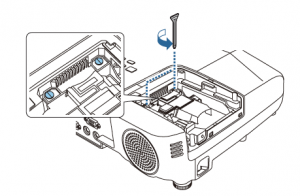
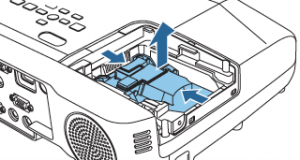
Epson_EB945_projector_lamp-Epson ELPLP78_remove_screwsRemove the two screws on either side of  Epson ELPLP78 lamp. Place the screws to either side. Grip the raised section of the old lamp and remove it.

Epson_EB945_projector_lam


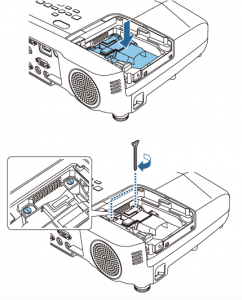
Take the new Epson ELPLP78 projector lamp by the handle and gently put it into place making sure the lamp is facing in the right direction.

Epson_EB945_projector_lamp-Epson ELPLP78_install new

Replace the projector lamps screws and re-connect the lamp cover. Re-attach the power cord. Turn the projector on and let it warm up. You are ready to reset the lamp timer.

NOTE: The Epson ELPLP78 lamp contains mercury and should not be thrown into regular garbage. Recycle your used lamp.

Reset Lamp Timer

Reset the Epson EB945 Lamp Replacement Counter only when the Epson ELPLP78 lamp has been replaced.

Epson_EB945_projector_lamp-Epson ELPLP78_reset_timer

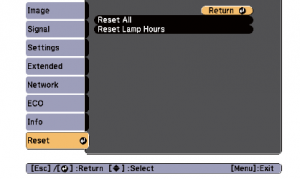
  • Press MENU to display the RESET menu.
  • Press the down arrow to move down the menu to the RESET ALL option.
  • A prompt message appear. Select YES and press ENTER.
  • The lamp hours will be reset to zero.
  • Press MENU or ESC to exit the menu
  • The lamp timer will be a zero.

Extend the life of the newly installed Epson ELPLP78 with the following tips:

  • Keep your air filters clean to avoid overheating the projector.
  • Turn off the Epson PowerLite 93 and let it stand for at least one hour ever 24 hours. An average use of four to five hours per day will ensure longer lamp life.
  • Make sure there is enough airflow around the projector particularly if it’s been permanently mounted.
  • Learn more with Top tips for extending DLP projector lamp life


Tagged with: , ,

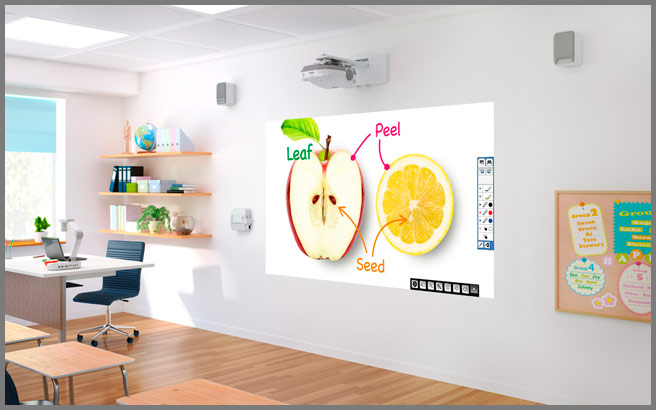
whiteboard-projectors-classroom-mounted

You’ve got your whiteboard projector set up and ready to go.

Here are some tips to make your presentation on the whiteboard projector a success.

Avoid small and crooked images

Making your audience squint to see photos is not going to help your presentation. Make your images fill the space of the whiteboard and use the projector’s keystone feature to make them straight on the screen. Having the projector the proper distance from the screen is also important. Don’t sacrifice the quality of your images.

See it from the audience viewpoint

As the presenter you are going to be close to the computer and interactive whiteboard so don’t use that position to judge how it looks. Be sure to check how the picture looks from the back of the room. Practice zooming in and out so everyone in the room has a clear view of the material being presented.

Be prepared technically

Become familiar with the equipment set-up so you can set up quickly or troubleshoot easily. You don’t want your presentation being eaten up by fumbling with cables and connections.

Face your audience

Being able to maintain eye contact with your audience makes your presentation have more connection. Turning your back to face the whiteboard not only severs your connection and makes it harder for the audience to hear you. Flip the direction of the laptop so you can see the entire room and read off the computer. By seeing the participant’s reactions you will know if you are communicating effectively and if they are understanding the material being presented.

Stay off the screen

Replace your finger with a pointing stick or laser beam. When you point directly to the board you create a shadow that actually covers what you are trying to show.

Leave some light

Turning off all the lights for complete darkness can make your audience fall asleep instead of listening to you. Instead just shut off the front lights and leave something in the back to give some light. You’ll be able to actually see the audience members this way and improve your communication.


Smartboard_60wi21_projector

How to replace the Smartboard Lightraise 60Wi2 projector lamp

Replace the Smartboard Lightraise 60Wi2 projector when you see the status light is solid green. If the projected image gets darker or starts to deteriorate then it’s also time to replace the projector lamp.

Go with authentic

An authentic projector lamp makes all the difference in keeping your Smartboard Lightraise 60Wi2 projector working. If the price is too good to true, then you should avoid the lamp. Bargain basement prices mean problems down the road.

6 reasons to avoid generic lamps:

Find this lamp on Amazon from these authorized dealers:

Changing the Smartboard projector lamp

Your Smartboard Lightraise 60Wi2 projector uses the SmartBoard 1018580 projector lamp.

Important Safety tips BEFORE replacing the projector lamp:

  1. Close the projector lens door to prevent scratching or touching of the lens.
  2. Turn off the power switch and disconnect the power cord and all connected cables.
  3. This projector operates under high temperature and there is a burn risk so be sure to wait at least one hour minutes for the projector’s housing to completely cool.
  4. You’ll need a Philips No 2 screwdriver
 Smartboard_Lightraise_60Wi2_SmartBoard_1018580_projector_lamp_Ceiling_remove

Loosen the two screws holding the Smartboard Lightraise 60Wi2 lamp cover in place. These are captive screws so can only be loosened and not removed.

Place the cover to one side.

Smartboard_Lightraise_60Wi2_SmartBoard_1018580_projector_lamp

 
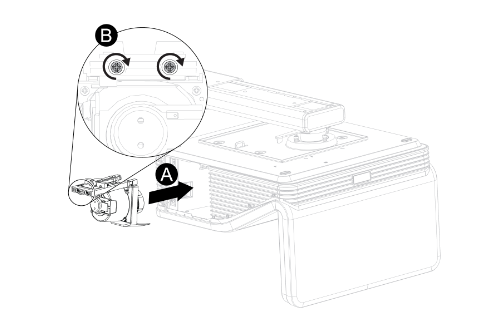
Loosen the two screws holding the SmartBoard 1018580 projector lamp in place. Step A
Press on the tab and pull up with the handle on the old lamp. Release the tab. Step B. NOTE: The SmartBoard 1018580 contains mercury and should properly recycled. NEVER throw into regular garbage

Smartboard_Lightraise_60Wi2_SmartBoard_1018580_install_newprojector_lamp Remove all packaging from the new SmartBoard 1018580 projector lamp projector lamp. Press the tab, put the new lamp into the lamp slot, and push it all the way down. Release the tab. Step A.

Put the outer lamp cover back into its original position. Align the cover and tighten the screws until the outer Smartboard Lightraise 60Wi2 projector projector lamp cover is secure.

Resetting the lamp timer

Your Smartboard Lightraise 60Wi2 projector has a built in lamp timer that tracks the life of the projector lamp.

Whenever you change the lamp you need to reset the lamp timer back to zero.

  1. Using the remote control, press the following buttons quickly to access the service menu: Down, Up, Up, Left, Up.
  2. Scroll down to the Lamp Hour Reset field and press OK.
  3. Press the MENU button on the remote to bring up the Settings.
  4. Select the Lamp Hours to confirm that it’s been reset to zero.
  5. Wait five minutes for the projector lamp to warm up.

Learn how to extend the life of yourSmartBoard 1018580 projector lamp with Top tips for extending DLP projector lamp life.


Tagged with: , ,

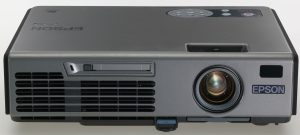
epson-EMP765-projectorTo replace the Epson EMP-5500 projector lamp follow this guide.

Invest in authentic

Your projector lamp works best with an authentic Epson EMP-5500 projector installed. Counterfeit lamps may appear to be a bargain but in the long run end up costing you more for the following reasons:

Find this lamp on Amazon from the following authorized dealers:

Replacement Warning Signs

After 2000 hour of use, the Epson EMP-5500 projector lamp will start to reach end of life and you’ll notice the following warning signs:

  • The projector lamp indicator flashes orange
  • The message “Lamp Replace” appears on the screen
  • The images gets darker or starts to deteriorates.

Installing the Epson EMP-5500 projector lamp

The Epson EMP-5500 projector uses the Epson ELPLP06 projector lamp. Follow these important safety tips before replacing the projector lamp:

  • Turn off the projector power and wait for the cool-down period which is about two minutes. Disconnect the power cord after the two minutes is over.
  • Wait at least 30 minutes to one hour for the Epson EMP-5500 projector to cool internally before opening it up. It should be cool to the touch.

To replace the lamp:

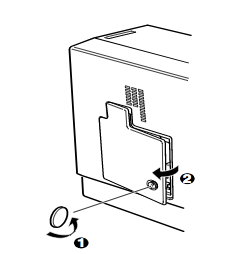
Epson_EMP-55_projector_Epson_ELPLP06_lamp_remove_coverUse the screwdriver provided loosen the screw holding the Epson EMP-5500 projector lamp cover in place. Slide the Epson EMP-5500 projector lamp cover off and place it to one side.

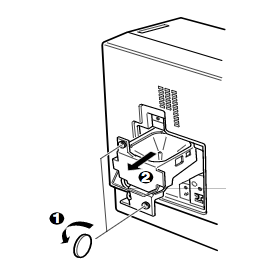
Lift up the wire handle on the Epson ELPLP06 projector lamp and gently pull the projector lamp out of the Epson EMP-5500projector lamp. Don’t knock the actual bulb as it may break. Learn what to do should the bulb shatter.

NOTE: The Epson ELPLP06 projector lamp contains mercury and should not be thrown into regular garbage. Recycle your used lamp.


Epson_EMP-55_projector_Epson_ELPLP06_lamp_replacement

Tighten the screws on the newly installed Epson ELPLP06 projector lamp. Replace the lid on the Epson EMP-5500 projector. Tighten the screw on the projector lamp cover. Reset the lamp timer.

How to extend lamp life

Extend the life of the newly installed Epson ELPLP069 with the following tips:

  • Keep your air filters clean to avoid overheating the projector.
  • Turn off the Epson EMP-5500 projector and let it stand for at least one hour ever 24 hours.
  • Make sure there is enough airflow around the projector particularly if it’s been permanently mounted.

Learn more with Top tips for extending DLP projector lamp life.

Tagged with: , ,

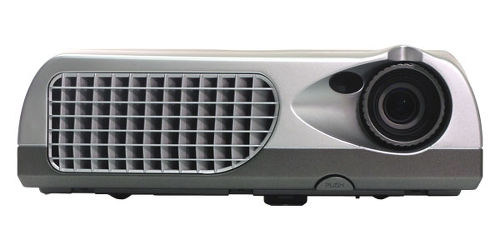
InFocus_N1126_projectorHow to install a replacement Infocus IN1126 projector lamp
Replace the Infocus IN11264 projector lamp quickly by following this  step-by-step guide.

Why go with authentic

Buy an authentic replacement projector lamp and avoid the headaches associated with counterfeit lamps. Find the 6 most common problems associated with counterfeits at the end of this post

Top reasons to avoid counterfeit lamps:

Buy from a legitimate source to keep your projector under warranty and working properly.

Install the replacement projector lamp

Your InFocus IN1126 projector needs the InFocus SP-LAMP-076 replacement projector lamp. Follow these important safety steps BEFORE installing the replacement

  • Turn off the InFocus IN1126 projector and unplug the power cord.
  • To avoid getting burned, let the projector fully cool before changing the lamp.
  • Do not operate the projectors while any of the lamps are removed as this may result in malfunctions, fire hazard and other accidents.

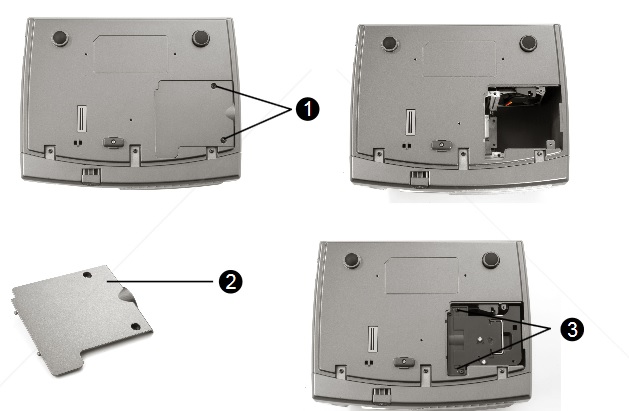
Infocus_IN1126_projector_Infocus_SP-LAMP-076_cover

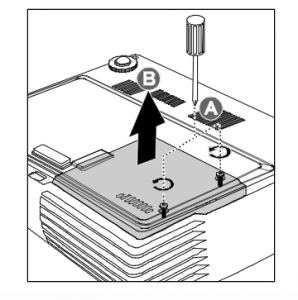
  • Loosen the two captive screws on the lamp cover.
  • Remove the lamp cover.
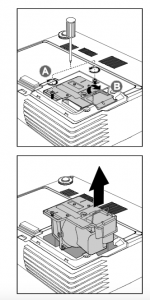
  • Infocus_IN1126_projector_Infocus_SP-LAMP-076_removeRemove the two screws from the lamp module.
  • Lift the module handle up. Pull firmly on the module handle to remove the lamp module.
  • NOTE: The InFocus SP-LAMP-076 contains mercury and should not be thrown into regular garbage. Recycle this used lamp!

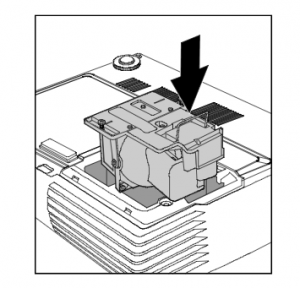
Infocus_IN1126_projector_Infocus_SP-LAMP-076_insert


  • Place the new lamp into the projector being sure to line it up properly. Align the lamp module with the connector and ensure it is level to avoid damage.
  • Make sure the lamp is sitting securely in place and the lamp connector must be
  • connected properly before tightening the screws.
  • Tighten the two screws on the lamp.
  • Replace the lamp cover and tighten the screws.

To reset the lamp timer:

  • Press MENU
  • Select INSTALLATION II/ ADVANCED. Press Enter
  • Scroll down to select LAMP HOUR RESET. Press Enter
  • Press the left arrow, then down arrow, then up arrow and double arrows
  • Press the MENU button to get back to INSTALLATION II

Tips for longer lamp life

  • Keep your air filters clean to avoid overheating the projector.
  • Turn off the Infocus IN1126 and let it stand for at least one hour ever 24 hours.
  • Make sure there is enough airflow around the projector particularly if it’s been permanently mounted.
  • Top tips for extending DLP projector lamp life


Optoma-EP-731_projector_lampFollow this step-by-step installation guide for installing a new Optoma W501 projector lamp
With so many choices, it can be confusing finding the the correct Optoma EP731 projector lamp. It’s easy to get duped into buying counterfeit projector lamp posing. Always look for the seal of approval and watch for telltale signs you are about to purchase a counterfeit lamp:

See below for more reasons to avoid counterfeit lamps.

Find this lamp on Amazon:

Optoma BL-FP150B, P-VIP, 150W Projector Lamp

Installing the projector lamp

You’ll know it’s time to replace the Optoma EP731 projector lamp when a message appears on screen warning you the lamp is reaching end of life. When this message appears replace the lamp immediately. You may also hear a loud pop when the lamp has reached end of life. The uses Optoma EP731 the Optoma BL-FP150B projector lamp.

Before replacing the projector lamp, follow these safety precautions

  • Turn off the Optoma EP731 projector
  • Unplug the power cord
  • Allow the Optoma EP731 projector to cool down for at least 30 minutes. If should be cool to the touch to prevent to getting burned.

optoma_ EP731_projector_remove_Optoma BL-FP150B_Projector_Lamp

  • Step 1: Placing the Optoma EP731 on a soft surface, turn it upside down.
  • Step 2: Loosen the two screws holding the projector lamp cover in place. Remove the cover and put to one side.
  • Step 3: Loosen the two screws holding the Optoma BL-FP150B projector lamp in place. Using the wire handle, gently lift the projector lamp out of the projector.
  • NOTE: The Optoma BL-FP150B projector lamp contains mercury and should not be thrown into regular garbage. Recycle this lamp.
  • Step 4: Insert the new Optoma BL-FP150B projector lamp into the projector and tighten the screws. Take care not to touch the actual bulb as the oil from your fingers will burn black marks onto the lamp.
  • Step 5: Replace the Optoma BL-FP150B projector lamp cover and tighten the two screws holding it in place.
  • Step 6: Align the top cover. Replace the two screws and tighten into place.
  • Step 7: Turn on the projector. You are now ready to reset the lamp timer since the projector lamp has been replaced. NOTE: If the lamp timer is not reset the projector will keep shutting itself off thinking the projector lamps has reached end of life.

Reset the Optoma EP731 lamp timer

Your Optoma EP731 comes equipped with an automatic lamp timer that tracks the number of hours left on the projector lamp. Each time you change the lamp you need to reset the lamp timer.

optoma_ EP731_projector_remove_Optoma BL-FP150B_Reset_Projector_Lamp_timer

  • Press the Menu button to open the menu.
  • Scroll down to the Management menu. Press ENTER.
  • Scroll down to the Lamp Reset menu. Press ENTER.
  • The will be set back to zero.

6 reasons to avoid generic lamps

Learn the TOP Tips for extending the lamp life in your Optoma EP731 projector lamp.

Tagged with: ,

Enjoy some summer fun with an outdoor home theater!

Capture the fun of the drive-in movie by creating your outdoor home theater. Be sure to read Part One of creating your home theater so you’ve got your location and set up complete.

The screen

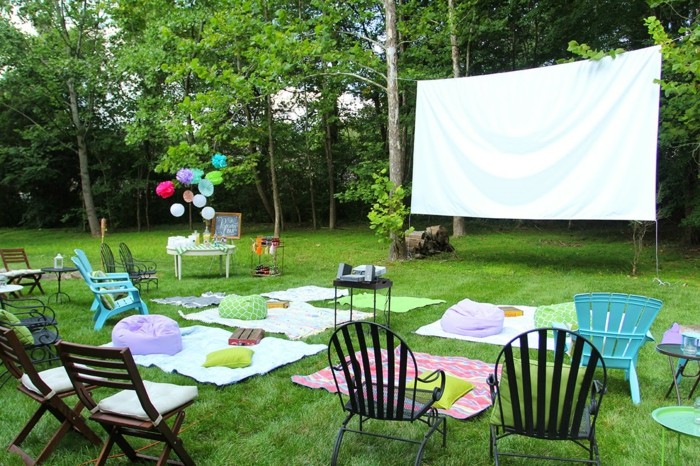
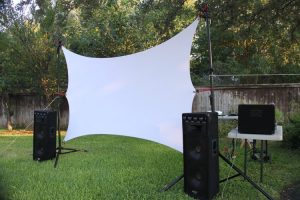
Your screen really depends on how big you want to go and your budget. Get creative for your screen. Test out the picture on a variety of surfaces such as a white garage door or the side of a building. The absolute easiest (and cheapest) screen is the simple white bed sheet. Iron out the wrinkles and then find a way to secure it so doesn’t move too much and has a slight bit of tension. Experiment with attaching it to a swing set or the gutter and clipping something on the bottom to provide some weight or tension such as a rake or broom.

An older analog projector screen makes a good outdoor screen since it already has a semi-reflective coating so work well outside. The downside is you will need to weight down the stand so it doesn’t blow over and the older sometimes only come with a 4:3 ratio so you’ll need to play around with placement. You can also consider an inflatable screen but while its portable and easy to install it does require constant power and you’ll need to turn up the sound since the blower makes noise.

 Change the settings

You’ll need to play around with the throw distance to get right placements. Consult the specifications of your particular projector to figure out the maximum screen size with the throw distance required. You can also just move the screen and projector around until you get the right combination.

Aspect ratio is also something that you should be flexible with as well. If your projector has an aspect ratio of 16:9 this can function for the widescreen format. All cinema-class projectors will have this option while a business type projector will probably only a digital option which may cause some light bleed. This means part of the picture at the top and bottom of the screen will fall into the darkness behind.

Stay flexible. Don’t get too hung up on picture quality. You’re not going to get the same resolution as viewing indoors. It’s actually more important to have the image bright and crisp rather than a high resolution. Adjust the focus along with the keystone to compensate for the change in environment.
Focus on the sound

Sound can make or break your outdoor home theater. A weak or muffled sound system is going to ruin movie. Audio purists may want to set up the indoor AV receiver and run the extra wiring but this may cause a bit of a tripping hazard. Probably the simplest solution is a powerful all-in-one-speaker. There are some affordable and portable solutions out on the marker.

Relax and have fun!

Don’t get hung up on having the most perfect picture or sound. The outdoor movie theater is all about enjoying a movie under the stars with friends and family.

For more great ideas on out outdoor theater visit Backyard Theater.


Tagged with:

Create an outdoor home theater for summer viewing under the stars.

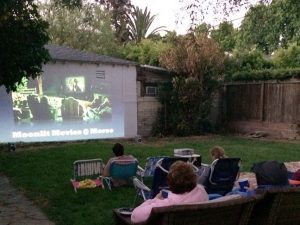
If you are feeling nostalgic for the drive-in, you can re-capture the fun of watching by creating your own outdoor home theater. You’ll need to do a few adjustments and you’ll be set to go in no time.

Location, location, location

First you’ll need a designated storage space that is secure and dry for your equipment. Your garage or storage shed is probably the most convenient spot.

Find the best location that avoids streetlights or backyard lighting since the yellow light will wash out the picture on screen taking away from the viewing fun. Be sure to set up away from the swimming pool and BBQ since water and smoke are enemies of your projector.

Depending the location your driveway might be a suitable spot since it’s already got a level surface where you can set up your projector, screen, loudspeaker and chairs.

You’ll want room for your screen but also close proximity to electricity. Be sure to use a heavy-duty extension cord and plug into a clear circuit that won’t overload and cause a power outage on the middle of the flick.


Protection, protection, protection

Protect your projector from humidity and moisture by placing it either inside or on a lower shelf of your rack. Make sure there is still plenty of air circulation along the sides and back of the projector to prevent it from overheating and shutting down. On really hot days you may need to add a supplementary external fan for additional cooling.

Have an umbrella or a plastic sheet handy in case there are sudden showers. Be sure you can quickly move the equipment into your dry storage spot. Never leave the equipment out overnight since the morning dew will ruin your equipment.

Timing is everything

You can’t fight Mother Nature when it comes to projecting movies outside. That means sunlight is going to wash the screen no matter how much your turn up the lights. Watching at dusk will give you haze on the screen and a full moon will wash out the screen. Wait until the sun goes down and choose an evening with very little moon so you can get the black levels and contrasts needed for a great picture.

Etiquette

Be sure to let your neighbors know you are setting up your outdoor theater. Invite them over for a hassle free evening so you can be sure you’re not keeping them up against their will. It’s also a good idea to keep the movie PG since younger children may be able to see your screen from nearby windows.

Read about what screen to choose and how the adjust your projector for outdoors movie viewing in Create an outdoor home theatre part two.


Tagged with:
Join the discussion on Facebook! All your questions, answered! The Screen & Projector Group