We're now Screen and Projector! For updated content, visit ScreenAndProjector.com and follow @screenandproj on social media!

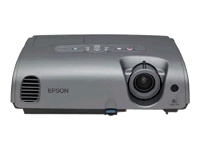
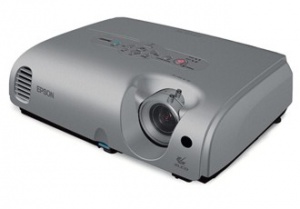
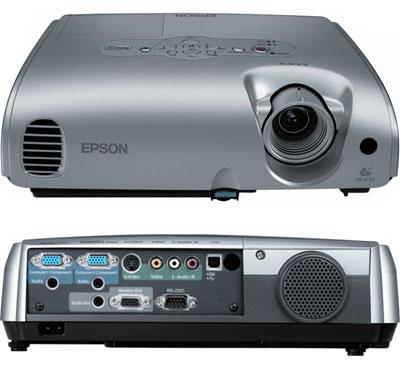
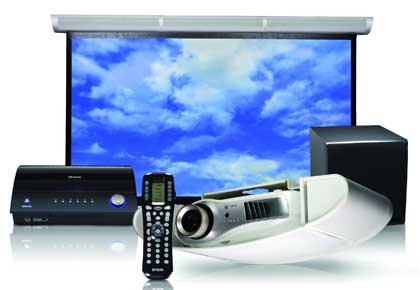
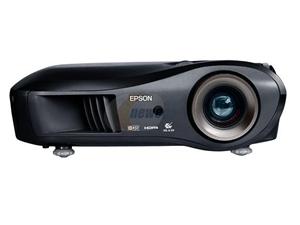
Epson-EMP-82-projector-Epson-ELPLP34-lampReplace the Epson EMP-82 projector on 3 easy steps by following this easy guide.

Step 1: Have your replacement lamp ready

You can expect 1900 hours of lamp life with the Epson ELPLP34 when the Brightness Control is on High. If the Brightness Control is on low, you can expect 2900 hours of lamp life. Scroll down for instructions on how to reset the Brightness Control.

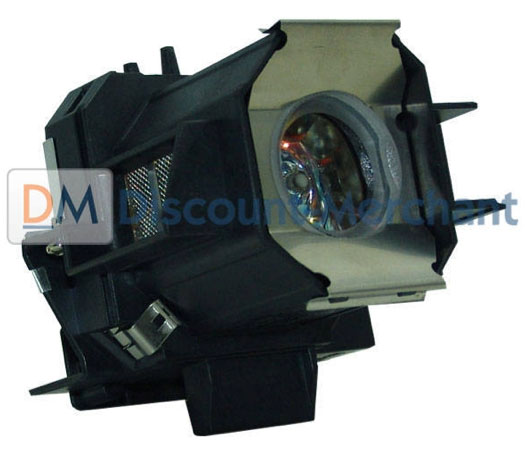
Be prepared to change the Epson ELPLP34 lamp by having your replacement lamp ready.

Buy authentic

Be sure to purchase an authentic Epson ELPLP34 being sold by an authorized manufacturer. Look for the seal of approval. OEM  manufacturer’s offer technical support as well as a money back guarantee. These are also the lamps Epson recommends and the ones that will keep your warranty valid.

Why avoid generic lamps that are sold at discount prices? These lamps are not the bargain they seem. They are created using inferior parts that damage the inside of your Epson EMP-82 projector. Generic lamps also come with a health risk; since copycat manufacturers can’t get the proper materials they often using highly toxic substitutes such as Krypton-85.

Buying a knock-off lamp will also void your warranty and should anything happen to the projector you will not be covered. Go with an authentic Epson ELPLP34 — it’s worth the few extra dollars to save yourself problems.

Although they seem like a bargain, these generic have a much shorter lamp life than OEM lamps. Be sure the purchase an authentic Epson ELPLP34 to protect your health and the safety of your Epson EMP-82 projector. Read more about the 7 Ways to Spot a Counterfeit Lamp.

Step 2: Know when to replace

Watch for the signs that the Epson ELPLP34 needs to be replaced in the Epson EMP-82 projector:

  • Dark image
  • Image that has deteriorated
  • On warning message appears on screenEpson-EMP-62-tighten-warning-lights-Epson-ELPLP34-lamp
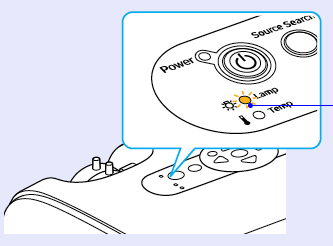
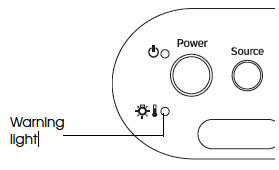
  • Lamp light flashes on the Epson EMP-62 flashes orange.


Install the Epson ELPLP34

Before installation:

  • Turn off power switch on the back of the Epson EMP-82 projector. The confirmation buzzer will sounds twice.
  • Disconnect the power cable
  • Allow the Epson EMP-82 projector to cool for one hour. Inside of the projector can be very hot since these machines operator under high temperatures and you run the risk of being burned if the projector has not cooled down.
  • Do not operate the projectors while any of the lamps are removed as this may result in malfunctions, fire hazard and other accidents.
 

Epson-EMP-82-loosen-cover-Epson-ELPLP34-lamp

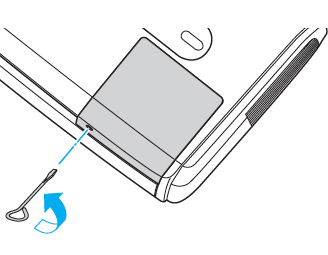
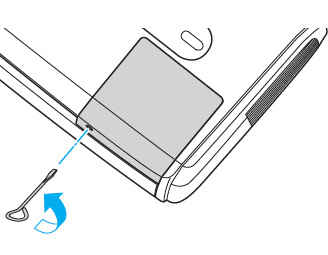
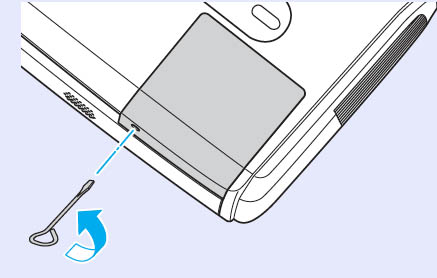
1. The lamp cover is found on top of the Epson EMP-82 projector. Loosen the lamp cover screw — you can’t remove it only loosen it.


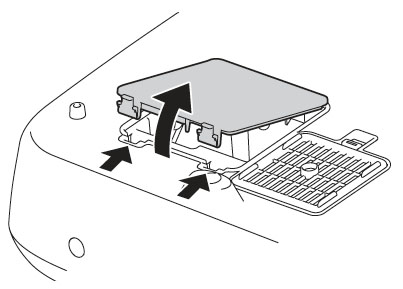
Epson-EMP-82-remove-cover-Epson-ELPLP34-lamp


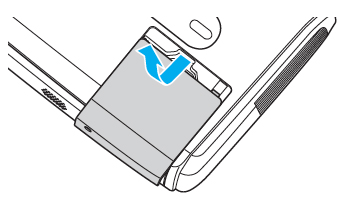
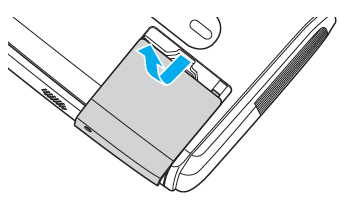
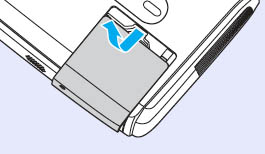
2. Slide the Epson EMP-82 projector lamp cover off.


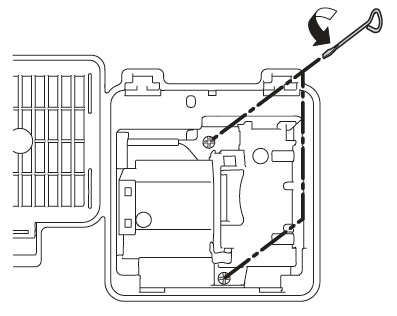
Epson-EMP-82-loosen-lamp-screws-Epson-ELPLP34-lamp


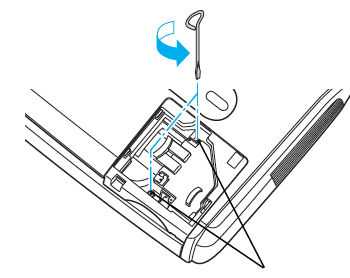
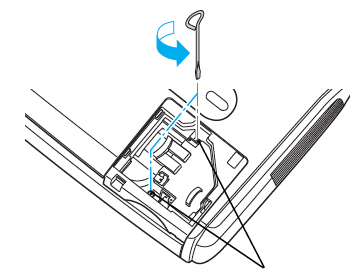
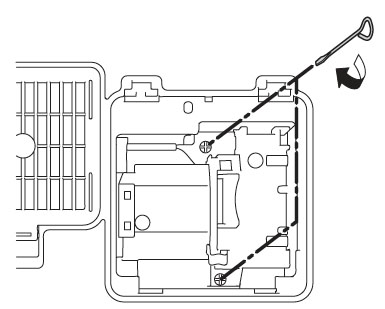
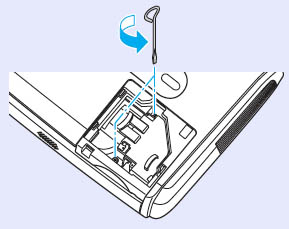
3. Loosen the two screws holding the Epson ELPLP34 lamp in place.
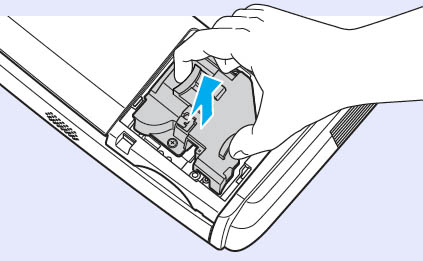


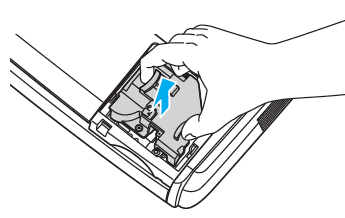
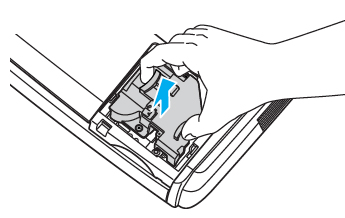
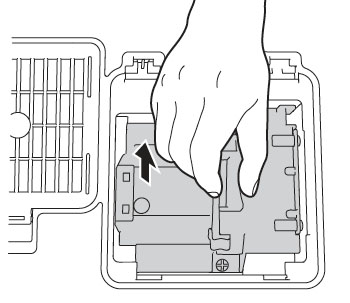
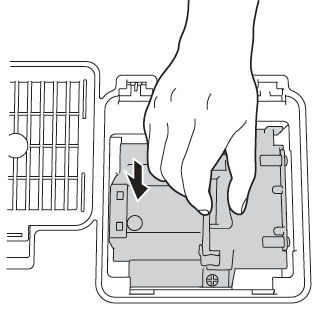
Epson-EMP-82-remove-Epson-ELPLP34-lamp4. Grab the Epson ELPLP34 lamp by the two indents on the lamp. Gently remove the lamp. Pulling too quickly can cause the bulb to shatter. Learn what to do should the bulb shatter.

NOTE: The Epson ELPLP34 lamp contains mercury and should not be thrown into regular garbage. Recycle your used lamps! If you bought from an authentic manufacturer they will recycle the lamp for you at no extra cost (another reason to buy authentic lamps).


Epson-EMP-82-tighten-screwns-Epson-ELPLP34-lamp

5. Gently insert the Epson ELPLP34 lamp making sure it’s facing the right way.

NOTE: Don’t touch the screen or the actual bulb with your finger since the oil from your skin can cause a black spot on the bulb.

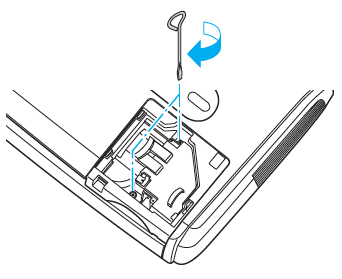
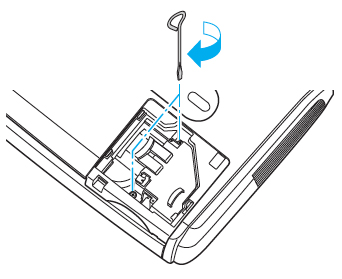
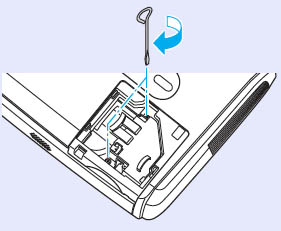
6. Tighten the screws on the new Epson ELPLP34 lamp.


Epson-EMP-82-tighten-cover-screws-Epson-ELPLP34-lamp

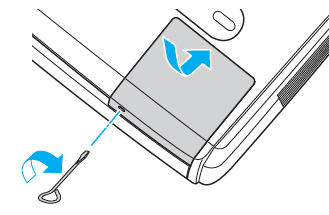
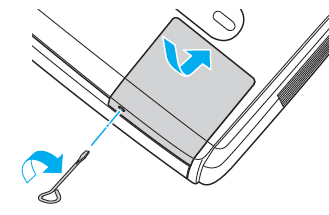
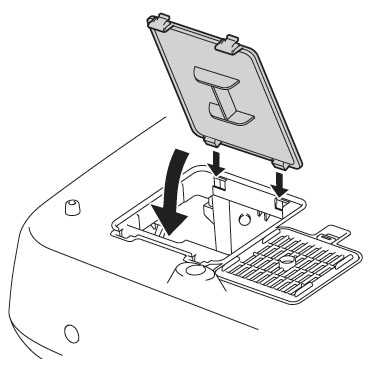
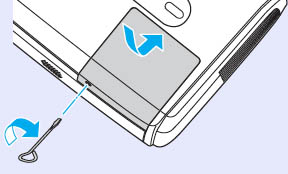
7. Replace the lamp cover and tighten the screw on the Epson EMP-82 projector lamp cover.

8. Reset the lamp timer.


Reset the lamp timer on the Epson EMP-82 projector

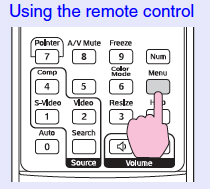
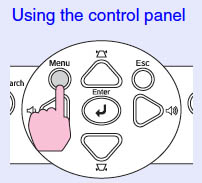
Reset the Epson EMP-82 projector Lamp Replacement Counter only when the Epson ELPLP34 lamp has been replaced.
Epson-EMP-62-reset-remote-control-Epson-ELPLP34-lamp Epson-EMP-62-reset-control-panel-Epson-ELPLP34-lamp


Epson-EMP-82-reset-lamp-hours-Epson-ELPLP34-lamp

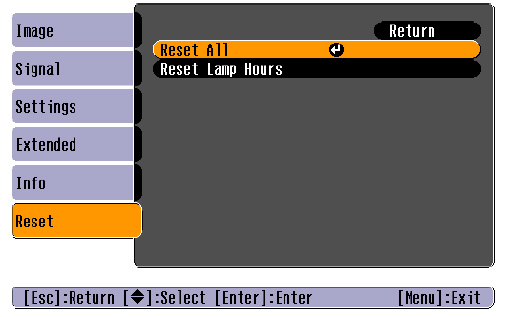
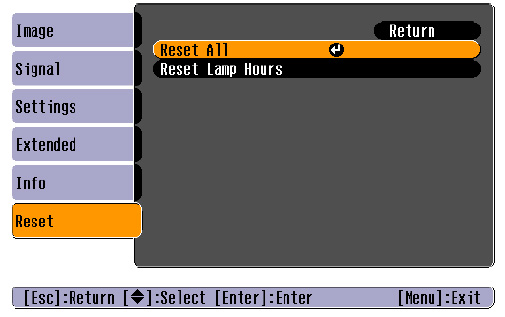
  • Press the MENU button on the remote control. The Lamp Reset Menu will appear.
  • Scroll down to the RESET. Press ENTER.
  • Click on RESET ALL.
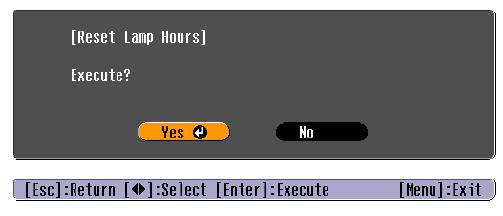
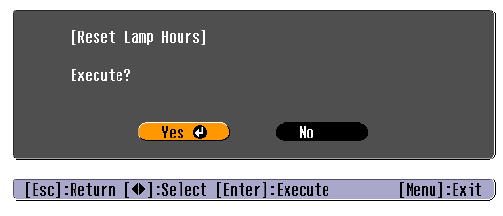
  • A prompt appears asking if you want to replace the lamp.
  • Select YES and press ENTER.
  • Press MENU to exit.


How to set the brightness mode

Epson-EMP-62-brightness-screen-Epson-ELPLP34-lamp

  • Press the MENU button on the remote control.
  • Scroll down to the SETTINGS. Press ENTER.
  • Scroll down to the Brightness Control menu.
  • Press the up arrow to change the setting to low.
  • Press ENTER.
  • Press MENU to exit.


Prolong the life of the Epson ELPLP34 lamp:

Extend the life of the newly installed Epson ELPLP34 with the following tips:

  • Keep your air filters clean to avoid overheating the projector.
  • Turn off the Epson EMP-82 projector projector and let it stand for at least one hour ever 24 hours. An average use of four to five hours per day will ensure longer lamp life.
  • Make sure there is enough airflow around the projector particularly if it’s been permanently mounted.
  • Set the Brightness Mode to low
  • Learn more with Top tips for extending DLP projector lamp life.
Tagged with: , , , , , , , , , , , , , ,

Epson-EMP-62-projector-Epson-ELPLP34-lampFollow this handy guide in order to replace the lamp in your Epson EMP-62 projector.

Watch for the signs that the Epson ELPLP34 needs to be replaced in the Epson EMP-62 projector:

  • Dark image
  • Image that has deteriorated
  • On warning message appears on screen
  • Lamp light flashes on the Epson EMP-62 flashes orange.

You cEpson-EMP-62-tighten-warning-lights-Epson-ELPLP34-lampan expect 1900 hours of lamp life with the Epson ELPLP34 when the Brightness Control is on High. If the Brightness Control is on low, you can expect 2900 hours of lamp life. Scroll down for instructions on how to reset the Brightness Control.

Why buy an authentic lamp?

The Internet has been flooded with companies offering “generic” compatible lamps. Although they seem like a bargain, these lamps are actually not good for your Epson EMP-62 projector:

Be sure the purchase an authentic Epson ELPLP34 to protect your health and the safety of your Epson EMP-62 projector. Read more about the 7 Ways to Spot a Counterfeit Lamp.

Install the Epson ELPLP34

Before installation:

  • Turn off power switch on the back of the Epson EMP-62 projector. The confirmation buzzer will sounds twice.
  • Disconnect the power cable
  • Allow the Epson EMP-62 projector to cool for one hour. Inside of the projector can be very hot since these machines operator under high temperatures and you run the risk of being burned if the projector has not cooled down.
  • Do not operate the projectors while any of the lamps are removed as this may result in malfunctions, fire hazard and other accidents.


Epson-EMP-62-loosen-cover-Epson-ELPLP34-lamp

1. The lamp cover is found on top of the Epson EMP-62 projector. Loosen the lamp cover screw — you can’t remove it only loosen it.


Epson-EMP-62-remove-cover-Epson-ELPLP34-lamp


2. Slide the Epson EMP-62 projector lamp cover off.


Epson-EMP-62-loosen-lamp-screws-Epson-ELPLP34-lamp


3. Loosen the two screws holding the Epson ELPLP34 lamp in place.


Epson-EMP-62-remove-Epson-ELPLP34-lamp4. Grab the Epson ELPLP34 lamp by the two indents on the lamp. Gently remove the lamp. Pulling too quickly can cause the bulb to shatter. Learn what to do should the bulb shatter.

NOTE: The Epson ELPLP34 lamp contains mercury and should not be thrown into regular garbage. Recycle your used lamps! If you bought from an authentic manufacturer they will recycle the lamp for you at no extra cost (another reason to buy authentic lamps).


Epson-EMP-62-tighten-screwns-Epson-ELPLP34-lamp

5. Gently insert the Epson ELPLP34 lamp making sure it’s facing the right way.

NOTE: Don’t touch the screen or the actual bulb with your finger since the oil from your skin can cause a black spot on the bulb.

6. Tighten the screws on the new Epson ELPLP34 lamp.


Epson-EMP-62-tighten-cover-screws-Epson-ELPLP34-lamp

7. Replace the lamp cover and tighten the screw on the Epson EMP-62 projector lamp cover.

8. Reset the lamp timer.


Reset the lamp timer on the Epson EMP-62 projector

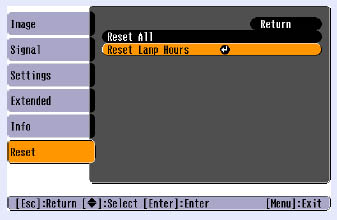
Reset the Epson EMP-62 projector Lamp Replacement Counter only when the Epson ELPLP34 lamp has been replaced.
Epson-EMP-62-reset-remote-control-Epson-ELPLP34-lamp  Epson-EMP-62-reset-control-panel-Epson-ELPLP34-lamp


Epson-EMP-62-reset-lamp-hours-Epson-ELPLP34-lamp

  • Press the MENU button on the remote control. The Lamp Reset Menu will appear.
  • Scroll down to the RESET. Press ENTER.
  • Click on RESET ALL.
  • A prompt appears asking if you want to replace the lamp.
  • Select YES and press ENTER.
  • Press MENU to exit.


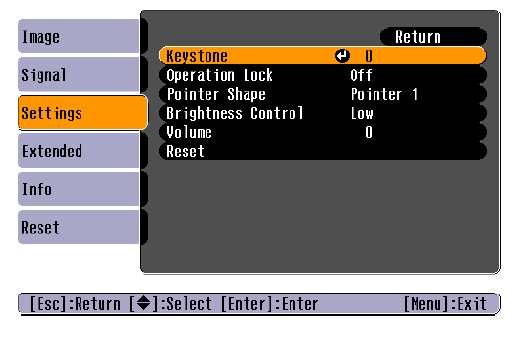
How to set the brightness mode
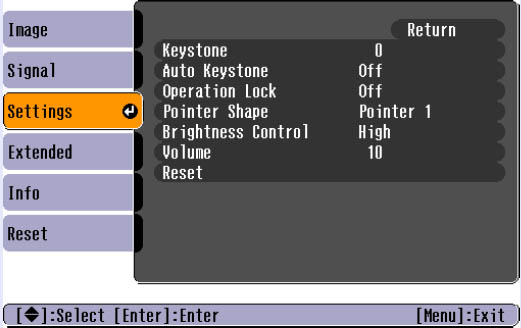
Epson-EMP-62-brightness-screen-Epson-ELPLP34-lamp

  • Press the MENU button on the remote control.
  • Scroll down to the SETTINGS. Press ENTER.
  • Scroll down to the Brightness Control menu.
  • Press the up arrow to change the setting to low.
  • Press ENTER.
  • Press MENU to exit.


Prolong the life of the Epson ELPLP34 lamp:

Extend the life of the newly installed Epson ELPLP34 with the following tips:

  • Keep your air filters clean to avoid overheating the projector.
  • Turn off the Epson EMP-62 projector projector and let it stand for at least one hour ever 24 hours. An average use of four to five hours per day will ensure longer lamp life.
  • Make sure there is enough airflow around the projector particularly if it’s been permanently mounted.
  • Set the Brightness Mode to low
  • Learn more with Top tips for extending DLP projector lamp life.
Tagged with: , , , , , , , , , , , ,

Epson-PowerLite-76c-projector-Epson-ELPLP34-lampFollow this handy 3-step guide to replacing the lamp in your Epson Powerlite 76c is simple. Install a new Epson ELPLP34 lamp is quick and easy!

Step 1: Be prepared

There are approximately 3000 hours in the typical Epson ELPLP34 lamp. Have your authentic lamp ready to install so you don’t get stuck.

Look for the seal of approval when you buy from an authentic manufacturer. Save yourself unnecessary headaches and avoid generic lamps.

When you buy authentic you’ll be getting a far superior product with a replacement guarantee and tech support.

6 reasons to buy authentic and avoid generics

Protect yourself from tricked into purchasing counterfeit “generic-compatible” lamps.

Step 2: Knowing when to replace

When it’s approaching end of life there will be some very distinct signs that the Epson Powerlite 76c projector needs a new lamp. Watch for the following telltale signs:

  • Dark image
  • Image that has deteriorated
  • “Replace the Lamp” warning message appears on screen
  • Lamp light flashes orange

The total Epson ELPLP34 lamp life will vary. If regular maintenance is done where the air filter is kept clean,  your lamp will lat longer.If you set the PowerLite 76c projector on High Brightness MOde, you can expect 2000 hours. If you set the PowerLite 76c on Low Brightness Mode, you can expect 3000 hours of lamp life.

To change the lamp Brightness mode:

Epson-PowerLite-76c-brightness-mode-Epson-ELPLP34-lamp

  • Press MENU on the remote control to open up the main menu on the screen.
  • Use the up/down arrows to scroll down to the SETTINGEpson-PowerLite-76c-menu-controls-Epson-ELPLP34-lampS option. Press ENTER.
  • Scroll down to the Brightness Control. Press the UP arrow to change the option from Low to High or vice versa.
  • Low Brightness Mode uses less electricity and has less fan noise. Your lamp will last longer.


Step 3: Installing  a new Epson ELPLP34 lamp

Get prepared for the installation:

  • Switch the power on Epson Powerlite 76c projector button off.
  • Unplug the power cord.
  • To avoid getting badly burned, allow the Epson Powerlite 76c projector to cool for one hour. This projector operates under very high temperatures and need time to cool down.
  • Do not operate the projectors while any of the lamps are removed as this may result in malfunctions, fire hazard and other accidents.


Epson-PowerLite-76c-projector-Epson-ELPLP34-lamp

The lamp cover is found on top of the Epson Powerlite 76c projector. Loose the screw holding the lamp cover in place. Use the screw driver that came with your projector.


Epson-PowerLite-76c-lamp-cover-removed-Epson-ELPLP34-lamp

Slide the Epson Powerlite 76c lamp cover off.


Loosen thEpson-PowerLite-76c-loosen-screws-Epson-ELPLP34-lampe two screws holding the Epson ELPLP34 lamp in place. The screws will not come out all the way. Use the screw driver provided with the Epson Powerlite 76c projector.


Epson-PowerLite-82c-remove-Epson-ELPLP34-lamp

Using two side indents, grab the Epson ELPLP34 lamp. Gently pull up to remove the lamp. Be sure to pull up straight so you don’t knock the lamp on the side of the projector and cause it to break.

Learn what to do when the bulb breaks.


NOTE: The Epson ELPLP34 lamp contains mercury and should not be thrown into regular garbage. Recycle your used lamps! If you bought from an authentic manufacturer they will recycle the lamp for you at no extra cost (another reason to buy authentic lamps).

Epson-PowerLite-76c-tighten screws-Epson-ELPLP34-lamp


Make sure the Epson ELPLP34 is facing the correct way and slowly push it into the projector. Caution: Don’t touch the screen or the actual bulb with your finger since the oil from your skin can cause a black spot on the bulb.

Tighten the screws on new Epson ELPLP34 lamp when it’s fitted properly into the projector.


Epson-PowerLite-82c-replace-cover-Epson-ELPLP34-lamp Replace the lamp cover and tighten the screw on the Epson Powerlite 76c projector lamp cover. You are now ready to reset the lamp timer.


Reset Epson Powerlite 76c lamp timer

Reset the Epson Powerlite 76c Lamp Replacement Counter only when the Epson ELPLP34 lamp has been replaced.


Epson-PowerLite-76c-reset=lamp-timer-Epson-ELPLP34-lamp

  • Press the MENU button on the remote control.
  • Scroll down to the RESET option. Press ENTER.
  • Scroll down to Reset Lamp Hours.
  • Press ENTER.
  • A Reset Lamp hours screen will appear.


Epson-PowerLite-76c-reset=lamp-timer-screen2-Epson-ELPLP34-lamp

  • The Reset Lamp hours will appear after you choose the Reset Lamp Hour option.
  • Click on YES. Press MENU.
  • The lamp hours will be reset to zero.

Prolong the life of the Epson ELPLP34 lamp:

Extend the life of the newly installed Epson ELPLP34 with the following tips:

  • Keep your air filters clean to avoid overheating the projector.
  • Turn off the Epson Powerlite 72c projector and let it stand for at least one hour ever 24 hours. An average use of four to five hours per day will ensure longer lamp life.
  • Using the Low Brightness mode saves electricity consumption, reduces fan noise and stress on the lamp. You’ll get an additional 1,000 hours for a total of 3,000 hours with the Epson ELPLP34.
  • Make sure there is enough airflow around the projector particularly if it’s been permanently mounted.
  • Learn more with Top tips for extending DLP projector lamp life
Tagged with: , , , , , , , , , , , , , ,

Epson-PowerLite-82c-projector-Epson-ELPLP34-lampReplacing the lamp in your Epson Powerlite 82c is simple. Follow this quick-step guide to install a new Epson ELPLP34 lamp.

When is the lamp finished? 

There are approximately 3000 hours in the typical Epson ELPLP34 lamp. When it’s approaching end of life there will be some very distinct signs that the Epson Powerlite 82c projector needs a new lamp:

  • Dark image
  • Image that has deteriorated
  • “Replace the Lamp” warning message appears on screen
  • Lamp light flashes orange

The total lamp life will vary. If regular maintenance is done where the air filter is kept clean, the lamp will last longer. If the lamp is used longer than five hours per day this will shorten the Epson ELPLP34 lamp life.

The importance of authentic lamps

When if comes to installing your Epson ELPLP34 it’s best to buy an authentic lamp from an OEM source. There are plenty of cheap lamps for sale. In fact, some of the more popular retail sites sell project lamps with major discounts. These “generic” lamps are advertised as compatible with your Epson PowerLite 82C when it fact they can can damage the sensitive components.

The prices for generic can be tempting but generics have shorter lamp life than original lamps and have often been created with It can be toxic materials than make them prone to explosions. These lamps can actually cost more in the long run. Look for the seal of approval and buy from an authentic manufacturer. You’ll be keeping your warranty intact and getting a lamp that will keep your Epson PowerLite 82c working at optimum levels.

Save yourself unnecessary headaches and buy an authentic lamp from a recognized dealer. You’ll be getting a far superior product with a replacement guarantee and tech support.

Installing the Epson ELPLP34

Get prepared for the installation:

  • Switch the power on Epson Powerlite 82c projector button off.
  • Unplug the power cord.
  • To avoid getting badly burned, allow the Epson Powerlite 82c projector to cool for one hour.
  • Do not operate the projectors while any of the lamps are removed as this may result in malfunctions, fire hazard and other accidents.


Epson-PowerLite-82c-projector-Epson-ELPLP34-lamp

1. The lamp cover is found on top of the Epson Powerlite 82c projector. Loose the screw holding the lamp cover in place. Use the screw driver that came with your projector.


Epson-PowerLite-82c-lamp-cover-removed-Epson-ELPLP34-lamp

2. Slide the Epson Powerlite 82c lamp cover off.


Epson-PowerLite-82c-loosen-screws-Epson-ELPLP34-lamp


3. Loosen the two screws holding the Epson ELPLP34 lamp in place. The screws will not come out all the way.


Epson-PowerLite-82c-remove-Epson-ELPLP34-lamp

4. Grab the Epson ELPLP34 lamp by the two indents on the lamp. Gently remove the lamp by lifting straight up. Pulling too quickly can cause the bulb to shatter. Learn what to do should the bulb shatter.

NOTE: The Epson ELPLP34 lamp contains mercury and should not be thrown into regular garbage. Recycle your used lamps! If you bought from an authentic manufacturer they will recycle the lamp for you at no extra cost (another reason to buy authentic lamps).

Epson-PowerLite-82c-tighten screws-Epson-ELPLP34-lamp


5. Make sure the Epson ELPLP34 is facing the correct way and slowly push it into the projector.

Tighten the screws on new Epson ELPLP34 lamp when it’s fitted properly into the projector. Caution: Don’t touch the screen or the actual bulb with your finger since the oil from your skin can cause a black spot on the bulb.


Epson-PowerLite-82c-replace-cover-Epson-ELPLP34-lamp


6. Replace the lamp cover and tighten the screw on the Epson Powerlite 82c projector lamp cover. You are now ready to reset the lamp timer.


Reset the lamp timer on the Epson Powerlite 82c projector

Reset the Epson Powerlite 82c Lamp Replacement Counter only when the Epson ELPLP34 lamp has been replaced.


Epson-PowerLite-82c-reset=lamp-timer-Epson-ELPLP34-lamp

  • Press the MENU button on the remote control.
  • Scroll down to the RESET option. Press ENTER.
  • Scroll down to Reset Lamp Hours.
  • Press ENTER.
  • A Reset Lamp hours screen will appear.


Epson-PowerLite-82c-reset=lamp-timer-screen2-Epson-ELPLP34-lamp

  • The Reset Lamp hours will appear after you choose the Reset Lamp Hour option.
  • Click on YES. Press MENU.
  • The lamp hours will be reset to zero.


Prolong the life of the Epson ELPLP34 lamp:

Extend the life of the newly installed Epson ELPLP34with the following tips:

  • Keep your air filters clean to avoid overheating the projector.
  • Turn off the Epson Powerlite 82c projector and let it stand for at least one hour ever 24 hours. An average use of four to five hours per day will ensure longer lamp life.
  • Switching to Low Brightness Mode uses less electricity, lowers the fan noise and puts less stress on the Epson ELPLP34 lamp.
  • Make sure there is enough airflow around the projector particularly if it’s been permanently mounted.
  • Learn more with Top tips for extending DLP projector lamp life
Tagged with: , , , , , , , , , , , , ,

Epson-ELPLP39-lampConsult this guide to find which projectors are them and learn how to replace the lamp in each one.

Replacement warning signs

You can expect 3000 hours for the life span of the Epson ELPLP39 before warning signs being to appear. Watch for these signs that it’s time to replace the Epson ELPLP39 projector lamp:

  • the image on screen gets darker and starts to deteriorate.
  • projector warning lamp flashes red and keeps flashing
  • a warning message “REPLACE THE LAMP” appears on screen.

6 reasons to buy an authentic Epson ELPLP39

Buy an authentic Epson ELPLP39 and avoid these problems associated with cheaper generic

Invest in genuine Epson ELPLP39 from an authorized dealer. Look for the seal of approval.

Compatible Projectors

The Epson ELPLP39 projector lamp is compatible with:

Powerlite Home Cinema 1080, PowerLite Home Cinema 1080 UB, PowerLite Home Cinema 720, EMP-TW700, EMP-TW980, EMP-TW2000, EMP-TW1000, Ensemble HD 1080, Ensemble HD 720, PowerLite Pro Cinema 810, PowerLite Pro Cinema 810 HQV, PowerLite Pro Cinema 1080, PowerLite Pro Cinema 1080 HQV, PowerLite Pro Cinema 1080 UB, V11H244020, V11H245020MB, V11H289020.

For step-by-step instructions on replacing your Epson ELPLP39 projector lamp, click on your projector listed below:


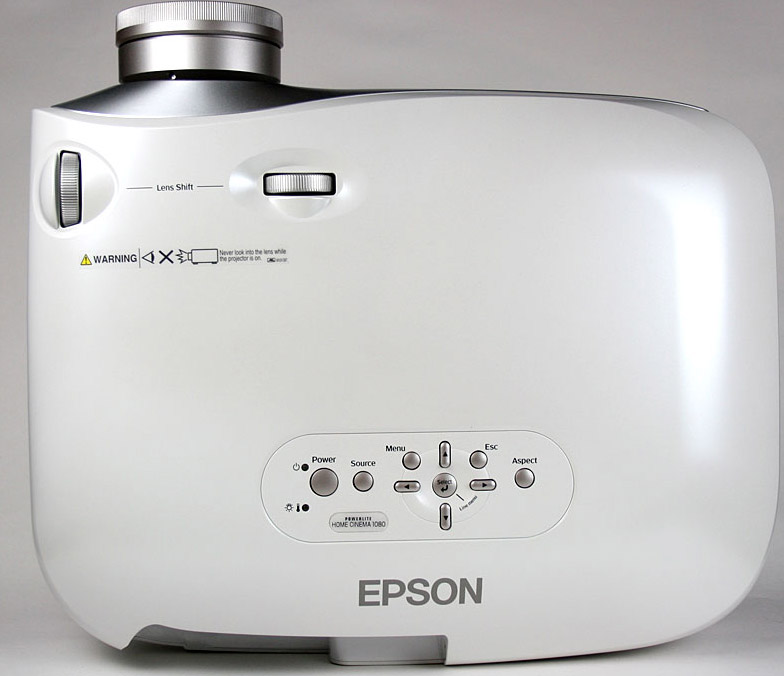
Epson-Home-Cinema-1080-projector-Epson-ELPLP39-projector

Click here for step-by-step instructions on how to change the Epson ELPLP39 projector lamp for the Powerlite Home Cinema 1080 projector.


Epson-PowerLite-Pro-Cinema-1080-UB-projector-Epson-ELPLP39-lamp

Click here for step-by-step instructions on how to change the Epson ELPLP39 projector lamp for the PowerLite Home Cinema 1080 UB projector.


Epson-PowerLite-Home-Cinema-720-projector-Epson-ELPLP39-lamp


Click here for step-by-step instructions on how to change the Epson ELPLP39 projector lamp for the PowerLite Home Cinema 720 projector.


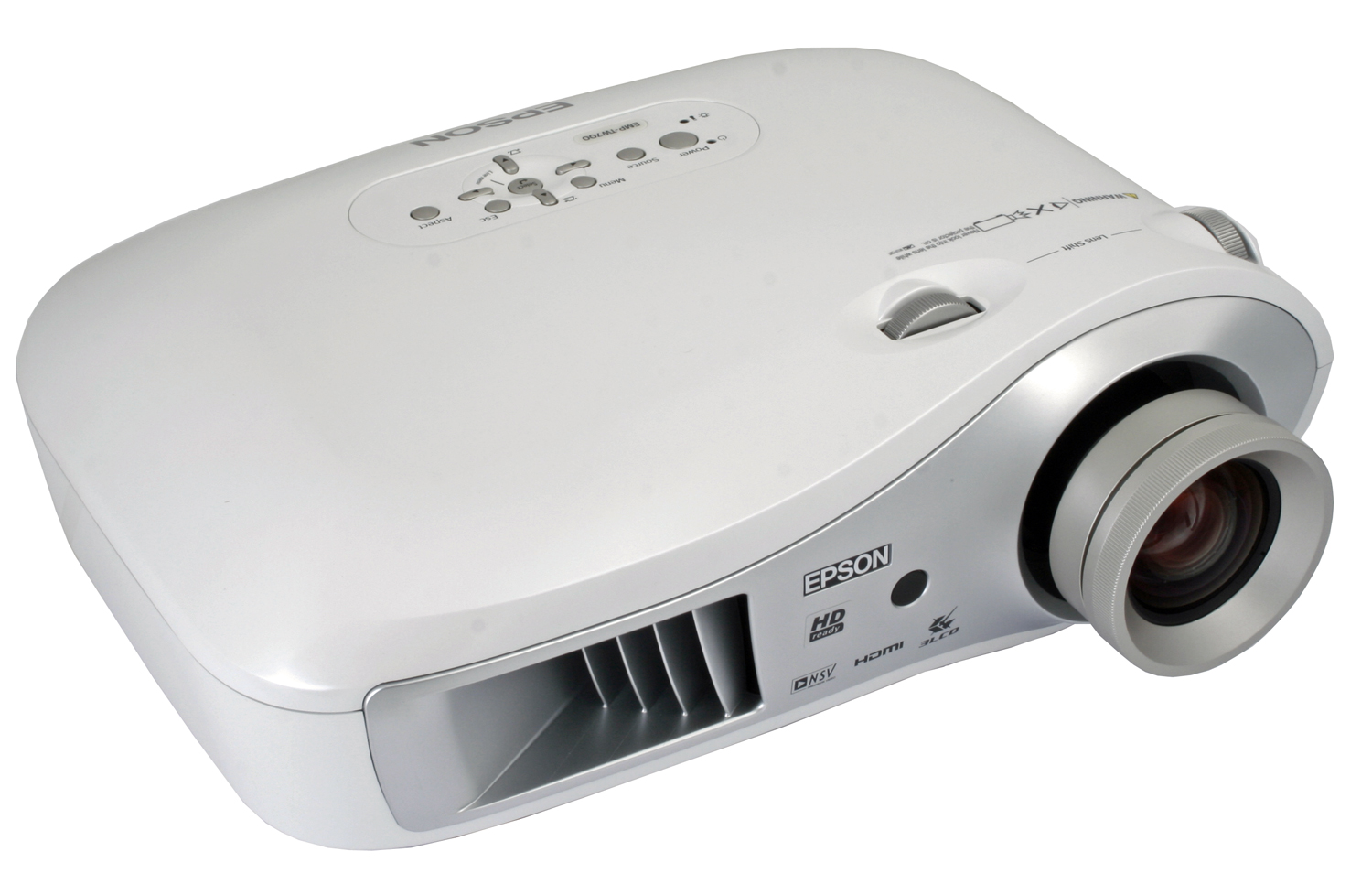
Epson-EMP-TW700-projector-Epson-ELPLP39-lamp


Click here for step-by-step instructions on how to change the Epson ELPLP39 projector lamp for the EMP-TW700 projector.


Prolong the life of the Epson ELPLP39 lamp:

Extend the life of the newly installed Epson ELPLP39 with the following tips:

  • Blocked air filters can cause your projector to overheat and shorten the lamp life.
  • Turning off the Epson projector for at least one hour per day and limiting use to 5 hours of daily usage will prolong lamp life.
  • Make sure there is enough airflow around the projector particularly if it’s been permanently mounted. The projector overheating can shorten the lamp life.
  • Learn more with Top tips for extending DLP projector lamp life
Tagged with: , , , , , , , , , , , , , , , , ,

Epson-Ensemble- HD-1080-projector-Epson-ELPLP39-lampLearn what’s involved to replace the Epson ELPLP39 in the Epson Ensemble HD 1080 projector.

You’ll need to contact the Epson hotline to find a qualified service agent. The Epson Ensemble HD 1080 projector lamp is not one you can replace yourself.

Check lamp hours

You can determine if the Epson ELPLP39 needs to be replaced. In order to access the Checking Info Menu
If you have access to the Epson Ensemble HD 1080 INFO menu, you’ll need the original remote control.

If you no longer have the original remote that came with the Epson Ensemble HD 1080, you have to use the buttons on the projector control panel to access the INFO menu. Removed the bottom of the projector enclosure to access the control panel.

You can also check the warning light on the projector’s control panel. If the warning light is flashing red at half-second intervals the Epson ELPLP39 lamps needs to be replaced.
To use the Epson Private Line Support service call 800-637-7661 and enter the PIN on the EPSON support card that came with your projector. You can also speak with a projector support specialist at 562-276-4394. Both lines are open from 6 am to 6pm Pacfic Time. The support website can be reached at epson.com/support

Buy authentic lamps

You have your project ready for changing the lamps but buying an authentic Epson ELPLP39 lamps. Don’t buy the “generic” lamps who claim their discounted lamps are equal to an OEM lamp. Look for the seal of approval and buy from an authentic manufacturer.

You pay for what you get and in the case of lower-priced generic lamps it’s a long list of problems:

Save yourself unnecessary headaches and buy an authentic Epson ELPLP39 from a recognized dealer. You’ll be getting a far superior product and tech support from an OEM manufacturer. Learn the 7 Ways to Spot a Counterfeit Lamp.

Tips for extending Epson ELPLP39 lamp life

Get more hours from your Epson ELPLP39 lamp by following these maintenance tips:

  • Keep your air filters clean to avoid overheating the projector.
  • Turn off the Epson Ensemble HD 1080 projector and let it stand unused for at least one hour ever 24 hours. An average use of four to five hours per day will ensure longer lamp life.
  • Make sure there is enough airflow around the projector particularly if it’s been permanently mounted.
  • Learn more with Top tips for extending DLP projector lamp life.
Tagged with: , , , , , , , , , ,

Epson-PowerLite-62c-projector-Epson-ELPLP34-lampFollow this quick 3-step guide to install a new lamp in your Epson PowerLite 62c projector.

Step 1: When to replace

Watch for the signs that the Epson ELPLP34 needs to be replaced in the Epson PowerLite 62c projector:

  • Dark image
  • Image that has deteriorated
  • “Replace the Lamp” warning message appears on screen
  • Lamp light flashes orange

You can expect up to the 3000 hours of use with the Epson ELPLP34 before it needs to be replaced, if you have installed an authentic lamp.

The total lamp life will vary. If regular maintenance is done where the air filter is kept clean, the lamp will last longer. If the lamp is used longer than five hours per day this will shorten the Epson ELPLP34 lamp life.

Step 2: Buy authentic

Install a genuine Epson ELPLP34 to keep your Epson PowerLite 62C working properly. It can be tempting to buy a generic lamp off the Internet due to their discount prices. Look for the seal of approval and buy from an authentic manufacturer. Save yourself unnecessary headaches and buy authentic from a recognized dealer. You’ll be getting a far superior product with a replacement guarantee and tech support.

6 reasons to buy authentic

Read more about the 7 Ways to Spot a Counterfeit Lamp.

Step 3: Install the Epson ELPLP34

Before installation:

  • Turn power button off wait for light to stop flashing.
  • Turn off power switch on Epson PowerLite 62c projector.
  • Unplug the power cord.
  • The Epson PowerLite 62c projector operates under extremely high temperatures. Let it cool for at least one hour before replacing the lamp so you don’t get burned.
  • Do not operate the projectors while any of the lamps are removed as this may result in malfunctions, fire hazard and other accidents.


Epson-PowerLite-62c-loosen-screws-Epson-ELPLP34-lamp

The lamp cover is found on top of the Epson PowerLite 62c projector. Using the screw driver that came with the projector, loosen the lamp cover screw. You can’t remove the screw only loosen it.


Epson-PowerLite-62c-lamp-cover-off-Epson-ELPLP34-lamp

Slide the Epson PowerLite 62c lamp cover off.


Epson-PowerLite-62c-loosen-lamp-screws-Epson-ELPLP34-lamp


Loosen the two screws holding the Epson ELPLP34 lamp in place. The screws will not come out all the way.


Epson-PowerLite-62c-lamp-removed-Epson-ELPLP34-lamp

Grab the Epson ELPLP34 lamp by the two indents on the lamp. Gently remove the lamp by lifting straight up.

Pulling too quickly can cause the bulb to shatter. Learn what to do should the bulb shatter.

NOTE: The Epson ELPLP34 lamp contains mercury and should not be thrown into regular garbage. Recycle your used lamps! If you bought from an authentic manufacturer they will recycle the lamp for you at no extra cost (another reason to buy authentic lamps).


Epson-PowerLite-62c-tighten-lamp-screws-Epson-ELPLP34-lampMake sure the Epson ELPLP34 is facing the correct way and slowly push it into the projector.

Tighten the screws on new Epson ELPLP34 lamp when it’s fitted properly into the projector. Caution: Don’t touch the screen or the actual bulb with your finger since the oil from your skin can cause a black spot on the bulb.


Epson-PowerLite-62c-replace-lamp-cover-Epson-ELPLP34-lamp

Replace the lamp cover and tighten the screw on the Epson Powerlite 62C projector lamp cover. You are now ready to reset the lamp timer.


Reset the lamp timer on the Epson Powerlite 62C projector

Reset the Epson Powerlite 62C Lamp Replacement Counter only when the Epson ELPLP34 lamp has been replaced.


Epson-PowerLite-62c-reset-lamp-timer-Epson-ELPLP34-lamp

  • Press the MENU button on the remote control.
  • Scroll down to the RESET option. Press ENTER.
  • Scroll down to Reset Lamp Hours.
  • Press ENTER.
  • A Reset Lamp hours screen will appear.


Epson-PowerLite-62c-reset-lamp-hour-screen2-Epson-ELPLP34-lamp

  • The Reset Lamp hours will appear after you choose the Reset Lamp Hour option.
  • Click on YES. Press MENU.
  • The lamp hours will be reset to zero.

Prolong the life of the Epson ELPLP34 lamp:

Extend the life of the newly installed Epson ELPLP34 with the following tips:

  • Keep your air filters clean to avoid overheating the projector.
  • Turn off the Epson Powerlite 62C projector and let it stand for at least one hour ever 24 hours. An average use of four to five hours per day will ensure longer lamp life.
  • Make sure there is enough airflow around the projector particularly if it’s been permanently mounted.
  • Learn more with Top tips for extending DLP projector lamp life
Tagged with: , , , , , , , , , , , ,

Epson-Ensemble- HD-720-projector-Epson-ELPLP39-lampWondering what’s involved to changing the Epson Ensemble HD 720 projector lamp?

You’ll need to contact the Epson hotline to find a qualified service agent. The Epson Ensemble HD 720 projector lamp is not one you can replace yourself.

Check lamp hours

Find out if the Epson ELPLP39 needs to be replaced y checking the INFO Menu.

You must use the original remote that came with the Epson Ensemble HD 720 to access the Info Menu. This will show the numbers of hours remaining before the Epson ELPLP39 reaches end of life.

If you no longer have lost the original remote, you can still access the INFO menu but through the projector control panel located at the bottom of the projector. You’ll have to remove the projector cover to access the panel.

Epson-Ensemble- HD-720-warning-light-Epson-ELPLP39-lampIf the warning light is flashing red at half-second intervals the Epson ELPLP39 lamps needs to be replaced.

Find a service repair location or get help changing the lamp by contacting the Epson Private Line Support service at 800-637-7661 and entering the PIN on the EPSON support card that came with your projector. You can also speak with a projector support specialist at 562-276-4394. Both lines are open from 6 am to 6pm Pacfic Time.  The support website can be reached at epson.com/support

Buy authentic lamps

You have your projector ready for service buying an authentic Epson ELPLP39 lamps. Don’t buy the “generic” lamps who claim their discounted lamps are equal to an OEM lamp. Look for the seal of approval and buy from an authentic manufacturer.

You pay for what you get and in the case of lower-priced generic lamps it’s a long list of problems:

Save yourself unnecessary headaches and buy an authentic Epson ELPLP39 from a recognized dealer. You’ll be getting a far superior product and tech support from an OEM manufacturer. Learn the 7 Ways to Spot a Counterfeit Lamp.

Tips for extending Epson ELPLP39 lamp life

Get more hours from your Epson ELPLP39 lamp by following these maintenance tips:

  • Keep your air filters clean to avoid overheating the projector.
  • Turn off the Epson Ensemble HD 720 projector and let it stand unused for at least one hour ever 24 hours. An average use of four to five hours per day will ensure longer lamp life.
  • Make sure there is enough airflow around the projector particularly if it’s been permanently mounted.
  • Learn more with Top tips for extending DLP projector lamp life.
Tagged with: , , , , , , , , , , , ,

Replacing the Epson ELPLP39 lamp in your Epson V11H244020 projector doesn’t have to be a complicated endeavour. Our guide outlines what to do for a quick replacement.

When to replace?Epson-V11H244020-projector-Epson-ELPLP39-lamp

The Epson ELPLP39 lamp can lasts up to 3000 hours depending on the frequency of use and whether regular maintenance is done.

See how many hours are left with Epson ELPLP39 by consulting the Info menu. Also watch for these warning signs:

  • the projected image get darker
  • the warning lamp on the V11H244020 projector flashes red and then continues to flash every half-second
  • the message: “Replace the lamp” flashes on the screen when you start using the projector.

Buying the best lamp

There are a lot of choices for buying a new Epson ELPLP39 lamp on the Internet. You need to approach many of the sites with caution since many are selling generic, knock-off lamps.

These “generic” lamps actually cost more in the long run despite their discount prices.  Generic lamps have been created without proper calibrating, they can also damage the sensitive imaging electronics in your Epson V11H244020.

Copy-cat lamps are also prone to explosions and have a much shorter life. Copy cat manufacturers have created these lamps with toxic substances such as Krypton-85, known to cause cancer. Would you compromise your health and risk your eyesight for the sake of a few dollars?

Buy authentic and get a Epson ELPLP39 that is guaranteed to keep your Epson V11H244020 projector. Look for the seal of approval and buy from an authentic manufacturer.

Learn how to protect yourself from counterfeit manufacturers.

Step 3: Installing the Epson ELPLP39

Pre-installation preparations:

  • let the Epson V11H244020 projector cool for one full hour before trying to replace the lamp. This projector operates under very high temperatures and will be very hot. You can suffer burns if you are change the lamp while the projector is still hot. too impatient to wait until the projector is cool enough.
  • press the power button and wait for the light to stop flashing.
  • turn off the power switch at the back on the projector
  • unplug any power cords to cables to prevent the projector from accidentally being turned on. running the projector without a lamp will damage the projector.

Epson-V11H244020-lamp-cover-Epson-ELPLP39-lamp


Press the latches holding the Epson V11H244020 lamp cover in place. Gently lift off the cover and place it to one side.


Epson-V11H244020-UB-loosen-lamp-screws-Epson-ELPLP39-lamp


Using the screw driver provided, loosen the two screws securing the Epson ELPLP39 lamp. They won’t come all the way out so simply loosen them enough so the lamp can be lifted out.


Epson-V11H244020-remove-Epson-ELPLP39-lamp


Grab the bottom of the Epson ELPLP39 lamp and pull it up with a straight motion. Be sure to properly dispose of the old lamp. Do not throw it into regular garbage as it contains mercury.

Pulling too quickly can cause the bulb to shatter. Learn what to do should the bulb shatter.


NOTE: Don’t throw the Epson ELPLP39 into regular garbage! This lamp contains mercury and should not be properly recycled your used lamps! Your authorized manufacturer will recycle the lamp for you at no extra cost. (Another reason to go with authentic lamps!)


Epson-V11H244020-install-new-Epson-ELPLP39-lamp
Gently line up the new Epson ELPLP39 lamp and slide it into place. Make sure not to touch the glass portion of the lamp. The oil on your fingers may cause the lamp to stop before its time.


Epson-V11H244020-Epson-ELPLP39-lamp


Tighten the screws on the Epson ELPLP39 lamp.


Epson-V11H244020-Epson-ELPLP39-lamp

Replace the Epson V11H244020 lamp cover making sure it’s clicked into place. Otherwise, the projector will not turn on. You are now ready to reset the Lamp Usage Timer.


Reset the Lamp Usage Timer

It’s important to reset the Lamp Usage Timer so the Epson PowerLite Home Cinema 1080 UB projector will know when it’s time for a new Epson ELPLP39 lamp. Resetting the timer before installing a new Epson ELPLP39 can cause serious damage to your projector.

Epson-V11H244020-Epson-ELPLP39-lamp

  • Plug the projector back in.
  • Turn on the power switch on
  • Press the Power button and wait for the Epson Home Cinema 108o to warm up.
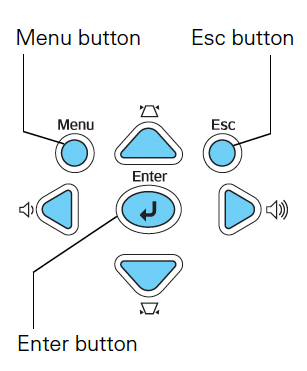
  • Press the Menu button on either the projector or remote control.
  • Scroll down to the Reset menu option.
  • Select Reset Hours.
  • A confirmation message will appear asking if you want to reset the hours Click on yes.
  • Press the Select button.
  • Press the Menu button to exit.

NOTE: A reading of 0H on the lamp usage timer means you’ve used less than 10 hours of lamp time.

Tips for extending Epson ELPLP39 lamp life

Get more hours from your Epson ELPLP39 lamp by following these maintenance tips:

  • Keep your air filters clean to avoid overheating the projector.
  • Turn off the Epson V11H244020 projector and let it stand unused for at least one hour ever 24 hours. An average use of four to five hours per day will ensure longer lamp life.
  • Make sure there is enough airflow around the projector particularly if it’s been permanently mounted.
  • Learn more with Top tips for extending DLP projector lamp life.
 

Tagged with: , , , , , , , , ,

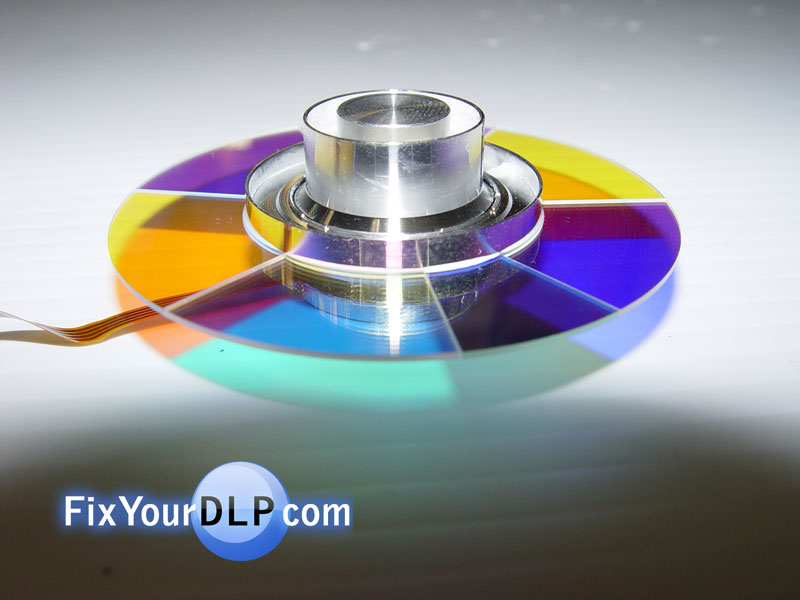
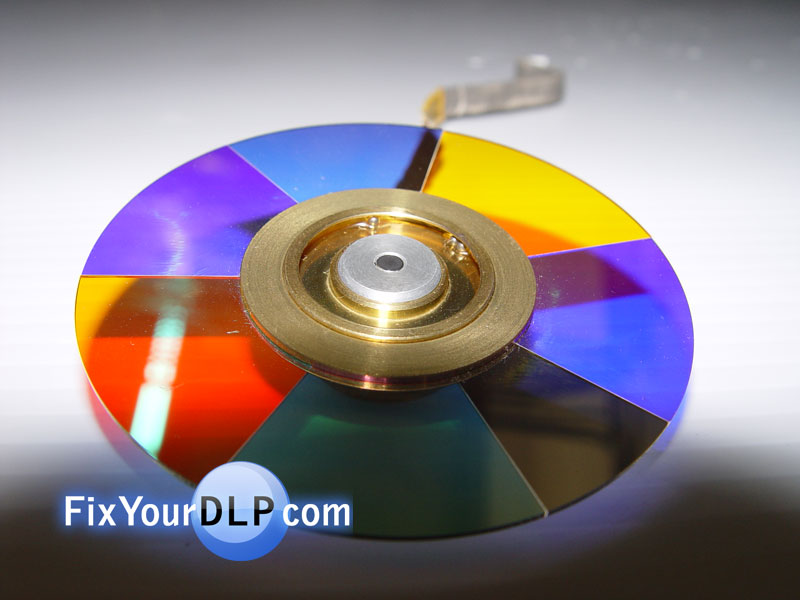
Color Wheel BP96-00674A

Reemplazo de Color Wheel BP96-00674A SAMSUNG


Color Wheel de reemplazo : BP96-00674A

BP67-00097A

Si unicamente requiere comprar este Color Wheel visita este link : DM

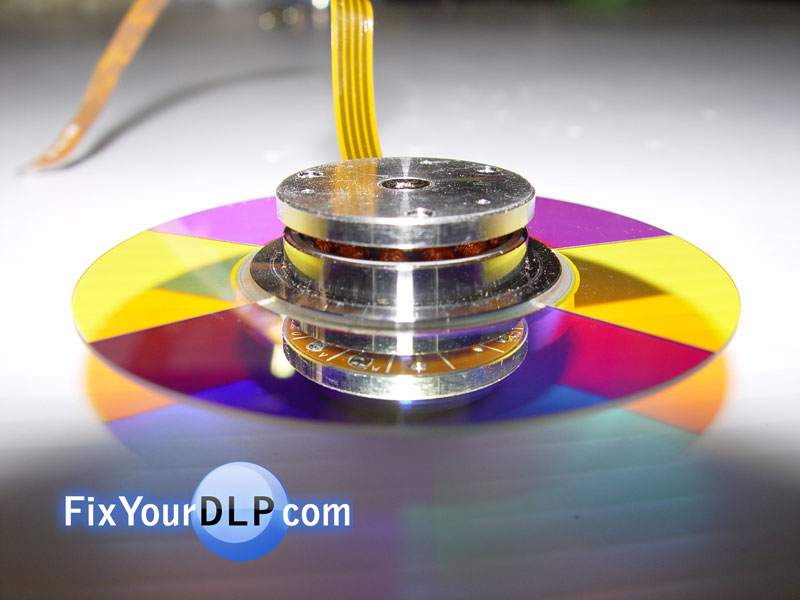
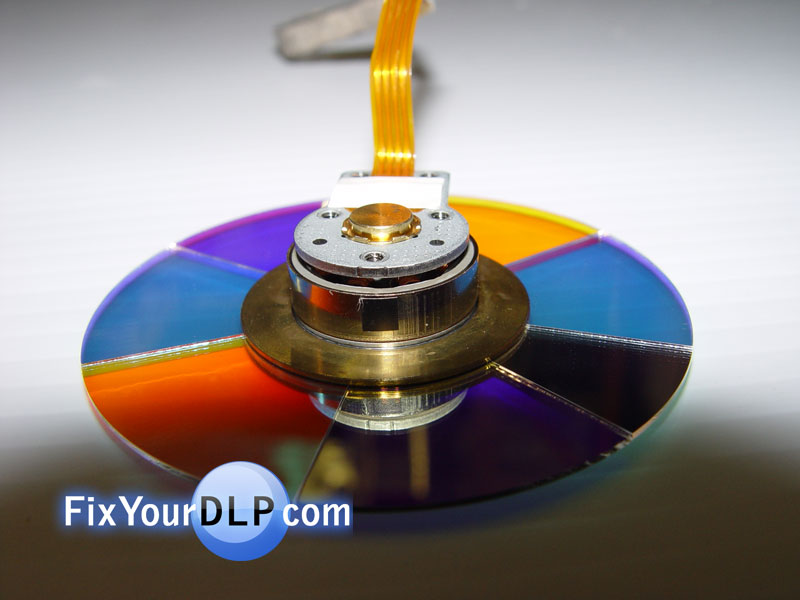
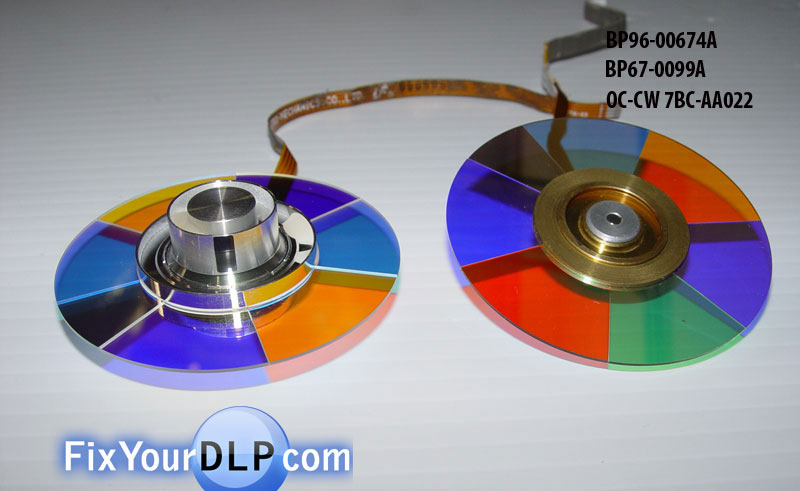
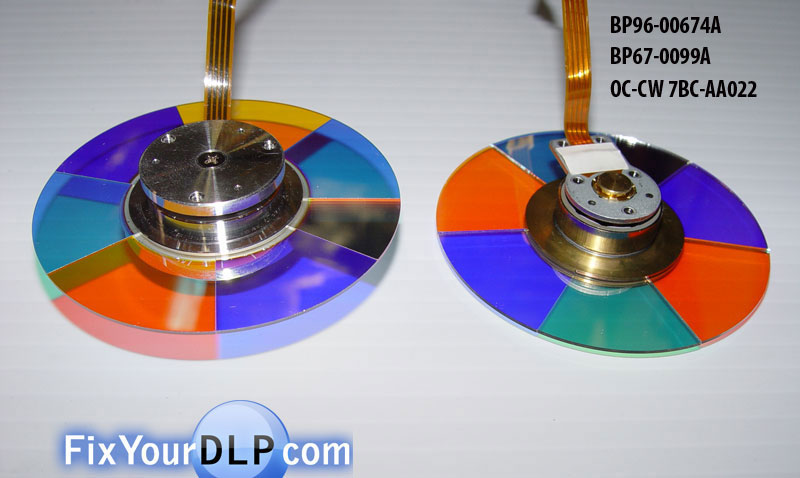
Algunas producciones de TV- DLP Samsung utilizaron 2 tipos de Color wheel en el ensamblado del sistema optico , un color wheel con giro a base de balero/BP900674A ( "embalado " ) y otro con sistema de suspension de aire.
Aunque ambos color wheel’s son del mismo diametro y muy similares estos no son compatibles entre si y no se pueden intercambiar.

La unica manera de intercambio entre ambos es utilizandolos en conjunto con sus receptaculos originales y observando las siguientes condiciones:

1.- Si requiere utilizar el color wheel BP900674A / "montado en su receptaculo original" , en un televisor que tiene un color wheel de suspension de aire, debera poner en corto los pines del conector CN810.

2.- Por el contrario si requiere utilizar el conjunto de color wheel / Aire , en un televisor que tiene un color wheel /"embalado" , entonces debera retirar el corto de los pines del conector CN810.

En conclusion :

A: Color Wheel/ "Embalado" : los pines del conector CN810 deberan estar en corto.

B: Color Wheel/Aire : los pines del conector CN810 deberan estar abiertos.

El color wheel embalado # parte : BP900674A , BP67-0099A , lo puede reemplazar en caso de rotura o falla , utilizando su receptaculo original.

Enseguida les mostramos las diferencias entre estos dos tipos de color wheel.


Vista Frontal
Color Wheel
"AIRE"
Vista Frontal
Color Wheel
"EMBALADO"
Vista Area del Motor
"AIRE"

Vista Area del Motor
"EMBALADO"
 
Ambos Color Wheel’s
Area del Frente

Ambos Color Wheel’s
Area de los Motores
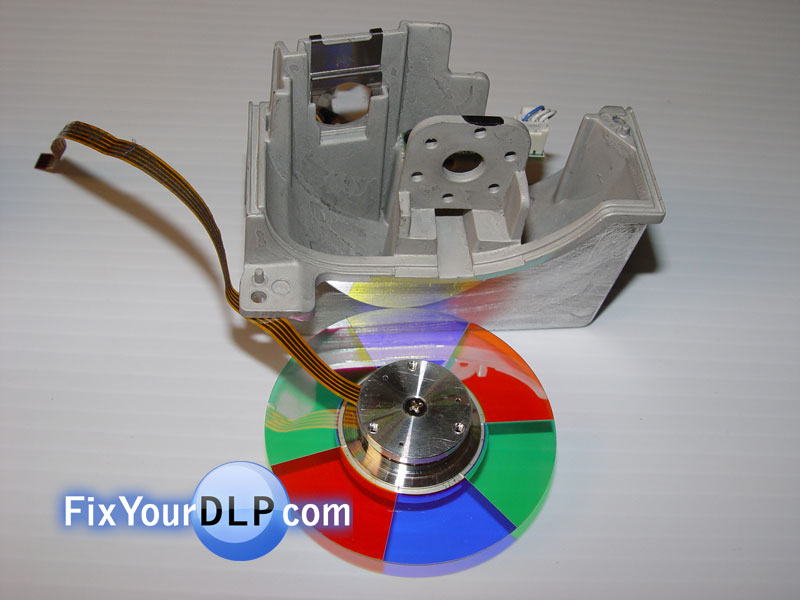
Receptaculo y Color Wheel
"AIRE"

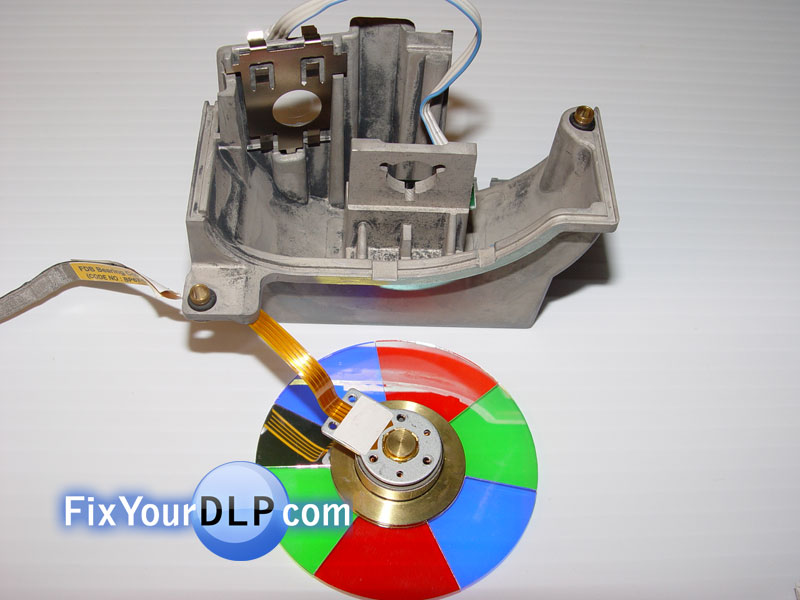
Receptaculo y Color Wheel
"EMBALADO"


Si necesitas comprar este Color Wheel para reemplazo visita : Discount_Merchant

Checa esta empresa no solo tiene este Color wheel , tiene mas refacciones para tu TV / DLP / Plasma y LCD . Cuentan con servicio de envio directo de partes a tu domicilo y en todas las ciudades del mundo.

http://www.discount-merchant.com/


Join the discussion on Facebook! All your questions, answered! The Screen & Projector Group